
 Home »
How to Turn Off Ad Blocker on Chrome
Ad blockers block annoying ads, pop-ups, and distractions — great. But every now and then, they also block things you actually need.
Maybe a video refuses to load, or a site keeps flashing a “please disable your ad blocker” message, or you just need to test something real quick without anything getting in the way.
But (thank us later), and whether you’re using Chrome on Windows, Mac, Chromebook, Android, or iPhone, there’s always a quick way to switch things off or tweak settings so everything runs smoothly.
In this guide, we’ll show how to turn off ad blocker in Chrome, how to disable adblock on Chrome for specific sites, and how to get things working again when the browser throws a tantrum.
- Understanding Why and When to Disable an Ad Blocker
- How to Turn Off Ad Blocker on Google Chrome (Desktop)
- How to Turn Off Ad Blocker on Chromebook
- How to Turn Off Ad Blocker on Chrome Mobile
- Alternative: Temporarily Pause Ad Blocker Extensions
- Why Choose Stands Adblocker
- Troubleshooting Common Issues
- FAQs
- Conclusion
Understanding Why and When to Disable an Ad Blocker
Ad blockers work by filtering scripts and elements on websites.
Here’s when you might need to turn off your ad blocker:
| Situation | What’s going on |
| Video won’t play | The player relies on ad scripts to load properly |
| Page is broken | Some site elements get blocked by mistake |
| Login issues | Tracking or security scripts are filtered |
| Content blocked message | Site detects adblock and locks content |
| Pop-ups not working | Required windows are being blocked |
The trick is knowing you don’t always need to fully remove your ad blocker. Most of the time, a quick pause or site-specific exception does the job just fine.
How to Turn Off Ad Blocker on Google Chrome (Desktop)
If you’re on a laptop or desktop, this is where things are easiest. Chrome gives you full control over extensions and settings, so you’re never more than a couple of clicks away from fixing things.

Turn off third-party ad blocker extensions
Most people use extensions like Adblock Plus, uBlock Origin, or tools like Stands AdBlocker to handle ads.
If you want to disable them quickly:
- Open Chrome
- Look for the puzzle piece icon in the top-right corner
- Find your ad blocker in the list
- Click it and look for options like:
- Pause on this site
- Turn off ad blocking
- Disable for this page
- Select the option that fits your needs
That’s the quick “get things working again” method.
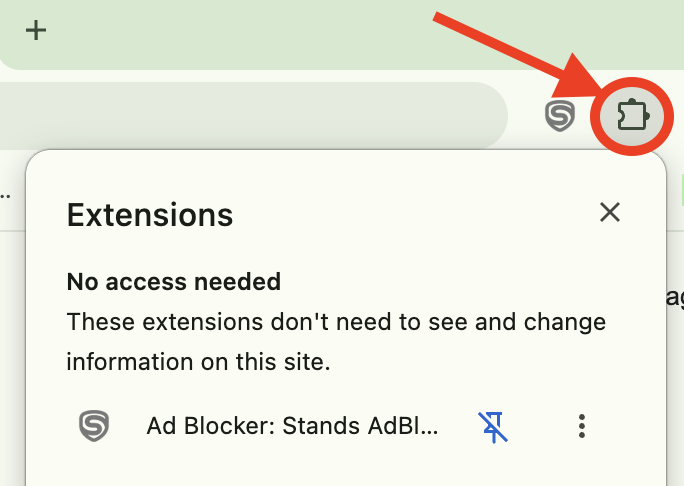
If you want to fully shut it down:
- Click the three vertical dots in the top-right corner
- Go to Extensions → Manage Extensions
- Find your ad blocker
- Flip the toggle switch off
And just like that, your Chrome disable ad blocker setup kicks in immediately.
If you’re actively searching for:
- how to turn off ad blocker on chrome
- how to disable adblock on chrome
- disable adblock chrome
This is the method you’ll use most often.
You can also manage or install tools like Stands AdBlocker if you want a simpler way to control ads without constantly digging through settings.
Turn off Chrome’s built-in ad blocker
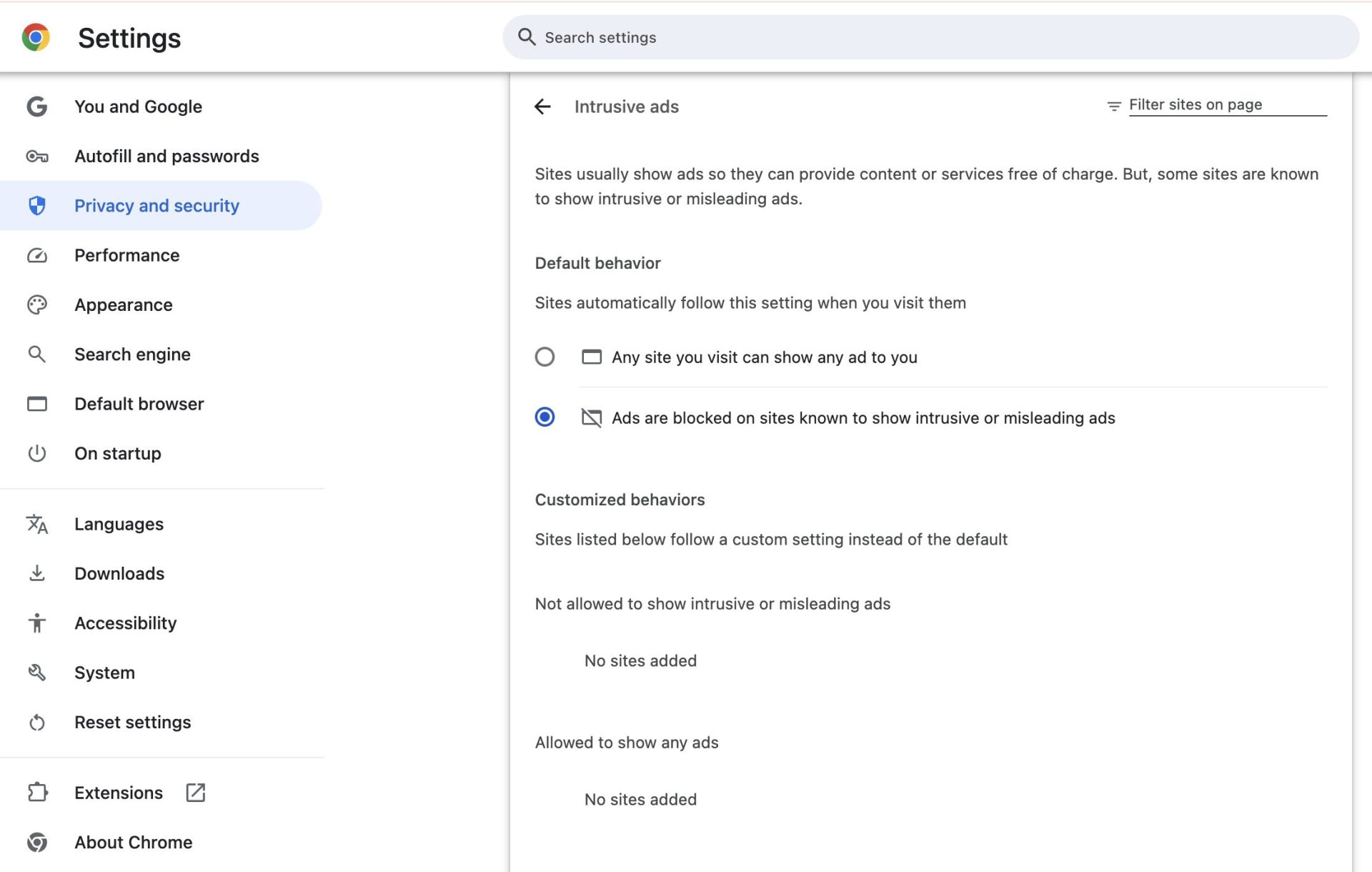
Chrome itself also has light ad filtering built in. It’s not a full ad blocker, but it can still interfere with certain sites.
To adjust it:
- Open Chrome
- Go to Settings
- Head into Privacy and Security
- Open Site Settings
- Scroll down to Additional Content Settings
- Click Ads or Intrusive Ads
- Choose the option that allows ads
Once this is set, Chrome stops being picky about “intrusive” ad formats and lets pages load normally.
Allow ads on specific websites only
Here’s a smarter move than turning everything off: just whitelist the site.
Instead of going full “ad blocker off,” you can say:
“Hey, this site is fine. Let it do its thing.”
Steps:
- Open the website you want to allow ads on
- Click the lock icon next to the address bar
- Go to Site settings
- Find ads or permissions
- Set it to allow
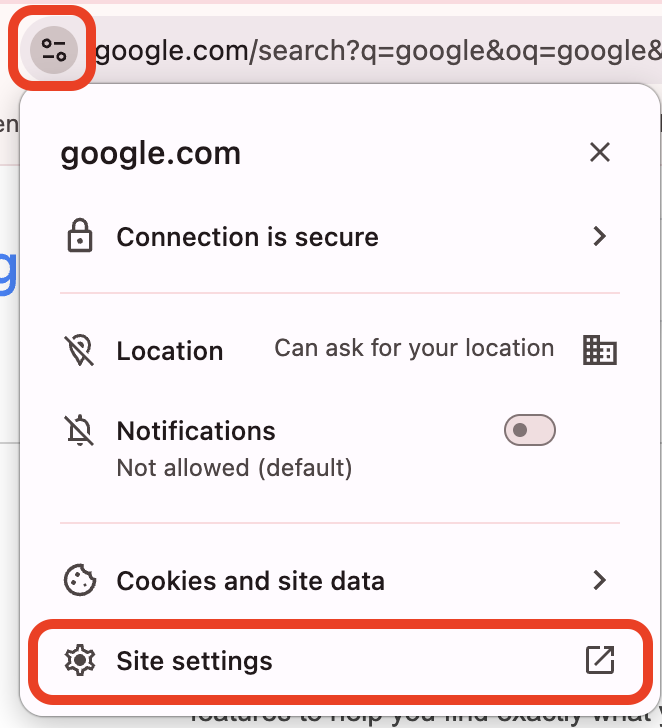
Most modern ad blockers also let you do this directly from their toolbar icon — one click and you’re done.
This is the sweet spot: you still block junk everywhere else, but support sites you actually care about.
For more control, tools like Stands AdBlocker make it super easy to manage site-by-site permissions without digging through menus.
How to Turn Off Ad Blocker on Chromebook
If you’re using a Chromebook, things feel a bit different — but don’t worry, it’s basically the same Chrome under the hood.
So if you’re wondering how to turn off ad blocker on Chromebook, here’s the deal: extensions and settings behave almost exactly like desktop Chrome.

Quick steps to disable ad blocker on Chromebook
- Open Chrome
- Click the puzzle piece icon (extensions)
- Find your ad blocker
- Click it
- Choose:
- Pause on this site
- Disable temporarily
- Allow ads
To fully turn it off:
- Go to Extensions → Manage Extensions
- Find the ad blocker
- Toggle it off
And boom — you’ve handled how to disable ad blocker on Chromebook without breaking a sweat.
A quick heads-up though: if your Chromebook is managed by school or work, some extensions might be locked down. In that case, you may not have full control.
How to Turn Off Ad Blocker on Chrome Mobile
Mobile is where things get a little tricky.
Chrome on Android and iOS doesn’t support the same extension system as desktop, so ad blocking usually comes from apps, VPNs, or browser-level settings.
Let’s break it down.
Android
If you’re on Android and trying to figure out how to turn off ad blocker on Google Chrome, here’s what usually matters:
- Open Chrome
- Go to Settings
- Tap Site Settings
- Check:
- Pop-ups and redirects
- Ads settings
- Allow permissions if needed
Now here’s the important part: a lot of Android ad blocking doesn’t actually come from Chrome itself. It comes from:
- VPN-based blockers
- Third-party apps
- DNS filtering tools
So if Chrome still feels “filtered,” check your system settings:
| Place to check | What to look for |
| Network settings | VPN enabled |
| Apps | Ad-blocking tools |
| Private DNS | Filtering service |
If something’s running in the background, that’s likely your real blocker.
You can also follow this guide if you want deeper steps:
How to Block Ads on Chrome Android
iPhone and iPad
On iOS, Chrome itself doesn’t usually handle ad blocking directly. Instead, Safari settings or content blockers do the heavy lifting.

To disable them:
- Open Settings
- Tap Safari
- Go to Extensions or Content Blockers
- Find your ad blocker
- Turn it off
Simple as that.
If ads are still blocked inside Chrome on iOS, it’s usually tied to system-level filtering or another installed app.
At this point, you’ve basically covered all the main ways people search for:
- how to turn off ad blocker on chrome
- how to turn off ad blocker on chromebook
- how to turn off adblock on chrome
Alternative: Temporarily Pause Ad Blocker Extensions
Sometimes you don’t need to go full “off switch mode.” You just need a quick breather.
That’s where pausing your ad blocker comes in handy. Think of it like hitting the snooze button instead of unplugging the alarm clock completely.
Most extensions give you a way to pause protection without uninstalling anything.
Here’s how it usually works:
| Option | What it does | When to use it |
| Pause on this site | Stops blocking only on one website | When a page is broken or blocked |
| Pause temporarily | Turns off protection for a short time | Quick testing or troubleshooting |
| Disable extension | Turns it off but keeps it installed | When you need a deeper fix |
| Remove extension | Deletes it completely | When you’re done using it |
To pause your ad blocker in Chrome:
- Click the puzzle piece icon
- Open your ad blocker
- Choose Pause on this site or similar option
- Refresh the page
And just like that, you’re back in business.
This is usually the smartest move when you're figuring out how to turn off ad blocker in Chrome without messing up your whole setup.
Why Choose Stands Adblocker
Not all ad blockers are built the same; some are clunky, some slow your browser down, and some feel like they need a PhD just to configure.
That’s where Stands AdBlocker comes in.
It’s built for people who just want things to work — no fuss, no digging through endless menus.
You can learn more about it here:
Key advantages over other Chrome ad blockers
Here’s a quick side-by-side look at what makes it stand out:
| Feature | Stands AdBlocker | Typical ad blockers |
| Easy on/off control | One-click toggle | Often buried in settings |
| Site whitelist | Super simple | Sometimes confusing |
| Performance impact | Lightweight | Can slow browsing |
| Setup process | Plug-and-play | Requires tweaking |
| User interface | Clean and simple | Often cluttered |
The big win here? You’re not constantly fighting your own browser.
It just works in the background, and when you need to turn off your ad blocker, it’s right there — no scavenger hunt required.
If you’ve ever felt like your ad blocker was “doing too much,” this is the kind of tool that keeps things balanced.
Troubleshooting Common Issues
Alright, so you flipped the switches, followed the steps, but something still feels off?
Don’t worry — this happens more often than you’d think. Chrome can be a bit picky sometimes.
Here’s how to get things back on track.
| Problem | What’s going on | Quick fix |
| Site still says “ad blocker detected” | Multiple blockers running | Disable extra extensions |
| Videos won’t load | Scripts still blocked | Pause ad blocker on site |
| Pop-ups not working | Chrome settings blocking them | Enable pop-ups |
| Ads still blocked after turning off | Cache issue | Clear browser cache |
| Extension missing | Accidentally removed | Reinstall from Chrome Web Store |
A lot of users don’t realize they’re running more than one blocker at the same time.
It’s like trying to use two remote controls for the same TV — things get messy fast.
So here’s a quick cleanup checklist:
- Open Manage Extensions
- Look for anything ad-related:
- Adblock Plus
- uBlock Origin
- Privacy tools
- Turn off duplicates
- Restart Chrome
Still stuck?
Try this:
- Refresh the page
- Restart your device
Nine times out of ten, that does the trick.
FAQs
Let’s clear up some of the most common questions people have when trying to figure out how to turn off an ad blocker on Chrome.
How do I know which ad blocker is active in Chrome?
Easy. Just click the puzzle piece icon in the top-right corner of Chrome.
That opens your extensions list. Anything filtering ads will usually be labeled clearly — like Adblock Plus, uBlock Origin, or similar tools.
If you’re not sure, disable one at a time and refresh the page. A bit old-school, but it works.
Can I turn off ad blocker just for one site?
Yes — and honestly, this is the best way to do it.
Most extensions let you:
- Pause on this site
- Allow ads for this page
- Whitelist the domain
It keeps your browsing protected everywhere else while letting specific sites load properly.
Think of it like letting a friend into your house while still locking the front door.
Will disabling ad blockers make my computer unsafe?
Not instantly, but it can open the door to more intrusive content.
Some ads can be:
- Distracting
- Track-heavy
That said, you’re not suddenly “unprotected” just because you turned off an ad blocker for a few minutes.
Just stick to trusted sites and you’ll be fine.
If you want a deeper dive into managing protection safely, this guide helps:
How to Turn Off Ad Blocker
How do I re-enable ad blocker after turning it off?
No stress — it’s a quick flip back.
- Go to Extensions
- Find your ad blocker
- Turn the toggle back on
If you only paused it, just reopen the extension and hit “resume protection.”
You’re basically just flipping a light switch.
What’s the difference between pausing and completely removing an ad blocker?
Good question — this confuses a lot of people.
Here’s the breakdown:
| Action | What happens |
| Pause | Temporarily stops blocking |
| Disable | Keeps it installed but inactive |
| Remove | Deletes it from Chrome |
If you’re just trying to fix a site, pausing is usually the way to go.
Removing is more like breaking up — pause is just taking a break.
Conclusion
At the end of the day, figuring out how to turn off ad blocker on Chrome is all about control.
You don’t have to ditch your ad blocker completely. You just need to know when to dial it back.
Most of the time, a quick pause or site exception is all it takes to get things running smoothly again.
And if you’re switching tools or exploring options, you can always check:

