
 Home »
Turn Off Pop‑Up Blocker on Any Browser
Pop up blockers are helpful tools for blocking advertisements, but sometimes, they interfere with necessary functionalities on some websites. While blocking unwanted pop ups, they can also block forms, login windows, or other relevant content. So, how do you turn off pop up blockers? Understanding when and how to disable them will help ensure a better online experience tailored to your needs.
- How to Disable PopUp Blockers on Chrome
- How to Disable Pop Up Blocker on Firefox
- How to Disable Pop Up Blocker on Microsoft Edge
- Learn to Disable a Pop Up Blocker on Safari
- How to Turn Off Pop Up Blockers on Internet Explorer
- How to Turn Off Pop-Up Blockers on Opera Browser
- Stands AdBlocker: An Effective Solution for Pop Up Management
- Common Issues and Troubleshooting When Disabling Pop Up Blockers
- FAQ
What Is a Pop Up Blocker?
Pop up blockers are browser extensions or applications designed to prevent pop-up windows from opening when browsing. But how do adblockers work? These tools identify advertisements by combining various techniques, such as filter lists, to avoid displaying them. When a browser sends a request to a server, the ad blocker identifies the requested URL and blocks it before the content is downloaded. Adblockers also prevent additional elements, such as images or video advertisements, from being downloaded.
However, some pop ups, such as those that provide authentication factors for logging in or making an online payment, may be helpful. Read on to find out more reasons to disable an ad blocker.
Reasons to Turn Off Pop Up Blockers
While third-party ad blockers can offer a smoother, more productive, and uninterrupted viewing experience, there may also be some reasons why you might consider disabling them:
- Improve viewing quality: Because ad blockers are software, they may cause page functionality issues and affect the loading and quality of videos.
- Accessing essential functionality: Some websites, such as online banks, rely on pop ups to log in, make payments, or display additional information.
- Interaction with government sites: Some government sites may use pop ups to access forms, registration, payment processes, etc.
- Incompatibility with software and extensions: Ad blockers could affect the functionality of other installed programs or extensions, so checking their compatibility before downloading is necessary to avoid malfunctioning.
- Support for content creators: Video platforms like YouTube have a business model based on advertising. Content creators rely on this advertising revenue to fund their work, so using ad blockers could affect their remuneration.
Want to learn how to block pop ups on Chrome? Read on and find all the answers you seek.
How to Disable PopUp Blockers on Chrome
Disabling pop-up blockers on Google Chrome follows a consistent process across desktop, Android, and iOS devices, though the navigation paths differ slightly between platforms. Whether you're accessing Chrome settings through the three-dot menu on desktop, adjusting site settings on your Android phone, or managing content settings on your iPhone or iPad, the core concept remains the same: navigating to the Privacy and Security section to allow pop-ups and redirects. Understanding Chrome's approach to pop-up management provides a foundation for working with similar settings in other browsers.
How to Turn Off Pop Ups Blocker on Google Chrome Desktop
- Then select the 'Settings' option.
- Go to the 'Privacy and Security' section.
- Select 'Site settings' and then look for 'Pop ups and redirects.'
- Activate the option to allow pop-ups.
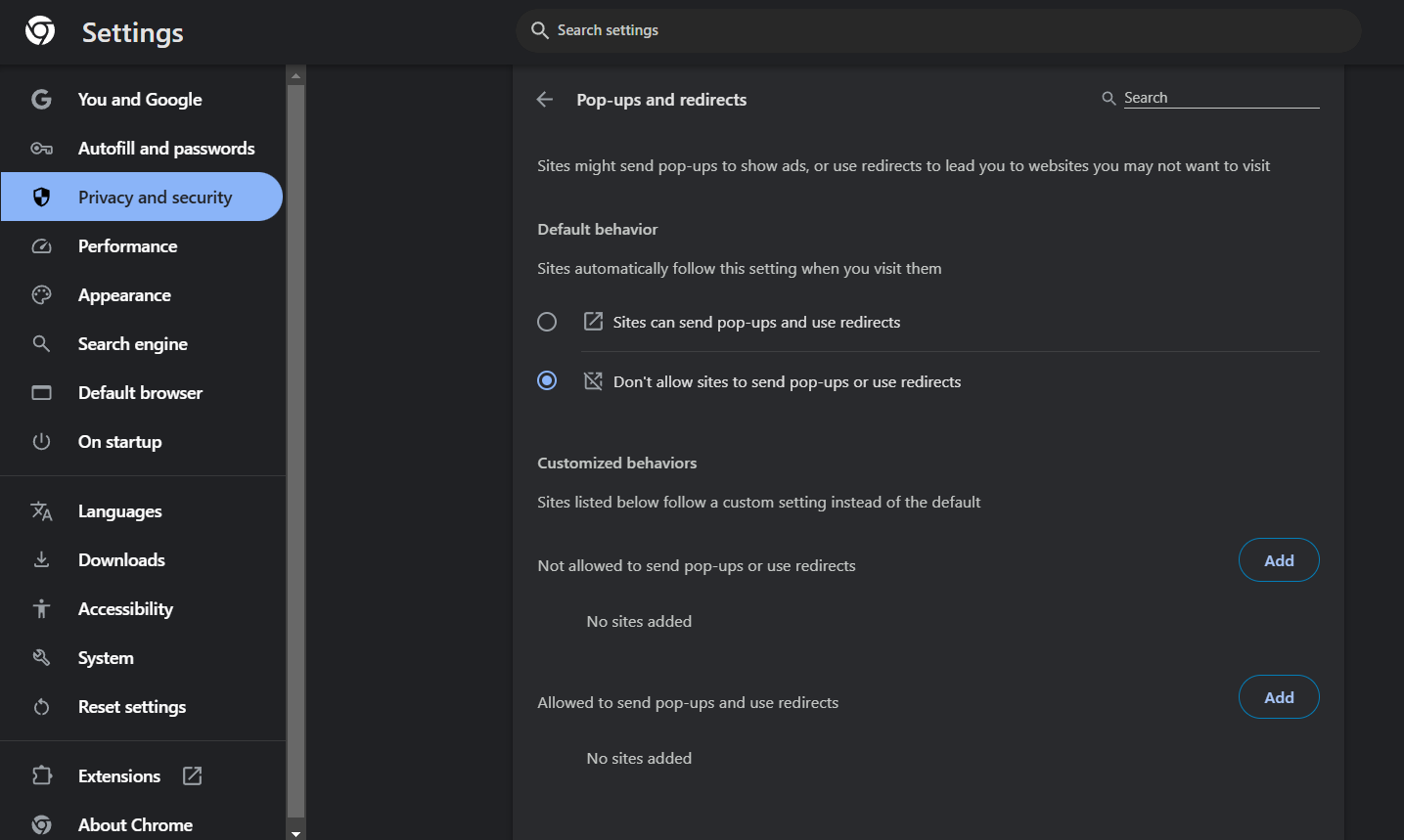
Do you need more help with your pop-up blocker in Chrome? Visit Google Chrome Help for more information.
How to Turn Off Pop Up Blocker on Chrome for Android
- Open your Chrome browser on your Android phone or device.
- Then go to 'Site settings' and select 'Pop ups and redirects.'
Would you like to learn how to stop pop-up ads on Android? Read our article to find all the tricks and tips.
How to Turn Off Pop Up Blocker on Chrome for iPhone/iPad
- Open the Chrome browser on your iOS device.
- Tap the three dots and select 'Settings'.
- Then go to 'Content settings' and look for the pop up option.
- Turn it on to allow pop ups.
How to Disable Pop Up Blocker on Firefox
Firefox's pop-up blocker settings follow an intuitive approach across desktop, Android, and iOS platforms, with the "Block pop-up windows" checkbox serving as the primary control mechanism. Located within the Privacy and Security section, Firefox's pop-up management system offers straightforward enable/disable functionality without the complex navigation paths found in some other browsers. Whether you're unchecking the blocking option on Firefox desktop, toggling the setting in the mobile Android app, or adjusting preferences on your iPhone or iPad, the process remains remarkably consistent and user-friendly.
Learn How to Remove Pop Up Blocker on Firefox Desktop
- Then click on 'Settings.
- Select the 'Privacy and Security' option.
- Uncheck the 'Block pop-ups windows' option.
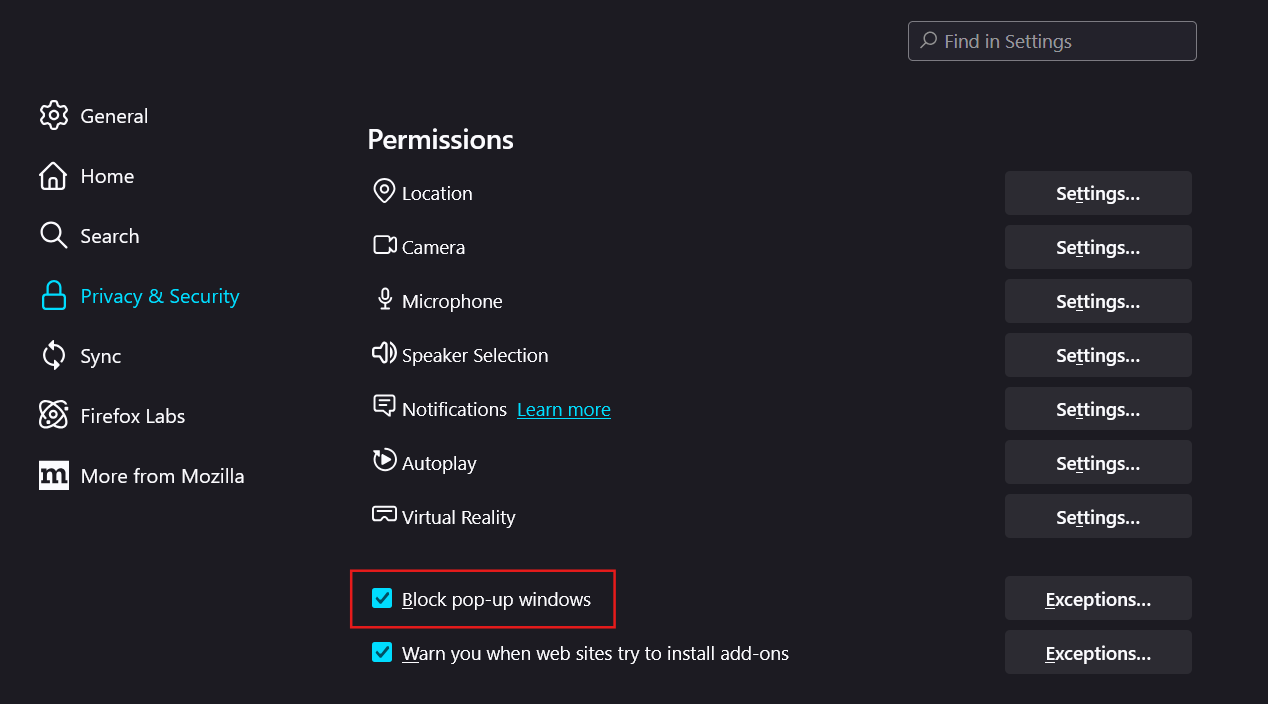
Learn How to Turn Off a Pop Up Blocker on Firefox for Android
- Then go to 'Settings' and look for 'Privacy and Security.'
- Turn off the 'Block pop ups' option.
How to Remove Pop Up Blocker on Firefox for iPhone/iPad
- Open Firefox on your iOS device.
- Look for the 'Block pop ups' option.
- Uncheck this option to disable the pop up blocker.
How to Disable Pop Up Blocker on Microsoft Edge
Microsoft Edge's pop-up blocker configuration utilizes the Privacy and Security framework with an additional "Site Permissions" layer, providing granular control over pop-ups and redirects across desktop, Android, and iOS devices. The process remains consistent across platforms, with users navigating through Settings to access the "Pop-ups and redirects" toggle that enables or disables blocking functionality. Edge's Chromium foundation ensures familiar navigation patterns for users transitioning from Chrome, though the additional Site Permissions menu adds an extra organizational step that distinguishes it from other Chromium-based browsers.
Discover How to Turn Pop Up Blocker Off on Edge Desktop
- Then select 'Settings.'
- Look for the 'Privacy and Security' option.
- In the 'Site Permissions' section, click 'Pop ups and redirects' and turn them on.
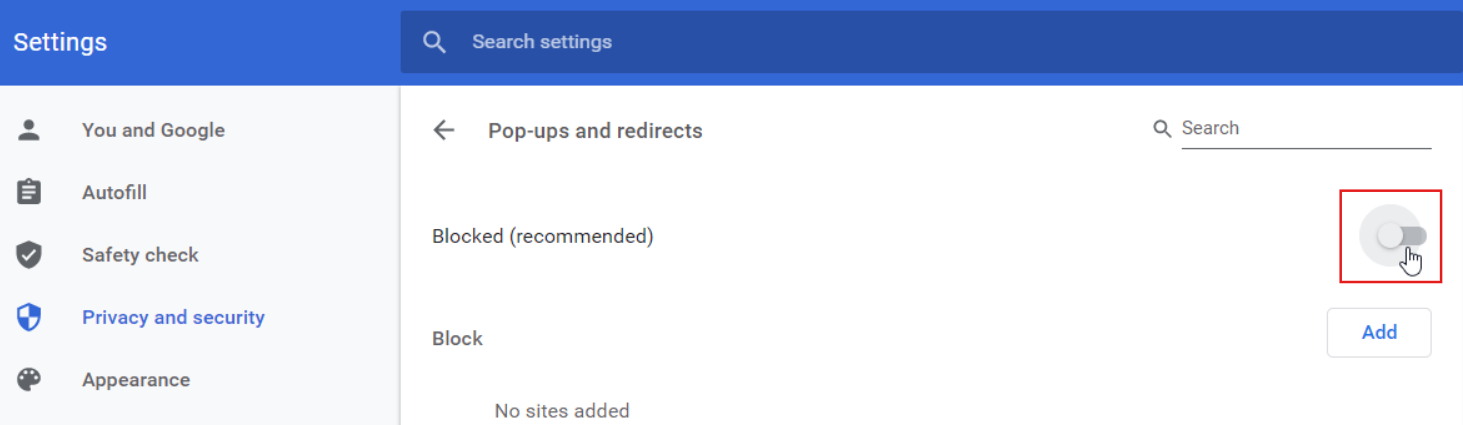
Find out how to configure Microsoft Edge pop up settings here.
Turn Off Pop-Up Blocker on Edge for Android
- Go to the 'Settings' section and 'Privacy and Security.'
- Look for the 'Site Permissions' option and for 'Pop ups and redirects.'
- Uncheck the option to block pop ups.
How to Turn Pop Up Blocker Off on Edge for iPhone/iPad
- Open your Edge browser on your iOS device.
- Then look for 'Privacy and Security' and 'Site Permissions.'
- Then, look for 'Pop ups and redirects.'
- Uncheck the option to block pop ups.
Learn to Disable a Pop Up Blocker on Safari
Safari's unique approach to pop-up blocking—accessing controls through system Preferences on Mac rather than browser settings, and through the iOS Settings app on iPhone and iPad—reflects Apple's integrated ecosystem design. This system-level implementation differs fundamentally from the browser-centric approaches of Chrome, Firefox, and Edge, where pop-up settings reside within the browser's own menu structure. Safari's "Block pop-ups" checkbox in the Security section on Mac and the General section on iOS provides straightforward toggle functionality, though the navigation path to reach these settings diverges significantly from other major browsers.
Discover How to Stop Pop Up Blocker on Safari on Mac
- Open your Safari browser.
- Then go to 'Preferences'.
- Select the 'Security' option.
- Uncheck the 'Block pop ups' option.
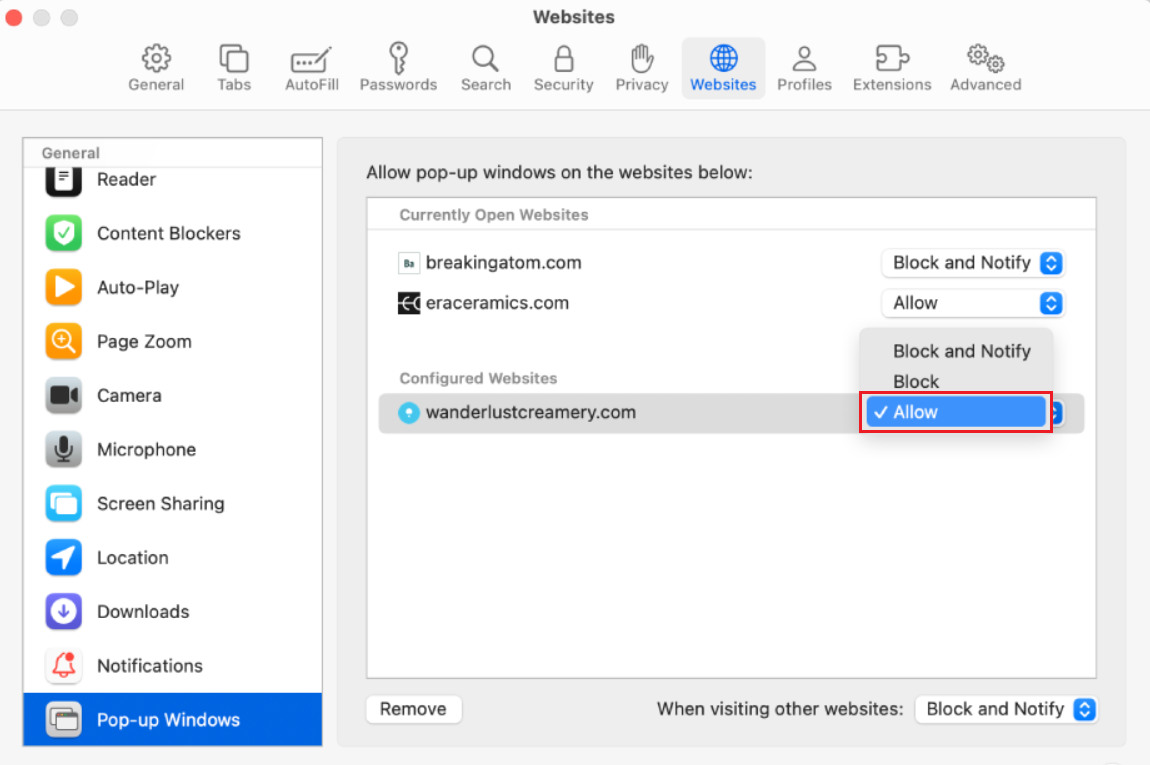
Learn more about how to stop pop up blocker on Safari for Mac.
How to Deactivate Pop Up Blocker on Safari for iPhone/iPad
- Open the Settings application on your iOS device.
- Search for Safari and go to the 'General Section.'
- Turn off the option 'Block pop ups.'
How to Turn Off Pop Up Blockers on Internet Explorer
Internet Explorer's pop-up blocker management through the Tools menu represents the legacy approach to browser security settings, reflecting design patterns from an earlier era of web browsing. Despite being superseded by Microsoft Edge as Windows' default browser, Internet Explorer remains present on many systems—particularly in enterprise environments where legacy web applications require its specific rendering engine. The straightforward "Turn on Pop-up Blocker" toggle in the Tools menu provides simple enable/disable functionality, though IE's declining usage means fewer users need to navigate these settings compared to modern browser alternatives.
Learn How to Disable Pop-Up Blocker on Internet Explorer Desktop
- Go to 'Tools' and then to 'Pop up Blocker'.
- Select the 'Turn on Pop up Blocker' option.
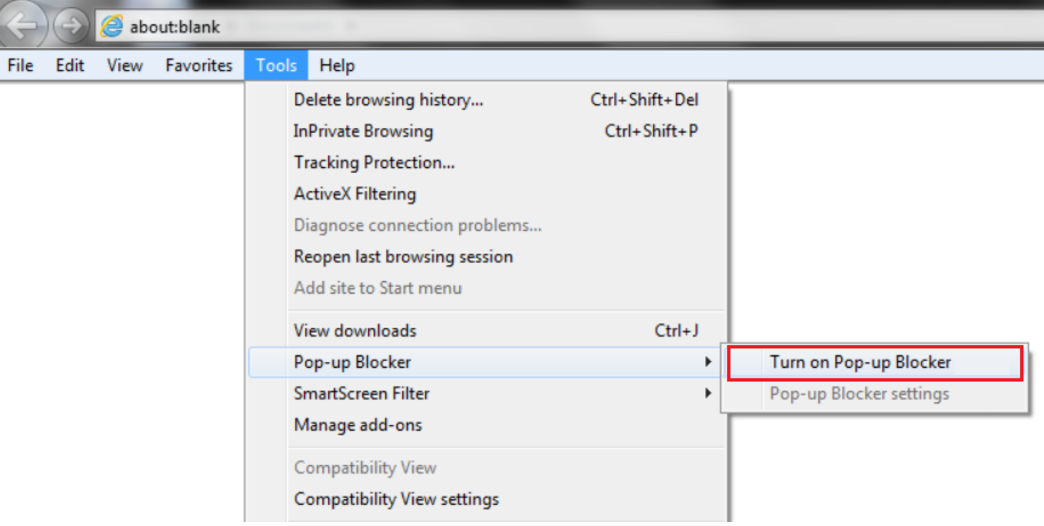
How to Turn Off Pop-Up Blockers on Opera Browser
Opera's "Sites can send pop-ups and redirects" setting within the Advanced Security and Privacy section completes the comprehensive overview of pop-up blocker management across all major browsers and platforms. From Chrome's straightforward site settings and Firefox's simple checkbox to Safari's system-level integration, Edge's Site Permissions structure, Internet Explorer's Tools menu, and Opera's Default Behavior options, each browser implements pop-up blocking differently while achieving the same fundamental goal. With this browser-specific knowledge, you can now disable pop-up blockers on any platform — whether you're using Windows, Mac, Android, or iOS devices.
Learn How to Turn Off Your Pop Up Blocker on Opera Desktop
- Open your Opera browser and go to 'Settings.'
- Go to 'Advanced' and then to 'Security and Privacy.'
- Go to 'Default Behavior.'
- Select 'Sites can send pop ups and redirects.'
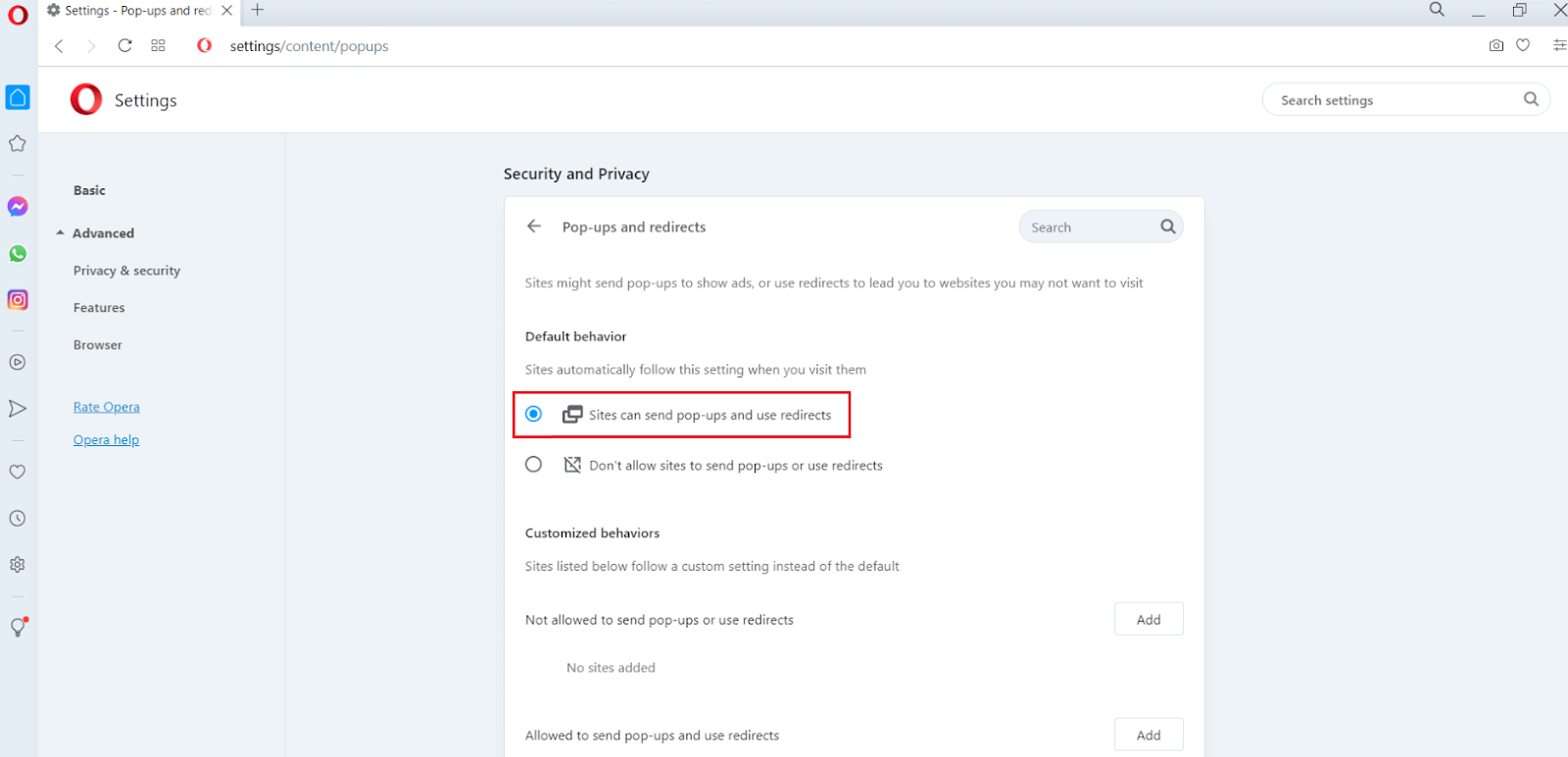
How to Turn Off Pop Up Blocker on Opera for Android
- Open your Opera browser.
- Go to 'Settings' and then to 'Advanced.'
- Then go to 'Security and Privacy.'
- Go to 'Default Behavior.'
- Select the option 'Sites can send pop ups and redirects.'
How to Turn Off Pop Up Blocker on Opera for iPhone/iPad
- Open Opera browser on iOS.
- Go to 'Settings' and search for 'Content filters.'
- Turn of the option 'Block pop ups.'
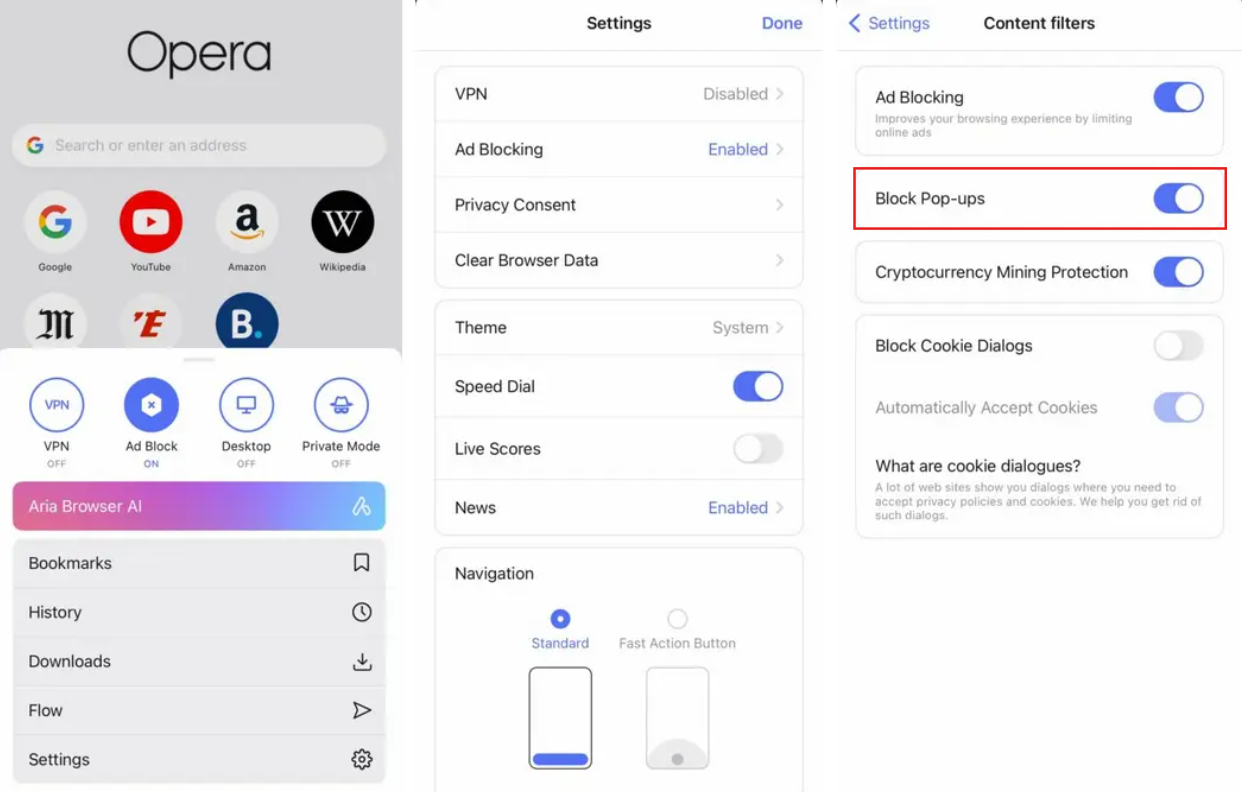
Discover one of the best pop up blockers for iPhones.
Stands AdBlocker: An Effective Solution for Pop Up Management
Stands AdBlocker delivers intelligent pop-up management through its customizable whitelist system, allowing you to block intrusive advertisements site-wide while selectively permitting necessary pop-ups on trusted websites. This selective approach — combined with its free availability, lightweight design, cross-browser compatibility, and mobile data optimization—provides superior flexibility compared to completely disabling your browser's built-in pop-up blocker. By configuring Stands' custom blocking rules and adding specific URLs to your whitelist, you maintain protection against malicious pop-ups while ensuring legitimate website functionality remains intact for banking, payments, government services, and other essential online interactions.
Why Choose Stands AdBlocker?
Stands AdBlocker is a practical and 100% free tool that blocks pop ups during browsing. With Stands, you can choose the content you want to see and the content you wish to block. Discover all the features Stands brings for you:
Features and Benefits of Stands AdBlocker
- 100% free extension: Stands Free Pop Up Blocker is free and easy-to-use software that can be easily installed and customized without paying for subscriptions.
- A lightweight extension: The Stands Free Adblocker extension is designed to use memory efficiently and is lightweight.
- Personalized browsing: You can access the Stands settings to decide which ads to block and customize your whitelists to allow pop ups on specific websites.
- Solution to being more productive: Browse all corners of the Internet without interruptions and focus only on what matters to you.
- Your mobile data savior: Stands offers the best free ad blocker for Android called Stands Browser, which helps you better optimize your megabytes and provides smoother browsing.
Learn How to Use Stands AdBlocker to Block or Allow Pop Ups
Find out how your ad blocker's whitelisting works to allow pop ups on the sites you need:
- Download Stands Free AdBlocker from your browser's extension shop.
- Confirm the download and go to the extension settings.
- Next, configure custom blocking rules to allow pop ups from specific sites.
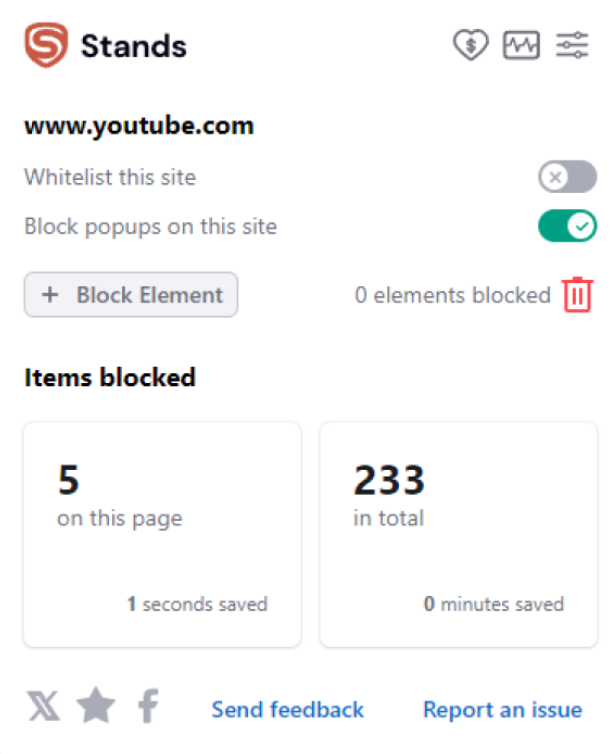
- To do this, you can go to the 'Whitelisted sites' section and add the URL of the site where you want to continue to see ads, for example: 'www.youtube.com.'
- Alternatively, you can go directly to YouTube, click the Stands logo in the upper right corner, and select the option 'Whitelist this site.'
Common Issues and Troubleshooting When Disabling Pop Up Blockers
Resolving persistent pop-up blocking issues requires systematic troubleshooting—checking for conflicting third-party extensions, verifying that browser-level settings are properly configured, and correctly managing site-specific exceptions through whitelist configurations. Even after disabling pop-up blockers in your browser settings, the presence of multiple ad-blocking extensions or hidden security features can continue blocking legitimate pop-ups, requiring you to identify and temporarily disable these additional layers of protection. By methodically addressing each potential conflict point and properly configuring exception lists for trusted websites, you can achieve the perfect balance between security and functionality.
What to Do If Pop Ups Are Still Blocked After Disabling
If pop ups are still blocking, we recommend that you check additional browser settings. As we have seen, some browsers have built-in pop up blocking settings independent of any third-party extensions installed.
Manage your notifications and make sure that no blocking extensions are active. Even if you have disabled the browser's built-in pop up blocker, the presence of other third-party extensions could be blocking pop ups by default. Check your installed ad-blocking extensions and, if necessary, temporarily disable these tools on the site where you want to see pop ups.
How to Manage Pop Up Exceptions
We recommend accessing your browser settings and checking your ad-blocking to manage pop up exceptions. If you are using an ad blocker, add the specific URLs as whitelisted exceptions in your ad blocker settings.
FAQ
How Do I Disable Pop Up Blocker on My Computer?
To temporarily disable the pop-up blocker in your browser, follow the instructions below for your specific browser, and turn off the pop-up blockers. Generally, you will need to go into Settings and then 'Privacy and Security.'
How to Get Rid Off Pop Up Blocker for a Specific Website?
Go to your browser settings and add the site in the exceptions section. You can also add this specific website in the whitelisting settings of your third-party ad blocker.
How to Disable Pop Up Blockers on All Devices?
We recommend that you repeat the process of disabling pop up blocking on each browser and device you use according to their settings.
How Do I Disable Pop Up Blockers on Mobile?
Depending on your mobile device and browser, we recommend following the instructions for your mobile device's browser. Generally, you must go to Settings and then look for the section titled 'Privacy and Security.'
How Do I Know If My Pop Up Blocker Is Off?
To check that your ad blocker is disabled, visit a site that uses pop ups to see if you can view them again.
Thinking about how you stop Total Adblock pop-ups? Find the easy steps to do so.

