
 Home »
How to Clear Cache in Chrome: The 2026 Guide
When you ask how do I clear my cache in Chrome, you can solve your browsing issues in a few seconds: Open Chrome, click your three-dot menu (⋮), select Privacy and Security, click Clear browsing data, check Cached images and files, set your time range to All time, and click Clear data :)
Once you learn how to clear the browser cache in Chrome, you can fix annoying page errors, delete heavy temporary files, and speed up your web browser. Moreover, you can clear out these outdated temporary files without losing any of your saved passwords or personal autofill data, and I am here to help you with that. So let's get into it!
- What is Chrome Cache and Why Clear It?
- How to Clear Cache on Mac
- Clear Cache in Chrome on Windows
- Chromebook Clear Cache Instructions
- How to Clear YouTube Cache in Chrome
- Shortcut to Clear Cache Options
- Clear Cache for Specific Site Only
- Stands AdBlocker Stops Cache Bloat
- Troubleshooting Common Chrome Cache Errors
- Advanced Storage Management Techniques
- FAQ: Clear Chrome Cache
What is Chrome Cache and Why Clear It?
Your Chrome cache acts as a personal storage vault on your computer or phone. When you visit websites, Chrome automatically downloads key files such as high-resolution images, brand logos, code scripts, and formatting stylesheets. Storing these files on your device means Chrome does not need to re-download the exact same files every single time you open your favorite page. This process cuts down your load times and reduces your internet data usage :)
However, this convenient system creates problems over time. Web developers constantly update their websites with new code, fresh layout changes, and modern features. When sites update, your browser often hangs onto old, saved assets stored in your local memory. This mismatch creates what tech experts call the stale content problem. As a result, you might see broken page layouts, missing navigation buttons, non-functional web forms, and unexpected browser lag.
When you clear your cache, you completely erase these old cached images and files. You force Chrome to fetch brand-new files directly from the web host server. This essential cleanup process frees up valuable gigabytes on your hard drive, fixes broken web apps, and ensures you always view the latest, most secure version of any site :)
How to Clear Cache on Mac
When you want to learn how to clear cache on Mac, you can use your fast keyboard shortcut Cmd + Shift + Delete or navigate through your main Clear Browsing Data menu. Setting All time as your selected time range guarantees that you perform a complete cleanup of hidden system files and persistent web assets :)
Follow these simple, step-by-step instructions for how to clear cache in Chrome on Mac:
- Open your Chrome browser on your Mac computer.
- Click on Clear browsing data to open your browser cleanup panel.
- In your pop-up window, locate your Time range dropdown box and select All time.
- Place a clear check mark in your box next to Cached images and files.
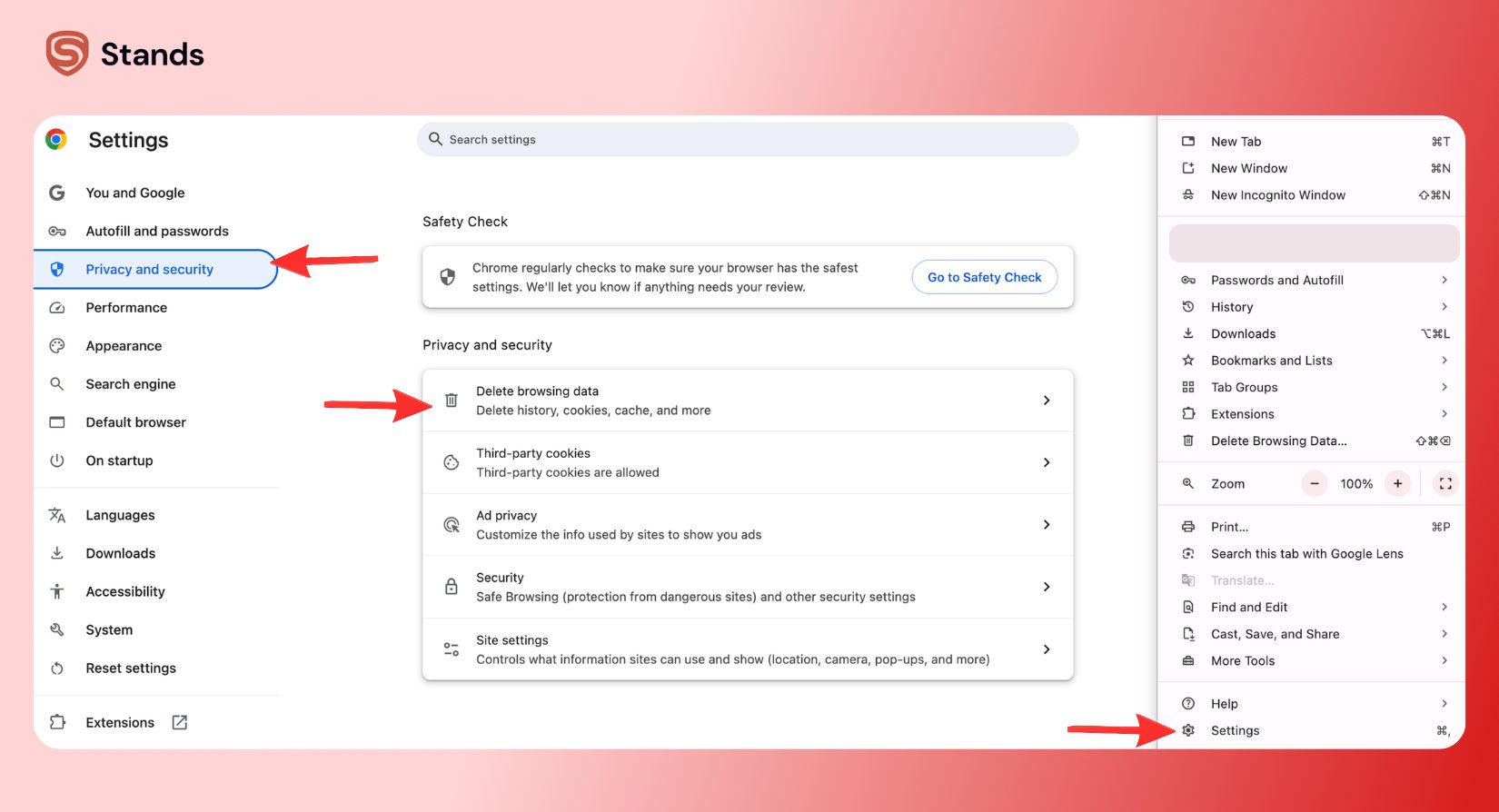
Mastering how to delete cache on Mac stops old background scripts from draining your Mac memory resources. You immediately restore fluid page scrolling, stop random browser crashes, and maintain lightning-fast response times across all your open tabs :)
Clear Cache in Chrome on Windows
If you run Windows 10 or Windows 11 on your desktop or laptop, you can jump directly to your cache cleaning dashboard without clicking through multiple settings panels :)
Follow this direct method for how to clear cache in chrome pc:
- Launch your Chrome browser on your Windows PC.
- Click your top address bar, type chrome://settings/clearBrowserData, and press Enter on your keyboard.
- Check your box for Cached images and files while leaving your sensitive personal settings unchecked.
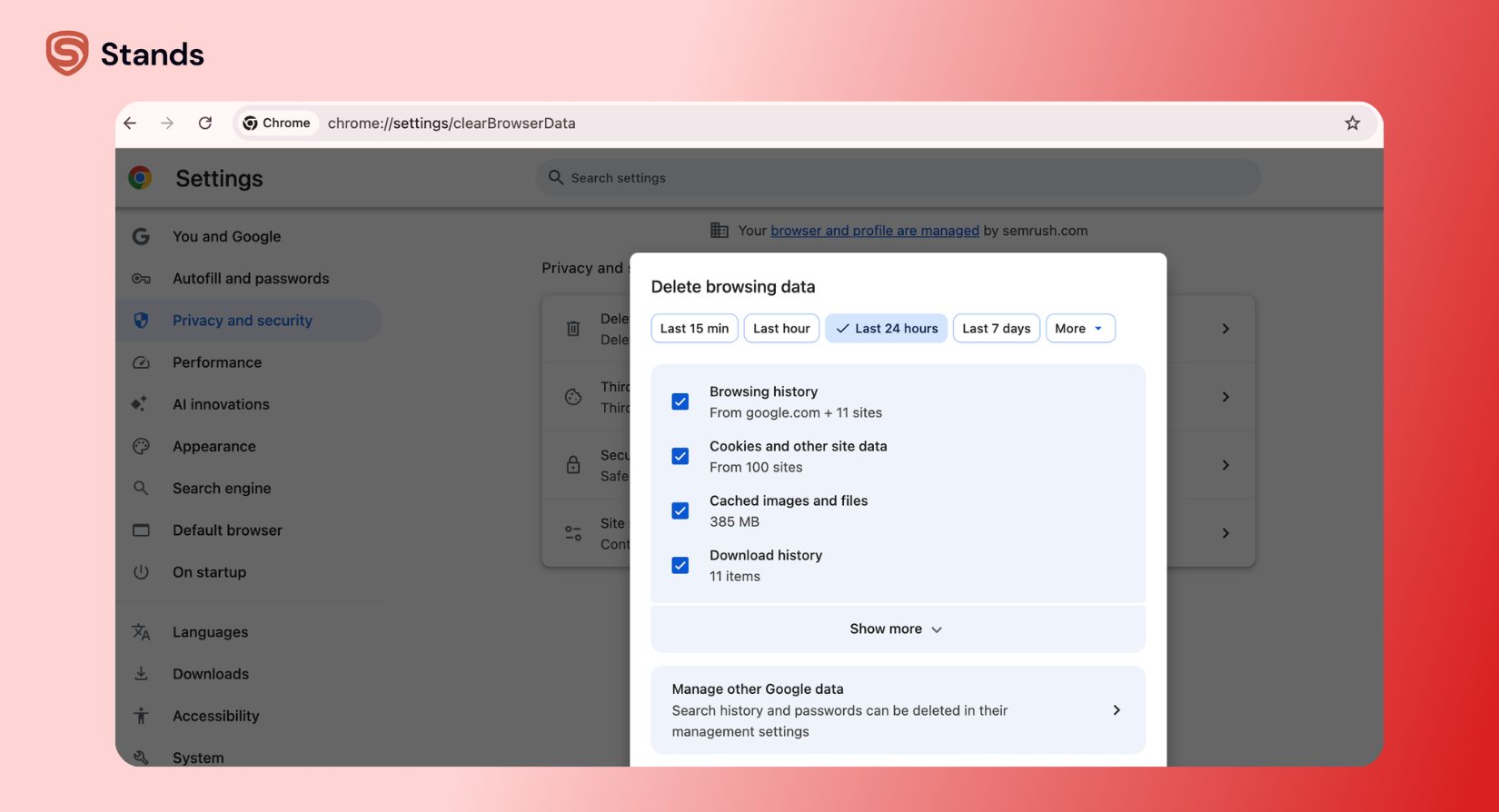
By using this direct internal address bar command, you bypass secondary menus entirely. This quick action resolves modern Manifest V3 compatibility glitches, clears out corrupted temporary files, and optimizes your Windows system performance instantly.
Chromebook Clear Cache Instructions
When you perform a Chromebook clear cache maintenance routine, you follow the same straightforward steps as a traditional PC, but you enjoy an even larger performance boost :)
Chromebooks rely heavily on web-based applications, local DOM storage, and active cloud services to execute daily tasks. Because Chrome OS uses local system memory to keep these web apps running smoothly, accumulating excessive temporary files quickly bogs down low-spec hardware and budget laptops.
Follow these simple steps on your Chromebook device:
- Open your Chrome browser on your Chromebook screen.
- Press your dedicated shortcut keys Ctrl + Shift + Backspace simultaneously on your keyboard :)
- Make sure you check your box for Cached images and files.
Clearing out your temporary files keeps your web applications snappy and responsive. You free up crucial flash storage on your laptop, ensuring your Chromebook boots fast and loads school or work documents without freezing up :)

How to Clear YouTube Cache in Chrome
When you discover how to clear YouTube cache, you solve persistent video buffering, annoying player errors, low audio quality, and broken video thumbnails :)
YouTube relies on massive amounts of dynamic JavaScript assets, video player scripts, and media preview caches. Over days of heavy streaming, these files become bloated or corrupt inside your browser. Fortunately, you can clear YouTube data specifically without wiping out your entire browser cache or logging yourself out of other websites :)
Follow these targeted steps right on YouTube:
- Click your Lock icon (or security settings icon) positioned on the left edge of your address bar :)
- Click on Site Settings inside your dropdown window.
- Locate your More settings and permissions and Usage overview section near the top of your new settings screen.
- Click Clear again when Chrome asks you to confirm your decision.
- Return to your YouTube tab and refresh your page :)
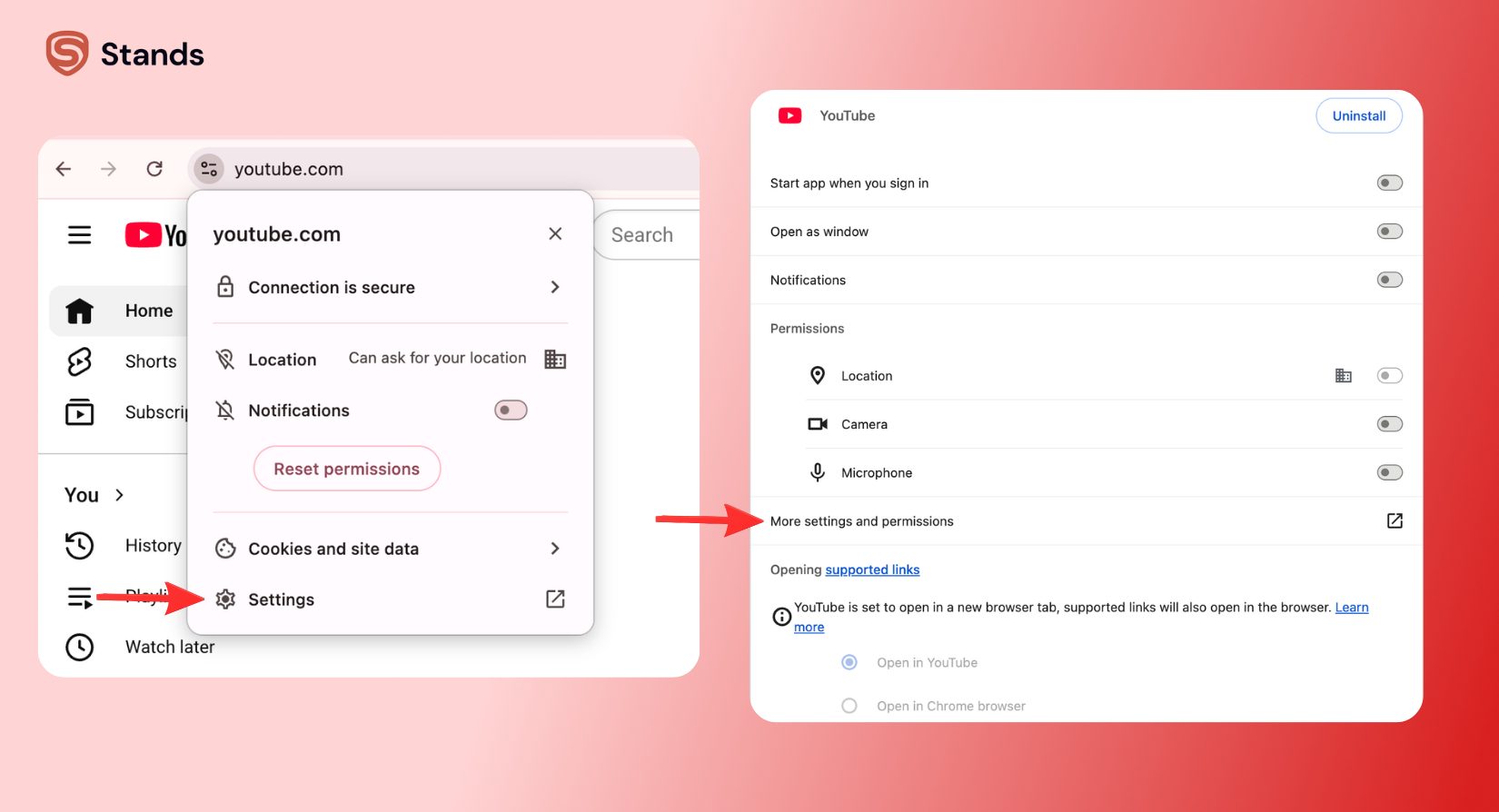
This focused cleaning procedure stops video player lag, resolves resolution dropping, and restores fast page loading across YouTube. If you ever experience broader account synchronization problems while streaming, you can also review your official Google Account Help Center guides.
Shortcut to Clear Cache Options
When you memorize a shortcut to clear cache, you keep your system clean with zero effort. Mastering a simple "clear cache keyboard shortcut" allows you to trigger maintenance windows in less than two seconds :)
Review your quick operating system shortcuts in this reference guide:
| Operating System | Keyboard Shortcut | Primary Action |
| Windows / Linux | Ctrl + Shift + Delete | → Opens your main Clear Browsing Data menu |
| Mac OS | Cmd + Shift + Delete | → Opens your main Clear Browsing Data menu |
| Windows Hard Refresh | Ctrl + F5 | → Bypasses cache to force reload your current page |
| Mac Hard Refresh | Cmd + Shift + R | → Bypasses cache to force reload your current page |
When you trigger a hard refresh, you order Chrome to ignore its saved local files for your current webpage only. Chrome redownloads fresh stylesheets, images, and JavaScript assets without forcing you to open your full system settings menu :)
Clear Cache for Specific Site Only
Clearing your entire browser history logs you out of almost every web service you use. When you only face trouble on one single website, you can clean that domain individually using Chrome Developer Tools :)
Follow these exact steps to fix a single broken website:
- Open the specific website that displays errors or fails to load properly.
- Press F12 on your Windows keyboard (or Cmd + Option + I on your Mac keyboard) to open your DevTools panel :)
- Check your option boxes for Unregister service workers and Cache storage.
This precision cleanup method fixes site layout errors and script bugs on one specific domain while preserving all your active login sessions across your other tabs!

Stands AdBlocker Stops Cache Bloat
Modern ad networks continuously download massive tracking scripts, auto-playing video promotions, animated ad banners, and pop-up codes straight into your browser storage. This aggressive influx of commercial content clutters your computer drive and creates severe cache bloat :)
When you install Stands AdBlocker, you block ad scripts before they ever touch your computer memory. By blocking aggressive pop-ups, video ads, and intrusive tracking scripts at the network level, Stands stops unwanted files from clogging up your Chrome storage in the first place :)

You keep your Chrome browser light, fast, and secure when you prevent useless ad files from accumulating. You enjoy rapid page loads and smoother browsing every single day without having to perform constant manual cleanups :)
Troubleshooting Common Chrome Cache Errors
Sometimes, simply clicking the standard clear data button does not immediately solve your browser problems. If you clear your temporary storage and still experience persistent glitches, several underlying conflicts might be affecting your device.
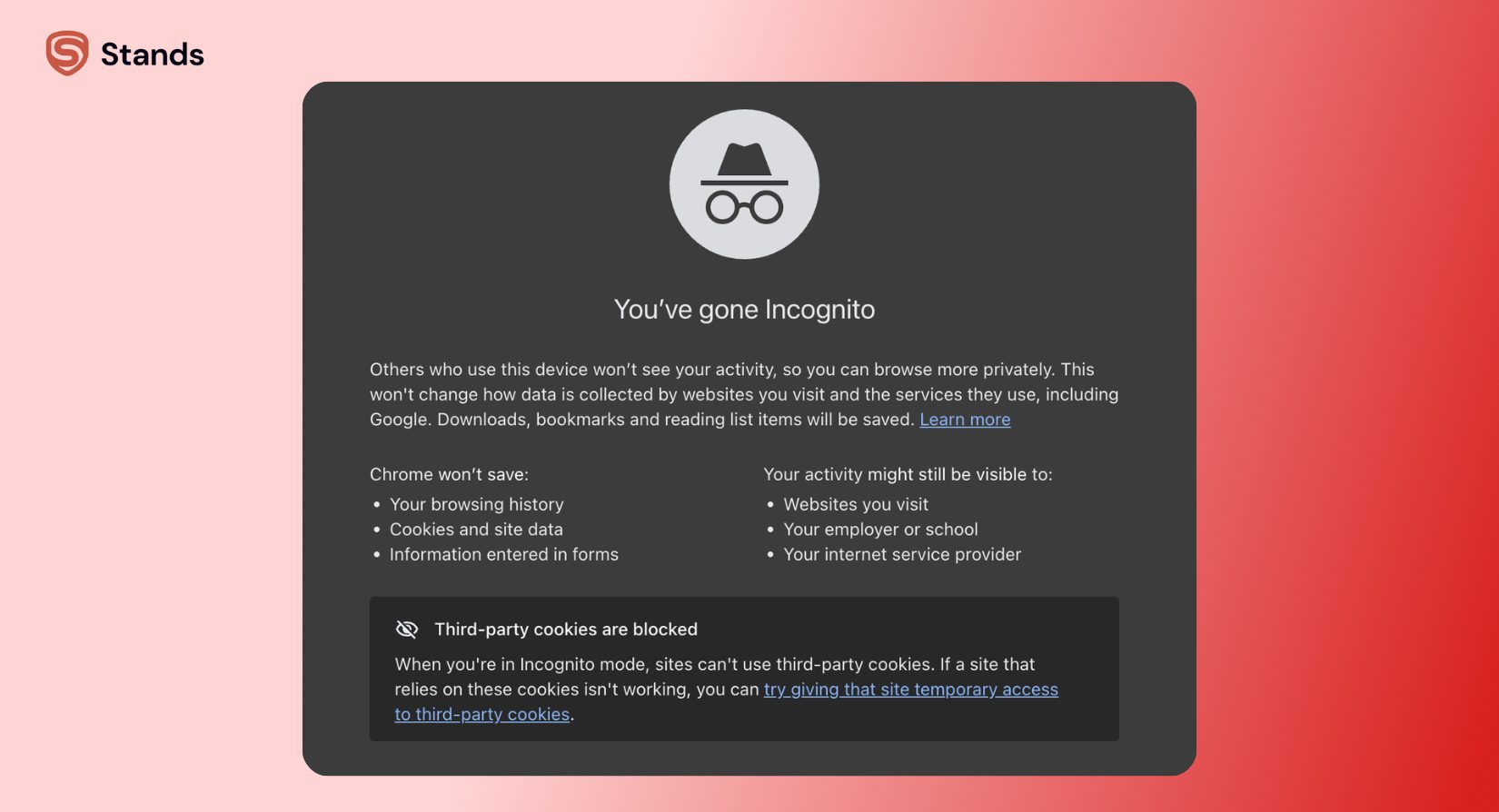
First, check if you have dozens of heavy browser extensions running simultaneously. Extensions often store their own independent local data caches, which can conflict with modern web standards. Try opening an Incognito window by pressing Ctrl + Shift + N (or Cmd + Shift + N on Mac). If a site loads perfectly in Incognito mode, one of your installed extensions is likely generating bad local data. You can disable your extensions one by one under your Extensions menu to identify the problematic tool.
Second, verify that your computer drive is not completely full. When your hardware storage reaches maximum capacity, Chrome struggles to rewrite new temporary storage files correctly. This causes site scripts to freeze or fail entirely. Deleting unnecessary system files or moving heavy video files off your primary hard drive gives Chrome the operational room it needs to manage its local application memory efficiently :)
Advanced Storage Management Techniques
If you manage web applications or work in website development, basic cache cleaning might not completely clear your localized testing environments. Chrome utilizes advanced offline storage technologies such as IndexedDB, Web SQL, and Local Storage (DOM storage) to run complex browser apps like web-based email clients and online design software.
To manage these deep application files, type chrome://settings/siteData directly into your top address bar. This specialized menu displays every single domain that stores offline files on your computer, alongside the exact file size each site occupies.
You can sort this list by storage size to locate hidden storage hogs. If an offline web application is consuming several gigabytes of space on your drive, you can click the trash icon right next to that specific domain to erase its heavy offline assets immediately. This targeted deep-cleaning approach restores precious hard drive space without disturbing your general browser configuration or resetting your global settings :)

FAQ: Clear Chrome Cache
Does clearing cache delete my passwords?
No :) When you clear your cache, you only delete temporary media assets, stored images, and cached layout scripts. Your saved account passwords, autofill address entries, and payment details remain completely safe inside your Chrome profile settings unless you manually check the specific box labeled Passwords and other sign-in data.
Cache vs cookies: What is the difference?
Your cache stores static website files like photos, graphics, and code stylesheets so your favorite pages open significantly faster. Your cookies store personalized user information like your active login status, user preferences, and saved online shopping cart items :) In short, your cache focuses on improving speed, while your cookies focus on remembering who you are!
Why won't my cache clear in Chrome?
If Chrome refuses to clear your temporary files, active background processes, frozen tabs, or background extensions are likely holding onto those files :) You can fix this easily by closing all your active browser tabs, fully restarting your Chrome browser, opening a single blank tab, and running your cleanup process again.
How often should I clear Chrome cache?
Clearing your cache every month or two is more than enough to maintain optimal browser health :) However, you should clear your cache immediately whenever you run into broken page layouts, sudden media playback errors, missing site buttons, or unusually slow browser response times.