
 Home »
Fixing YouTube Issues: Common Problems and Solutions
YouTube Not Working can be frustrating, especially when you're eager to watch your favorite content. Experiencing issues with the platform? The root cause might not always be your device or internet connection - sometimes YouTube's own servers are to blame. Server outages, maintenance work, or technical glitches during platform updates can all lead to disruptions. If you're facing problems accessing or using YouTube, don't worry. Let's explore the steps you can take to troubleshoot and resolve these issues effectively.
- 1. Is YouTube Down? How to Check
- 2. Check Your Internet Connection
- 3. Restart Your Device
- 4. Update the YouTube App
- 5. Clear Cache and Cookies
- 6. Fix YouTube App Problems
- 7. Check Your Device's Date and Time
- 8. Update Your Operating System
- 9. Use a Different Browser
- 10. What to Do When My YouTube Is Not Working on Desktop
- 11. Why My YouTube is not Working on Mobile: Simple Fixes
- 12. Why Isn't My YouTube Working? Final Steps
- Fixing Your YouTube Issues
- Frequently Asked Questions
1. Is YouTube Down? How to Check
Before diving into complex troubleshooting steps, it's crucial to determine whether the problem is on your end or affects YouTube globally. Server outages and platform-wide issues are more common than you might think, and identifying them early can save you time and effort. Here's how to quickly verify YouTube's status.
How to Check If YouTube Is Down
When the YouTube platform experiences functionality issues, YouTube videos usually do not play, or the platform does not work properly. However, we can analyze existing technical incidents using diverse platforms to ensure they are not our device's fault. The best platforms to detect existing issues on YouTube platform are:
- Google Workspace Status Dashboard: Google Workspace Status Dashboard page provides information on the systems that power Google Search. You can check for technical problems affecting the performance of various sites here.
If the problem is general, wait and be patient. On the other hand, if there is no existing issue according to these platforms, the following are some tips to resolve it as quickly as possible.
2. Check Your Internet Connection
A stable internet connection is fundamental for YouTube to function properly. Slow speeds, intermittent connectivity, or network configuration issues are among the most common culprits when YouTube fails to load. Let's examine how to diagnose and resolve connection problems.
How to Fix Internet Issues When YouTube Isnt Working
- First, it is important to have good Internet speed.
- If you don't, disable and re-enable your WiFi or mobile data.
- You can also connect to a different network to check if the problem persists.
Resetting Your Router
- Turning off the router and waiting at least 30 seconds is advisable.
- Then, turn it back on and wait for the connection to stabilize.
- Try again to access YouTube or any web page to verify any malfunctions.
3. Restart Your Device
Sometimes the simplest solution is the most effective. Restarting your device clears temporary system glitches and refreshes network connections, often resolving YouTube issues instantly. Here's how to properly restart different devices.
How to Restart an Android Device
- Then, select the Restart option.
- Wait for the device to reboot completely.
- Once it is off, turn it back on.
- Access the YouTube platform to check if there are still problems.
How to Restart an iPhone
- Then drag the slider and wait 30 seconds until the device turns off.
- Once your device has restarted, log in to the YouTube app to verify it works properly.
Restarting a PC or Mac
- First, try to save all open documents and close windows.
- Look for the Restart option.
- Once your computer is restarted, log back into YouTube to verify its functionality.
Would you like to block YouTube ads on your iPhone? Find the best blocking solutions.
4. Update the YouTube App
Running an outdated version of the YouTube app can lead to compatibility issues, bugs, and performance problems. Regular updates include bug fixes, security patches, and new features that ensure smooth operation. Follow these steps to update YouTube on your device.
How to Update YouTube on Android
- When YouTube is not up to date, it may not work correctly.
- To update it, open the Play Store on Android, search for YouTube, and select the application.
- If an update is available, you can choose the option Update.
How to Update YouTube on iPhone
- To update YouTube on iPhone, open the App Store.
- Search for the YouTube app.
- Click Update; if the option appears, click to download any pending updates.
5. Clear Cache and Cookies
Accumulated cache and cookies can cause YouTube to malfunction, leading to playback errors, loading issues, or app crashes. Clearing this data gives YouTube a fresh start and often resolves persistent problems. Here's how to clear cache and cookies on different platforms.
How to Clear YouTube Cache on Android
- To clear the cache on Android, go to Settings and Apps.
- Select YouTube.
- Tap on the Storage option.
- And then click on Clear cache.
Clearing Cache for YouTube on iPhone
On iOS, uninstalling and reinstalling the app is the most effective way to clear the cache. To uninstall and reinstall YouTube, follow the steps below:
- Go to Settings and then to the General section.
- Find the iPhone Storage option.
- Find the YouTube app and select it.
- Tap on the Delete app.
- Then, to reinstall it, go back to the App Store.
- Search for YouTube and reinstall it.
Clear YouTube Cookies and Cache on Desktop
The steps to clear cookies and cache will depend on the type of browser you have; however, below are general instructions:
- Then go to Settings.
- Look for the Privacy section.
- Select the Clear Browsing Data option.
- Then click on Clear.
Are you tired of interruptions? Learn all the tricks & tips on how to block YouTube shorts!
6. Fix YouTube App Problems
When standard troubleshooting doesn't work, the YouTube app itself may be the issue. Corrupted app data, software conflicts, or incomplete installations can prevent YouTube from working correctly. Let's explore app-specific solutions.
Common Reasons Your YouTube App Stops Working
The YouTube app may fail due to temporary technical glitches, operating system or computer incompatibility, or because the app is out of date.
Reinstalling the YouTube App
- Reinstalling the application is recommended if you encounter technical failures.
- First, uninstall YouTube on your device.
- Reinstall it from the Play Store or App Store.
- Log in again to access the platform.
7. Check Your Device's Date and Time
This is important because incorrect date and time settings may cause connection issues with YouTube servers and others.
How to Sync Date and Time on Android
- From Android, you can synchronize the date and time settings within the Settings app.
- Then go to System.
- Find the Date & Time option.
- Enable the Automatic date and time option.
How to Sync Date and Time on iPhone
- Go to the Settings application to sync the date and time on your iPhone.
- Find the General section and then click on Date and Time.
- Turn on Set automatically.
Fixing Date and Time Issues on Desktop
Make sure that the date and time settings are automatically synchronized in your system settings.
8. Update Your Operating System
An outdated operating system can create compatibility issues with the YouTube app and prevent it from functioning properly. Keeping your OS updated ensures optimal performance, security, and app compatibility. Here's how to update on different platforms.
Try Updating Your OS on Android
- Updating the operating system is essential to keep your applications running optimally and ensure your device's security and new features. To do this, go to Settings.
- Then, look for the System option.
- Then select System Updates.
- Check for updates.
- Download and install any available updates.
Updating Your OS on iPhone
- To update your iPhone, go to Settings.
- Then go to the General section.
- Look for the Software Update option.
- Download and install any available updates.
Updating Windows or macOS
- If you are using YouTube on macOS on Windows, first go to Settings.
- Then go to Update and Security.
- On macOS, go directly to System Preferences.
- Then look for Software Update.
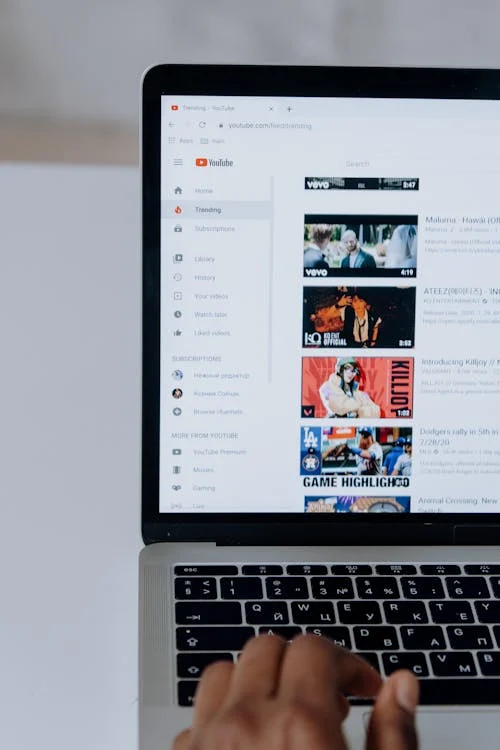
9. Use a Different Browser
Browser-specific issues can prevent YouTube from working correctly on desktop. Switching browsers or troubleshooting your current one can quickly identify whether the problem is browser-related. Let's explore browser solutions.
Troubleshooting YouTube Issues on Google Chrome
To avoid performance issues in Chrome, try clearing the cache and cookies. We also recommend that you disable any extensions that may interfere with the browser's proper functioning. Also, if you want smoother browsing on Chrome, find out about the best ad blocker for Chrome browser.
Switching Browsers to Fix YouTube
If the problem persists, we recommend trying different browsers, such as Firefox, Edge, Brave, Opera, or Safari.
10. What to Do When My YouTube Is Not Working on Desktop
Desktop users face unique challenges when YouTube isn't working. Browser configurations, outdated drivers, and system settings can all affect YouTube performance. Here are desktop-specific troubleshooting steps.
Updating Your Browser
- If YouTube presents technical problems on a desktop, open the browser settings, depending on the one you are using.
- Look for the update option available and make the changes.
Disabling Browser Extensions
- You may also have installed some extensions that are presenting compatibility problems.
- Disable all of them and check if YouTube works.
Updating Video Drivers
Also, updating your video drivers will ensure your device properly displays graphics and videos related to YouTube or other platforms. Make sure your graphics card drivers are updated from your manufacturer's site.
11. Why My YouTube is not Working on Mobile: Simple Fixes
Mobile devices have specific settings and configurations that can affect YouTube performance. These mobile-focused solutions address issues unique to smartphones and tablets.
How to Reset Network Settings
- Network settings refer to the settings your device uses to connect to the Internet, such as WiFi and mobile data. To change these, go to Settings.
- Then, look for the System option.
- Look for Reset options.
- And finally, select Reset network settings.
- These steps may vary depending on your device and operating system.
Resetting Mobile Settings for YouTube
- First, To reset your phone's YouTube settings, clear the app's data.
- To do this, you can go to Settings.
- Then, go to Apps and search for YouTube.
- If you are using an iPhone, press the application and select Delete application.
- Reinstall it again.
12. Why Isn't My YouTube Working? Final Steps
If you've tried everything else and YouTube still isn't working, these final troubleshooting steps may resolve even the most stubborn issues. When all else fails, these measures provide your last line of defense.
Reinstalling the App
If you have already excluded that the problem with the platform is general-technical, your browser and device are updated, but problems keep appearing on the platform, then reinstall the app.
Contacting YouTube Support
We also recommend you visit the YouTube Help Center to contact technical support and help you troubleshoot any bug you may have.
Fixing Your YouTube Issues
That said, frequent updating of your applications and operating system will ensure that your computer and all the applications and extensions are installed within work as expected. Also, this can help you to switch between other websites smoothly and efficiently, keeping YouTube running. Want to get an improved experience on YouTube? Browse ad-free with top adblock for YouTube.
Troubleshooting YouTube functionality is generally straightforward. Identifying and resolving the causes will help you enjoy your favorite videos without interruption. Additionally, using one of the best free YouTube adblockers, explicitly designed for the platform, will enhance your online experience both on and off the platform.
Frequently Asked Questions
Why is YouTube not working on my phone?
When YouTube doesn't work on your phone, it can be due to various causes. The most common reasons include having a weak or unstable internet connection, missing app or system updates, and incorrect date and time settings on your device. Try checking your connection strength first, then ensure both the YouTube app and your phone's operating system are up to date.
Why isn't my YouTube app loading?
When videos are not loading on your YouTube platform, there could be several functionality issues at play. These typically include server malfunctions on YouTube's end, background processes consuming your device's resources, temporary errors or glitches on your device, or running an outdated version of the YouTube app. Start by checking if YouTube is experiencing a global outage, then try closing background apps and updating the YouTube app to the latest version.
Why is YouTube not working on Chrome?
Although Chrome is usually the most efficient browser, we can encounter functionality problems, mainly when we have installed extensions or add-ons that are incompatible with it, have accumulated cache, or simply because our browser still needs to be updated.
What to do When YouTube stopped working on a Smart TV?
The best suggestion is to update the app if it is problematic while running on your Smart TV. Try rebooting your television and router and check if the date and time on your gadget are accurate.
Why does my YouTube keep crashing?
Other problems you may experience with the application could be related to compatibility issues, pending updates, or unstable Internet connections.

