Home »

What Is a Potentially Unwanted Program (PUP)?
A potentially unwanted program is software you never asked for on your computer. Developers do not make these programs to destroy your files like dangerous viruses.
"A potentially unwanted program lives in an awkward gray area because creators sneak it inside free downloads and hide behind tricky setup screens so you do not notice it."
We used to call this extra "junk" a PUP or a PUA. These apps make your computer run slowly, look at your private habits, and open the door to bigger online dangers.
In this article, I will explain how these sneaky apps work, how you can spot them, and how you can get rid of them for good :)
What is a potentially unwanted program?
A potentially unwanted program, or PUP, is an extra app that comes in alongside normal programs, sets up on your computer, and does things you never wanted. Antivirus tools call these apps PUPs instead of real viruses because of legal rules.
| Setup Path | What You Download | What Actually Installs | Your Result |
| Direct Clean Install | Chosen free app | Only the selected program files | Clean and fast system :) |
| Bundled PUP Route | Installer wrapper | The app plus hidden adware and toolbars | Slow, cluttered computer :( |
When you download free tools, websites often put extra apps inside the setup file. If you rush through setup and click "Accept," you accidentally give the installer permission to add those bonus apps. Because you clicked that button, security companies use the label "potentially unwanted" so the app creators cannot sue them.
You will usually notice obvious issues when an unwanted program gets onto your computer:
- It changes your search engine and home page to weird ad pages.
- It follows your searches, clicks, and shopping in the background.
- It makes your whole computer lag by hogging your memory.
Is a PUP malware?
No, a PUP is not a real virus, but it is not safe either.
Real malware sneaks into your PC to steal passwords, lock files, or break your device.
A PUP belongs to a middle group called grayware. It will not delete your files. Instead, it sneaks in through confusing setup screens to flood your screen with annoying ads and make money off you.
Even though it is not a virus, you still do not want it around. Badly made adware creates security holes that real hackers can use to drop dangerous viruses right onto your computer :)
PUP vs PUA vs PUM
Your security tools and Windows alerts show different short names when they catch fishy apps.
| Name | What It Stands For | What It Does | How It Bothers You |
| PUP | Potentially Unwanted Program | Standalone app hidden inside another installer | Adds extra desktop icons and background apps |
| PUA | Potentially Unwanted Application | Broader name for bad apps, add-ons, and plugins | Floods you with pop-up ads and tracks you |
| PUM | Potentially Unwanted Modification | Deep setting change inside your system | Changes your search bar and system settings |
When your antivirus flashes one of these alerts, check it out right away. An app just slipped past you!
Common types of PUPs
Potentially unwanted programs target different parts of your computer.
Browser hijackers change your settings so every new tab opens a strange page filled with ads. Adware covers clean websites with pop-ups, video ads, and flashing banners. Extra toolbars sit under your address bar, track your searches, and clutter your screen, but you can quickly remove unwanted Chrome extensions to clear them out :)
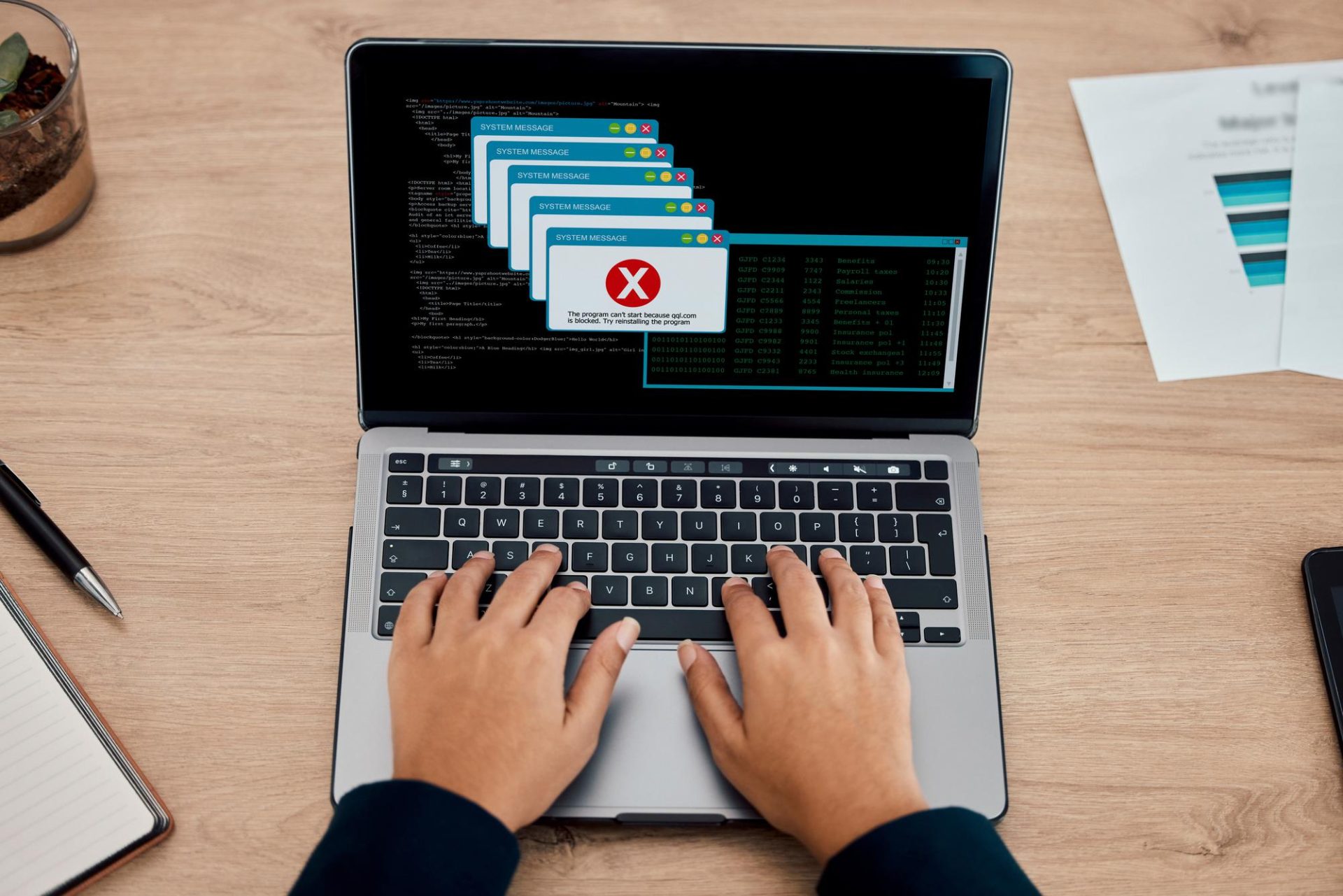
Fake PC cleaners show scary red warnings about thousands of system errors, then demand money to "fix" your computer. Finally, copycat browsers install without asking, copy your bookmarks, and take over as your default browser.
How PUPs get on your computer
A potentially unwanted program almost never shows up as an honest, normal download. Instead, makers of unwanted software partner with free download sites and file-sharing hubs that make money by bundling extra apps together.
| Download Source | Delivery Trick | What Happens Behind the Scenes |
| Third-Party Sites | Custom installer files | The wrapper packs sponsor software around the core tool |
| Deceptive Web Pages | Fake download buttons | Bright ads push bundleware instead of your real file |
| Automated Wizards | Pre-checked boxes | Setup screens turn on partner offers without asking |
Sellers count on fast clicks and skipped screens to drop extra apps onto your drive:
- Free file hubs bundle the tools you want inside custom download boxes that push sponsored extras.
- Installers turn on checkmarks for extra software automatically, hoping you click "Next" without looking.
Bundled freeware and skipped opt-outs
Setup screens are the front door for bundled junk. When you run an installer, it usually offers you two choices:
| Option Name | What the Installer Does | How to Handle It |
| Express Setup | Installs partner search tools and browser toolbars automatically | Avoid this button every time |
| Custom Setup | Uncovers hidden checkboxes for partner add-ons | Select this mode and uncheck every bonus offer :) |
When you rush through setup with "Express Install," you skip the important opt-out checkbox screens. Creators hide decline buttons in tiny faint text, bury them inside small scroll boxes, or write confusing sentences like "Uncheck this box if you do not want to decline our partner tools." The moment you hit "Next," you let several junk programs walk right in.
Signs you have a PUP installed
Look for these easy signs to catch unwanted programs before they cause bigger trouble:
- You type a question into your search bar and end up on an odd search site instead of Google or Bing.
- You see flashing ads and fake lottery prizes on websites you visit every day. Deep adware can even mess up your entire web connection, and you can follow our guide on DNS Unlocker adware removal to clean it off your drive.
- Your computer takes minutes to start up, the fans run loudly, and your Task Manager shows weird apps eating up your memory.
- Synced browser accounts carry bad extensions over to your mobile devices, and you can follow our simple steps to remove adware from Android and clean your phone fast :)
Should you remove PUPs?
Yes, you should remove any potentially unwanted program you spot on your computer. Keeping these junk apps around puts your personal info at risk, slows down your PC, and wastes your storage space.
| Question to Ask Yourself | If Yes | If No |
| Did you intentionally download and run it? | Check if it hurts privacy or performance | Delete the program immediately :) |
| Is it slowing down your machine or tracking data? | Uninstall the app and clean your browsers | Keep the program on your drive |
The only time you might keep one is when your antivirus flags a handy helper tool or work app by mistake. If you know you downloaded a specific tool yourself, double-check the name. If you do not remember downloading it, remove it right away!
Here is how you can check and delete mystery apps in Windows:
- Right-click the Windows Start icon and click Installed Apps (or Apps & Features).
- Sort your installed apps list by Install Date so your newest apps sit at the top.
- Click the three dots next to the mystery app and pick Uninstall.
- Restart your computer to close down any leftover background tasks :)
Turn on PUA protection in Windows Security
Windows includes built-in tools that block shady apps before they install, but you often need to turn this switch on yourself.
| Setting Section | Setting Toggle | Recommended Status |
| Reputation-based Protection | Potentially unwanted app blocking | Switch to On |
| Blocking Options | Block apps | Check the box :) |
| Download Filters | Block downloads | Check the box :) |
Turn on built-in PUA protection with these steps:
- Type Windows Security into your taskbar search and open the app.
- Click App & browser control on the left side.
- Look for Reputation-based protection and click Reputation-based protection settings.
- Find Potentially unwanted app blocking and flip the switch to On.
- Check both boxes for blocking apps and blocking downloads.
Once you turn this on, Microsoft Defender checks your new files against an updated potentially unwanted programs list. When an installer tries to sneak junk onto your drive, Windows stops it and displays a PUP detected alert.
How to avoid potentially unwanted programs
From my experience, keeping unwanted programs off your PC in the first place saves tons of time :)
First, slow down when you install any app. If you click "Next" too fast, you might miss hidden checkmarks. Always click the "Custom" button instead of the quick button. This shows you all the sneaky extra apps so you can turn them off.
Next, only get apps from official websites or safe app stores. Stay away from free download sites that pack extra junk into your files.
Finally, check your computer once a month and delete apps you do not need. Run a good antivirus tool too, so your computer stays clean and fast :)

When a free ad blocker helps
It never comes to even opening a suspicious downloader in the first place, when you use an adblocker. Usually, PUPs get people with flashy banners, fake download buttons, and pop-ups to push bad apps onto your machine.
Adding a reliable free ad blocker like Stands AdBlocker stops these tricks right inside your browser:
- Stands keeps dangerous web pages from sending your browser to scam sites, fake virus warnings, and phony cleanup apps.
If you do most of your work on a computer, grab a fast, simple ad blocker for Chrome to keep your web tabs clean, private, and free of junk bundleware. Take your time during setup windows, keep your browser protected, and enjoy a quick, clean computer :)