
 Home »
How to Disable Cookies in Browser: Chrome, Safari, Firefox & Others
Cookies are everywhere on the web. They sit quietly in your browser and do their job in the background. Some help you stay logged in, some remember your shopping cart, but others track your every move online.
If you care about online privacy, you may want to learn how to disable cookies in browser settings. It is not rocket science, and you just need a few clicks.
This guide shows you how to block cookies on your browser step by step. You will also learn when to block all cookies and when to keep some on. Let’s get into it! :)
What Are Browser Cookies?
Cookies are small text files. Websites save them on your device when you visit.
They help websites remember you. For example:
- They keep you logged in
- They save your language choice
- They store items in a shopping cart
Without cookies, every visit feels like the first time. That sounds simple, but it also gets annoying fast.
Types of Cookies
| Type of Cookie | What It Does | Should You Worry? |
| First-party cookies | Works only on one website | Usually safe |
| Third-party cookies | Tracks you across websites | Privacy risk |
| Session cookies | Disappears when you close browser | Low risk |
| Persistent cookies | Stays for a long time | Can track you |
First-party cookies help websites work well, while third-party cookies do more tracking. That is where privacy concerns start.

Why Cookies Can Be a Privacy Risk
Cookies may look harmless, but they can build a full picture of your online life.
They can collect:
- Websites you visit
- What you search
- What you buy online
- What ads you click
Put all this together, and advertisers can follow your trail across the web. That feels like someone watching over your shoulder.
That is why many users now turn off cookies or block third-party cookies for better online privacy.

How to Disable Cookies in Chrome
Chrome gives you simple controls. You just need to know where to click.
Disable Cookies Chrome (Desktop)
Follow these steps:
- Open Chrome
- Click the three dots in the top right
- Go to Settings
- Click Privacy and Security
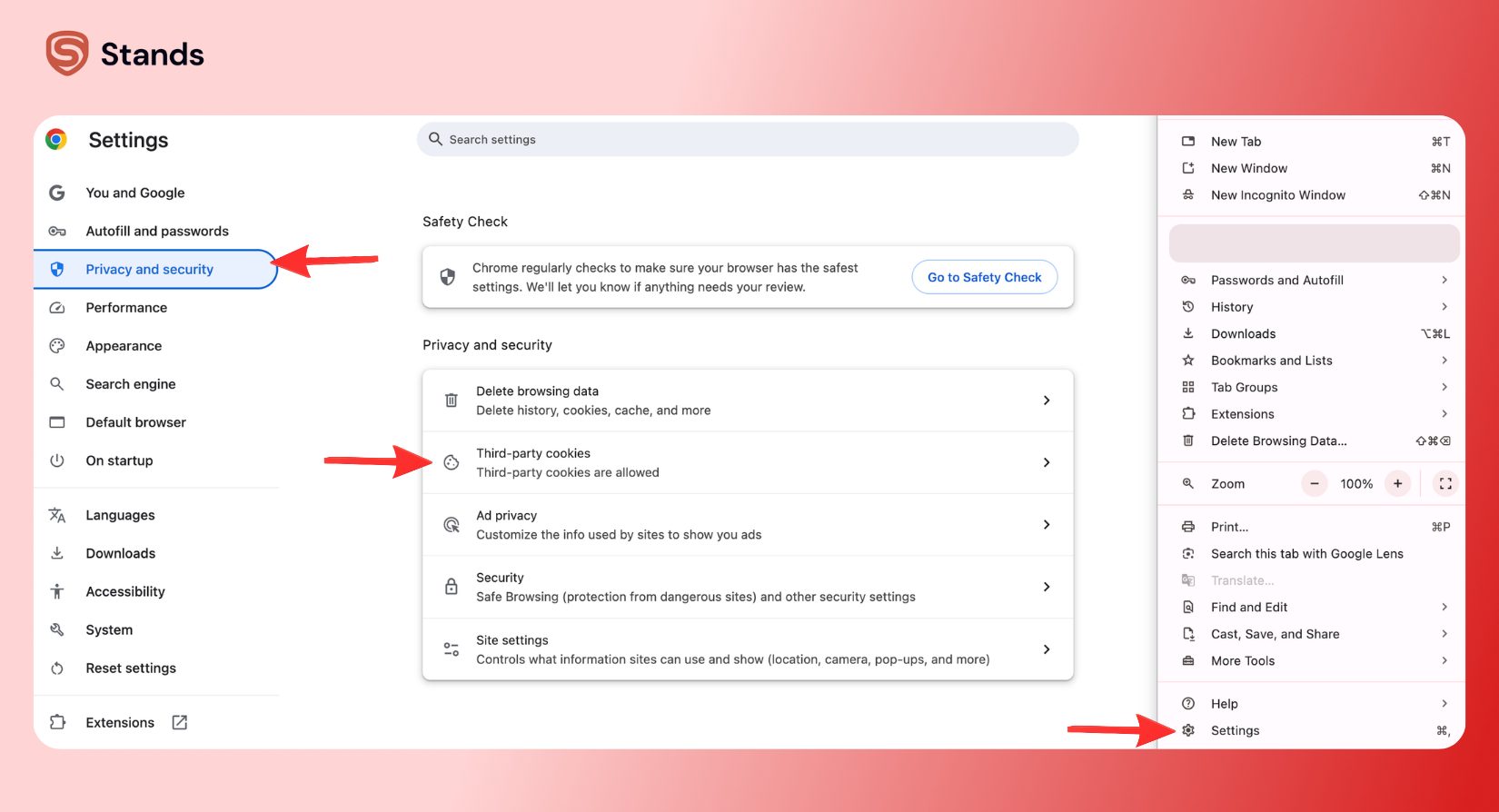
If you want to go further:
That move gives strong privacy, but it may break some websites.
If you also want to clean old cookies, check this guide: Delete Cookies in Chrome
How to Disable Cookies in Safari
Safari keeps things simple and tight. Apple puts privacy first.
On Mac
- Open Safari
- Go to Settings
- Open the Privacy tab
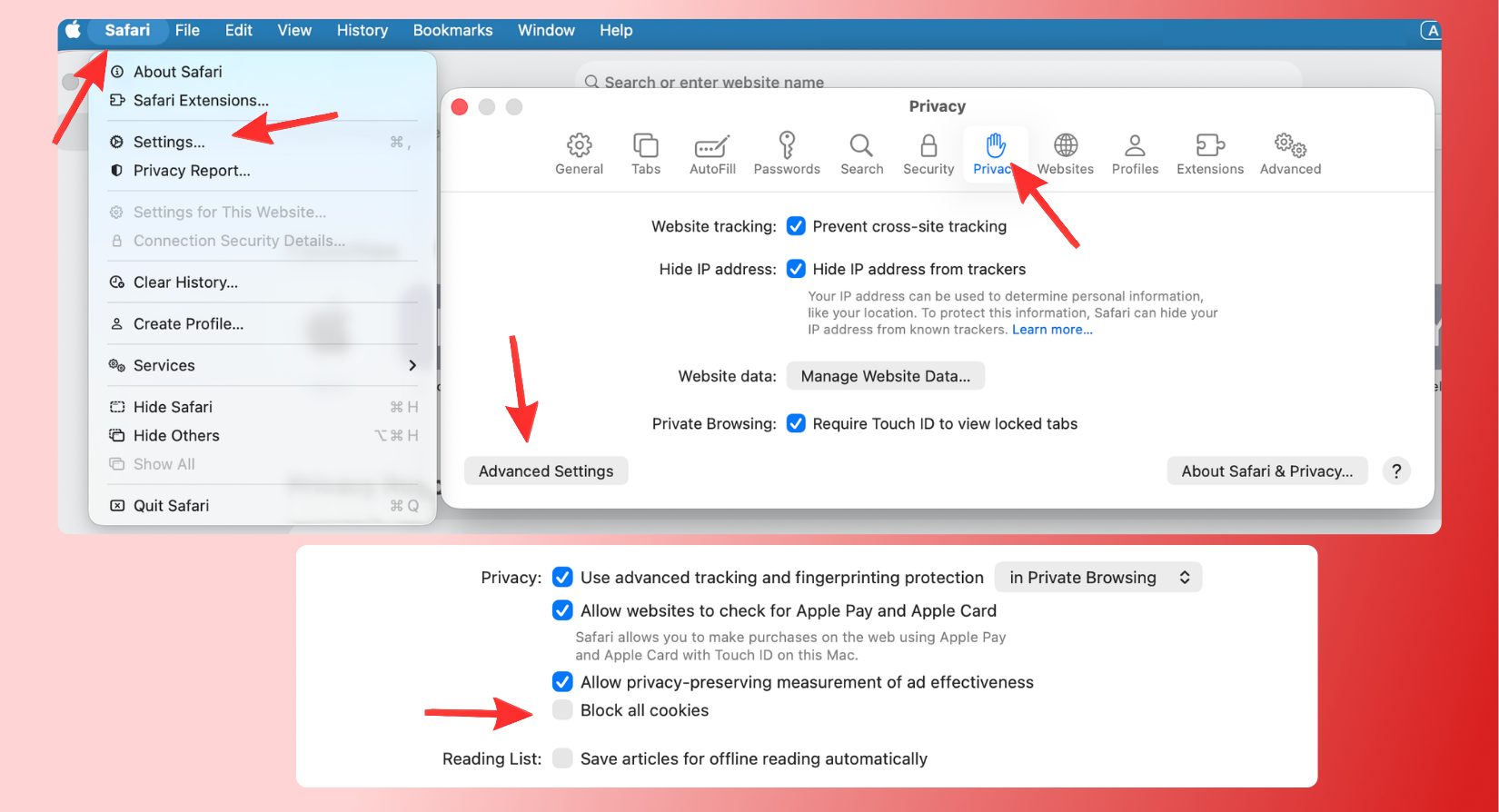
Safari also blocks many trackers by default. It works behind the scenes like a silent guard.
On iPhone
- Open Settings
- Scroll to Safari
That is it. Done in a minute :)
If you want to clear old data too, use this guide:
How to Clear Cookies on iPhone, iPad and other Devices
How to Disable Cookies in Firefox
Firefox gives strong privacy tools. It lets you take full control.
Disable Cookies in Firefox
- Open Firefox
- Go to Settings
- Open Privacy & Security
- Find Enhanced Tracking Protection
- Choose Custom
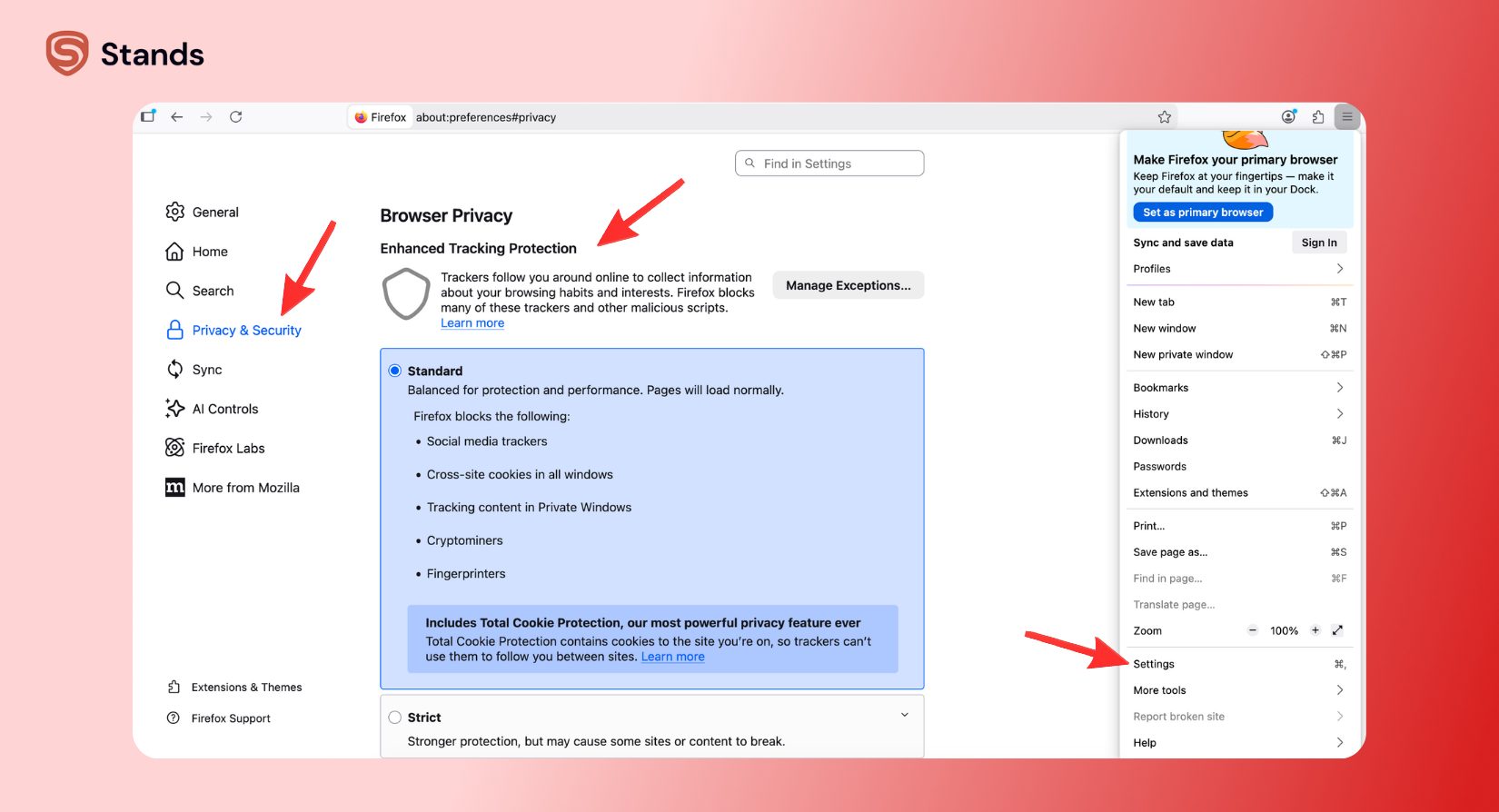
You can block:
If you want a balanced setup, block third-party cookies only. That keeps most sites working fine.
If you need cleanup help, read this:
Clear Cookies in Mozilla Firefox
How to Disable Cookies in Edge
Edge works like Chrome but adds Microsoft privacy layers.
Disable Cookies in Edge
- Open Edge
- Click the three dots
- Open Settings
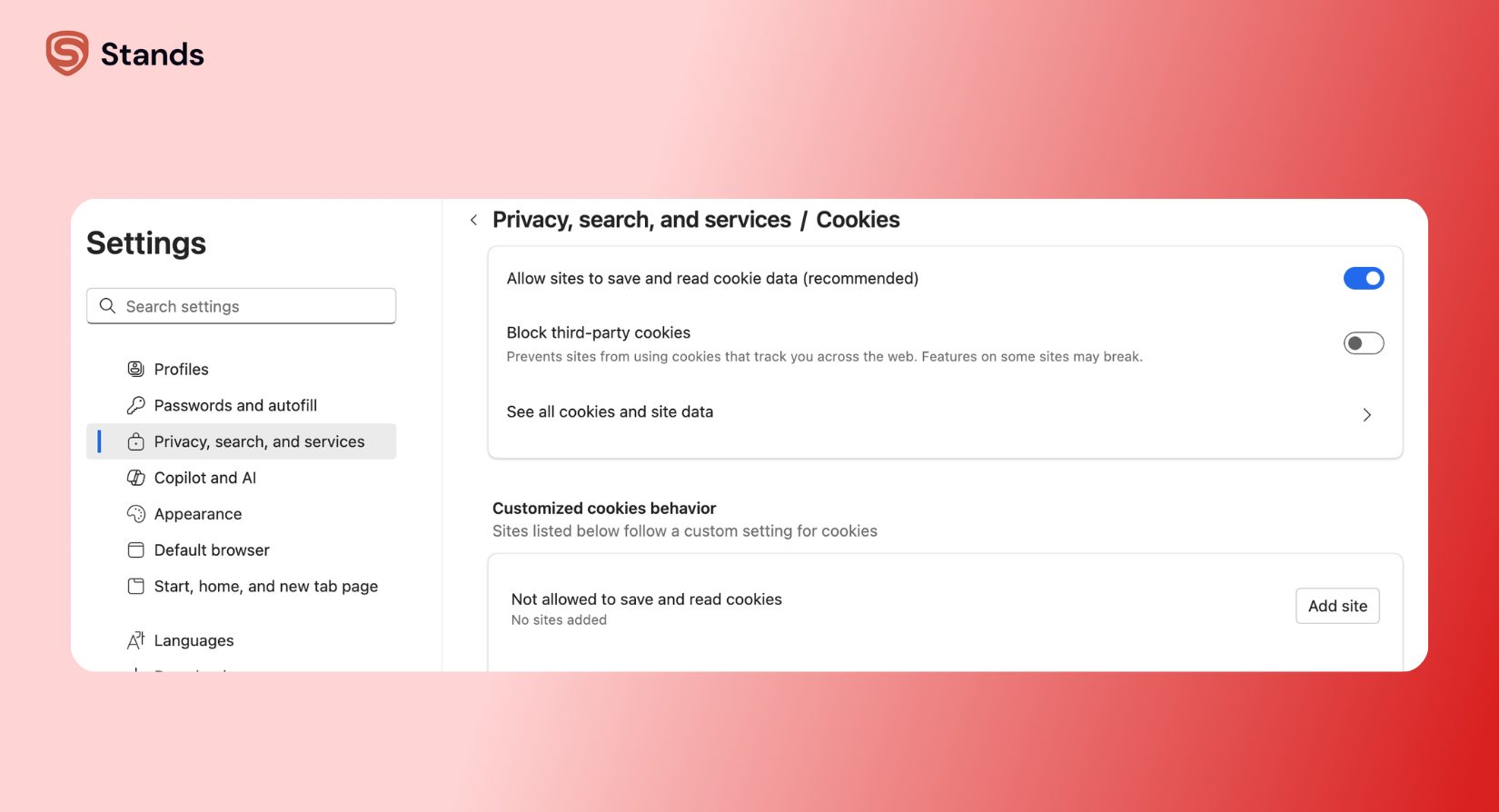
For stronger privacy:
- Go to Privacy, Search, and Services
- Set tracking protection to Strict
You can also boost protection with tools like:
Free Ad Blocker for Microsoft Edge
How to Disable Cookies on iPhone
Mobile browsing needs the same care as desktop.
Disable Cookies on iPhone
- Open Settings
- Tap Safari
- Go to Privacy & Security

Extra tips:
- Use private browsing mode
- Turn off cross-site tracking
- Use trusted ad blockers
- Add a VPN for stronger privacy
If you want full cleanup steps, check:
How to Clear Cookies on iPhone, iPad and other Devices
Should You Disable All Cookies or Just Third-Party?
This is where most people get stuck.
Here is the simple breakdown:
| Option | Good Point | Bad Point |
| Allow all cookies | Smooth browsing | Weak privacy |
| Block third-party cookies | Good balance | Some tracking stays |
| Block all cookies | Strong privacy | Some sites break |
Most people should block third-party cookies, as they stop cross-site tracking but still keep websites usable.
If you block everything, you may run into broken login pages, empty shopping carts, and missing site features.
So think of it like this: don’t burn the house down to kill a spider.

How Stands Helps You Control Trackers
Cookies are only one part of the story. Trackers also use ads, scripts, and fingerprinting tricks.
That is where extra tools help a lot.
A Free Ad Blocker Chrome extension helps you stop ads, trackers, and pop-ups in one go:
Free Ad Blocker Chrome Extension
If you use Edge, you can install:
Adblock Edge by Stands: Free Ad Blocker for Microsoft Edge
You can also explore new AI Browsers that focus on privacy and smarter control:
AI Browsers: What They Are and Which Ones Are Worth Trying
When you mix cookie control with ad blockers and VPNs, you close many doors that trackers use.
Conclusion
Now you know how to disable cookies in browser settings across Chrome, Safari, Firefox, Edge, and iPhone.
It takes only a few clicks, but it makes a big difference.
If you want simple advice, here it is:
- Use ad blockers and privacy tools for extra protection
Online privacy works like layers: one tool helps, two tools help more, and a full setup gives you peace of mind.
Stay smart, stay private, and keep control of your online footprint :)

