
 Home »
How to Clear Cache on Mac & MacBook (All Types)
Cache on your Mac is just temporary data that your computer saves across four main spots: system cache, app cache, browser cache, and DNS cache. Clearing these files is totally safe and gives you back valuable storage space! Each type just takes a slightly different trick to clear out. Let’s check it together :)
- What Is Cache and Why Does It Build Up on a Mac?
- Is It Safe to Clear Cache on a Mac?
- How to Clear System Cache on a Mac
- How to Clear App-Specific Cache on a Mac
- How to Clear Browser Cache on a Mac
- How to Clear DNS Cache on a Mac
- Quick Reference: Cache Types on a Mac
- When Should You Clear Cache on a Mac?
- How Stands Fits This Use Case
- FAQ
What Is Cache and Why Does It Build Up on a Mac?
Cache is like your Mac's short-term memory. macOS, your web browsers, and your favorite apps keep small bits of data, like images, scripts, and video bits, stored right on your hard drive. This helps everything load super fast because your computer doesn't have to download the same stuff twice!
Over time, though, these temporary files pile up fast. What starts as a tiny bit of data can easily grow into several gigabytes of space :) While cache usually helps, old or broken files can make apps crash, load weird pages, or slow down your Mac. Clearing out this junk manually gives you back free space and gets your computer running smoothly again!
Is It Safe to Clear Cache on a Mac?
Yes, absolutely! You can clear cache files on your Mac whenever you want. When you delete them, your apps and macOS simply make fresh new cache files as they need them :) You might notice an app or web page take an extra second to load the very next time you open it, but everything speeds right back up after that.
Just keep one simple safety rule in mind: when you look inside system folders, always delete the files inside the cache folders, BUT never delete the main system folders themselves!
How to Clear System Cache on a Mac
Your Mac creates system cache files to keep background tasks moving along. Over time, clearing cache on macbook drives can give you back gigabytes of space!
Here is how you do that:
- Open Finder on your Mac desktop or MacBook.
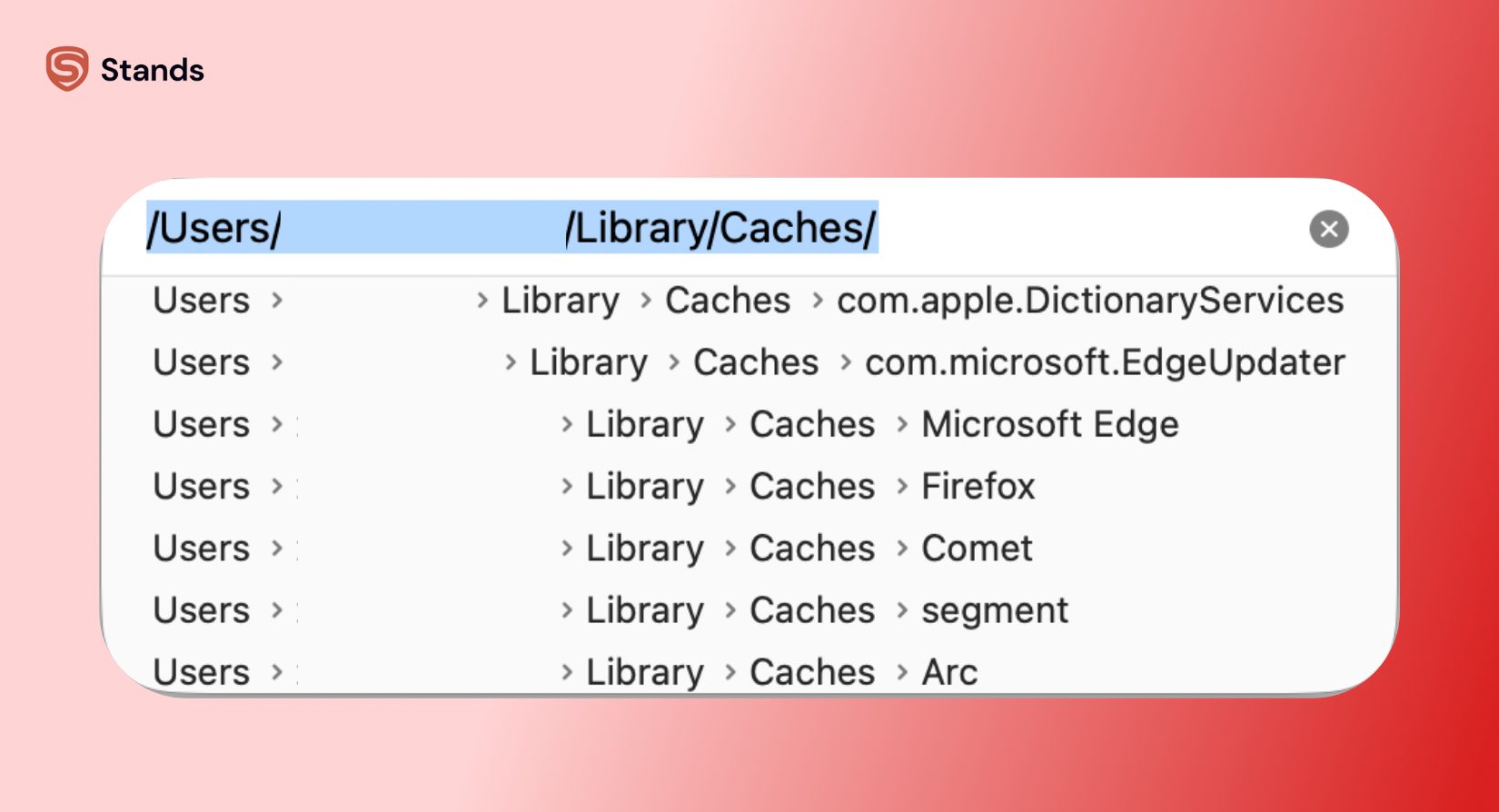
- Press Command + Shift + G on your keyboard to open the folder search bar.
- Type ~/Library/Caches and hit Enter
- Look through the folders holding all those temporary files.
- Pick the files you don't need, or press Command + A to select everything inside a specific folder.
- Drag those files right into your Trash.
- Right-click the Trash icon in your Dock and click Empty Trash!

Quick tip: This works the exact same way on a MacBook, iMac, or Mac mini running any modern macOS!
How to Clear App-Specific Cache on a Mac
If one specific app keeps acting up or taking up way too much space, you can clean cache on mac apps by clearing out that single program's cache files.
- Open Finder and press Command + Shift + G.
- Type in ~/Library/Caches to see all your app cache folders.
- Find the folder named after your troublesome app (like com.spotify.client or com.adobe.Photoshop).
- Delete the files inside that folder to give the app a fresh start
Lots of popular apps also let you clear their cache right inside their own settings menu:
- Spotify: Open Settings → Storage →Clear cache.
- Adobe Creative Cloud: Open Preferences → Media Cache → Remove Unused.
- Slack: Open Help → Troubleshooting → Clear Cache and Restart.
How to Clear Browser Cache on a Mac
When websites load slowly or show old info, knowing how to empty cache on mac browsers saves the day! Every web browser handles cache and cookies a little differently.
Safari
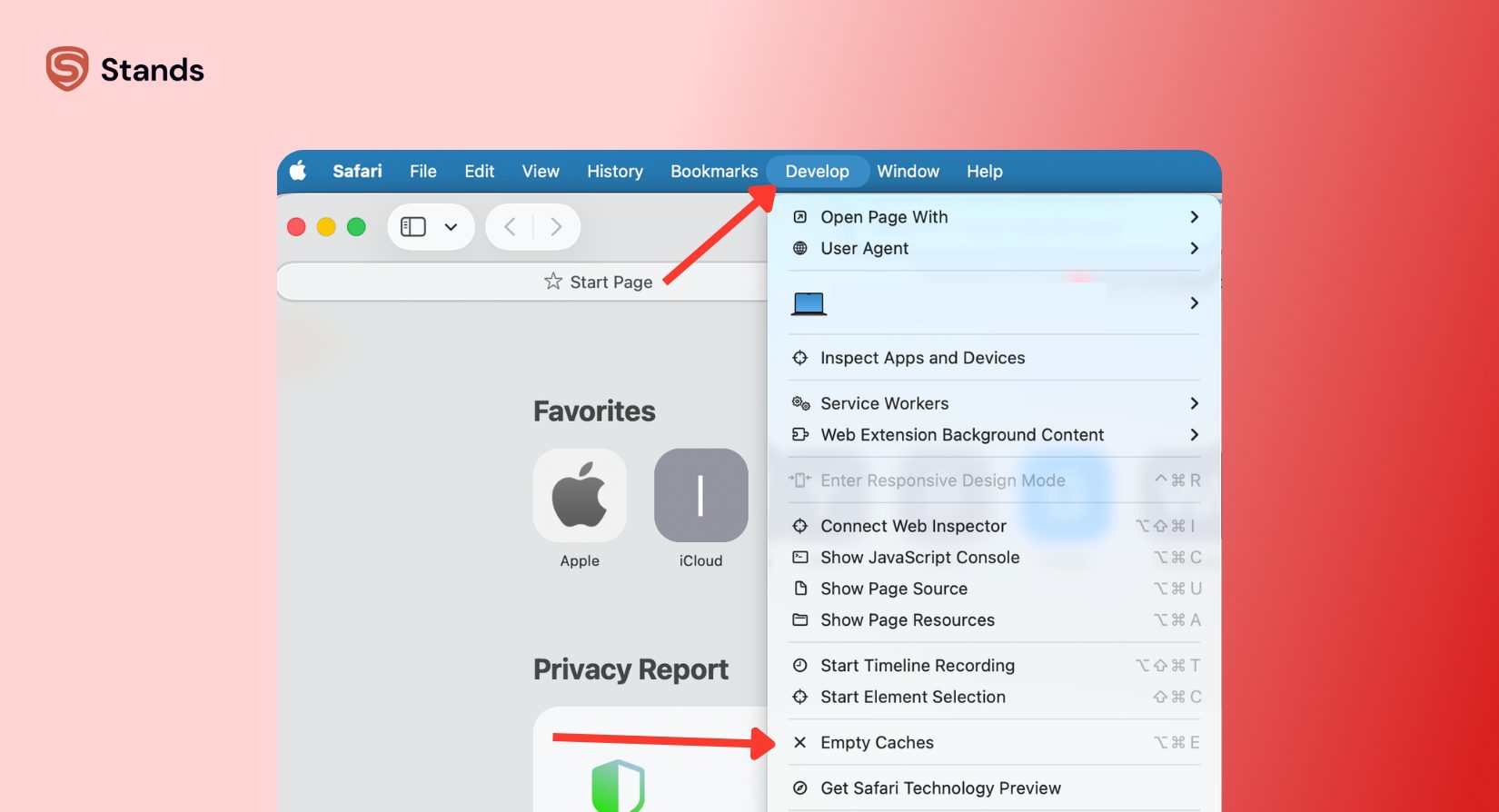
- Open Safari on your Mac.
- Head to the Advanced tab and check the box for Show features for web developers
- Click Empty Caches.
Chrome
- Open Google Chrome.
- Click the three dots in the top-right corner and choose Settings.
- Click Privacy and security → Delete browsing data.
- Check the box for Cached images and files.
- Pick your time range and click Delete data!
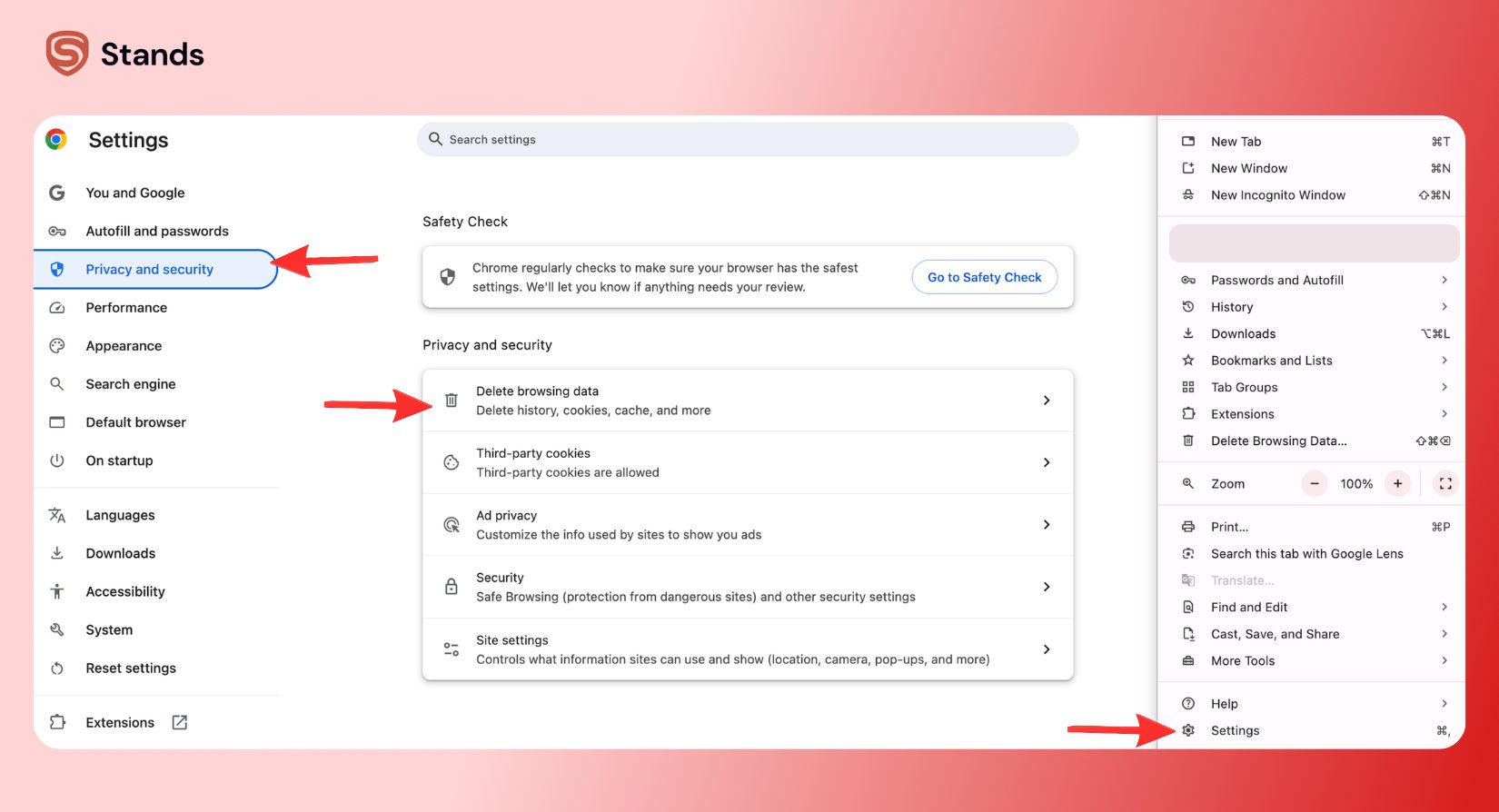
If Chrome still feels sluggish after a cleanup, check out our easy guide on Why Is Chrome So Slow. We also have a quick visual guide on how to Clear Cache in Chrome!
Edge
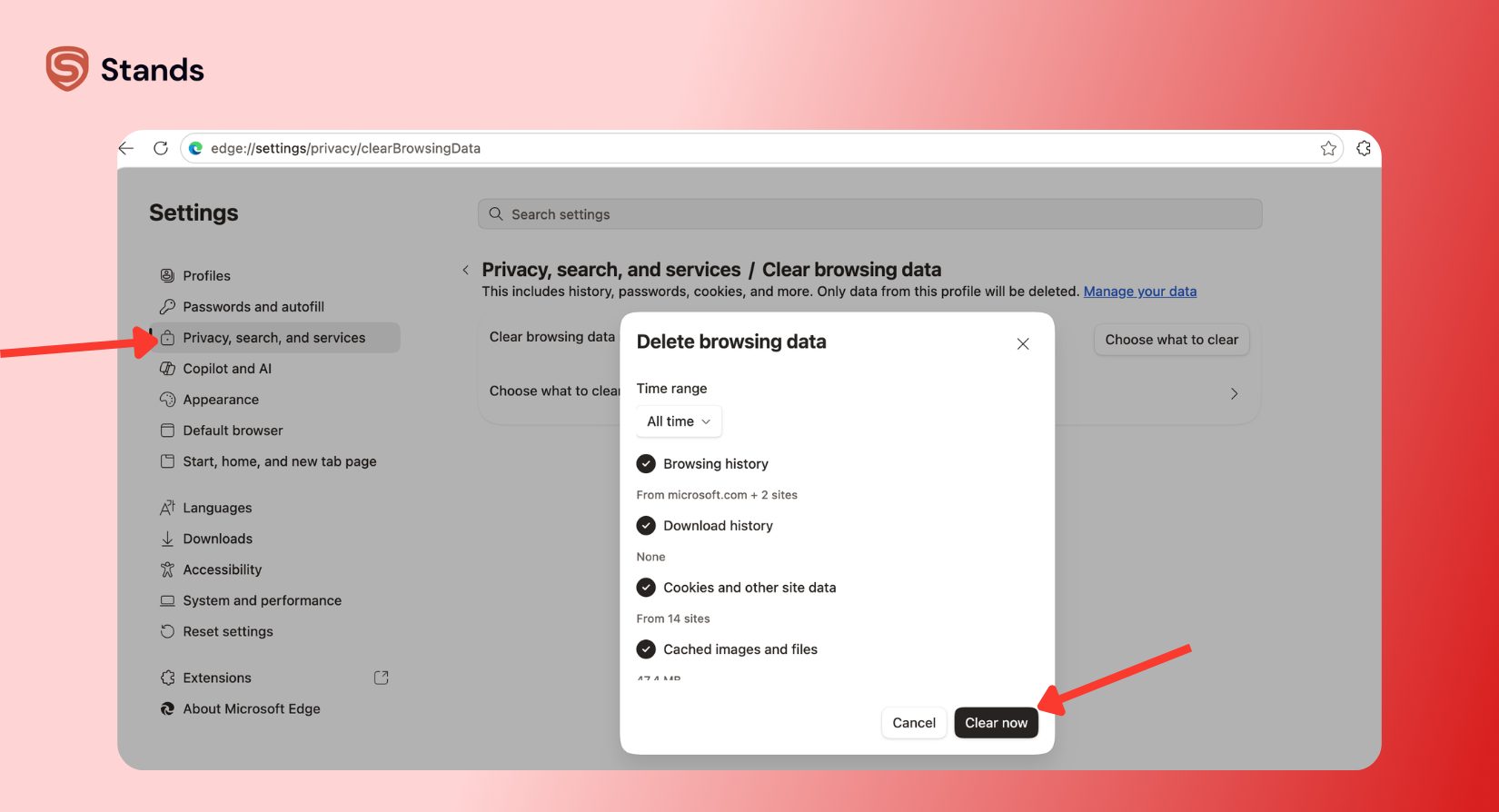
- Open Microsoft Edge.
- Click the three dots in the top-right corner and select Settings.
- Click Privacy, search, and services.
- Scroll to Clear browsing data and click Choose what to clear.
- Select Cached images and files and click Clear now
Check out our full walkthrough on How to Clear Cache in Edge for extra tips!
Firefox
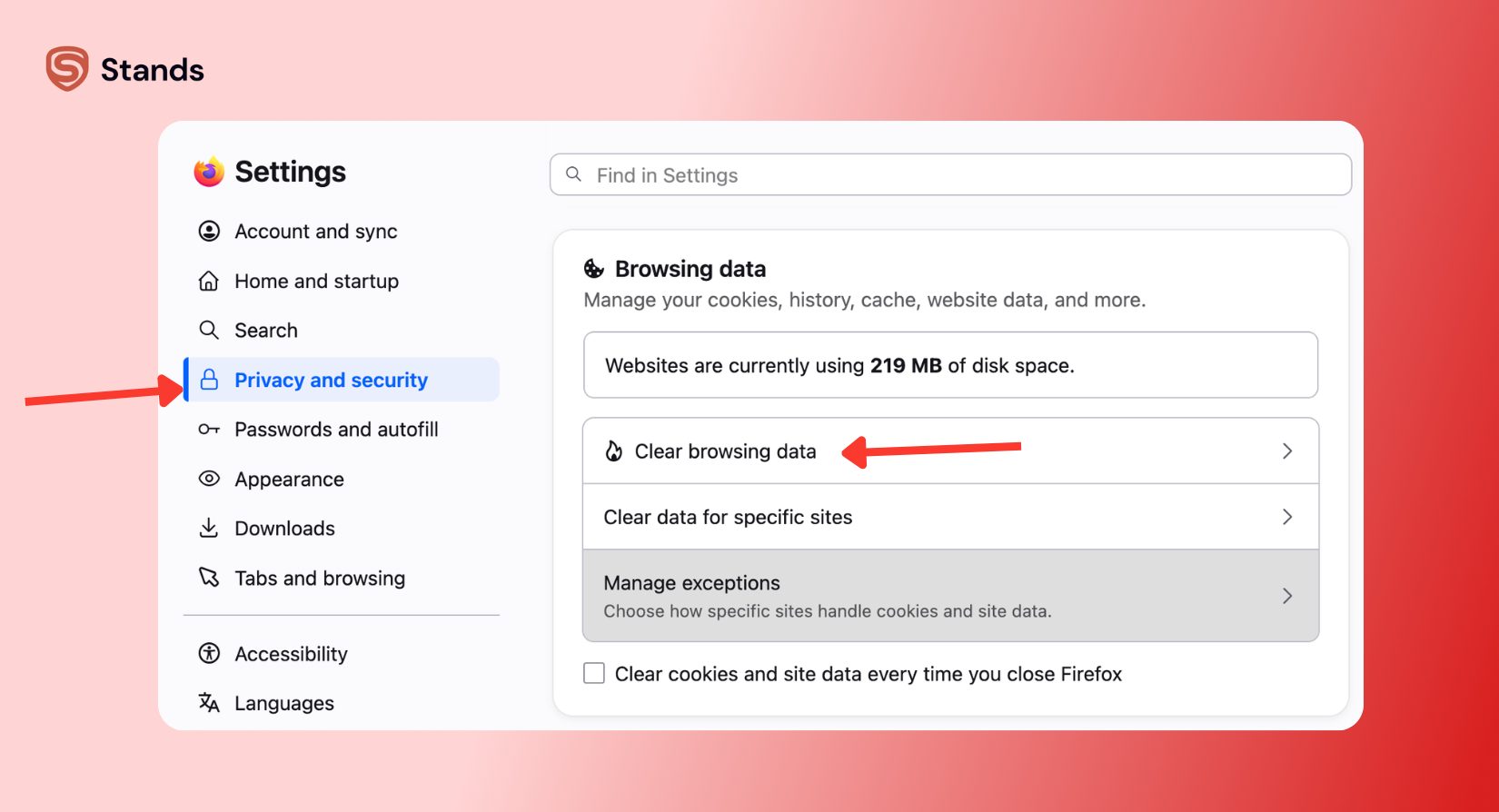
- Open Mozilla Firefox.
- Click the three lines in the top corner and pick Settings.
- Check Cached Web Content and hit Clear!
How to Clear DNS Cache on a Mac
Your Mac holds onto a DNS cache, kind of like a contact list for websites that matches domain names to IP addresses. If a site updates its server and won't load for you, clearing your DNS cache fixes the problem right away!
You can reset your DNS cache in seconds using the Terminal app:
- Press Command + Space, type Terminal, and hit Enter.
- Copy and paste this simple command into Terminal: sudo dscacheutil -flushcache; sudo killall -HUP mDNSResponder
- Hit Enter, type your Mac password, and hit Enter one more time
Quick Reference: Cache Types on a Mac
| Cache Type | Where to Find It | Best Time to Clear It |
| System Cache | ~/Library/Caches | Your Mac feels slow or low on space |
| App-Specific Cache | App settings or ~/Library/Caches/[app] | An app crashes, freezes, or eats storage |
| Browser Cache | Browser privacy settings menu | Pages load old info or run slowly |
| DNS Cache | macOS Terminal command | Websites won't load or show connection errors |
When Should You Clear Cache on a Mac?
You definitely don't need to clear your cache every single day! macOS does a great job managing memory and space on its own.
Clearing your cache manually makes the most sense when:
- Your Mac is running really low on storage space.
- An app keeps crashing or showing weird graphics errors
- Your browser keeps showing outdated web pages.
How Stands Fits This Use Case
While clearing system cache frees up local disk space, annoying web ads and trackers create a ton of browser clutter in the first place!
When you install the Stands ad blocker for Chrome or the Stands ad blocker for Edge, you stop ad-related junk files before they ever hit your computer. Blocking ad requests, trackers, and popup windows keeps your browser light and fast :) Plus, pairing your setup with the Stands pop-up blocker means web pages load way faster without needing constant manual cleanups!

Just a quick note: Stands works inside your web browser to block ads and trackers; it won't clear your macOS system, app, or DNS caches!
FAQ
What caches can you delete on a Mac?
You can safely clean out system cache files, app cache files, browser cache (like cookies and saved images), and DNS cache entries :)
Is there a keyboard shortcut to clear cache on a Mac?
There isn't a single shortcut that clears every cache on your Mac at once. However, some individual apps have their own shortcuts, like Adobe Photoshop, which uses Option + Command + Shift + Delete to clear out temporary cache memory!
Does Apple have a built-in "clear cache" button?
No, macOS doesn't have one big "clear cache" button. You just clear things out manually through Finder, your web browser settings, or Terminal!
How do I clean up my Mac to run faster overall?
To keep your Mac running fast:
- Turn off unwanted startup apps in System Settings > General > Login Items
- Delete apps you don't use anymore.
- Check System Settings > Storage to find and delete big files.
- Keep macOS updated so your system runs smoothly!
Is it safe to clear all cache on a Mac at once?
Yes! Clearing cache files is totally safe as long as you delete the files inside individual cache folders instead of deleting main system folders.