Home »

How to Block Push Notifications in Chrome, Edge & Firefox
Fake virus warnings, clickbait headlines, or retail promotions pop up every few minutes... You take back control of your screen, protect your focus, and stop aggressive ads from interrupting your day, when you know how to block push notifications.
You can stop browser push alerts right now by opening your browser settings, switching off the master notification permission toggle, and deleting unwanted websites from your saved "Allowed" list.
| Your Browser | Where You Click First | What You Choose |
| Chrome (Desktop) | Settings > Privacy and security > Site settings > Notifications | Don't allow sites to send notifications |
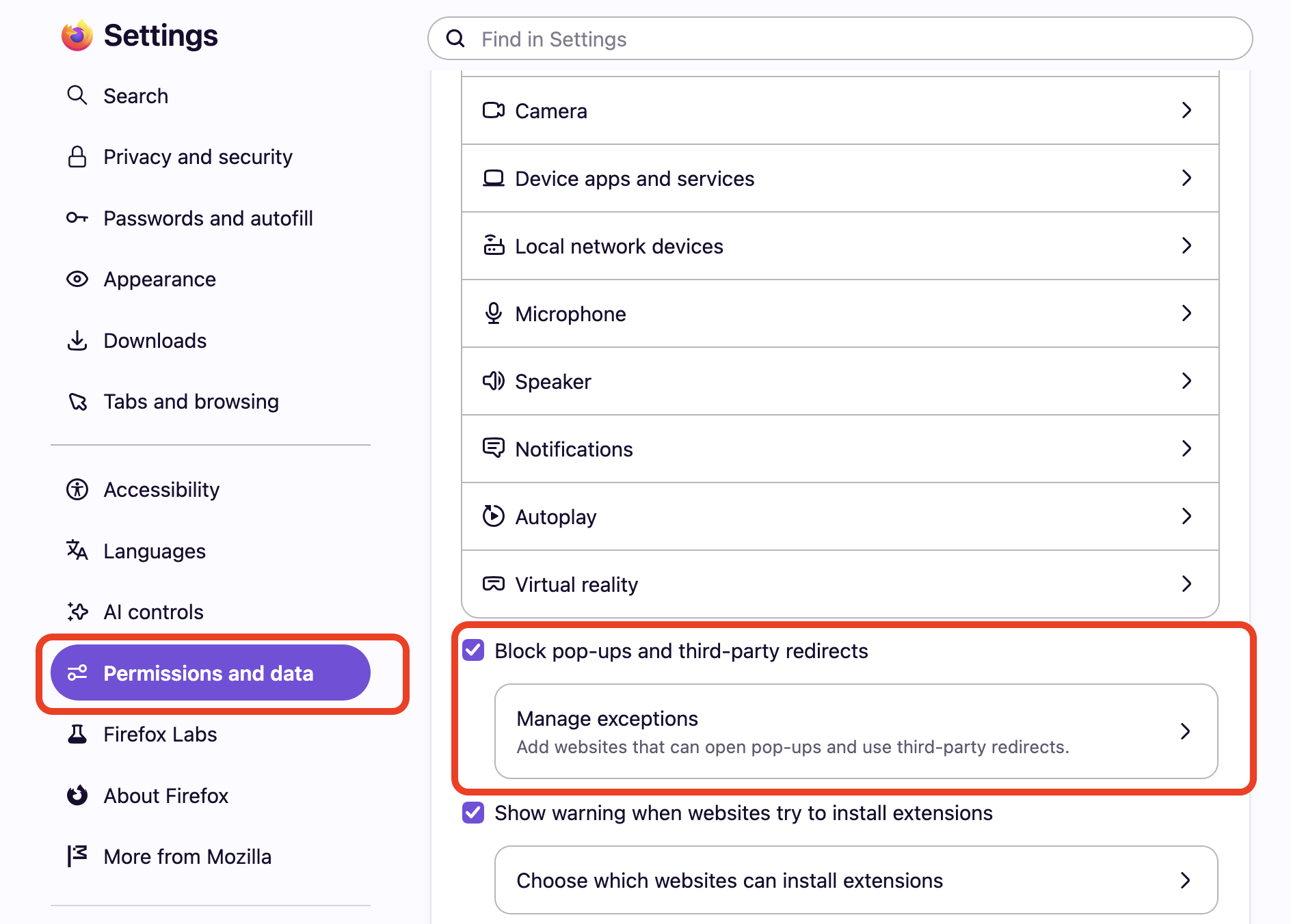
| Firefox (Desktop) | Settings > Privacy & Security > Permissions > Notifications | Block new requests asking to allow notifications |
| Edge (Desktop) | Settings > Cookies and site permissions > Notifications | Ask before sending (Toggle Off) |
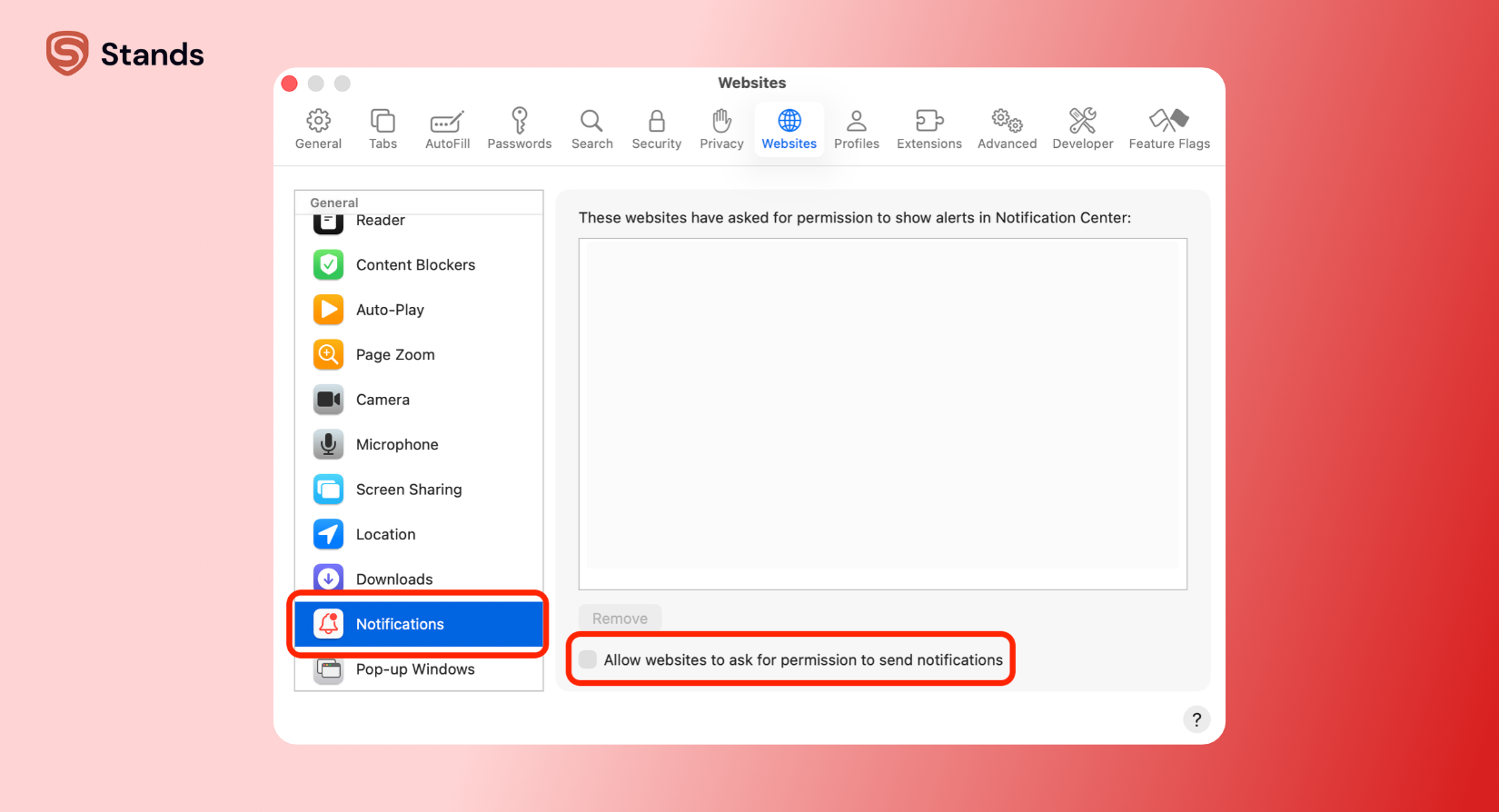
| Safari (Mac) | Settings > Websites > Notifications | Uncheck "Allow websites to ask for permission" |
| Chrome (Android) | Settings > Site settings > Notifications | Notifications toggle (Switch Off) |
| Safari (iOS) | iPhone Settings > Notifications > [Web App] | Allow Notifications (Toggle Off) |
Follow the steps below to clean up notification spam on your computer and phone :)
- What Are Browser Push Notifications?
- How to Block Push Notifications in Chrome
- How to Turn Off Push Notifications in Firefox
- How to Block Push Notifications in Edge
- How to Block Push Notifications in Safari on Mac
- How to Block Push Notifications on Android and iPhone
- How to Find and Remove Sites That Already Send Notifications
- When a Free Ad Blocker Helps
What Are Browser Push Notifications?
Browser push notifications are alert windows that a website sends straight to your desktop or mobile display. You can receive these messages even when you close the website's original tab. The first time you visit an unfamiliar page, you see this message to allow alerts.
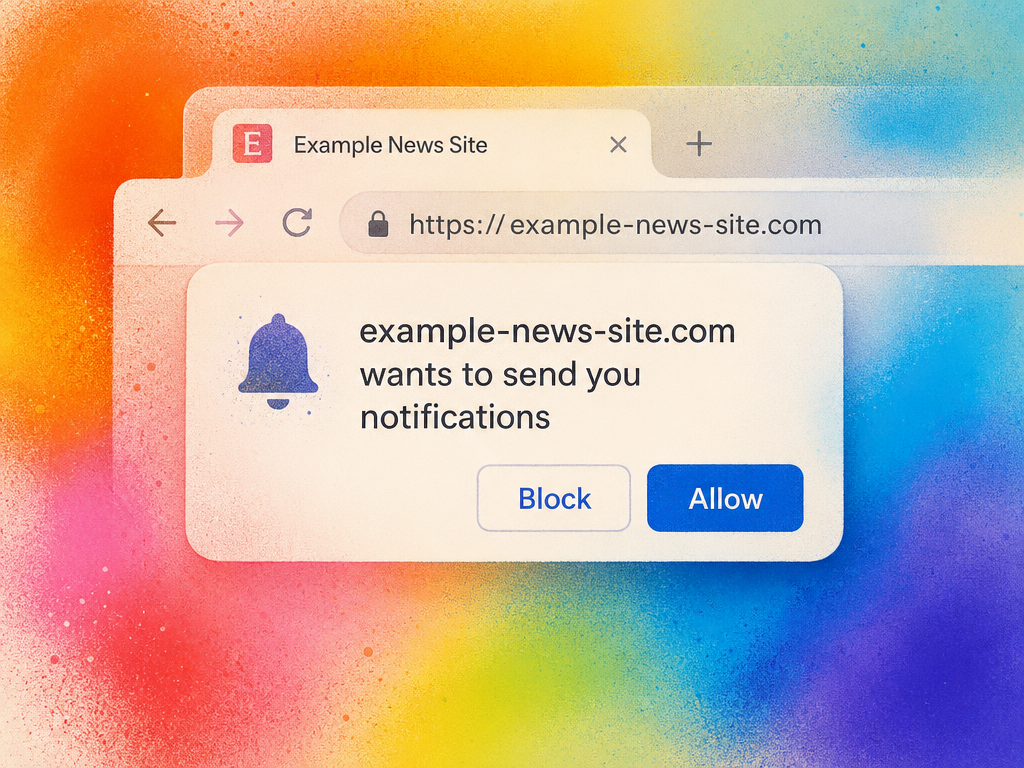
You let the website connect to your browser at the moment when you click "Allow". Simple as that. This link gives the website free rein to send you headlines, product promotions, and outbound links whenever its servers publish an update.
You might appreciate these alerts when your web calendar reminds you about a team meeting or your webmail flags a critical message. However, spammy publishers exploit this setup. They trick you into saying "YES" so they can blast your screen with noisy ads, affiliate pitches, and deceptive system warnings.
Why Notification Spam Looks Like Ads or Virus Alerts
It is pretty obvious - so you click on it. You often see that they copy real antivirus software or operating system warnings because website owners rent their subscriber lists to rogue advertising networks.
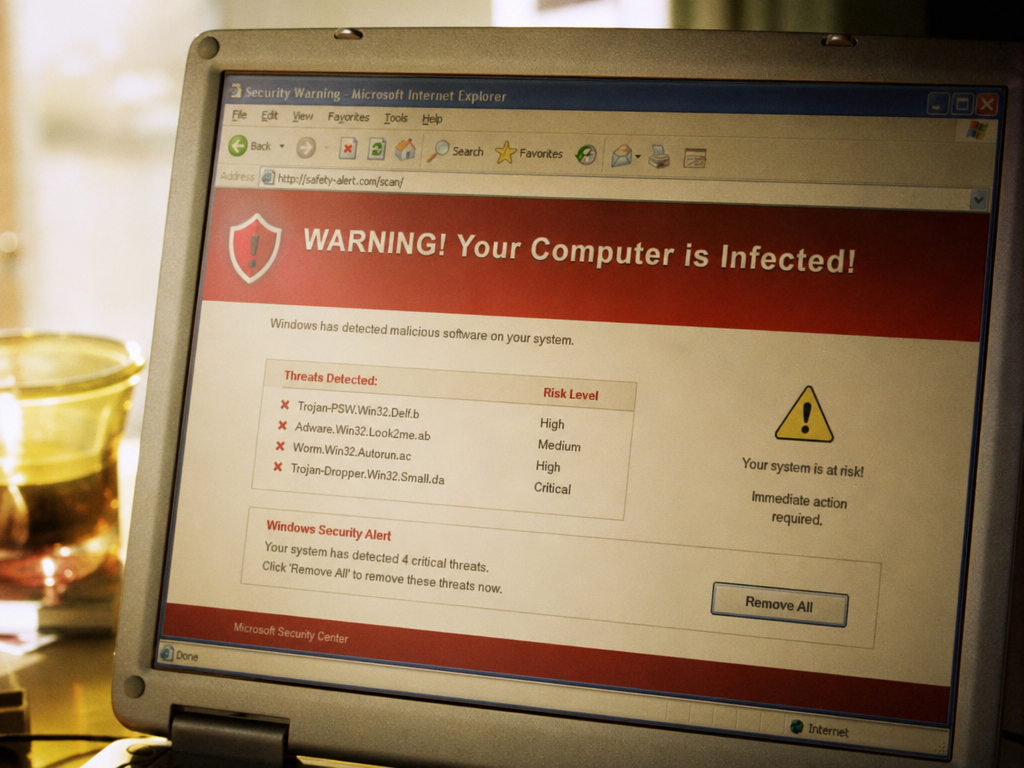
Now, they start pushing messages like "critical virus alert," "your antivirus expired," or "immediate action required." You do not have malware on your hard drive when this happens. You are simply watching a website show you a deceptive image and text block inside your everyday notification tray.
"A browser push alert cannot scan your personal hard drive. When you see a scary fake virus warning pop up in the corner of your screen, you are simply looking at a deceptive website abusing standard browser permissions to trigger panic."
When you click one of these fake warnings, you land on a webpage that tries to sell you fake cleanup programs, force useless extensions into your browser, or connect you with phone scammers.
How to Block Push Notifications in Chrome
As long as you read this article, I assume you, like me and thousands of others, use Google Chrome, which makes it the biggest target for push notification scams. You can turn off alerts across your entire browser or quickly silence a single problematic tab.
Turn Off Notifications on Chrome for All Sites
You can mute all permission pop-ups and prevent any future website notifications in Google Chrome:
- Open the browser on your desktop or laptop.
- Click the three vertical dots in your top-right corner and select "Settings".
- Select "Site settings", scroll down to your "Permissions section", and click "Notifications".
- Pick Don't allow sites to send notifications under the Default behavior area.
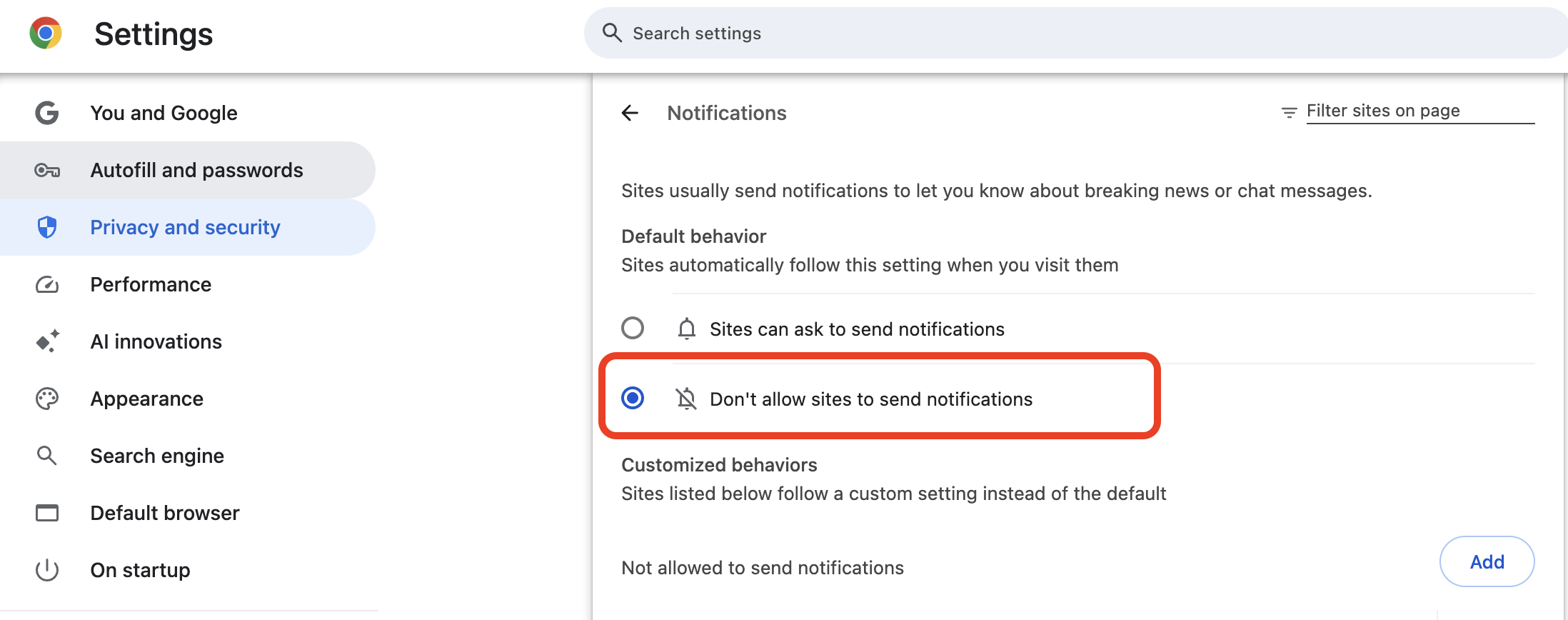
If you still want to subscribe to select websites without seeing large prompt boxes, choose Use quieter messaging. Chrome will tuck new requests away into a discreet bell icon inside your address bar.
If deceptive pages keep trying to hijack your navigation, you can run an ad blocker for Chrome to strip away fake alerts and keep your browsing session quiet.
Block One Site from the Address Bar
You do not have to dig into your primary browser menus whenever a single website starts annoying you:
- Visit the specific website that keeps sending you alerts.
- Click the dropdown and select Block, or switch your active slider to Off.
- Refresh your page so Chrome applies your new choice.
| Chrome Setting | How It Handles Sites | Why You Might Choose It |
| Sites can ask to send notifications | Shows you a prompt whenever a site wants your attention | You rely on real-time alerts from web tools like calendars |
| Use quieter messaging | Hides the prompt behind a quiet bell icon in your address bar | You want to browse without annoying pop-down boxes |
| Don't allow sites to send notifications | Shuts down all permission prompts immediately | You want absolute defense against all notification spam |
How to Turn Off Push Notifications in Firefox
Mozilla gives you direct privacy tools so you can shut down new permission prompts and browse without repeated interruptions.
Block New Notification Requests
You can use Firefox to block every incoming notification prompt while keeping the trusted sites you already approved:
- Open Firefox on your computer.
- Check your bottom box marked Block pop-ups and third-party redirects.
| What You Want to Do in Firefox | Your Exact Steps | What You Accomplish |
| Block One Site | Switch your site's status dropdown from "Allow" to "Block" | You stop that domain from sending you desktop pings |
| Delete One Site | Click on your chosen domain and hit "Remove Website" | You wipe that domain's stored permission record |
| Clear Your Entire List | Click your "Remove All Websites" button | You clear out every single push permission exception |
How to Block Push Notifications in Edge
Microsoft Edge shares the same "underlying" engine as Chrome, so you will find similar controls inside its settings:
- Launch the browser on your PC or Mac.
- Click the three horizontal dots in your top-right corner and choose Settings.
- Scroll down your All permissions list and click Notifications.
- Switch off your toggle for Ask before sending (recommended). Edge will change this setting to "Blocked," which silences new permission pop-ups.
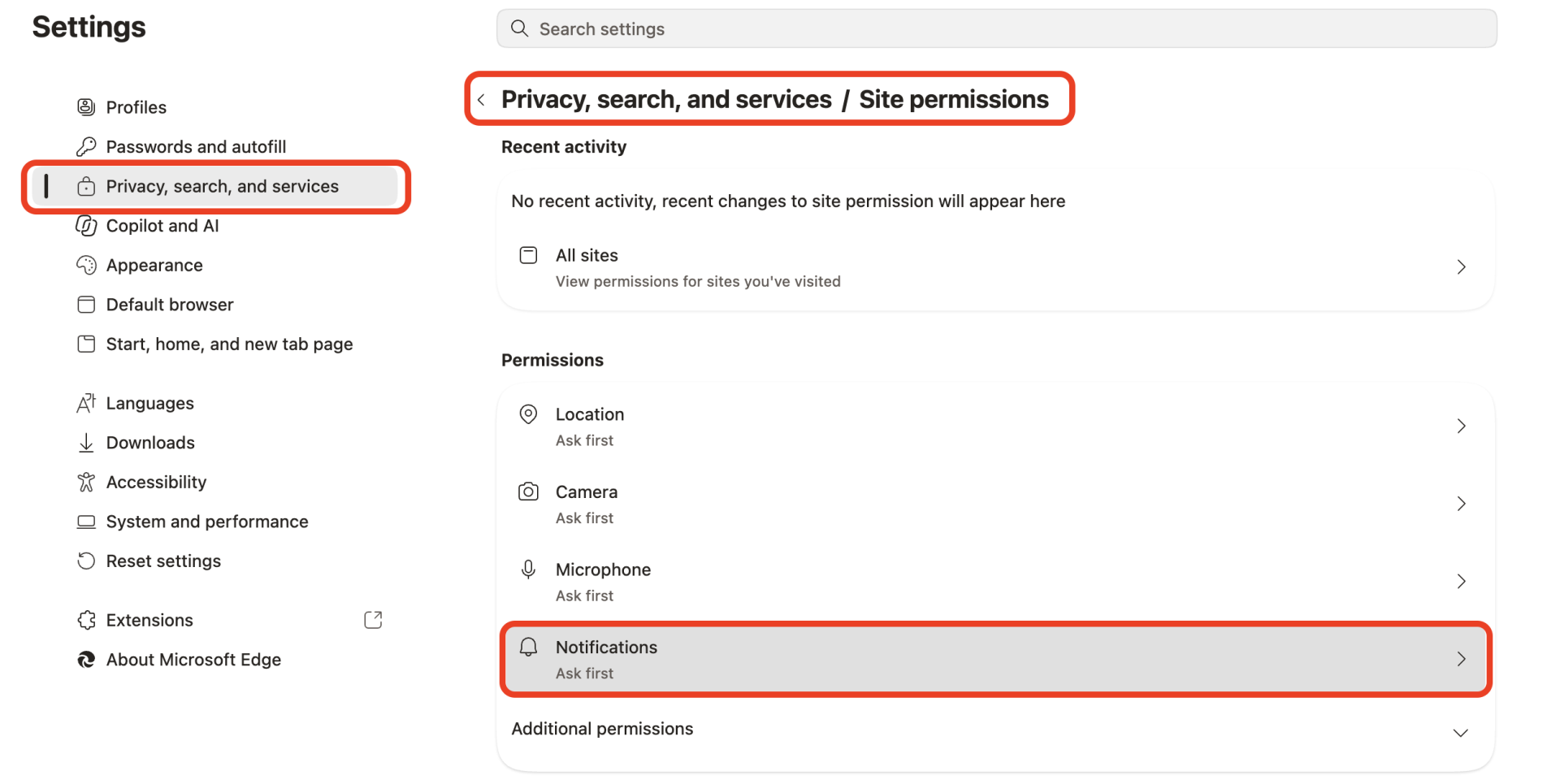
If you still want to see when a site offers notifications without an in-your-face prompt, leave the main switch on and turn on Quiet notification requests. Edge will hide the prompt inside your address bar.
To get rid of spam sites that already bother you in Edge:
- Check your Allow list near the bottom of your screen.
- Click your three horizontal dots next to any unfamiliar URL.
- Select Remove to clear its access, or select Block so it can never ping you again.
How to Block Push Notifications in Safari on Mac
Apple links Safari web alerts directly to macOS Notification Center, giving you simple control over which sites reach your screen.
- Open Safari on your Mac.
- Click your Websites tab along the top row.
- Uncheck your bottom box: Allow websites to ask for permission to send notifications.
| Safari Control You Use | Where You Find It | What You Control |
| Global Permission Checkbox | Safari > Settings > Websites > Notifications | You stop websites from asking you for permission |
| Website Exception List | Safari > Settings > Websites > Notifications | You pick which specific sites can send alerts |
| macOS Focus Mode | Apple Menu > System Settings > Focus | You silence all notifications across your entire Mac |
How to Block Push Notifications on Android and iPhone
You need to keep a close eye on your mobile devices because "spam alerts" vibrate your phone, make alert noises, and fill up your lock screen.
Chrome on Android
Mobile Chrome lets websites push messages in the background, which means untrusted sites can easily wake up your phone throughout the day.
- Open your Chrome app on your Android phone or tablet.
- Tap your three vertical dots in the top-right corner and select Settings.
- Scroll down your screen and tap Site settings.
- Tap Notifications.
- Turn your main Notifications toggle to the Off position.
- Look at your list under Allowed. Tap any website you do not trust, choose Notifications, and tap Clear & reset (or toggle your setting to Blocked).
If full-screen mobile ads keep getting in your way while you read on your phone, check out our guide on how you can block pop-up ads on mobile devices.
Safari on iPhone
Apple keeps web alerts locked down on iOS. You will not get push alerts through standard Safari tabs; you only receive web messages if you specifically save a website to your Home Screen as a web app.
- Open your iPhone Settings app.
- Scroll down and tap Notifications.
- Swipe through your app list until you spot your saved web app.
- Tap the web app name and turn off your Allow Notifications switch.
If you no longer care about that web shortcut, press and hold its icon on your Home Screen and tap Delete Bookmark to remove the app and its alert access completely.
| Your Mobile Device | Your Browser App | Where You Go in Settings | What You Get |
| Android | Chrome Mobile | Chrome > Settings > Site settings > Notifications | You block prompt windows and lock-screen buzzes |
| iPhone | Safari Web App | iOS Settings > Notifications > [Web App Name] | You stop app badges and banner popups on your lock screen |
| Android | Samsung Internet | Internet > Settings > Sites and downloads > Notifications | You silence incoming website alerts completely |
How to Find and Remove Sites That Already Send Notifications
Turning off your master prompt switch stops new sites from pestering you, but it leaves your existing approved sites active. Any spammy site that tricked you in the past will keep sending you junk until you remove it from your browser's memory.

Take three minutes to audit your browsers with this quick routine:
- Open your browser's notification permissions panel using the paths we covered above.
- Scroll straight down to your Allowed or Exceptions table.
- Review every single domain on your screen. Keep tools you use every day, like your online calendar or work email.
- Look for weird web addresses, long random strings of letters, or domains ending in .xyz, .top, .click, or .info.
- Click your settings icon next to each suspicious domain and hit Remove or Clear permissions.
| Browser You Use | Exact Button You Click | What Happens Next |
| Google Chrome | Click three dots (⋮) > Click "Remove" | You delete the site from your Allowed list right away |
| Mozilla Firefox | Select your site > Click "Remove Website" | You wipe that site's permission token permanently |
| Microsoft Edge | Click three dots (...) > Click "Remove" | You strip the website's alert access from your profile |
| Apple Safari | Highlight your domain > Click "Remove" | You delete that site's push authorization from your Mac |
When you remove an address, you revoke its ability to reach your screen. If you visit that page again in the future with your global permissions turned off, it cannot send you alerts or demand your attention.
When a Free Ad Blocker Helps
Your native browser settings handle the final handshake for notifications, but deceptive websites use tricky tricks, fake video buttons, and hidden screen layers to push you into clicking "Allow."
You can protect yourself with a reliable free ad blocker + your regular browser settings.
A quality ad blocker stops dangerous scripts before they ever appear on your monitor. Download portals, video scrapers, and file conversion websites love showing fake "human verification prompts" that say: "Click Allow to prove you are not a robot" or "Press Allow to start your download."
You cut off all those layers that cause accidental clicks when you pair your browser's built-in controls with an effective pop-up blocker. If you still have those windows while browsing, check out our guide on how to stop pop-up ads in Chrome to keep your workspace clean.
At this point, that's it. I hope you find this guide helpful and browse safely!:)