
 Home »
How to Block Ads on iPhone: Complete Guide
We all love our iPhones. Apple makes great devices, but nothing ruins a relaxing scroll like a huge flashing pop-up or a video ad that plays out of nowhere. It drives everyone crazy!
These annoying ads do a lot more than just mess up your mood. They slow down your device, eat up your mobile data, and drain your battery before you even realize it.
If you want to escape this noise and take back your screen, you are in the right place. In this guide to block ads on iPhone, we share simple tricks to get rid of the ads you see. From turning on settings inside your phone to downloading smart ad-blocking apps, you can easily clean up your screen. Let's get into it!:)
Why Ads Appear on Your iPhone
Do you ever feel like your phone reads your mind? You talk to a friend about a cool pair of shoes, and suddenly, an ad for those exact shoes pops up on your social media feed. Well, this is not magic.:) Trackers do this by following your moves.
Companies love to collect your personal information. When you visit a website or download free apps, these trackers quietly watch everything you do. They build a profile about your age, your location, and the things you like. Then, they use that profile to show you targeted ads.
This constant tracking does not just hurt your privacy. It also hurts your phone's physical performance.
| How Ads Impact Your iPhone | What Happens to Your Phone |
| Slowing down page loads | Your browser has to load heavy ad images and video scripts before it can show you the real website. |
| Using up cellular data | Video ads that play by themselves eat up your precious mobile data when you are out and about. |
| Draining your battery | Your phone has to work overtime to run ad trackers in the background, which kills your battery fast. |
| Risking your security | Sketchy ads often carry bad links that send you to fake online scams or phishing pages. |
Fortunately, you can stop this. You can activate simple ways to block ads on iphone right now. Let's look at the built-in Apple tools that help you fight back.
Native iOS Features to Block Ads
Before you go out and download extra apps, you should check out the settings Apple already gives you for free. You do not have to spend any money to protect your privacy and reduce the ads you see.
Enabling the Safari Pop-Up Blocker
Safari is the default browser on your iPhone, and it has a built-in switch to stop annoying pop-up ads from blocking your screen. You can turn this on in less than a minute.
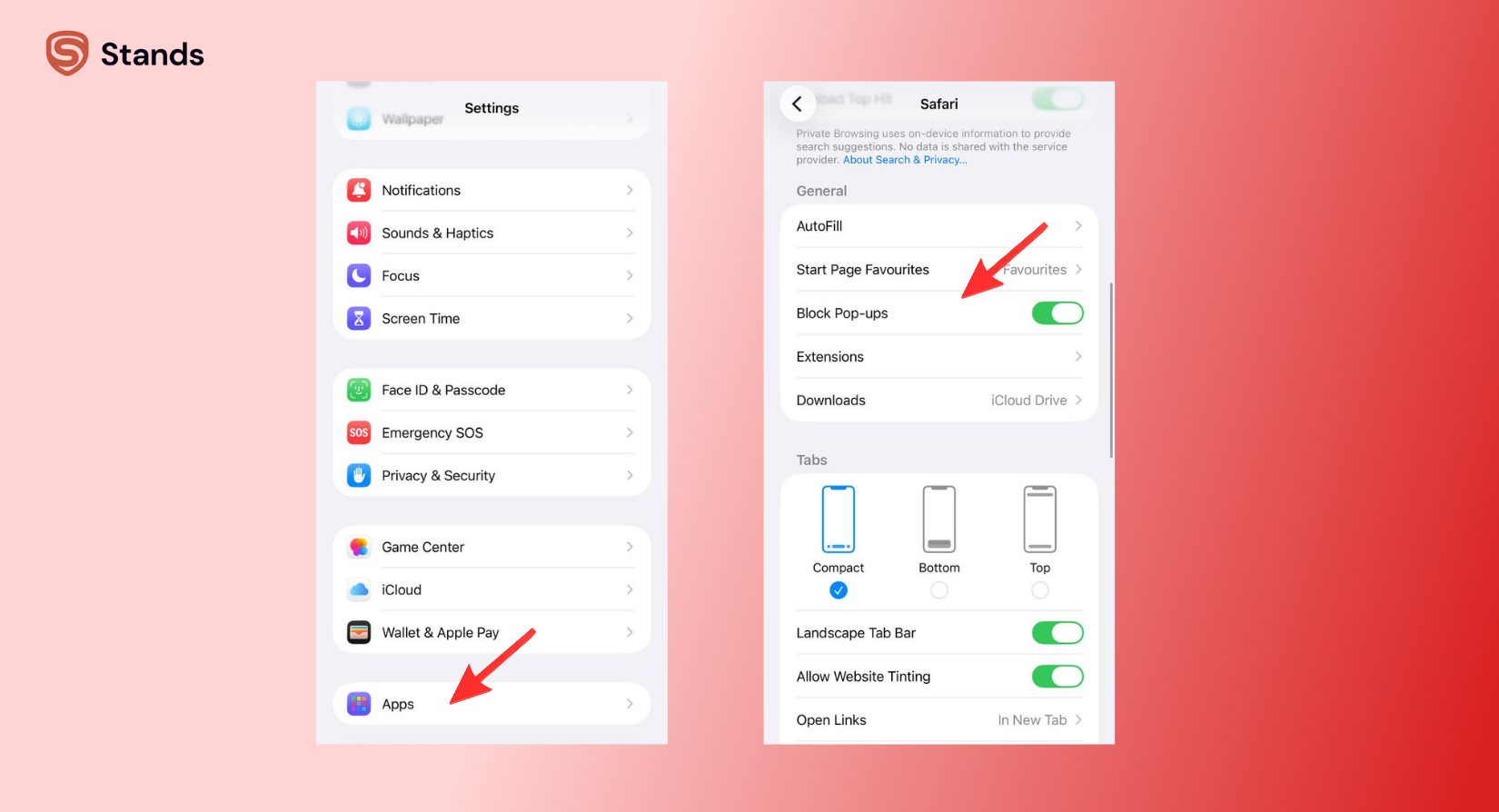
- Grab your iPhone and open the Settings app.
- Scroll down, find Apps, and tap on Safari.
- Look for the General section.
- Find Block Pop-ups and turn the switch green.
Sometimes a real website needs pop-ups to work correctly, like a bank page or a school portal. If you ever need to turn this setting off, you can read our simple guide on How to Disable Pop Up Blocker on iPhone.
Turning Off Personalized Apple Ads
Apple runs its ad network to show you targeted ads inside the App Store, Apple News, and the Stocks app. Turning this off will not block every single ad, but it stops Apple from using your personal data to target you.
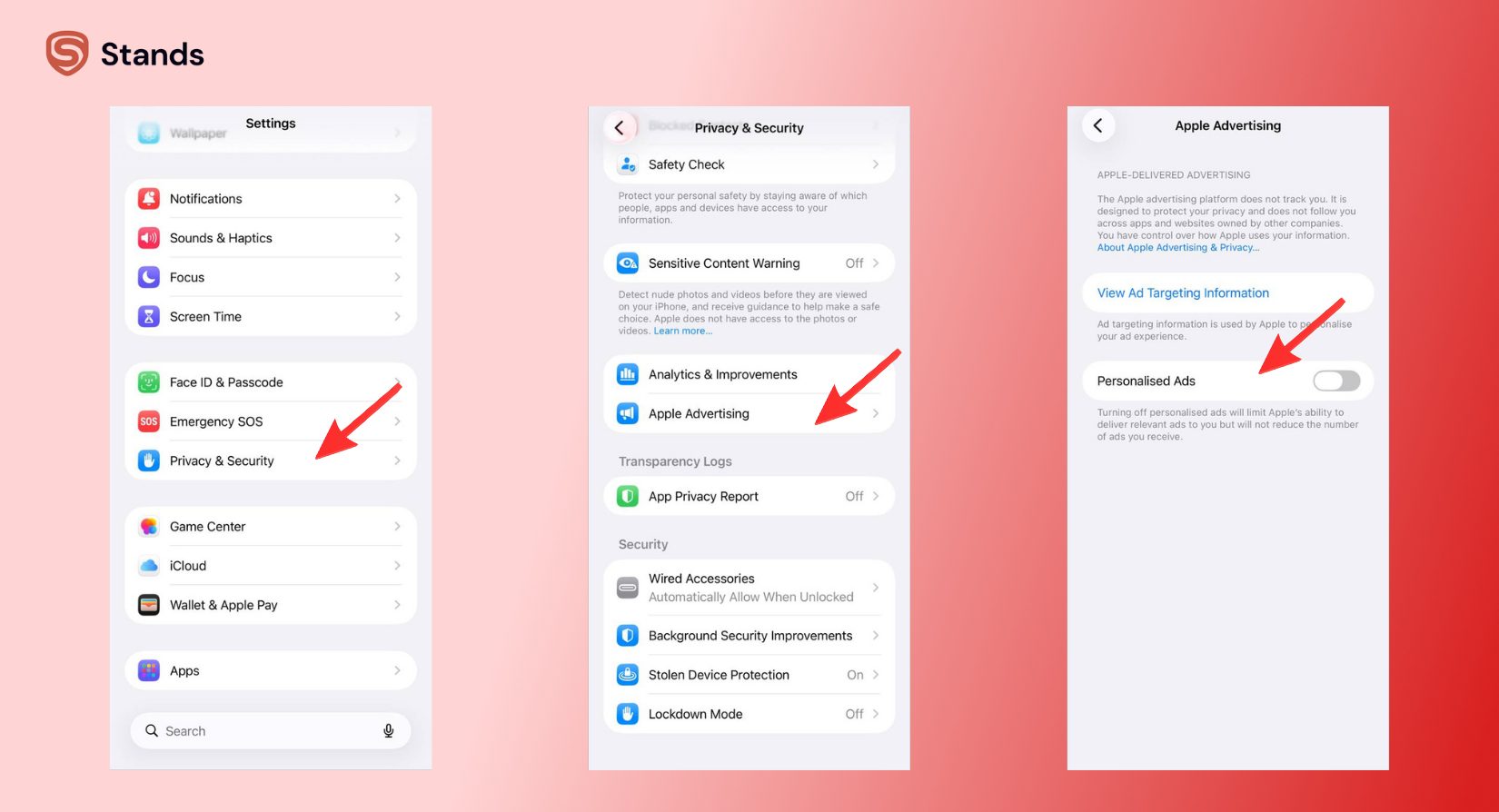
- Open your Settings app and tap on Privacy & Security.
- Scroll down to the very bottom and tap on Apple Advertising.
- Turn off the switch for Personalized Ads.
Preventing Cross-Site and App Tracking
This step is a win if you want to stop companies from building a folder about you. By turning off tracking, you cut off the data stream that feeds those ads on apps like Instagram.
- Stop app tracking: Go to Settings > Privacy & Security > Tracking. Turn off the switch for Allow Apps to Request to Track. This stops apps from tracking your activity across other apps and websites.
Using Content Blocker Apps from the App Store
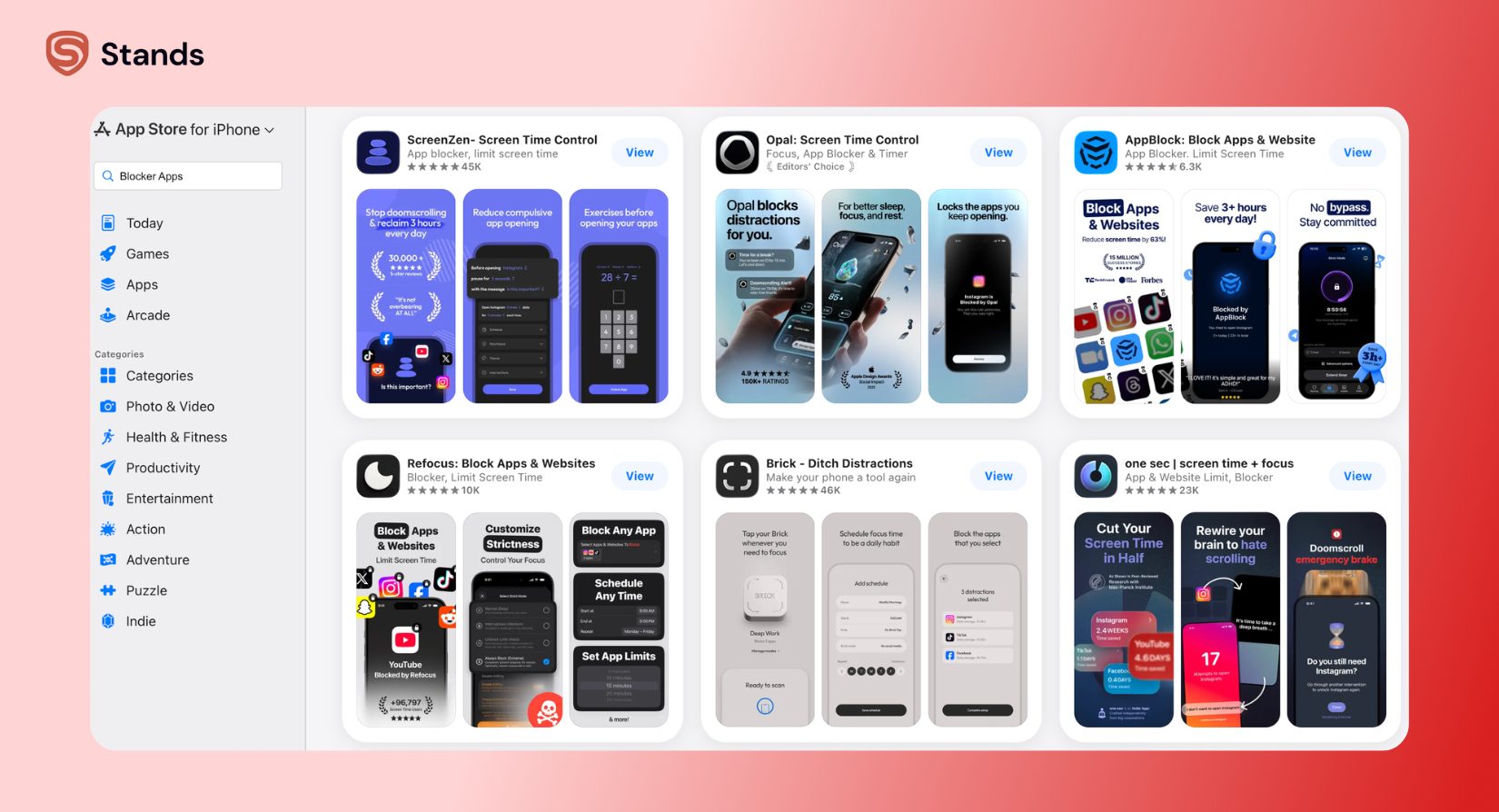
Built-in settings are a start but they only do half the job. If you want a clean web experience you need a little help. Downloading a Safari content blocker from the App Store is the effective way to achieve an iPhone ads block while you browse the web.
Installing a Safari Content Blocker
Unlike old browser extensions that could read everything you typed, modern Safari Content Blockers are incredibly safe. They tell Safari what to block before the page even loads, so the app developers never see your private history.
You can set this up in just four simple steps:
| Step | Action | What to Do |
| Step 1 | Get your ad blocker app | Open the App Store. Search for a highly rated tool like Stands AdBlocker and download it. |
| Step 2 | Open your settings | Exit the App Store and open your iPhone's main Settings app. |
| Step 3 | Find Safari extensions | Scroll down to Apps, tap on Safari, and then tap on Extensions. |
| Step 4 | Turn on the blocker | Find your new ad blocker app in the list under the content blockers section. Toggle the switches to green to turn it on. |
Choosing the Right Ad Blocker App
The App Store has tons of different ad blockers. You have to choose carefully because a bad app can slow down your device or steal your private information.
When you look for a good ad-blocking app, check for these things:
- Good reviews and recent updates: Apple updates iOS all the time, so developers must update their blockers to keep them working.
- Clear privacy policies: Make sure the app developer promises never to sell your data.
If you watch a lot of videos on your computer, you can combine your phone setup with a desktop YouTube Ad Blocker. This gives you a clean, ad-free experience on all your screens. For your phone and browser, choosing a reliable tool like Stands AdBlocker helps you stay safe and ad-free.
Advanced Methods for Systemwide Ad Blocking
Safari content blockers work wonders when you browse the web, but they cannot stop ads inside free games and other apps. To get a wider block ads iphone setup, you can try some advanced tricks.
Using DNS Filtering Services
Think of the Domain Name System (DNS) as the phonebook of the internet. Every time an app wants to load an ad, it looks up the ad server's address. If you use a secure DNS service, your phone simply refuses to look up those bad addresses. The network blocks the ad before it even reaches your screen.
- The manual way: You can set up a private DNS profile (like AdGuard DNS) on your phone. Go to Settings > Wi-Fi, tap the "i" icon next to your network, choose Configure DNS, select Manual, and type in the secure server address.
- The easy way: Many top ad blockers set this up for you automatically by using a local VPN profile on your phone.

Blocking Ads with Firewall Apps
Some security apps act as a local firewall. They watch the internet traffic going in and out of your device. When an app tries to connect to a known ad network, the firewall cuts off the connection immediately. This works incredibly well for free games, but make sure to read reviews so you do not pick an app that slows down your internet speed.
Disabling Cellular Data for Specific Apps
Do you play offline games that throw video ads at you every two minutes? If the game does not need the internet to run, you can simply block its access to your cellular data. No internet means the game cannot load any ads.
- Open your Settings app and tap on Cellular.
- Scroll down to see your list of apps.
- Find the game that is bugging you and turn off its switch.
Tips for a Safer, Ad-Free iPhone Experience
Keeping your iPhone clean and fast is an ongoing job. Beyond just blocking ads, use these simple tips to make your phone run better and protect your privacy:
- Update your iOS regularly: Apple fixes security bugs all the time. Keep your phone updated so hackers cannot use sketchy ads to exploit your device.
- Avoid sketchy free apps: If an app is free and seems too good to be true, the creators are likely making money by tracking you and showing you tons of ads.
- Check your location settings: Go to Settings > Privacy & Security > Location Services. Turn off location access for apps that do not need to know where you are. This stops advertisers from sending you annoying local ads.
- Change your region if you travel: Different countries have different laws about ads. If you move or travel, knowing How to Change Region on iPhone keeps your phone settings correct and secure.

FAQ
Let's clear up some of the most common questions about how to block ads iphone users always ask.
Do I need to jailbreak to block ads?
No, definitely not! Jailbreaking your phone breaks Apple's built-in security and voids your warranty. You do not need to do it. You can get an amazing ad-blocking experience using normal, safe apps from the official App Store.
Can I block ads in all iPhone apps?
Not completely. While DNS filters and firewalls can block ads in many basic apps and games, they struggle with big social media platforms like Instagram or YouTube. These platforms load their ads from the same servers they use for regular posts and videos, so blocking the ads often breaks the whole app.
Will ad blockers break website features?
Sometimes, yes. If your ad blocker is too aggressive, it might accidentally block a real login button or a checkout cart. If a site looks broken, you can easily turn off your blocker temporarily or reload the page without blockers by tapping the puzzle piece or "aA" icon in Safari's search bar.
How do I block ads in Chrome on iPhone?
Apple does not allow Google Chrome to use third-party content blocker extensions on iOS. If you prefer to use Chrome instead of Safari, your best option is to set up a systemwide DNS blocking service to stop ads.
Are ad blocker apps safe to use?
Yes, as long as you download highly rated apps from the App Store. Official Safari content blockers are completely safe because Apple's design ensures they cannot read your passwords, keystrokes, or private search history. Avoid completely free, unknown VPN apps that do not explain how they make their money.

