
 Home »
How to Stop McAfee Pop-ups on Windows, Mac & Browsers
McAfee pop-ups are the digital equivalent of someone knocking on your door every five minutes. You’re browsing peacefully… and suddenly:
“Your computer is infected!”
“Your McAfee subscription expired!”
“Scan now to remove viruses!”
Annoying, right? :)
The tricky part is that some McAfee pop-ups are real notifications, while others are fake scam alerts coming from websites or malware. Knowing the difference is half the battle.
In this guide, you’ll learn how to stop McAfee pop-ups on Windows, Mac, Chrome, Firefox, Edge, and Safari. We’ll also cover how to remove fake alerts, uninstall McAfee if needed, and keep those pop-ups from coming back.
- Why McAfee pop-ups keep appearing on your screen
- How to stop real McAfee pop-ups (if you have McAfee installed)
- How to block fake McAfee scam pop-ups in browsers
- How to completely remove McAfee from your computer
- What to do if you clicked on a fake McAfee pop-up
- How to prevent McAfee pop-ups from coming back
- FAQ
Why McAfee pop-ups keep appearing on your screen
First things first — not every McAfee alert actually comes from McAfee.
In fact, many “McAfee virus warnings” are just browser notifications or scam ads pretending to be antivirus alerts.
Here are the most common reasons you’re seeing them.
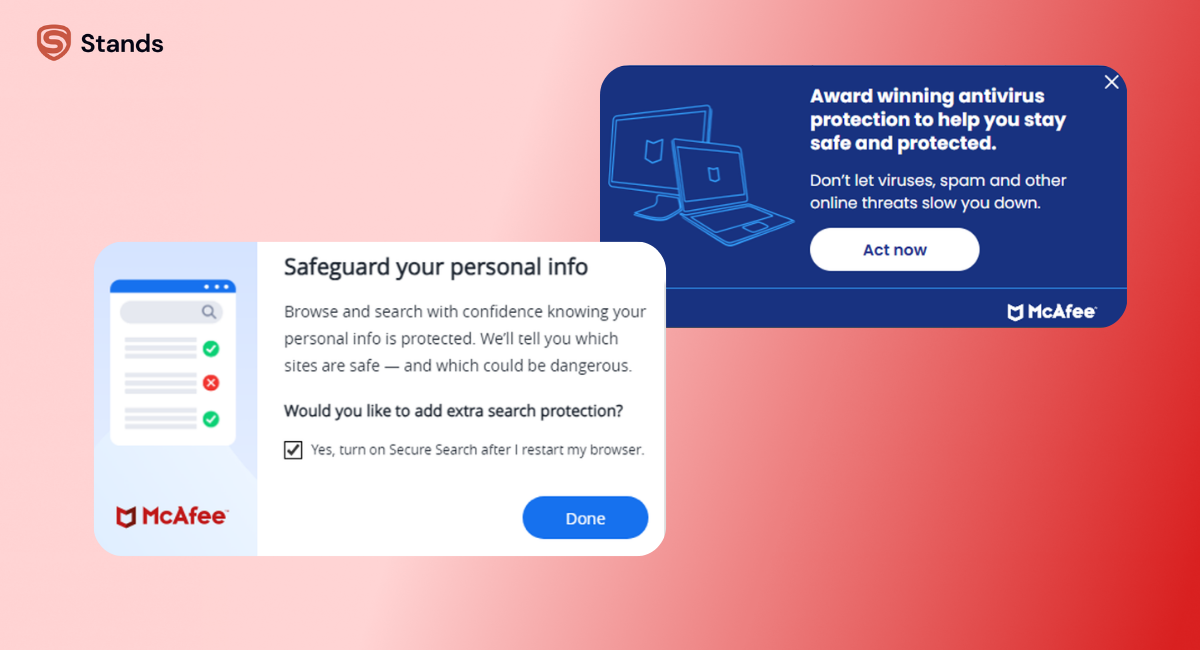
1. Real McAfee notifications
If McAfee antivirus software is installed, it may show alerts about:
- subscription expiration
- security updates
- virus detection
- system scans
These are legitimate McAfee notifications, but they can still feel a bit… overenthusiastic.
Real McAfee notifications
2. Browser notification spam
Here’s a classic scenario.
You visit a random website. It asks:
“Allow notifications?”
You click Allow without thinking (we’ve all done it).
Boom — that site can now send fake antivirus alerts every few minutes. Some users report getting them nonstop once permissions are granted.
3. Fake McAfee scam pop-ups
Scammers love using trusted brand names.
A fake pop-up might say:
- “5 viruses detected!”
- “Renew McAfee now!”
- “Click to remove malware immediately!”
But real antivirus software doesn’t show warnings inside random websites or ads.
4. Adware or malicious extensions
Sometimes the culprit is adware installed with free software downloads.
Adware can:
- inject pop-ups into your browser
- redirect your searches
- trigger fake antivirus alerts
Basically, it turns your browser into a pop-up machine.
How to stop real McAfee pop-ups (if you have McAfee installed)
If you actually use McAfee antivirus, the solution is usually simple: tweak the notification settings.
Turn off McAfee informational alerts
Here’s how to stop McAfee pop-ups inside the app:
- Open McAfee Antivirus.
- Click Settings.
- Go to General Settings and Alerts.
- Open Informational Alerts.
- Turn off the alerts you don’t need.
This reduces the number of pop-up notifications significantly.
Disable marketing notifications
Some pop-ups are basically marketing reminders for subscriptions or upgrades.
To turn them off:
- Open McAfee.
- Go to Settings → General Settings.
- Disable Product Tips and Marketing Messages.
And just like that… fewer interruptions :)
How to turn off McAfee antivirus
Sometimes people just want a break from it entirely.
To turn off McAfee temporarily:
- Open McAfee.
- Click Real-Time Scanning.
- Select Turn Off.
- Choose how long to disable it.
Just remember: when you turn off your antivirus, your system won’t detect viruses during that time.
How to block fake McAfee scam pop-ups in browsers
If the alerts appear inside Chrome, Edge, Firefox, or Safari, they’re almost certainly fake browser notifications.
Let’s shut them down.
Remove malicious notification permissions
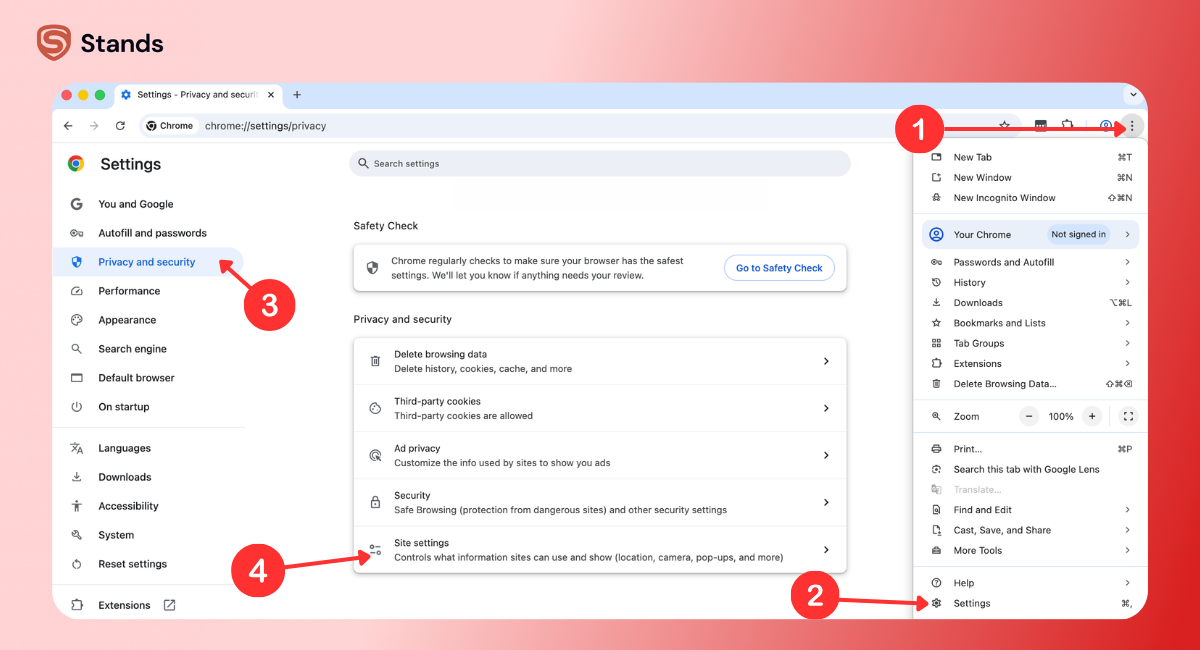
Chrome
- Open Chrome Settings.
- Go to Privacy and Security.
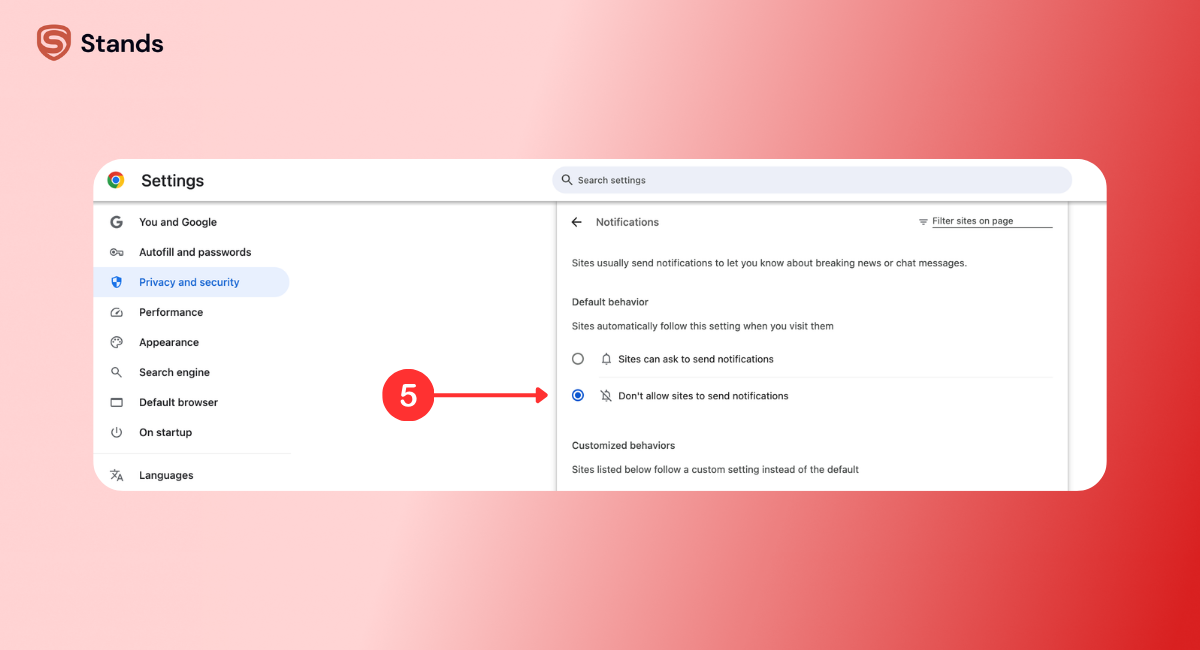
- Click Site Settings → Notifications.
- Remove suspicious websites.
You can also follow a detailed guide to disable Chrome pop-ups here.
How to disable notifications in Chrome
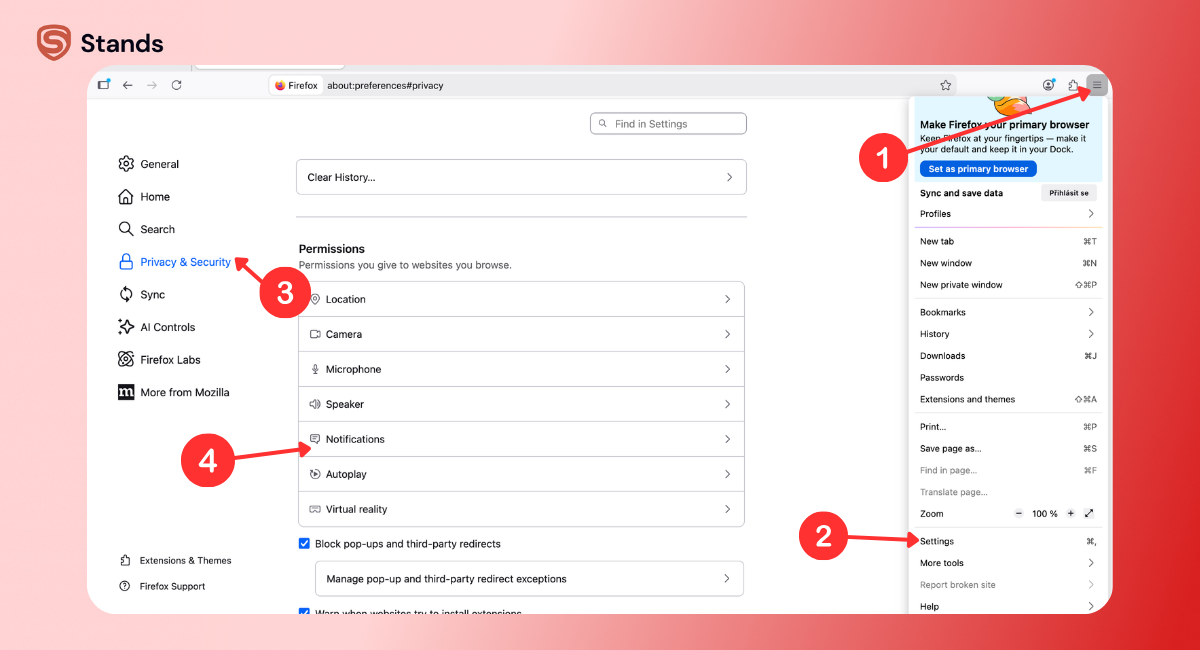
Firefox
- Open Settings.
- Click Privacy & Security.
- Scroll to Permissions → Notifications.
- Remove unknown sites.
How to disable notifications in Firefox
Edge
- Open Settings.
- Click All permissions.
- Now go to Notifications.
- Remove suspicious domains.
How to disable notifications in Edge
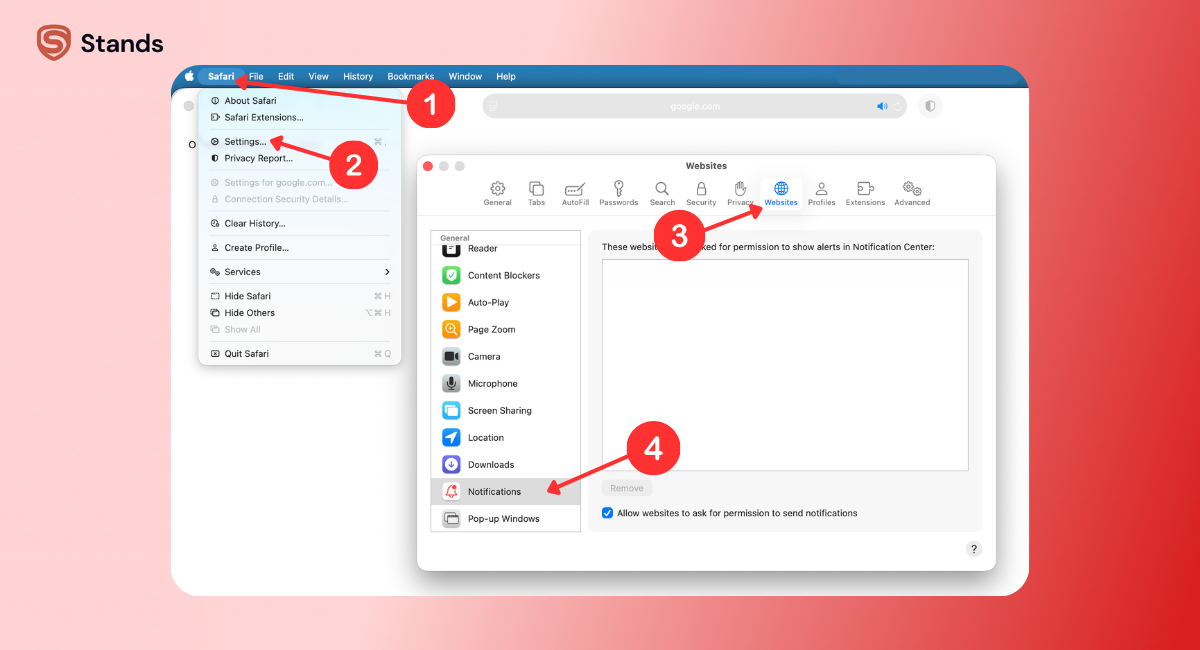
Safari
- Open Safari Settings.
- Click Websites → Notifications.
- Remove unknown websites.
How to disable notifications in Safari
Remove suspicious browser extensions
Some extensions install hidden adware.
To check them:
- Open your browser extensions page.
- Look for anything unfamiliar.
- Click Remove.
If you don’t remember installing it… that’s usually a clue :)
Install a pop-up blocker
The easiest way to stop scam alerts is to block them before they load.
A reliable pop-up blocker extension can filter out:
- fake antivirus alerts
- malicious ads
- scam notifications
Tools like Stands AdBlocker also prevent intrusive ads and trackers.
If you’re using Chrome, installing a dedicated Chrome ad blocker extension helps block malicious ads before they appear.
How to completely remove McAfee from your computer
If you don’t use McAfee at all, uninstalling it can eliminate the pop-ups completely.
Remove McAfee on Windows
- Open Control Panel.
- Click Programs → Uninstall a Program.
- Find McAfee Antivirus.
- Click Uninstall.
- Follow the instructions.
Restart your computer afterward.
Remove McAfee on Mac
- Open Applications.
- Locate McAfee Internet Security.
- Launch McAfee Uninstaller.
- Enter your Mac password.
- Restart your Mac.
Done. No more McAfee alerts :)
Run a malware scan afterward
Even after uninstalling, run a full virus scan with reputable antivirus software.
Why?
Because persistent pop-ups can also be caused by adware infections or malicious programs.
A scan helps detect anything hiding in the background.
What to do if you clicked on a fake McAfee pop-up
Don’t worry — clicking a fake pop-up doesn’t automatically infect your computer.
But if you downloaded something from it, take action.
Here’s what to do.
1. Close the browser immediately
If the page won’t close, force quit the browser using Task Manager (Windows) or Activity Monitor (Mac).
2. Run a full malware scan
Use a trusted antivirus to scan your system for:
- malware
- adware
- suspicious programs
3. Delete suspicious downloads
Check your Downloads folder and remove anything installed after clicking the pop-up.
4. Reset your browser
Resetting your browser removes:
- malicious extensions
- fake notification permissions
- hijacked settings
Think of it as a fresh start.
How to prevent McAfee pop-ups from coming back
Once you manage to get rid of McAfee pop-ups, you’ll want to keep them away for good.
Here are a few simple habits that work.
Use an ad blocker
A good ad blocker stops malicious ads before they load.
Tools like Stands AdBlocker block:
- pop-ups
- scam alerts
- malicious trackers
- fake antivirus ads
Avoid sketchy downloads
Many infections come from free software bundles.
Always download software from reputable sources only.
Be careful with browser notifications
If a website asks to send notifications, pause for a second.
Most sites don’t need that permission.
Keep your system updated
Updates from Microsoft, Apple, and browser developers patch security vulnerabilities scammers exploit.
Run regular antivirus scans
Routine scans help detect malware before it starts flooding your screen with pop-ups.
FAQ
Why do I get McAfee pop-ups when I don't have McAfee?
Because they’re usually fake alerts from websites or browser notifications.
Scammers use the McAfee name to trick users into clicking or downloading fake antivirus software.
Removing notification permissions usually fixes it.
How do I know if a McAfee alert is a virus?
Here’s a simple rule:
Real alerts appear inside the McAfee app.
Fake ones appear:
- inside web pages
- as browser notifications
- with countdown timers or scare tactics
If it’s screaming “5 viruses detected!!!” on a random website… yeah, it’s fake :)
Will removing McAfee leave my computer unprotected?
Not necessarily.
Windows computers already include Microsoft Defender, which provides built-in antivirus protection.
You can also install another reputable antivirus if needed.
How to stop McAfee pop-ups on Android and iPhone?
Mobile pop-ups usually come from browsers or apps.
To stop them:
- remove suspicious apps
- clear browser notifications
- install a mobile ad blocker
Is McAfee acting like malware?
No — McAfee is legitimate antivirus software.
But its frequent alerts and marketing notifications can feel intrusive.
Most “McAfee virus warnings” online are actually scam pop-ups pretending to be antivirus alerts.
Once you remove malicious notifications, extensions, and adware, those pop-ups usually disappear.
And finally… peace and quiet on your screen again :)

