Home »

What Is Malvertising? How Malicious Ads Infect Browsers
We are so used to seeing ads everywhere that it has actually become a normal part of our lives, but when it comes to browsing, the last thing you want is to send your passwords when clicking on the shoe ad. That’s why today we will talk about malvertising. It is a type of online attack where criminals use malicious ads to spread malware, redirect you to scam pages, or use “security holes” in your browser (and probably your knowledge).
The truth is, online ad networks can be a major source of malware, even on legitimate websites. In a few words, when you visit a website, it pulls in ads from other sources. And if a hacker manages to put malware into one of those ads, your browser will automatically run it without you even clicking on anything. But let’s get into more details together:)
- What Is the Malvertising Meaning in Plain English?
- How Does Malvertising Work?
- What Are Common Malvertising Examples?
- Malvertising vs. Adware: What Is the Difference?
- How Can You Spot a Malicious Ad?
- How to Prevent Malvertising on Your Devices
- What Should You Do If You Clicked a Malicious Ad?
- When a Free Ad Blocker Helps Protect Your Browsing
- FAQ
What Is the Malvertising Meaning in Plain English?
The malvertising meaning in plain English is basically bad ads. Normally, companies buy ad space to sell stuff like shoes or movies. But it is not the reason why we are here :) We talk about the bad ads that bad companies to spread their bad software.
The truth is, anyone can be a target of malicious advertising. Regardless of how prepared they are, we're all just as likely to fall for it.
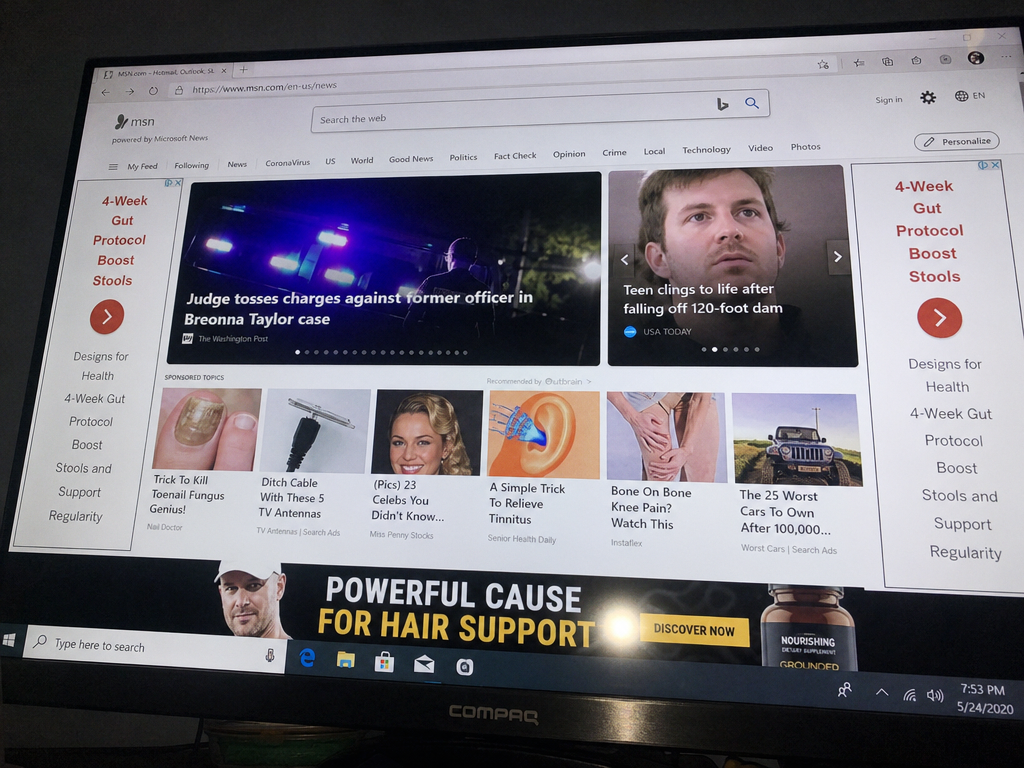
Quick note: Website owners get caught off guard by malvertising just like you do. Publishers don't want to approve bad ads. Mostly, they come with "automated ad exchanges" that fill empty ad spaces.
How Does Malvertising Work?
I was actually really interested in researching this part. Can you imagine that from the moment a hacker buys ad space to the second malware comes to your computer, it takes only a second? Well, a second and 4 steps…
It all starts when Mr. H (the hacker) sets up a fake company account and purchases ad space through a legit ad network. After he submits a completely normal ad banner for the initial review to get past the gatekeepers. Then waits for the green light to change the hidden code for malware once the campaign goes live. And let me tell you, he knows what he is doing.
From there, he only needs a visitor - you. To be specific - you and your browser. So you only open the familiar page, but it shows you the unfamiliar ad, and you don't even think that it could be a malware, as ads are everywhere now, right?

How Do Bad Ads Get Into Real Ad Networks?
Bad ads get into real ad networks because ad companies deal with billions of ads every day. There are just too many for real people to watch all the time.
Now time to learn a new word - "cloaking". It is a process you also have to know while we're at this topic. As you remember, when the ad gets checked, they upload a normal banner and goes to a safe page. But what happens after approval is that suddenly that same ad box sends bad code to regular people, just like you and me.
Drive-By Malvertising vs. Click-Based Attacks
This is something I really want you to know as we mostly think we had to click on the ad to get into trouble. However, malicious advertising campaigns generally split into two delivery methods: silent drive-by attacks that need zero clicks, and click-based which speaks for itslef.
| Attack Method | Do You Need to Click? | How You Get Infected | Main Trick Used |
| Drive-By Download | No (Zero clicks) | Hidden code checks your browser for unfixed weak spots and quietly puts malware on your device. | → Exploit kits, hidden scripts, infected ad boxes |
| Click-Based Attack | Yes (You must click) | Fake banners trick you into clicking a button, downloading a fake file, or calling a scam number. | → Forced redirects, fake download buttons, scare pop-ups |
Let’s start with the “drive-by download attack”. It works in the next way: a hidden tool starts working the moment you open a webpage with a bad ad. Now, your browser, system, and extensions all get checked for weak spots that need an update. Once the tool finds an old program, it puts bad software onto your device, of course, with no warning. I would say that this attack is the most tricky and dangerous because it needs literally zero clicks.
Now, when it comes to click-based attacks, it is more noticeable. They do not try to “sneak” into your computer, but they take over your screen and show scary pop-ups. Their goal is simple: push you into clicking a link or downloading a fake program :)
What Are Common Malvertising Examples?
There are different types of them. I want to cover only the most popular, as it won’t be probably even possible to cover the hackers' fantasy:) Anyway, the first and most common is fake software updates. You have definitely seen it on your own at least few times in your life. Usually, it is a window that appears on the screen with the message that your browser or video player is outdated, so you have to click "Update Now." Well, do not click it:) This button installs a virus, and you don’t want this to happen.
The other one is fake “download buttons”. They can offer free software, file converters, movies, or anything that may appear interesting for users online. These ads copy the website's design, and you won’t be able to tell that those "Download" or "Play" buttons actually have a virus behind.
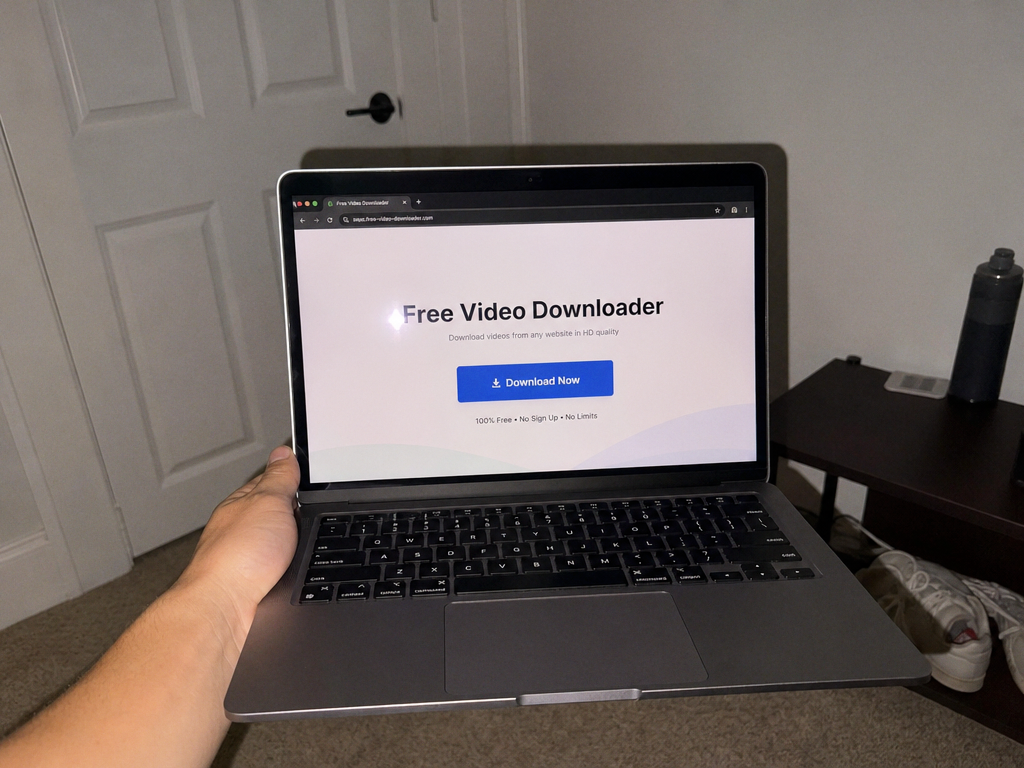
The next one is the most annoying for me, and it is a “forcible redirect”. You might be reading an article when your tab suddenly goes to fraudulent page. I hate it even when it promises me prizes (while actually trying to steal my passwords).
You may also see some fake technical support pages. First you get a message that your computer got a virus, but of course the hacker won’t let you deal with it on your own - so you have the number for “technical support” you can call. Well, it is a scam and better call you mum to ask about her day:)
And if all the above was not enough for you, we got more! Sometimes, hackers buy sponsored search ads to place harmful links at the very top of search results. You can read more in our article on the distribution of malware via Google Ads.
Malvertising vs. Adware: What Is the Difference?
Now let’s talk about the difficult part of our online existence and compare, but just a little bit. Malvertising and adware are different in the way how it comes to us. Hackers use malvertising as a delivery method to send bad code through online ads, while adware is unwanted software that already is on your device.
To make it easier to understand and compare, I have prepared the table below:
| Feature | Malvertising | Adware |
| What It Is | An attack method that uses infected online ads | → Unwanted software running on your computer or phone |
| Where It Lives | Inside / outside ad companies and website ad spaces | → Inside your browser add-ons, folders, or apps |
| How It Starts | You visit a webpage or click an infected ad | → You install free software bundles or fake downloads |
| Main Goal | Drop viruses, spy on you, or steal your passwords | → Make money by showing endless ads and tracking clicks |
Unfortunately, they also work well together. It could be one of those days when everything happens at once. First, you click on a malvertising with a fake video player update. Now, you have added aggressive adware onto your PC. Then, that adware changes your browser settings and fills every webpage with even more risky ads. Well, I hope it won’t happen:)
How Can You Spot a Malicious Ad?
Finally, we came to the most useful part of the article. So first of all, it is pretty manageable, but you have to actually notice things. Malicious ads usually use messy graphics, fake urgency, and weird browser behavior. You may feel that they are “out of place” on the website you are visiting. I would also say that the best tactic here is “better safe than sorry”, meaning you better do not click on the ad if you are not sure in it. I know, maybe the company has just a bad graphic designer, but we are talking about your security now.
When it comes to browsers, they also do their part here to help you. For example, Google Chrome and Microsoft Edge update quietly on their own, as they never ask you to download a setup file from a webpage ad. But hackers are different, and let’s thank them for this:) They often rush to fool you, which results in a blurry brand logos, weird grammar, or mismatched fonts, which you can spot.
The last thing I want to remind you here is: “there is no such thing as a free lunch”. So yes, pop-ups which says you won a free phone, a gift card, or free crypto exist only and only to steal your logins or credit card details. Same as a webpage that shows a moving bar that claims to "scan your hard drive for 14 viruses" is a fake animation designed to make you panic.

How to Prevent Malvertising on Your Devices
Now that you are well informed on how to spot it online, we can move to prevention. I use this order, as you cannot always be 100% sure in your own devices and setup, plus sometimes you use other gadgets, and the last thing you want to do is to spoil them.
Now back to the fun part. You can prevent malvertising pretty easily. Start by turning on automatic updates for your browser and computer. Sounds simple and obvious, I know, but this step really fixes old weak spots before anyone can use them.
Next is my favorite prevention, and it is an ad blocker like Satnds Adblocker. It stops all the ads so you don’t even have a temptation to click on it. As a bonus you get YouTube without ads, isn’t it a dream?:)
Almost the last thing I want to mention here is some cleaning. I recommend to delete old add-ons, toolbars, and media players you never use, since they give hackers extra ways to come in.
Finally, when you need a popular app/ software/ etc., skip the sponsored links at the top of search results and go straight to the product real website. Plus, usually those links upload faster, so you may even save few seconds for a cup of coffee or to install an adblocker:)
Keep Your Browser and Plugins Updated
I may repeat myself a bit here, but it is really important, and I want you to remember that. To keep your browser updated is the best way to protect yourself from those attacks. Hackers only wait for your browser to show some weak spots, and you won’t even notice, but bad software will be on your device. However, without those weak spots, they cannot get in, so - update your browser. Period.
Also, just to make this clear, when browser companies release updates, hackers study them to target people. And with automatic updates, you don’t even have to do anything on your own to fix the weak spots and stay on the safe side.
Last reminder from me here is if you have old add-ons in your toolbar that you have not used in months, delete them today, as forgotten add-ons often have old problems that bad ads use to get in :)

Block Ads and Third-Party Scripts
As I have mentioned before, ad blocker helps not only when you don’t want to pay for the YouTube Premium. It blocks ads so ad companies cannot load anything in your browser. Sometimes the best precaution is total removal, don’t you agree?
Not to mention the fact that ad blockers use filter lists that get updated often with ad companies, tracking links, and bad code. So basically, the ad blocker does "the noticing part" for you, as it checks all ads before they appear, and now you don’t need to look for suspicious signs of scammers behind it.
If you reached to this part, you may like our article about why ad blocking and malware are linked. You can see why blocking ads is one of the smartest moves you can make :)

What Should You Do If You Clicked a Malicious Ad?
Now, if you came here because you already did something - no problem. Happens to the best of us. The best thing you can do is to act fast so you can stop a virus before it does anything to your device. Here’s what you should do before burning your laptop:
- Close the browser tab immediately. You can do that by pressing Ctrl + W (Windows) or Cmd + W (Mac). Now, it may happen that a fake message locks up your screen, so you have to open Task Manager (Ctrl + Shift + Esc) or Force Quit (Cmd + Option + Esc) to close the whole browser.
- Do not open any downloaded files. If a file in your Downloads folder appeared on its own, just delete it (again, without opening), then empty your Trash or Recycle Bin.
- Your screen acts weird? You may notice your mouse starts moving on its own or strange windows pop up. In this case, cut your internet right away so hackers cannot control your computer from afar.
- Now, run a full antivirus scan. You can use whatever you prefer and trust - Windows Security, Apple's built-in protection, or a trusted scanner to check your device.
- Change your passwords. You don’t need to do that all the time, but if you typed an email address, password, or card number into a fake page, it is a must. Plus, turn on two-factor authentication.
When a Free Ad Blocker Helps Protect Your Browsing
Always. Again, as I have already mentioned before, you need an adblocker not only to watch YouTube without ads and without paying for it. It does also protects and your browser from getting into trouble. For me, it is definitely a win-win situation, as I can read my articles and watch 10hours cat videos while Stands AdBlocker stops banners, pop-ups, and trackers.
For regular people like me and, I guess, you, ad blocker for Chrome helps a lot, especially when it comes to ad companies behind malvertising. And again, if you like this type of content and want to more know, here’s also an easy settings to stop fake virus pop-ups :)
FAQ
Can you get malware from an ad without clicking on it?
Yes, you can. That's why you have to remove old extensions you use no longer and to let your browser automatically update. Without this, you may have weak spots which will open the door for hackers to your browser and so to your personal information.
Are trusted websites immune to malvertising?
No, and no one is. Hackers know how to get what they want, and they do it fast. A lot of the bad ads appear on websites you trust, and that is the whole point.
Does an ad blocker stop all malvertising attacks?
Yes, it does. But to make it clear - adblocker blocks ads, pop-ups, and known “bad websites”. Still, you need to update your browser regularly and download smart, as not all the malware comes to you with a click.