Home »
Raspberry Pi Ad Blocker: How to Block Ads on Your Entire Network
Raspberry Pi ad blocker may feel like a breath of fresh air. Instead of installing extensions on every browser, you set up one tiny device that blocks ads across your whole home network. That means your phones, laptops, smart TVs, and even IoT gadgets stop loading junk in the background.
Here’s the big difference: browser tools work on a single app, while a Raspberry Pi network ad blocker works at the DNS level, meaning it cuts off ads before they even reach your device.
This setup is perfect for home networks, shared Wi-Fi, or anyone who wants better browsing without extra care. So let's get started and check how to use it to block ads. :)
- What Is a Raspberry Pi Ad Blocker and How Does It Work?
- Raspberry Pi Ad Blocker vs Browser Ad Blocker Extension
- What You Need to Build a Raspberry Pi Ad Blocker
- How to Set Up a Raspberry Pi Ad Blocker Step by Step
- How to Use Raspberry Pi as a Wi-Fi Ad Blocker
- Raspberry Pi Ad Blocker Not Working — Troubleshooting
- How to Maintain and Update Your Raspberry Pi Ad Blocker
- FAQ
What Is a Raspberry Pi Ad Blocker and How Does It Work?
A Raspberry Pi ad blocker built with Pi-hole works pretty simply. Every time a device on your network tries to open a website, it sends a DNS query to translate a domain name into an IP address. That’s the moment when you meet Pi-hole.
Instead of letting every request pass, Pi-hole checks the domain against its blocklists. If it spots a known ad server or tracker, it simply drops the request into a “black hole.” That’s why people call it a DNS sinkhole.
Your device gets nothing back, and you get faster pages, fewer distractions, and fewer trackers following you around.
| Step | What Happens |
| 1 | Your device requests a website |
| 2 | Request goes to Pi-hole DNS server |
| 3 | Pi-hole checks domain against blocklists |
| 4 | Ads and trackers get blocked |
| 5 | Clean content loads on your device |
This approach turns your setup into a network wide ad blocker Raspberry Pi solution. One install, which offers full coverage.
Raspberry Pi Ad Blocker vs Browser Ad Blocker Extension
Both options block ads, but they play very different games. A browser ad blocker, like an extension only works where you install it. A Raspberry Pi network ad blocker works everywhere.
Here’s how they stack up:
| Feature | Raspberry Pi Ad Blocker | Browser Extension |
| Coverage | Entire network | Single browser |
| Works on smart TVs & IoT | Yes | No |
| Blocks DNS-level trackers | Yes | Limited |
| Setup difficulty | Moderate | Easy |
| Maintenance | Required | Minimal |
| Custom control | High | Medium |
A Raspberry Pi as an ad blocker shines when you want full control and fewer ads across all devices. But browser tools still have their place.
If you want a quick win without setup, try an ad blocker for Chrome or a lightweight pop-up blocker extension. These tools work great alongside Pi-hole for a layered approach.

What You Need to Build a Raspberry Pi Ad Blocker
You don’t need a lab full of gear. A simple setup does the trick.
| Item | Notes | Estimated Cost |
| Raspberry Pi | Pi 4 or newer recommended | $15–$80 |
| MicroSD Card | At least 16 GB | $5–$10 |
| Power Supply | Official adapter preferred | $10 |
| Ethernet Cable | More stable than Wi-Fi | $5 |
| Computer | For SSH setup | Already owned |
That’s it. With under $100, you can build a network-wide ad blocker that runs 24/7.
Best Raspberry Pi Model for Ad Blocking — Pi 5 vs Pi 4 vs Pi Zero W
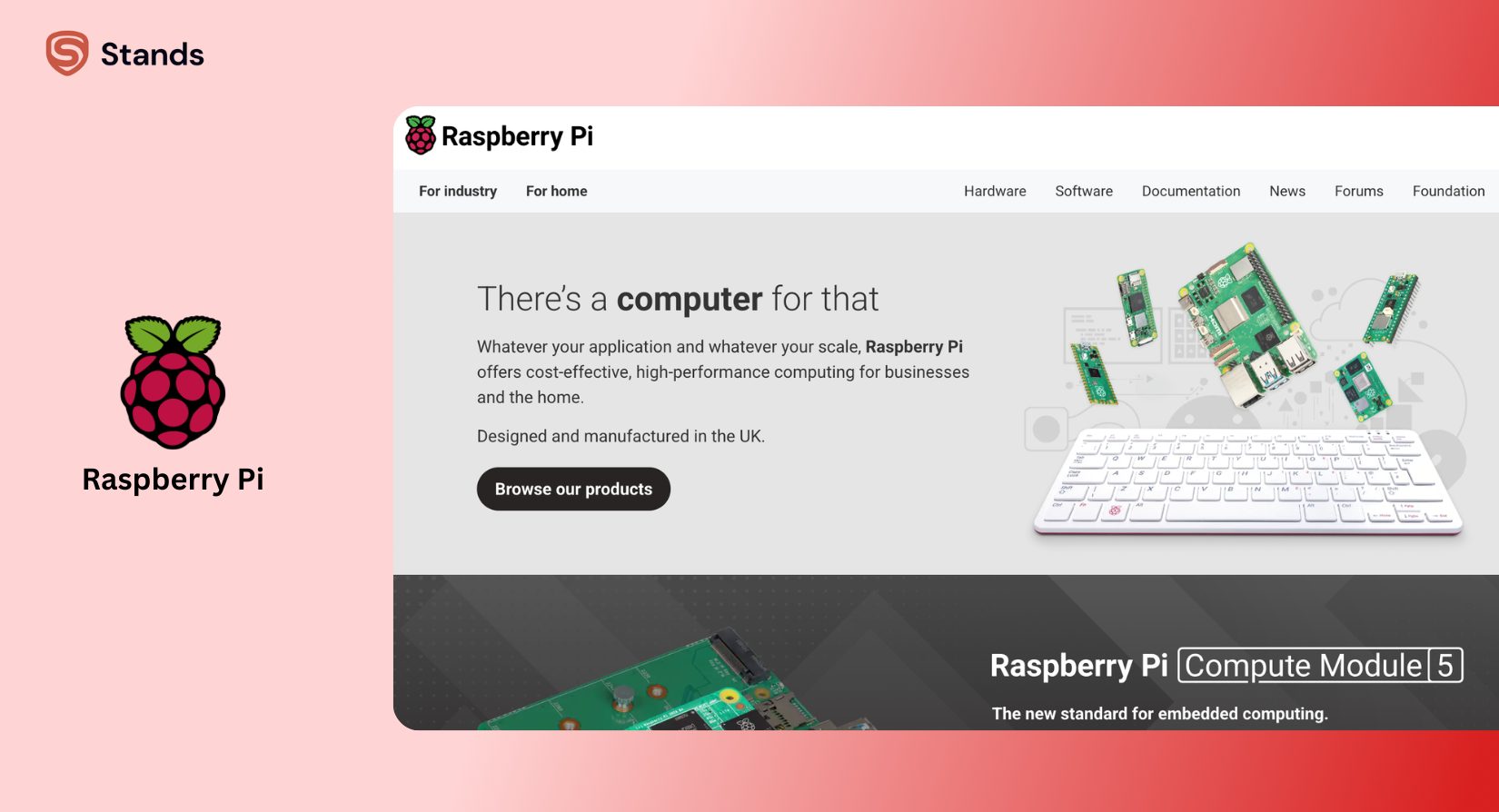
Choosing the right model makes life easier.
| Model | Best For | Verdict |
| Pi Zero W | Small networks | Cheap and gets the job done |
| Pi 4 | Most users | Best balance of power and price |
| Pi 5 | Future-proof setups | Overkill for just ad blocking |
If you run a busy home network with lots of devices, go with the Pi 4. If you just want a simple ad blocker using a Raspberry Pi, the Zero W handles it just fine.
How to Set Up a Raspberry Pi Ad Blocker Step by Step
You’ll go through five simple steps: install the OS, connect via SSH, install Pi-hole, configure DNS, and test everything.
But do not worry, it is less technical than it sounds:) If you can follow a guide and copy-paste a couple of commands, you’re good. Most people finish the whole Raspberry Pi ad blocker setup in under half an hour, and once it’s done, it just runs in the background and blocks ads without you touching it.
Step 1: Install Raspberry Pi OS
Start by flashing Raspberry Pi OS Lite onto your MicroSD card using Raspberry Pi Imager. Lite keeps things lean and fast, which suits a Pi 5 ad blocker or any model.
Before you eject the card, enable SSH and set your Wi-Fi credentials in the advanced options. This saves you time later.
Insert the card, power up your Pi, and let it boot. Now you’ve got a clean system ready for ad blocking.
Step 2: Connect to Your Raspberry Pi via SSH
Open a terminal on your computer and connect using SSH:
ssh pi@your-pi-ip
Log in with your credentials, then update everything:
sudo apt update && sudo apt upgrade
This step keeps your system stable and secure before installing anything else.
Step 3: Install Pi-hole on Raspberry
Now for the magic moment. Run this command:
curl -sSL https://install.pi-hole.net | bash
The installer walks you through everything:
- Choose your DNS provider
- Set a static IP address
- Pick blocklists
- Note your admin password
When it finishes, you’ll have a working Pi-Hole DNS server and access to the admin interface via your browser.
Step 4: Set Pi-hole as Your Network DNS Server
Here’s where your Raspberry Pi Wi-Fi ad blocker starts doing real work.
You’ve got two options:
| Option | What It Does |
| Router DNS change | Covers entire network automatically |
| Per-device DNS | Lets you control which devices use Pi-hole |
For full coverage, log into your router and replace the DNS settings with your Pi’s IP address. Now every device connected to your Wi-Fi uses Pi-hole.
Step 5: Verify Your Raspberry Pi Ad Blocker Is Working
Open the Pi-hole dashboard in your browser and check the stats. You should see DNS queries and blocked domains. Now, visit an ad-heavy site and watch ads disappear.
How to Use Raspberry Pi as a Wi-Fi Ad Blocker
If you want full control, turn your Pi into a Wi-Fi hotspot. This setup uses hostapd and dnsmasq alongside Pi-hole.
It works like this:
| Feature | Benefit |
| Dedicated Wi-Fi network | Full control over traffic |
| Built-in ad blocking | No router changes needed |
| Portable setup | Great for travel |
This setup fits perfectly for guest networks or travel routers. You connect devices directly to the Pi’s Wi-Fi, and it filters everything.
Raspberry Pi Ad Blocker Not Working — Troubleshooting
Things don’t always go smoothly, and that’s normal. Here’s how to fix common issues.
| Problem | Fix |
| DNS not pointing to Pi-hole | Double-check router DNS settings |
| Too many sites blocked | Whitelist domains in Pi-hole |
| Ads still appear | Add more blocklists |
| YouTube ads still show | DNS blocking has limits |
| Pi disconnects after reboot | Set a static IP properly |
Some ads, especially video ads, don’t rely on separate domains. That’s why even the best ad blocker with Raspberry Pi can’t fully handle them.
If you want to block ads on YouTube, pair Pi-hole with a browser tool that block ads on YouTube for better results.
For device-specific cases like streaming sticks, check guides on how to block ads on Roku TV.
And if pop-ups get sneaky, learn how to stop virus pop-ups for extra protection.
How to Maintain and Update Your Raspberry Pi Ad Blocker
Your setup doesn’t run on autopilot forever. You need to keep it fresh.
| Task | Command / Action |
| Update Pi-hole | pihole -up |
| Refresh blocklists | Gravity update |
| Monitor traffic | Use dashboard |
| Add custom domains | Edit blocklists |
Regular updates improve security and keep your network and ad blocker Raspberry Pi sharp. New ad domains pop up all the time, so staying updated makes a real difference.
FAQ
Is a Raspberry Pi Ad Blocker Worth It?
Absolutely. A Raspberry Pi ad blocker saves bandwidth, speeds up browsing, and removes clutter across your entire network. You set it up, and it quietly does its job in the background without problems.
Can a Raspberry Pi Block YouTube Ads?
Not completely. YouTube serves ads from the same domains as videos, which makes DNS-level blocking tricky. Combine Pi-hole with browser tools if you want better results.
Which Raspberry Pi Is Best for Ad Blocking?
The Pi 4 hits the sweet spot. It handles multiple devices without breaking a sweat. A Pi Zero works for small setups, while a Pi 5 feels like overkill unless you plan to expand.
Does a Raspberry Pi Ad Blocker Work on Phones and Smart TVs?
Yes, and that’s the beauty of it.:) Any device connected to your network (from phones to smart TVs) benefits automatically. That’s what makes a network-wide ad blocker Raspberry Pi so powerful.