
 Home »
How to Unblock Websites on School Chromebook
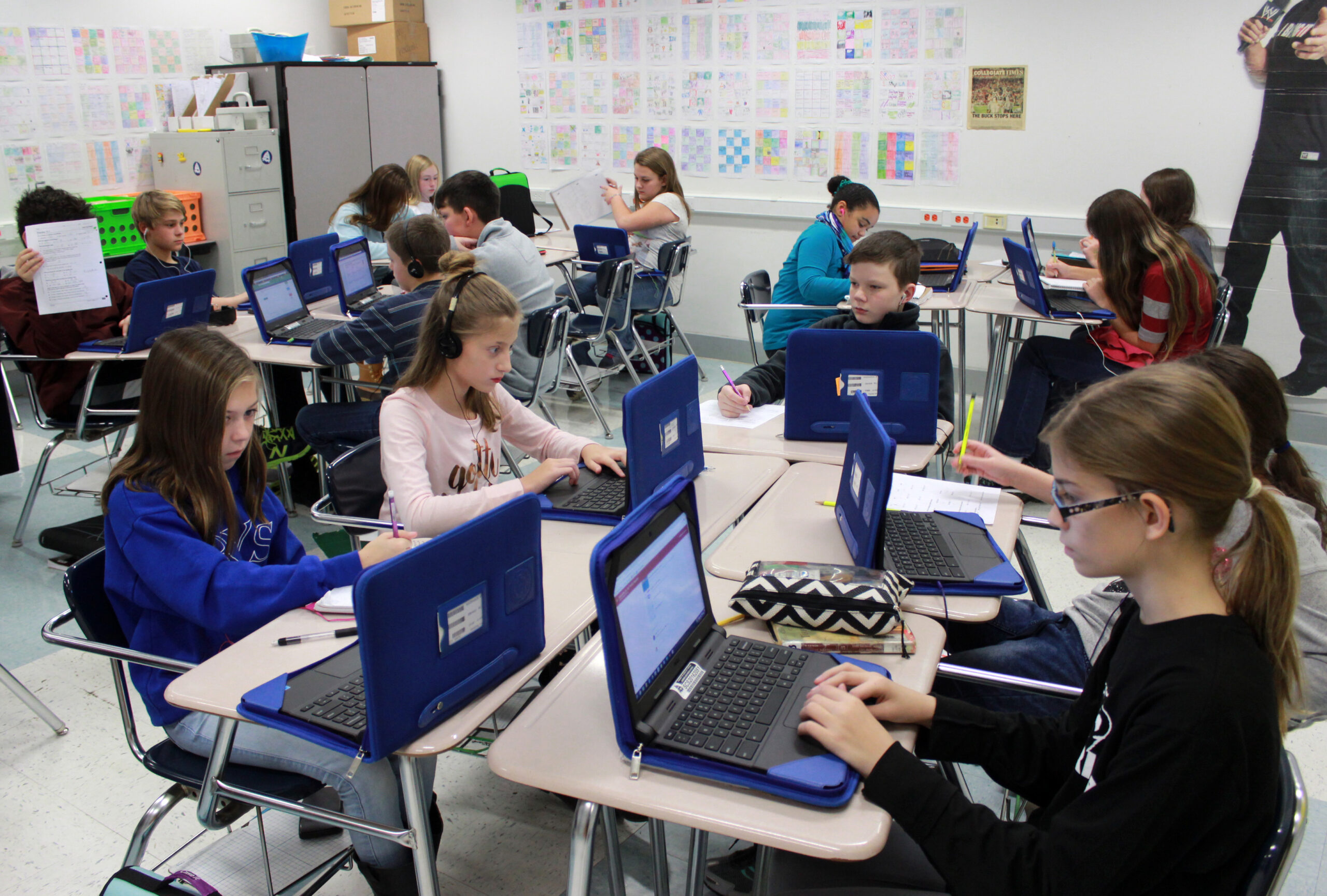
School Chromebooks are lightweight devices designed especially for educational environments. They are typically school property and centrally managed, meaning that each Chromebook is connected to a Google Workspace for Education account, controlled by the school administrator. While this administrative control makes it easier to manage hundreds of devices and internet security, students often encounter restrictions on accessing websites.
These limitations can be somewhat frustrating, especially when they block legitimate pages needed to complete research, academic articles, productivity tools & study materials. Therefore, it is important to understand how these blocks work, all the ways to unblock websites, and the associated risks & ethical considerations involved. Discover how to unblock all websites on your School Chromebook with this straightforward guide :)
- Understanding Website Restrictions on School Chromebooks
- How to Unblock Sites on School Chromebook: The Best Methods
- Why are websites blocked on school Chromebooks
- Is it legal to unblock websites at school
- Why Choose Stands Adblocker for Website Access?
- Safety & Ethical Considerations
- FAQ: How do you unblock websites on a School Chromebook
- How to unblock websites on a School Chromebook?
- Is using a VPN or proxy legal on school networks?
- Can schools track unblocking attempts on a Chromebook?
- How to unblock everything on School Chromebook safely?
- Does a VPN work on a school Chromebook managed by admins?
- What is the easiest method that requires no install?
- Will the school know if I use a VPN?
Understanding Website Restrictions on School Chromebooks
Chromebook computers distributed in educational environments are almost always configured with a strict security policy. Through Google Admin Console, administrators can define which web pages are accessible and which extensions can be installed. This includes:
- Real-time device monitoring - School administrators can receive activity reports and review which pages students are trying to open.
- Restriction of extensions - Many schools block websites and also decide which extensions are allowed to download, preventing the installation of VPNs or proxies.
These restrictions seek to ensure that students use Chromebooks exclusively for educational purposes. However, sometimes the filters could block academic databases, specialized blogs & interactive tools. Keep reading to learn how to unblock any website on School Chromebook.
How to Unblock Sites on School Chromebook: The Best Methods
Although the restrictions are strict, there are different methods to bypass them and access a website, even if it's blocked. Each has its advantages, limitations & risks, which are important to understand before using them :) Learn how to unblock your school Chromebook below.
1. Use a VPN
A VPN (also called Virtual Private Network) is a tool that redirects your Internet connection traffic through an external server, which hides your IP address and can bypass network filters imposed by the school. When you connect to a VPN, you appear to be browsing from another location, allowing you to access pages blocked in your region or network.
- Advantages - A VPN is generally the first step and most effective solution for bypassing blocks based on the school's network. In addition to unblocking sites, it also encrypts your connection, which means that your data travels protected against interception. This is how to unblock blocked websites on School Chromebook.
2. Use a Proxy Server
A proxy server acts like an intermediary between your browser and the page you want to access. How is this done?:
- You type the URL of the blocked site into the proxy.
- Then, the proxy will load it on its own server.
- It will then display the page on your screen.
- Advantages - Does not require any installation on the Chromebook, making it more accessible if these are restricted. You only need to enter a web proxy from the browser.
- Limitations - Many free proxies are overloaded or easily detected by school filters, making them sort of ineffective. In addition, some may display excessive advertising or compromise security by collecting browsing data.
3. Adjust Site Permissions
In some cases, a site may not be completely blocked, but certain functions such as cookies, pop-ups & scripts could be restricted, causing it to load incorrectly. Reviewing the permissions for each site in Chrome settings can definitely help.
- Click on the padlock icon to the left of the address bar.
- Select Site Settings.
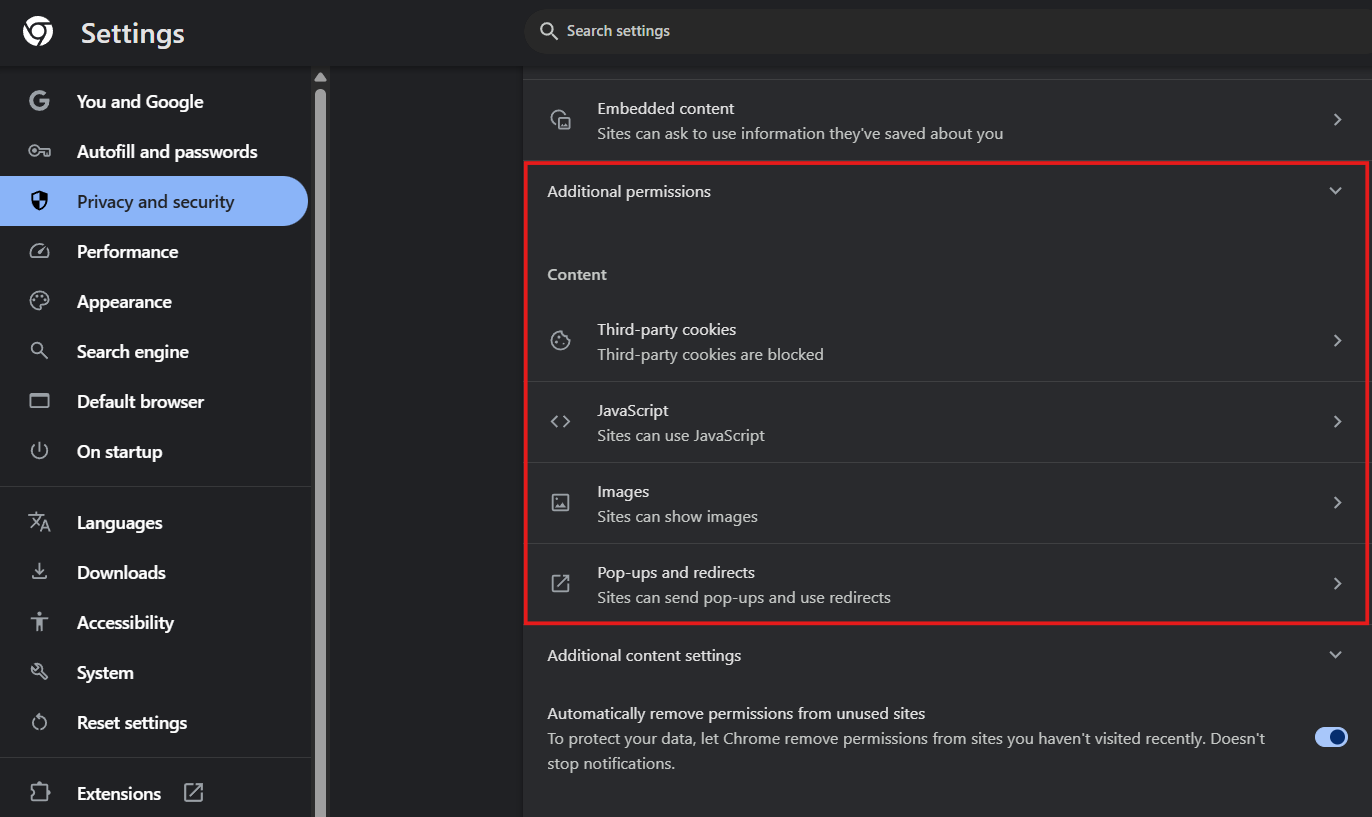
- Advantages - This method is useful if the site loads partially or if specific features need to be enabled.
- Limitations - Please note that this feature will not work if the school has locked the entire domain from the administration console.
Why is My Chromebook Slowing Down? Troubleshoot issues easily.
4. Use a Website's IP Address
Some filters block only the domain name (for example, facebook.com), but not the IP address behind that domain. If you enter the IP directly in the address bar (157.240.22.35, for Facebook), it may allow you to access.
- Advantages - Fast & straightforward method; no additional tools required.
- Limitations - Most modern sites use automatic redirects to the domain, SSL certificates (https), and load balancers, which made this trick effective back in the 2000s, but hardly works nowadays.
5. Try to Use Google Translate
Google Translate can serve as a "bridge" for loading blocked pages. Paste the URL into the translator and ask for the translation of the entire page. Google will display the content.
- Advantages - Since Google is essential in the educational environment, it is unlikely to be blocked on the Chromebook, making this method effective in many cases.
6. Access the Mobile Version of a Website
Some restrictions apply only to the main domain or desktop version. If you access the mobile version directly by adding "m." to the beginning of the address, you can bypass the filter. For example, you can try "m.example.com" instead of "www.example.com".
- Advantages - Fast and risk-free method, useful for sites that offer full mobile versions.
- Limitations - Not all sites have a mobile service version. Also, if the blocking is applied at the root domain level, this trick will not work either.
7. Use a Mobile Hotspot
Another direct way to bypass all the blocks is to change the Chromebook's network connection. If you connect your Chromebook to a hotspot created from your cell phone, you will no longer be under the restrictions of the school network.
- Advantages - It allows you to access any site without limitations and with greater online privacy.
- Limitations - Consumes mobile data and can be slower than school WiFi. Additionally, in many schools, access is still restricted by internal regulations, and Google Admin policies may still enforce restrictions directly on the device, regardless of the network.
Why are websites blocked on school Chromebooks
Schools block websites for a few straightforward reasons.
The most common is compliance with federal law. In the US, schools that receive government funding are required under CIPA — the Children's Internet Protection Act — to filter content that is inappropriate for minors. That means adult content, gambling sites, and anything considered harmful automatically gets blocked at the network level.
Beyond legal requirements, schools also block sites that are considered distracting. Social media, gaming platforms, video streaming, and messaging apps tend to disappear from school networks because administrators want students focused during class time.
There is also a security angle. Blocking unknown or suspicious websites reduces the risk of students accidentally downloading malware or accessing phishing sites on a network that hundreds of people share.
On a school-managed Chromebook specifically, restrictions go deeper than just the network. The school's IT department can push policies directly to the device through Google Admin, which means certain blocks follow the Chromebook even when you connect to a different network or hotspot.
Is it legal to unblock websites at school
The short answer is: it depends on what you do and how you do it.
Simply accessing a blocked website is not a criminal offense in most countries. However, it almost always violates your school's acceptable use policy, which you likely agreed to when you received the device. The consequences are disciplinary rather than legal — think detention, device suspension, or loss of Chromebook privileges.
Using a VPN or proxy on a school network sits in a gray area. It is not illegal in most places, but schools can and do ban the use of circumvention tools in their policies. Getting caught using one can result in the same disciplinary consequences.
Where it becomes a clearer legal issue is if unblocking involves bypassing security software, accessing admin-level settings on a managed device, or attempting to disable monitoring tools. That can cross into computer misuse territory depending on your country or state.
The safest approach is to use your personal phone on mobile data for anything the school network blocks, rather than attempting to work around restrictions on a school-owned device.
Why Choose Stands Adblocker for Website Access?
Now that you know how to unblock a website on School Chromebook, the options above can help you access blocked pages. However, unprotected browsing can expose you to tons of ads, cookies & hidden trackers. This is where Stands Adblocker becomes a must: It not only removes ads & distractions but also protects your online privacy from data-collecting platforms.
Benefits of using Stands Adblocker
- Way fewer distractions - Blocks ads freely that could interrupt your study & working sessions.
- Improved privacy - Prevents companies from collecting your browsing information & online habits.
- Extra browsing speed - Websites load way faster because there are no ads downloading.
- Greater compatibility - Can be easily installed on Chromium-based browsers and on Android as Stands Browser for Android.
Click add "Stands Free AdBlocker" on the Google Chrome Store or extension store of your preference to download your Chrome Ad Blocker.

Safety & Ethical Considerations
Unblocking sites on a school Chromebook may have consequences. Before doing so, keep in mind all the following:
- School regulations - Bypassing restrictions may violate the code of conduct and result in possible sanctions.
- Digital security - Some methods to unblock websites may not be entirely secure and could steal your data or inject malware, for example, free proxies.
- Responsible use - If you decide to unblock a site, it should be for legitimate purposes and never to access inappropriate & harmful content.
Browse without distractions and learn how to block ads on Chrome.
FAQ: How do you unblock websites on a School Chromebook
How to unblock websites on a School Chromebook?
VPNs, proxies, using IP addresses, Google Translate, accessing the mobile version, or switching networks with a hotspot are methods to unblock websites. Their effectiveness depends on the level of control applied by the school.
Is using a VPN or proxy legal on school networks?
VPNs & proxies are legal to use, but they may violate security policies on school networks. Although using them is not a crime, it can still result in disciplinary consequences.
Can schools track unblocking attempts on a Chromebook?
Yes. Managed Chromebooks send reports to the system administrator. Even if you manage to access a blocked site, the institution can see your attempts and log the activity.
How to unblock everything on School Chromebook safely?
The safest way is to use a network outside of school control, such as a mobile hotspot. However, it is recommended to always check with your teacher or administrator if you need to access a legitimate academic resource that is locked :)
Does a VPN work on a school Chromebook managed by admins?
Usually not. On a school-managed Chromebook, the IT department can block VPN apps and extensions directly through Google Admin, meaning you cannot install or run them even if you wanted to. Some VPN extensions may appear to install but will not function properly under managed policies. If the Chromebook is fully locked down, a VPN is not a realistic option on that device. Your best alternative in that case is using a personal phone on mobile data.
What is the easiest method that requires no install?
Google Translate is probably the simplest workaround that requires nothing extra. Just go to translate.google.com, paste the blocked website URL into the translation box, and open it through the translated version. It does not always work perfectly for every site, but for reading content it gets the job done without installing anything or changing any settings.
Will the school know if I use a VPN?
Possibly. School network administrators can monitor traffic and may be able to detect VPN usage even if they cannot see exactly what you are doing. Some monitoring tools flag unusual traffic patterns that are typical of VPN connections. On a managed Chromebook, the device itself may also log activity that gets reported back to the school's system. So while a VPN hides your browsing content, it does not necessarily hide the fact that you are using one.

