
 Home »
How to Hide Apps on Android: Discover the Best Ways
Have you ever handed your phone to a friend to show them a funny meme, only to break out in a cold sweat when they start swiping around? We’ve all been there. Our phones hold our entire lives, from bank details and private messages to embarrassing selfie phases.
Whether you want to keep sensitive financial details under lock and key, set up parental controls, or keep your dating profile away from prying eyes, learning how to hide apps on android is a total lifesaver.
When you install too many apps on your device, things get cluttered fast. If you tuck away those pre-installed apps you never use, you can keep your home screen organised and enjoy a streamlined android experience. Let’s dive into this step-by-step guide to keep your life private by hiding apps easily and securely.
- Why Hide Apps?
- What Does "Hiding" Actually Mean?
- Method 1: Built-In Hide Apps Setting
- Method 2: Disable Apps
- Method 3: Samsung Secure Folder
- Method 4: Guest Mode / Multiple User Profiles
- Method 5: Third-Party Launchers
- Method 6: App Hider Apps
- Method 7: Work Profile / Shelter App
- What Happens to a Hidden App?
- How to Find Hidden Apps on Android
- Go Further: Android Privacy Beyond Hidden Apps
- Conclusion
- FAQ
Why Hide Apps?
We all have our reasons for keeping certain things on the down-low. Here are the most common reasons why you might want to learn how to hide your apps:
- Protect Your Privacy: Sometimes, you just want to keep personal and sensitive information safe from nosey friends, family members, or colleagues who borrow your phone.
- Declutter Your Screen: Many android devices come loaded with bloatware—pre-installed apps you wish to hide but can't completely uninstall. Hiding them sweeps them under the rug for a cleaner look.
- Childproof Your Device: If your kids regularly play games on your phone, hiding certain apps protects them from mature content and saves your wallet from accidental in-app purchases.

What Does "Hiding" Actually Mean?
Before we jump into the "how-to," let’s clarify what hiding an app actually does. Hiding is not the same as deleting or disabling.
When you hide an app, your phone removes its icon from the home screen and app drawer. This means it won’t catch anyone's eye immediately. However, the app still lives on your android device, keeps its data, and can still run in the background.
Here is a quick look at how hiding stacks up against other options for hiding or managing apps on your phone:
| Method | Visible on Home/App Screens? | Keeps App Data? | Runs in Background? | Requires Password? |
| Hiding | No | Yes | Yes (usually) | Depends on method |
| Disabling | No | No (usually resets) | No | No |
| Uninstalling | No | No (deleted completely) | No | No |
| Secure Space | Locked away | Yes | Only when unlocked | Yes |
Method 1: Built-In Hide Apps Setting
Many android phones let you hide apps directly through your launcher settings. Let’s break down how to hide apps on your android phone depending on the brand in your pocket.
Samsung (One UI)
If you own a Samsung Galaxy, you are in luck. Samsung makes it incredibly simple to hide apps on home and apps screens.
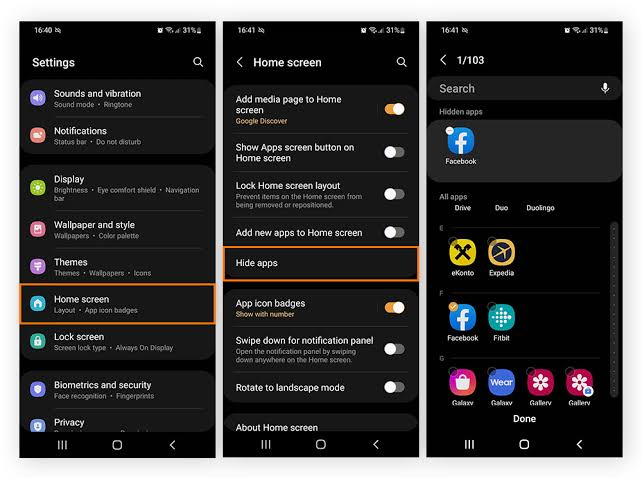
Here is how to hide apps on samsung:
- Tap and hold any empty space on your home screen and select Settings (or go to Settings > Home screen).
- Scroll down and tap Hide apps on Home and Apps screens.
- Select the apps you want to hide (for example, if you want to know how to hide snapchat, just tap its icon here).
- Tap Done to apply.
Xiaomi (MIUI/HyperOS)
Xiaomi devices have a dedicated hidden space built into their security settings.
- Open the pre-installed Security app on your phone.
- Scroll down to find the Hide apps option.
- Toggle on the apps you want to put away.
OnePlus (OxygenOS)
OnePlus uses a clever feature called Hidden Space.
- Open your app drawer and swipe right.
- Tap the + (plus) icon at the top of the screen.
- Select the apps you want to hide and confirm. You can also add a password or fingerprint lock to build a vital second layer of security.
Oppo / Vivo
Oppo and Vivo use their privacy settings to lock and conceal apps.
- Go to Settings > Security & Privacy (or Privacy & app encryption on Vivo).
- Tap Hide Apps.
- Set up a privacy password if you haven’t already.

Stock Android / Pixel / Motorola
Pure Stock Android (like Google Pixel) doesn’t offer a built-in way to hide apps directly. However, if you are looking at how to hide apps on motorola, some Moto models let you use a "Secure Folder" or let you disable the apps. If your phone lacks a native option, don't sweat it. You can skip to Method 5 or 6 to use a third-party launcher or dedicated app hider.
Method 2: Disable Apps
If you want to hide a pre-installed system app that you can’t uninstall, your best bet is to disable it. Disabling an app removes its icon from the home screen and app drawer, cuts off background resources, and keeps it completely dormant.
Via Home Screen
- Find the app on your home screen and hold your finger on it.
Via Settings
- Go to Settings > Apps.
- Tap the app you want to hide.
- Tap Disable at the bottom of the screen.
Method 3: Samsung Secure Folder
For Samsung users, Secure Folder is the absolute gold standard of privacy. It uses defense-grade Knox security to create an entirely separate, encrypted, and password-protected container for your sensitive apps and photos.
Setting up the Secure Folder is easy:
- Go to Settings > Security and privacy > More security settings > Secure Folder.
- Sign in with your Samsung account and follow the on-screen instructions to set a password, PIN, or biometric lock.
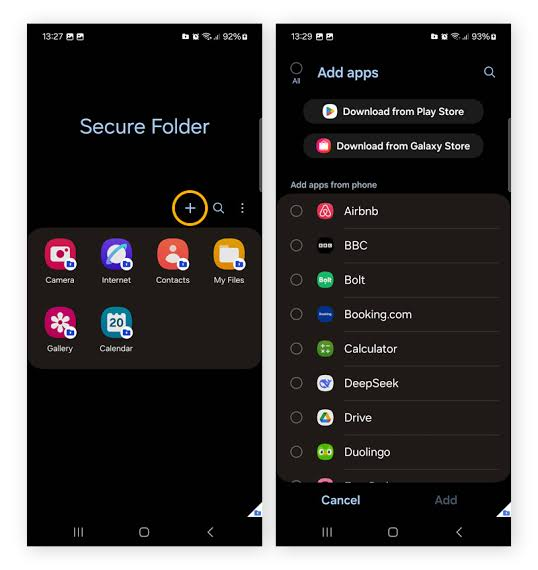
- Open the Secure Folder from your apps screen and tap the + icon.
- Select the apps you want to hide and tap Add.
Once you add them, a separate version of the app runs in the Secure Folder. You can safely delete the original version from your main app drawer. To make it even more stealthy, go into Secure Folder settings and toggle off Add Secure Folder to Apps screen. This makes the entire folder vanish from plain sight.
Method 4: Guest Mode / Multiple User Profiles
If you frequently share your phone with a partner, kids, or friends, utilizing Guest Mode or creating a separate user profile is a genius move. It gives them a totally clean slate, so they cannot see any of your personal apps, search history, or photos.
- Open Settings and search for Users or Multiple Users.
- Toggle on Allow multiple users.
- Tap Add guest or Guest.
- Swipe down your notification panel, tap the User icon, and switch to "Guest" whenever you hand your phone over. Switch back to your profile using your secure lock screen password when you get it back.
Method 5: Third-Party Launchers
If your phone lacks a built-in android app hider, installing a third-party launcher is the easiest way to customize the look, feel, and privacy of your device.
Nova Launcher and Apex Launcher are fantastic choices. They let you hide apps from your app drawer without any fuss.
- Download Nova Launcher from the Google Play Store and set it as your default launcher.
- Long-press on your home screen and open Nova Settings.
- Tap App drawer and scroll down to Hide apps.
- Check the boxes next to the apps you want to hide.
- If you want to go the extra mile, you can also use Nova to disguise apps. Just long-press any app icon on your home screen, tap Edit, and change the app icon and name to something boring like "Calculator" or "Settings".
Method 6: App Hider Apps
If you want to hide apps and files behind a bulletproof disguise, there is an app for that. Many apps that hide other apps on the Play Store masquerade as fully functioning calculators, compasses, or dialers. When you open them, they work like normal, but typing in a secret PIN unlocks a hidden vault where your private apps live.
Here are three popular options you can find on the Play Store:
| App Name | Google Play Store Link | What It Does |
| HideU: Calculator Lock | Play Store Link | Disguises as a calculator; hides photos, videos, and apps behind a secure PIN. |
| App Hider - Hide Apps | Play Store Link | Clones apps so you can run separate accounts (like secret social media apps) in a hidden space. |
| AppLock by DoMobile | Play Store Link | Locks individual apps with fingerprints or PINs and can hide its own icon from your app list. |
Method 7: Work Profile / Shelter App
For the tech-savvy crowd, using a "Work Profile" is an incredible way to isolate apps. If your device doesn’t natively support work profiles, you can download a free, open-source app called Shelter from F-Droid or the Google Play Store.
Shelter uses Android’s built-in work profile feature to create an isolated sandbox on your phone. You can clone apps into this profile to keep them completely separate from your personal data. You can also freeze them with a single tap so they don’t run in the background or send notifications until you unfreeze them.
What Happens to a Hidden App?
Hiding an app keeps it out of sight, but it doesn't put it in a deep sleep.
- Storage: Since the app is still installed, it will continue to take up storage space on your device.
How to Find Hidden Apps on Android
Maybe you hid an app a few months ago and forgot how to access it, or you suspect someone has disguised apps on your phone. Here is how to find hidden apps on android:

Go Further: Android Privacy Beyond Hidden Apps
Hiding apps solves only one part of the privacy puzzle. If you want a clean, safe, and private phone, you should look at your overall browsing experience too.
Nosey people aren't the only ones looking at your screen; intrusive mobile ads track your activity and clutter your view. To keep your browsing clean, secure, and lightning-fast, check out a dedicated adblocker for android to block tracking scripts and pop-ups. If you are tired of constant interruptions while surfing the web, learning how to stop advertising on my phone will give you back full control.
For those who do a lot of browsing on desktop or other devices, setting up a reliable adblock extension on your browser is an absolute must-have. Using the best ad blockers ensures your personal information stays safe from malicious trackers. Once you’ve cleared out the digital noise and hidden the apps you don't need, you can fill your clean, organized home screen with some of the best productivity apps to make your phone work for you, not against you.

Conclusion
At the end of the day, your phone is your personal sanctuary. Knowing how to hide apps on android gives you the ultimate control over who sees what, saving you from those mini-heart attacks when someone else is holding your device. From built-in launcher settings and Secure Folders to third-party app hiders, you have plenty of options to protect your space. Try a few out and see which one feels best for you!
FAQ
What is the difference between hiding and disabling an app on Android?
Hiding an app simply removes its icon from your view, but it keeps running in the background and preserves your data. Disabling an app completely shuts it down, prevents it from running, clears its active state, and works best for built-in bloatware you can't uninstall.
Does hiding an app stop it from running in the background?
Generally, no. Unless you use a sandbox app like Shelter to "freeze" it, or manually restrict its background data and battery usage in Settings, a hidden app will continue to run and update in the background.
Will a hidden app still use my data or battery?
Yes, it can. Since it's still fully installed, it will behave normally behind the scenes, using background data and battery to fetch updates or send notifications. You can turn off "Background data usage" in the app's settings to prevent this.
Can hidden apps still be found in Android Settings?
Yes, absolutely. Go to Settings > Apps > See all apps to see a complete list of everything installed on your device, hidden or not.
How do I unhide apps on Android?
Just reverse your steps! Go back to your launcher's settings or the built-in privacy settings where you hid the app, locate the list of hidden apps, and deselect the ones you want to bring back to your main screen.

