
 Home »
How to Disable Pop-up Blocker on Safari: Mac & iPhone (2026)
I click a button expecting my bank portal to open, but nothing happens. I look for an error message, but the screen is completely blank instead. So I try again, and still total silence. I've troubleshooted this exact issue for hundreds of users who suddenly lost access to their school portals, payment gateways, or tax forms. :)
The problem is that Safari’s native blocker is aggressive. It doesn't distinguish between a malicious ad and a necessary bank login window. When you try to log in or download an important file, Apple's built-in rules block the new window before it even renders. Knowing how to disable pop-up blockers helps you get past these blocked screens without breaking your daily workflow.
Also, we have to remember that web applications rely heavily on DOM overlays, authentication redirects, and modal triggers. If your browser blocks these scripts indiscriminately, critical tools simply stop working. Knowing how to handle Safari's native security settings lets you regain access to important pages while keeping your device protected.
The "One-Click" Safari Fix
On Mac, look at the Smart Search field at the top of your browser. If a pop-up was blocked, you'll often see a "Window Blocked" icon right inside the address bar. Click it to allow the window just this once without changing your permanent browser settings!
How to Disable Pop-up Blocker on Mac
I find that when I started to manage pop-up windows on macOS, it gave me, let's say, the best of both worlds :) You can either choose to turn off defenses across the entire web, or you can create clean rules for each platform.
Allow Pop-ups for All Websites
If you work inside a secure internal network or rely on multiple web apps every day, turning off the native blocker globally can save you from constant headache. Here is how you can change your baseline preferences:
- Open Safari.
- Click the Websites tab along the top row.
- Change the setting to Allow.
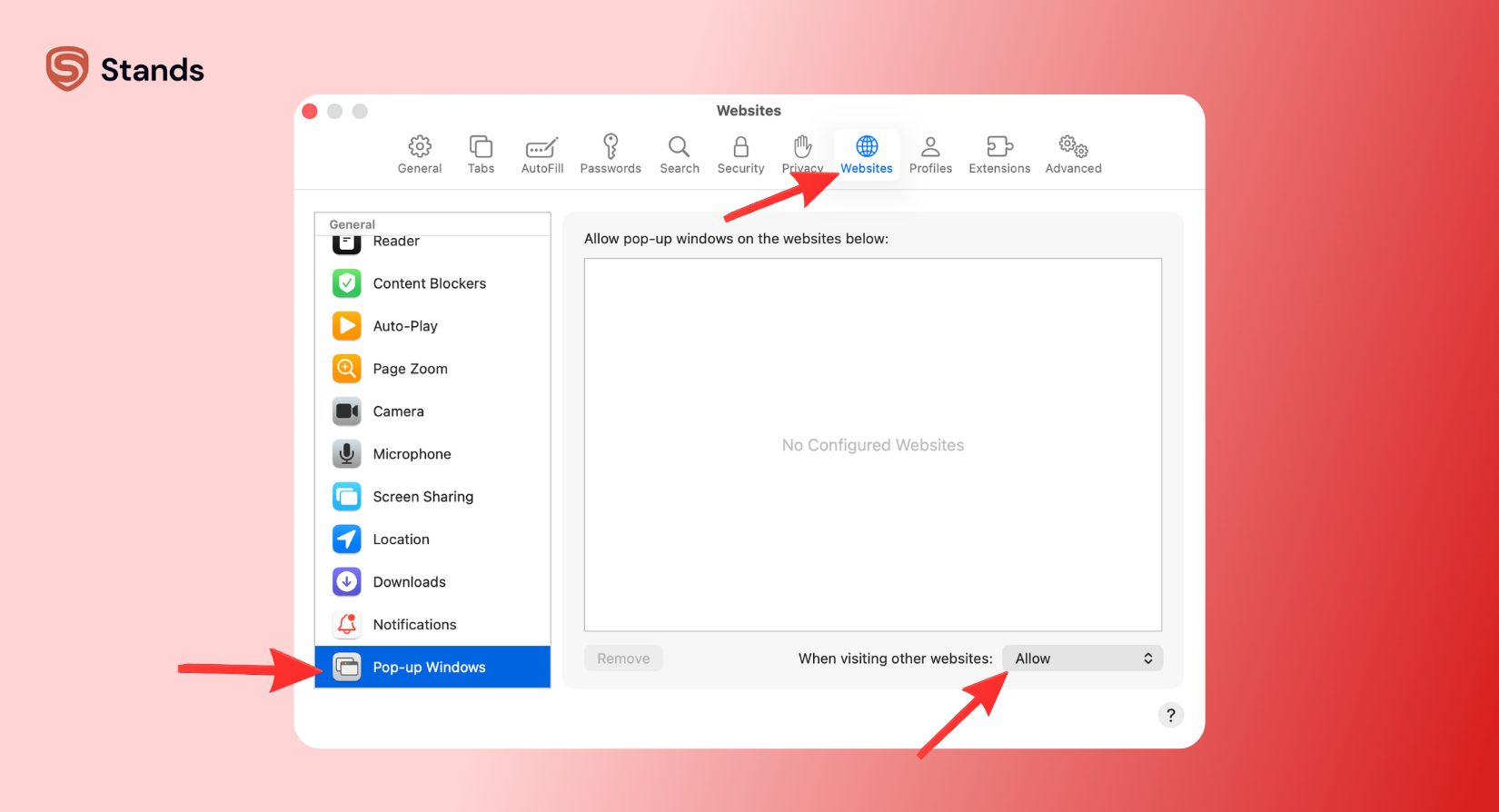
Once you set this to Allow, Safari stops suppressing new windows across all domains. If you want to review official documentation, check out the Apple Safari Support Guide to see how macOS manages system permissions.
Enable Pop-ups for a Specific Site
Turning off your blocker for the whole web is a bad idea, so here is how to do it for just one website instead. This pro-user method keeps your overall defenses active while giving full access to websites you actually trust.
- Open the website that requires pop-ups (like your bank or university portal).
- Select the Websites tab and click Pop-up Windows.
- Look at the Currently Open Websites list in the main window.
- Find your active website URL.
There's also a bit faster way. So while you are still on the page, right-click the address bar, click Settings for this website, and set Pop-up Windows to Allow.
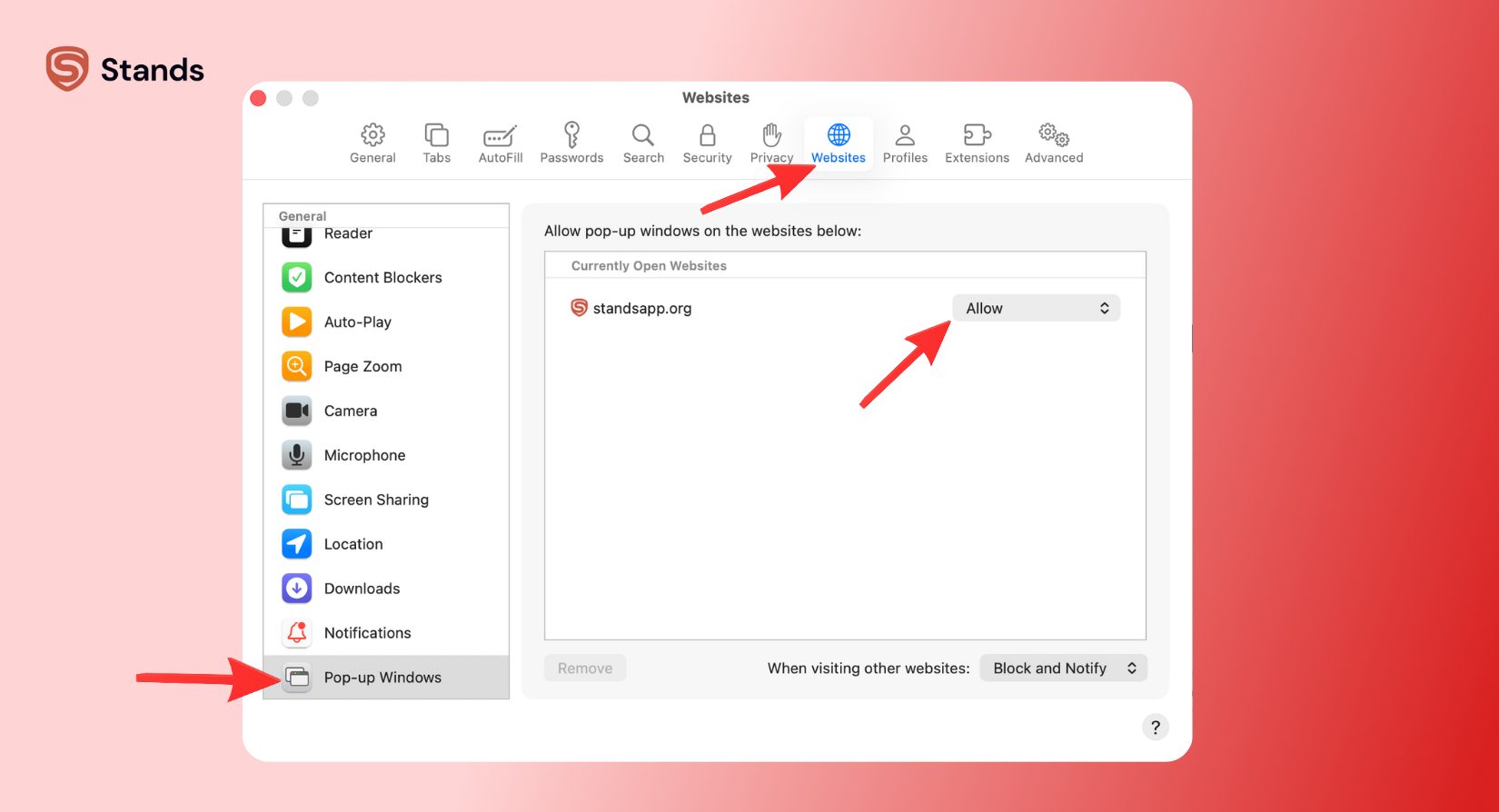
In my testing, I found that when I turned off the blocker for just one website, it fixed almost EVERY login problem without exposing your Mac to dangerous web scripts. If you run into other performance issues, you can always check the official Apple Safari Support Page for extra help :)
How to Turn Off Pop-up Blocker on iPhone and iPad
Mobile browsing on iOS feels very different, and because screen space is limited, Apple sandboxes mobile Safari settings right inside the system preferences to keep things running fast and smooth.
With iOS Settings App
You don't change browser permissions inside the Safari app itself on iPhone. Instead, you jump straight into your device's preferences:
- Open the Settings app on your iPhone or iPad.
- Scroll down and tap Safari.
- Look under the General section.
- Find the Block Pop-ups toggle switch.
- Tap the switch so it turns gray (OFF).
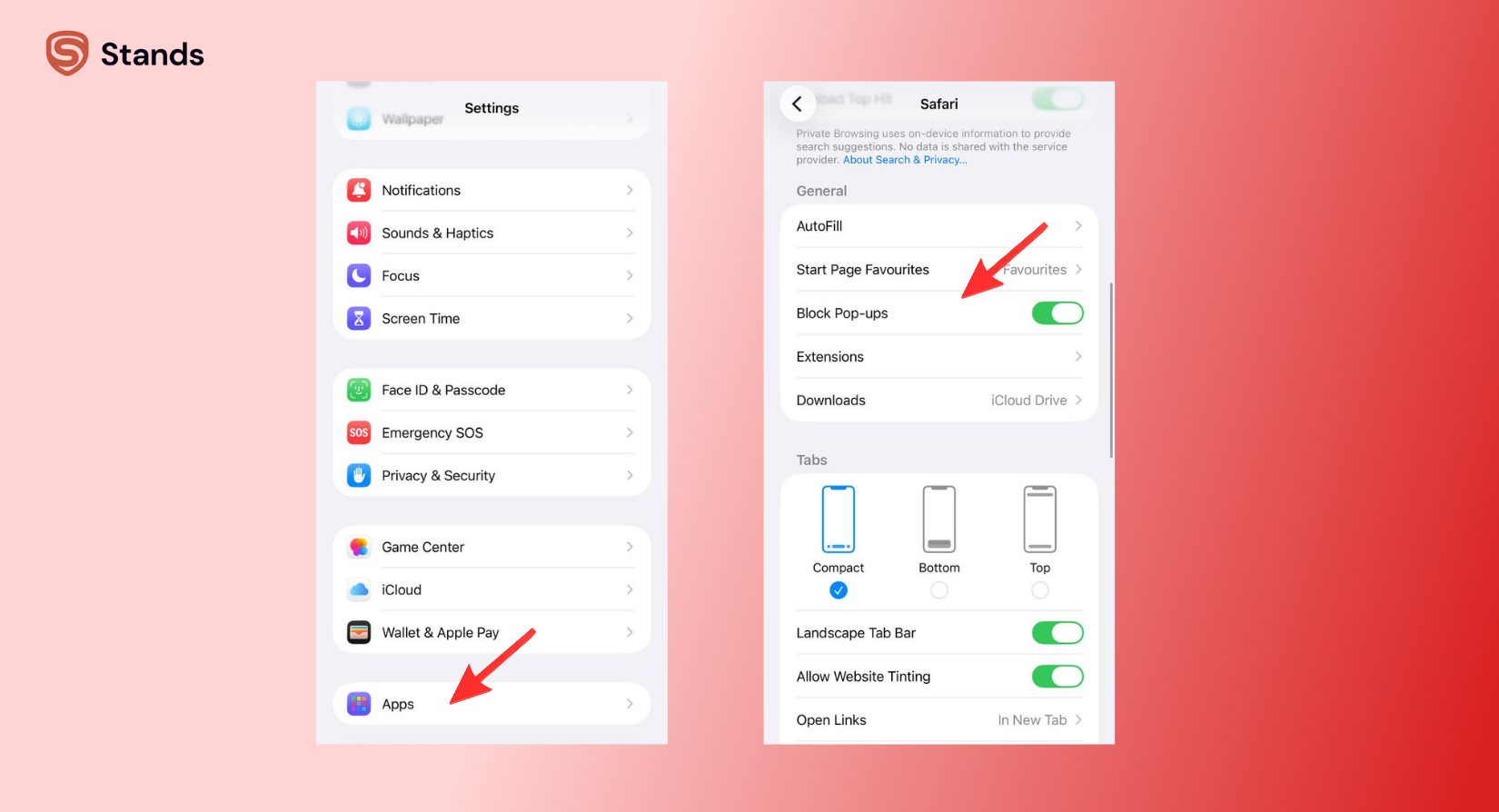
After turning it off, go back to Safari and refresh your tab. If you were trying to figure out how to turn off the pop-up blocker on an iPhone to complete a quick verification or payment, this switch removes the barrier instantly.
Why the Toggle is Global on iOS
Many users ask me why they can't whitelist a single domain on mobile like they do on a Mac. This comes down to how iOS handles browser memory. Apple streamlined mobile preferences to save battery life, so mobile Safari relies on a single master switch: either all pop-ups are allowed, or all pop-ups are blocked.
Because iOS lacks a site-by-site whitelist menu, learning how to enable pop-ups on iPhone means accepting a temporary trade-off. When you turn off the global toggle, it leaves you open to intrusive ad redirects while browsing general news or media websites. I recommend turning the toggle back on as soon as you finish your bank or school task. For more details on how iOS manages web permissions, read through this Apple Community Discussion Thread.
Is It Safe to Disable Pop-up Blockers?
It always comes with risks to disable your browser's native guardrails. Unregulated pop-up windows can expose your device to aggressive ad scripts, phishing redirects, and background battery drain.
| The risk | What happens to your device |
| Adware & Phishing | Malicious pages launch fake system alerts or disguised login prompts. |
| Resource Hijacking | Background ad scripts keep CPU cores running hot, causing battery drain and lag. |
| Forced Redirects | Unchecked tab triggers hijack your back button and lock you into spam loops. |
However, when you shut down all pop-ups, it breaks functional web tools like login overlays, invoice downloads, and multi-factor prompts. Instead of leaving your browser totally undefended, I prefer using a dedicated content blocker Safari extension (we will cover these blockers in the next section).
Smart filtering tools look at what a script is actually trying to do. They let essential login windows through while dropping hidden ad scripts and tracking attempts. This gives you easy access to your sites WITHOUT putting your personal data at risk!
If you also work across desktop platforms like Chrome, I would recommend learning how to adjust your settings on other browser engines, as it is just as important. You can check out our full guide on how to configure disable pop up blocker tools for Chromium browsers.
Dedicated Extensions vs. Safari Native Blocker
Safari's native controls act like a simple switch: they block everything or allow everything. Advanced content blockers give you surgical precision over your traffic.
| Feature | Safari Native Blocker | Dedicated Extension |
| Domain Whitelisting | Manual (Mac only) | 1-Click Whitelist (Mac & Mobile) |
| Pop-up Discrimination | Binary (All or Nothing) | Intelligent (Allows Logins, Blocks Ads) |
| SSAI Bypass (YouTube/Twitch) | Ineffective | Built-in Server-Side Ad Bypass |
| Phishing & Malware Shield | Basic URL List | Threat Script Filtering |
| Resource Optimization | Standard | Reduced Memory & Battery Drain |
My conclusion here is simple: when you use a "dedicated" tool, you don't have to keep changing settings back and forth, as a trusted pop-up blocker extension handles exceptions automatically and keeps all the ads blocked.
But don't forget that Safari just doesn't have as many good extensions as Chrome. If you browse a lot on a desktop and want to block ads on YouTube, Twitch, and social media, switch to Chrome and install Stands AdBlocker.

FAQ
How do I unblock pop-ups on a Mac if the setting is already off?
Most probably, another tool is blocking them. Open Safari > Settings > Extensions and turn off your ad blockers or security add-ons one by one to find the problem. You can also check if an active VPN or antivirus program on your Mac blocks pop-ups in the background :)
Why can't I see pop-ups on Safari iPhone after disabling the blocker?
If you turned off "Block Pop-ups" in your iPhone Settings but windows still do not open, your phone's Screen Time restrictions are blocking them. Go to Settings > Screen Time > Content & Privacy Restrictions > Content Restrictions > Web Content. If you turned on web limits, your iPhone stops pop-up windows, no matter what your Safari settings say.
What is a content blocker in Safari?
A content blocker is a small app extension that tells Safari what to block before a page loads. Instead of tracking your activity online, it gives Safari a list of ad scripts and trackers to stop automatically. This keeps your browsing private, saves battery life, and speeds up page load times. You can manage these settings anytime inside your pop-up blocker settings :)
Does disabling pop-ups slow down my browser?
Yes, it does! When you turn off your pop-up blocker, websites load hidden ads, video scripts, and tracking tools in the background. These extra scripts hog your memory, drain your battery, and waste your mobile data, which makes your web pages lag.
Conclusion
You shouldn't have to fight your browser settings to open a bank form or school task. Safari’s built-in blocker stops spam, but because it blocks everything blindly, it breaks websites you need to use.
My recommendation is simple: leave your main Safari blocker turned ON to stay safe while browsing the web. When you visit a website you trust, don't turn off your protection for the whole internet. Instead, allow pop-ups for just that single website. And, if you visit ad-heavy websites often, use Chrome with an ad-blocker extension. It works much better than Safari on mobile, which has a lot of limits.
Hope this guide helped!:)

