
 Home »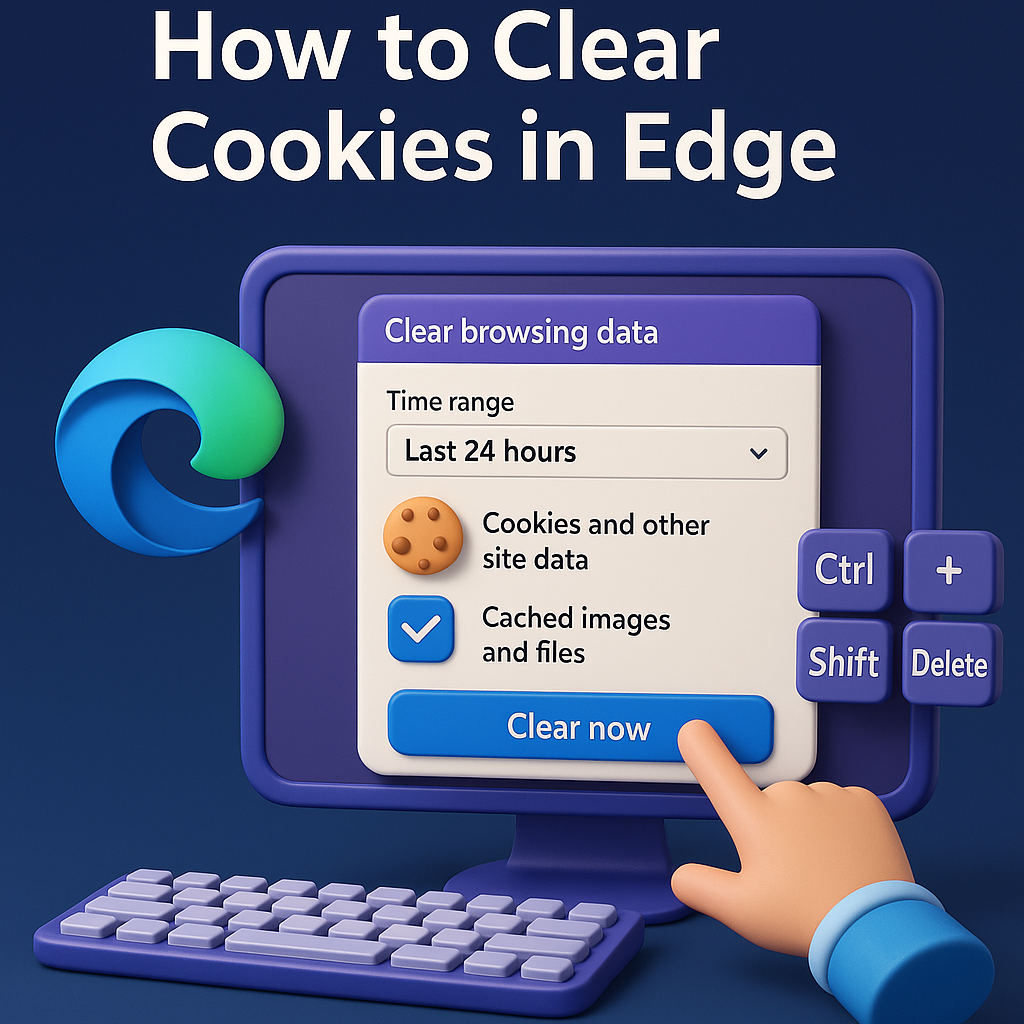
How to Clear Cookies in Edge
Did you know Microsoft Edge stores cookies and temporary data from every website you visit? These cookies make it easier to log in, save your preferences and personalize your browsing experience. However, over time, they can accumulate, affect browser performance and even compromise your privacy. In this easy guide, we explain how to clear cookies in Edge, what cookies are, when to delete them, both on computers and mobile devices :)
What Are Cookies and Why Clear Them in Edge
Understanding Browser Cookies
Cookies are small files that websites store on your device. They are used to store your credentials, shopping cart contents and your language preferences. There are three main types:
Although many cookies are pretty useful, third-party cookies can track your activity across sites and generate advertising profiles without your consent. That's why we recommend deleting them once in a while :)

When You Should Delete Cookies in Edge
Deleting cookies is recommended for the following simple reasons:
- When pages are loading slowly or displaying errors.
- If you have logged into someone else's account and want to stay private.
- If you want to avoid advertising tracking.
- Before selling or giving away your device.
Keeping a cleaning schedule (monthly or quarterly) helps keep Edge fast and secure.
How to Delete Cookies in Edge
There are helpful ways to delete cookies in Edge, depending on the device you use. Learn how to do it straightforwardly through settings :)
How to Clear Cookies and Cache on Microsoft Edge (The Quick Method)
- Open your Microsoft Edge.
- For Windows - Press Ctrl + Shift + Delete
- For Mac - Command + Shift + Delete
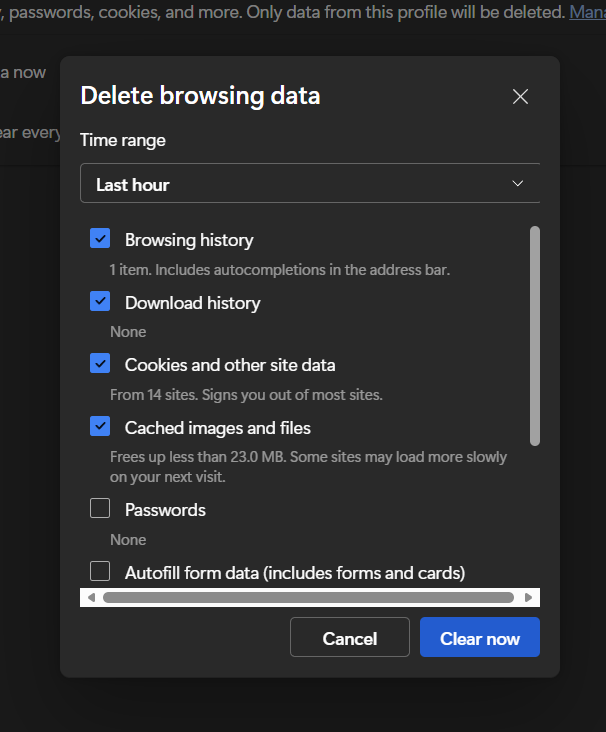
- Go to the Clear browsing data window.
- Choose the time range (Last 24 hours or All time).
- Click Clear now.
If you just need to free up space, you can leave passwords and history unchecked :)
Learn how to Allow Pop-Ups in Edge and personalize your browsing.
How to Clear Cookies in Edge on Computer (Detailed Steps)
- Open your Edge browser.
- Click the three dots in the upper right corner.
- Select Settings.
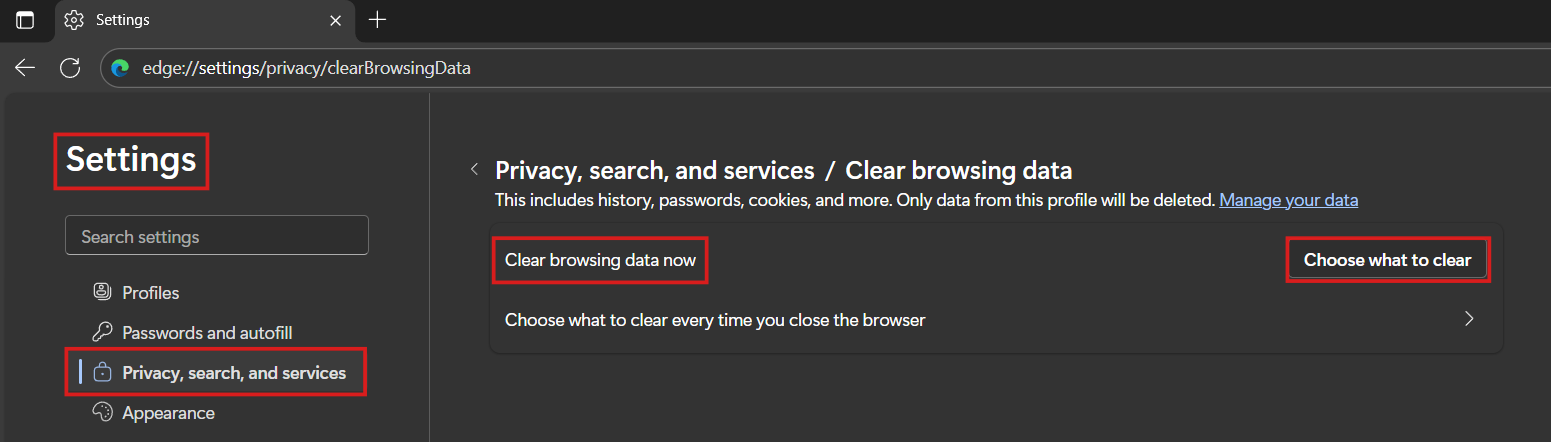
- Then go to Privacy, search and services.
- In the Clear browsing data now section, tap Choose what to clear.
- Select the time range.
- Tap Clear now.
This is how to clear cookies on computer Edge. Keep in mind that you will delete all locally stored cookies, which will log you out of websites.
Learn How to Clear Cookies Edge Mobile App
On Android/iPhone:
- Open the Edge app.
- Tap the three dots.
- Then go to Settings.
- Select Privacy, search, and services.
- Clear browsing data.
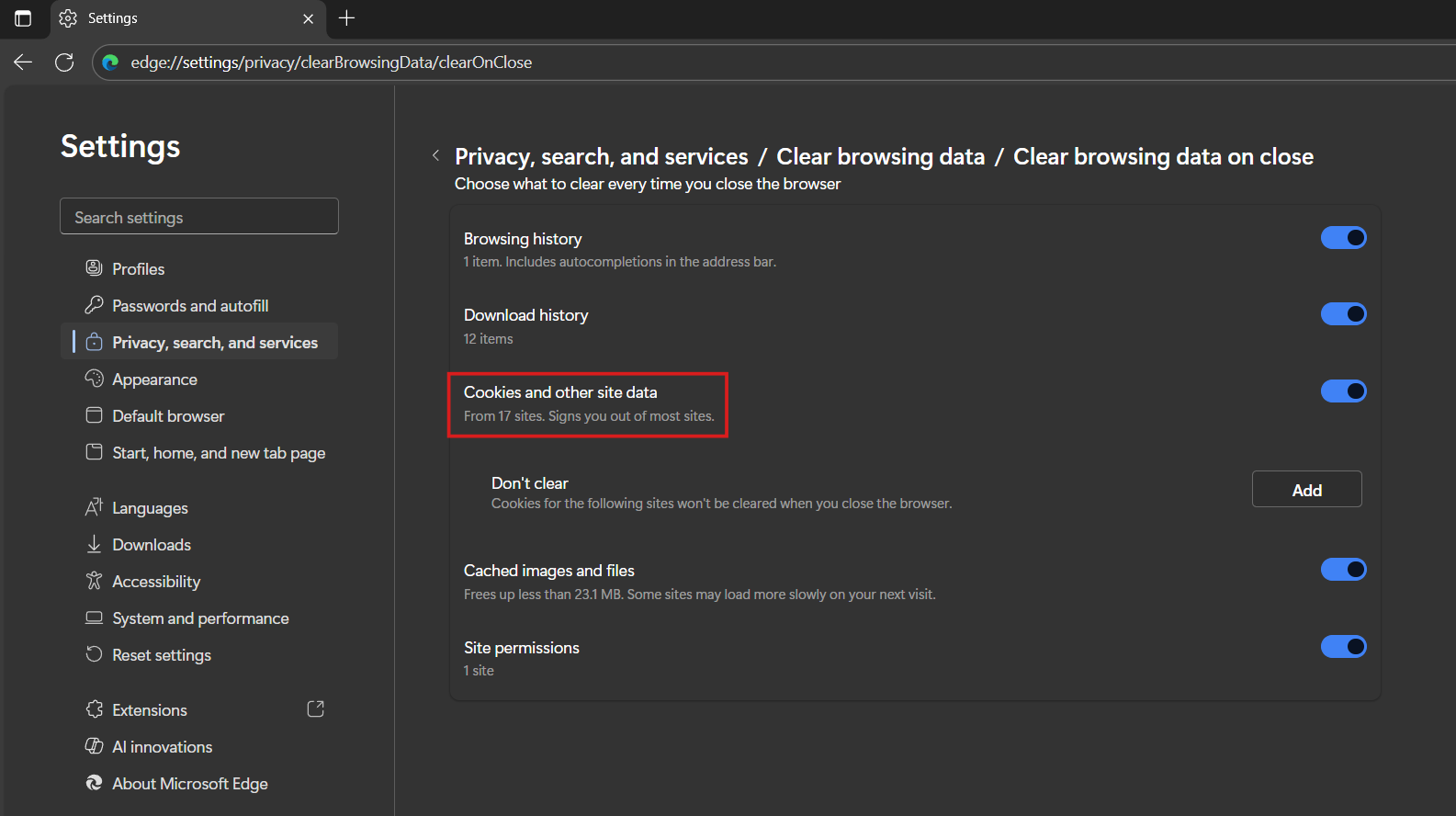
You can choose what to clear every time you close the browser.
Advanced Cookie Management
How Do I Clear Cookies in Edge Automatically
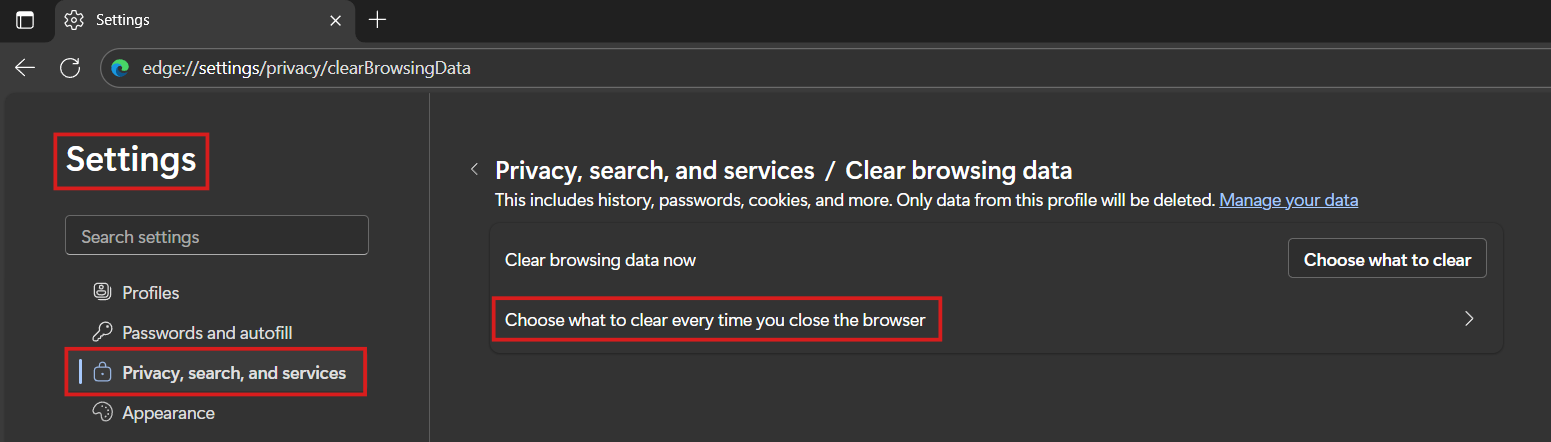
- Go to Settings > Privacy, search, and services.
- Select Choose what to clear every time you close the browser.
Learn How to Clear Cache in Edge and browse smoothly.
Clearing Cookies on Edge But Keeping Passwords
If you want to delete cookies without losing your saved credentials:
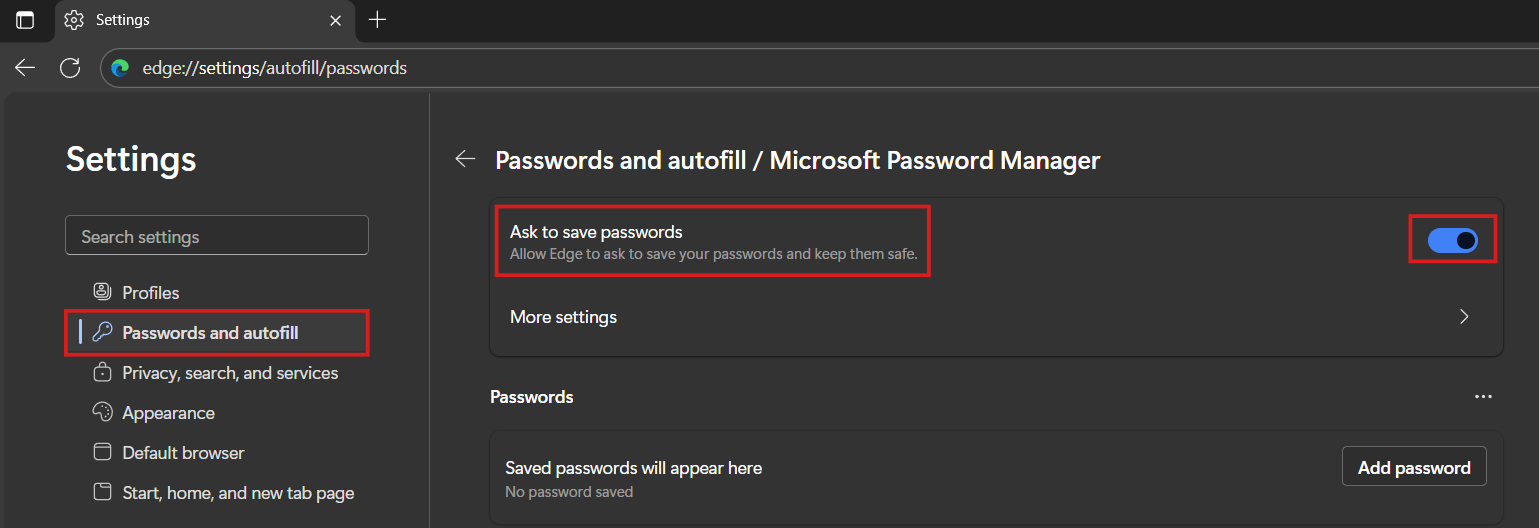
- Open Settings and go to Profiles.
- Then choose Passwords and autofill.
- Select Microsoft Password Manager.
- Enable the option Ask to save passwords (if you use a Microsoft Account).
How Clearing Cookies Affects Your Edge Browsing
Deleting cookies does not damage your browser, but it can slightly modify your experience:
- You will need to log back in to websites.
- Some pages will take a little longer to load the first time.
- Language, theme, or location preferences will be reset.
- In return, you will gain privacy, more free space, and better browser performance.
How to Disable Pop Up Blocker on Microsoft Edge and troubleshoot possible issues.
Stands Adblocker: Enhanced Privacy Protection
Why Choose Stands Adblocker for Edge
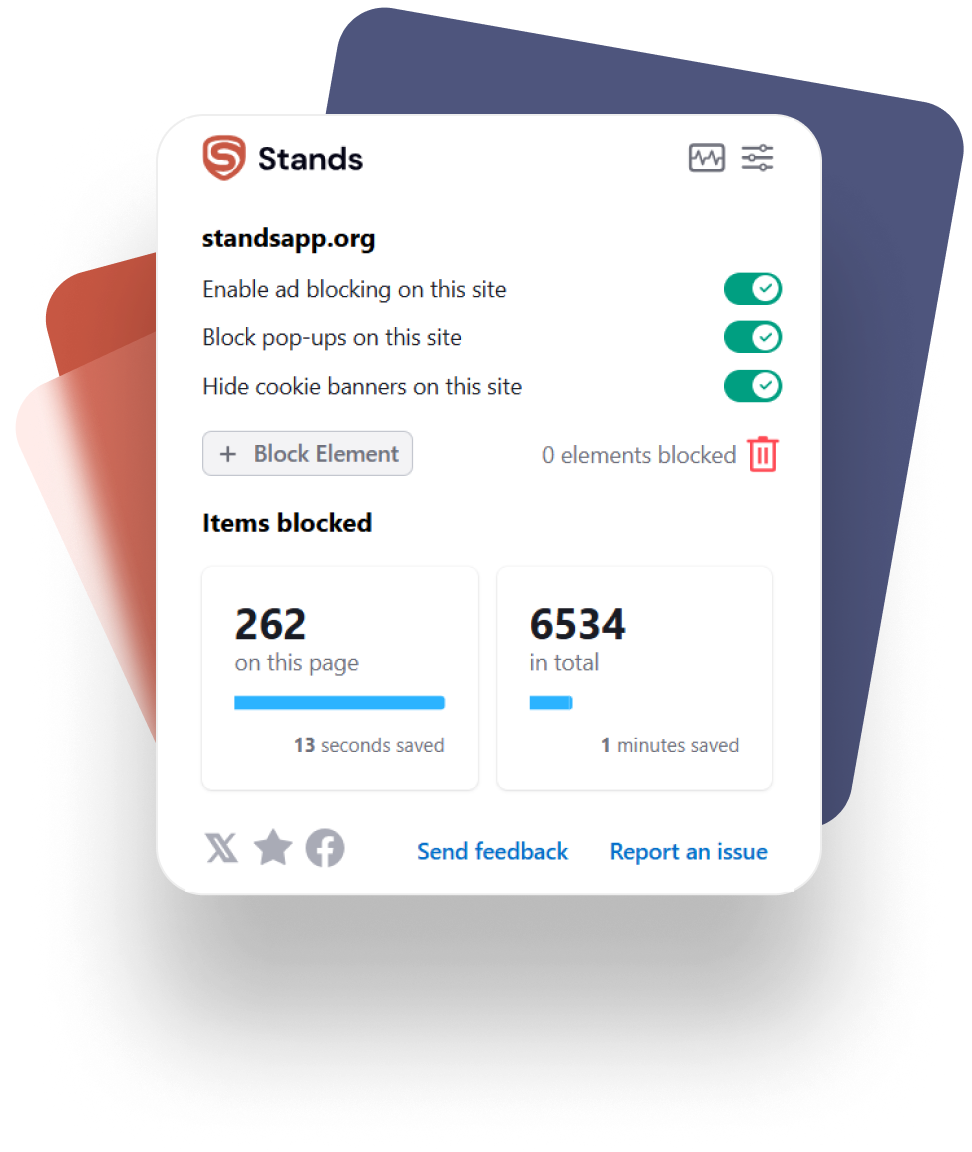
Stands Adblocker complements cookie deletion by offering continuous protection against online ads and trackers. By blocking advertising, Stands reduces online distractions and the number of third-party cookies that reach your device.
Key benefits:
- Block ads to browse smoothly on the Internet.
- Speeds up page loading and battery savings.
- Supports Microsoft Edge, Chrome and Brave.
- Does not store personal information or history.
Installing your Adblock Edge is quick and free. Once activated, it keeps your browsing clean and secure without requiring complex configurations :)
Troubleshooting: When Cookies Won't Clear in Edge
If cookies do not seem to be deleted:
- Ensure all active tabs are closed before deleting them.
- Temporarily disable data synchronization and repeat the process.
- In most cases, restarting the browser after deletion resolves the problem :)
FAQ - Common Questions About Clearing Cookies in Edge
Does clearing cookies in Edge log me out of all websites?
Yes. Deleting cookies removes saved sessions, so you will need to log back into your accounts. You can only avoid this by enabling the option Block third-party cookies and Preload pages for faster browsing and searching :)
How do you clear cookies in Edge without deleting browsing history?
When you open the Clear browsing data window, simply uncheck Browsing history and leave only cookies selected. This will keep your record of visited pages intact.
How to clear Edge cookies for a single website?
Yes!
- Click Add site, then use the search bar to find the domain.
- Click Delete next to the desired site.
This deletes only the data for that page without affecting the others.
How to clear cookies Edge on the computer using keyboard shortcuts?
Press Ctrl + Shift + Delete on Windows, or Command + Shift + Delete on Mac, to open the data deletion menu. This is the fastest way to delete cookies and cache in your browser :)
What happens if I never clear cookies from Edge?
Over time, accumulated cookies can cause issues:
- Slow down your browser.
- Cause loading errors or expired sessions.
- Make it easier to track your online behavior.
- Deleting them regularly protects your privacy and improves Edge's stability.

