
 Home »
How to Bypass GoGuardian Block
If you use a school Chromebook, you know the feeling. You try to open a site for homework or quick research, and it just stops you with a blocked page. GoGuardian does that.
It limits what you can open, even when you just try to get normal schoolwork done. That’s why we are here to explore how to bypass GoGuardian block, or in other words, how to get past GoGuardian when it gets in the way.
Most tips online don’t really help anymore. Schools update their systems, and Chromebooks come locked down by default. Still, people keep trying different ways to get around it. Some methods work a little, some don’t work at all, and some can cause more problems than they solve.
In this article, we will check what’s possible, what’s risky, and what actually makes sense. Let’s get into it!
- What is GoGuardian and Why Schools Use It
- Is It Legal to Bypass GoGuardian Blocker?
- 5 Methods to Bypass GoGuardian Block
- Method 1: Use Proxy Websites to Bypass GoGuardian Block
- Method 2: VPN Services
- Method 3: Change DNS Settings
- Method 4: Connect to Mobile Hotspot
- Method 5: Disable GoGuardian Extension
- Why GoGuardian Is Difficult to Bypass
- Block Ads with Stands Ad Blocker
- FAQ (Frequently Asked Questions)
- Conclusion
What is GoGuardian and Why Schools Use It
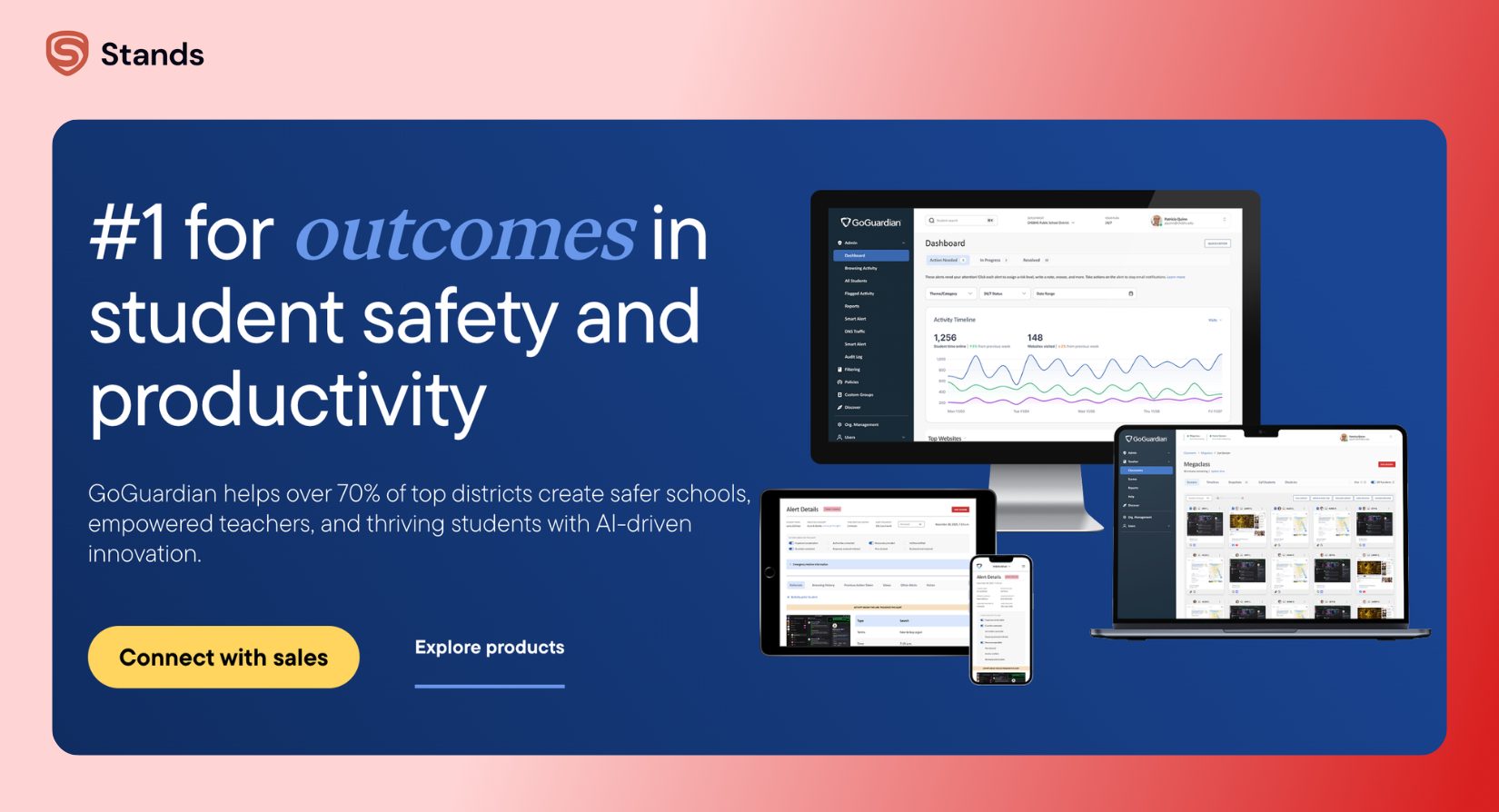
GoGuardian is a tool schools install on Chromebooks to monitor and control what students do online. It works through the Chrome browser and the school’s system.
It helps schools:
- Block inappropriate or distracting websites
- Track student activity in real time
- Keep students focused during class
- Protect devices from malware
It’s not just there to block fun, but to manage access and keep things secure.
Is It Legal to Bypass GoGuardian Blocker?
Most of the time, no.
Trying to bypass the GoGuardian blocker on a school-managed Chromebook usually breaks school rules. And schools don’t take that lightly.
Here’s what can happen if you’re caught trying to get around it:
| What you do | What might happen |
| Use proxy or VPN | Your activity gets flagged |
| Change system settings | Access gets restricted |
| Try to remove controls | Disciplinary action |
So before you try anything, ask yourself: is it really worth it?
If you need access for schoolwork, asking a teacher or IT admin is often the easiest way to regain access.
5 Methods to Bypass GoGuardian Block
You’ve probably seen tons of “ways to bypass GoGuardian” online. Some sound clever, but most don’t work well anymore, especially on school-managed Chromebooks. Still, there are a few methods students can try when they want to unblock GoGuardian or get access to restricted content.
Let’s go through the most common ones together.
Method 1: Use Proxy Websites to Bypass GoGuardian Block
Proxy sites are often the first thing people try. They act as a middleman between you and the blocked website.
Sounds smart, but here's the catch: most school networks already block known proxy sites.
So while this method is popular, it’s not very reliable. Plus, some proxy sites are unsafe and can expose your data or load sketchy ads.
Method 2: VPN Services
VPNs are another go-to answer when people look up how to bypass GoGuardian blocker. They hide your IP address and encrypt your internet traffic.
That works great on personal devices.
On school-managed Chromebooks? Not so much.
Most VPN apps and Chrome extensions are blocked by admin settings. Even if you find one that works, GoGuardian may still track what you do inside the browser.
Method 3: Change DNS Settings
Some guides suggest switching to public DNS servers to bypass web filtering.
Here’s the reality: on school-managed devices, DNS settings are usually locked. You simply can’t change them.
And even if you could, it wouldn’t fully bypass GoGuardian restrictions, since filtering happens in more than one place.
Method 4: Connect to Mobile Hotspot
Using your phone’s hotspot is one of the more practical ideas. It takes you off the school network.
But the game is still not over. :)
If your Chromebook is still managed by the school, GoGuardian is still active. So while you might bypass the network firewall, you won’t fully get around the monitoring.
If you want full freedom, using a personal device works better than trying to force it on a school-managed one.
Method 5: Disable GoGuardian Extension
You’ll find guides claiming you can disable the GoGuardian Chrome extension using tricks like developer tools or JavaScript.
Honestly? That’s wishful thinking.
Extensions installed through school admin settings can’t be removed by students. And trying to mess with them is one of the quickest ways to get flagged.
Why GoGuardian Is Difficult to Bypass
GoGuardian isn’t just a simple blocker, as it works on multiple levels at once.
| Layer | What it does |
| Browser (Chrome) | Tracks and filters activity |
| Device (ChromeOS) | Enforces admin rules |
| Network | Blocks access to websites |
| Cloud system | Updates restrictions in real time |
That’s why most “another GoGuardian bypass” tricks you see online don’t really work anymore.
Block Ads with Stands Ad Blocker
If your main problem isn’t blocked websites but annoying ads distracting you, there’s a much easier fix.
Try Stands AdBlocker. It helps you browse without pop-ups, banners, or video ads getting in the way.
You can install the Chrome ad blocker extension to make pages load faster and stay focused.
If you're dealing with specific ad problems, these guides might also help:
It’s a simple, safe way to improve your browsing, and there is no need to mess with school restrictions.
FAQ (Frequently Asked Questions)
Can GoGuardian see my browsing history at home?
Yes, if you’re logged into a school account on a school-managed Chromebook. Activity can still be tracked, even outside school networks.
Does GoGuardian work on personal devices?
Usually no. It mainly works on school-managed devices or accounts controlled by the school.
Can teachers see my screen through GoGuardian?
Yes. Teachers can view student screens in real time during class sessions to supervise activity.
Is there a way to bypass GoGuardian website block without detection?
No method is completely safe or hidden. Most attempts to bypass GoGuardian can be detected, and the risks usually outweigh the benefits.
Conclusion
GoGuardian blocks can feel frustrating, especially when you just want to open a normal site for schoolwork. That’s usually when people start looking for shortcuts or quick fixes.
The reality is simple: most methods you’ll find online don’t hold up on school-managed Chromebooks. Some don’t work at all, and others can lead to restrictions or trouble with your school account.
If you run into blocked pages often, the safest move is still the same: ask for access when you need it for real schoolwork. It saves time, avoids issues, and actually solves the problem instead of working around it.

