
 Home »
How to Allow Pop-ups on Chrome: 2026 Step-by-Step Guide
Discover How to Allow Pop-Ups on Chrome. Although pop-ups are often annoying when browsing, blocking them could interfere with essential functionalities on some websites. But how do you allow pop-ups on Chrome? Understanding how and when to enable them will help you enjoy a better online experience tailored to your needs.
- Why disable Pop Up Blocker?
- How to Enable Pop Ups on Chrome
- How to Allow PopUps in Chrome From Specific Sites
- Stands Adblocker: A Smarter Way to Manage Pop Ups
- Conclusion: Importance of managing pop-ups effectively
- FAQ: How to allow pop ups on Google Chrome?
- Why are pop ups blocked by default in Google Chrome?
- Can enabling pop ups on Chrome cause security risks?
- Why are pop ups still blocked after I enabled them in Chrome settings?
- Can I customize Chrome's pop up settings for specific use cases?
- How do I allow pop-ups for only one specific website?
- Is it dangerous to enable all pop-ups in my browser?
- Why are pop-ups still blocked after I changed Chrome settings?
- How to enable pop-ups on Chrome mobile (Android/iOS)?
Why disable Pop Up Blocker?
Pop-up blockers are helpful tools for blocking ads, but they can sometimes interfere with the functionality of certain websites, such as contact forms, login windows, or other relevant content. Even if built-in and third-party ad blockers can provide a smoother, more productive, and uninterrupted viewing experience, below, you will also find some good reasons why you might consider disabling them:
- Improve website functionality: Activating the browser's built-in ad blockers or third-party software can cause issues with website functionality. For example, online video platforms could affect the loading and quality of the viewing experience.
- Access to essential functions: Some websites, such as online banks, rely on pop-ups to log in, make payments, or complete authentication processes.
- Interaction with government sites: Some government sites may use pop-ups to access contact forms, registration processes, and payment systems, among other features. Therefore, their functionality may be altered when you activate your ad blocker.
- Incompatibility with software and extensions: Ad blockers can affect the functionality of other installed programs or extensions, so it is necessary to check their compatibility before downloading them to avoid malfunctions.
- Support for content creators: Video platforms like YouTube have a business model based on advertising. Content creators depend on this advertising revenue so that ad blockers can impact their business model.
Would you like to learn how to disable pop-up blockers in simple steps?
How to Enable Pop Ups on Chrome
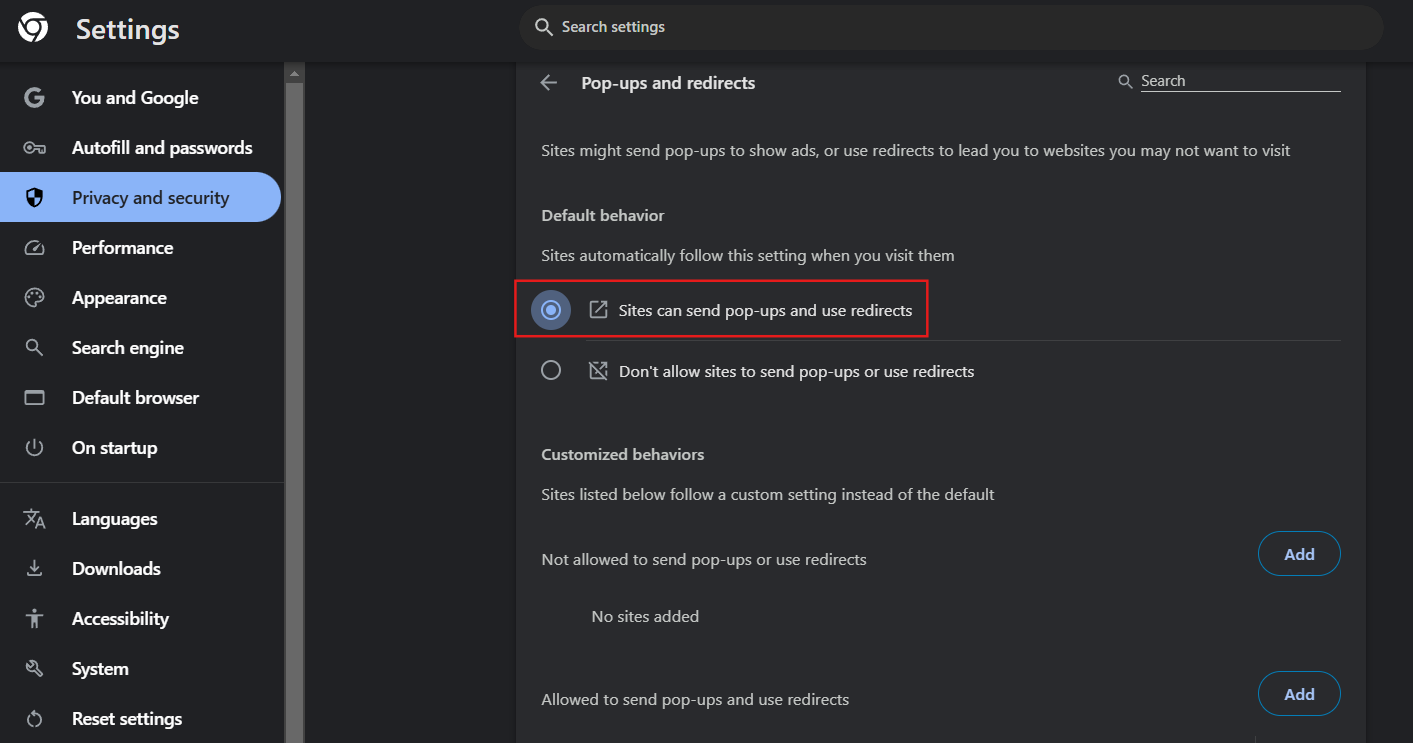
Enabling pop-ups in Google Chrome is a straightforward process. Follow the steps below:
2. Then select the Settings option.
3. Go to the Privacy and Security section.
4. Select Site Settings.
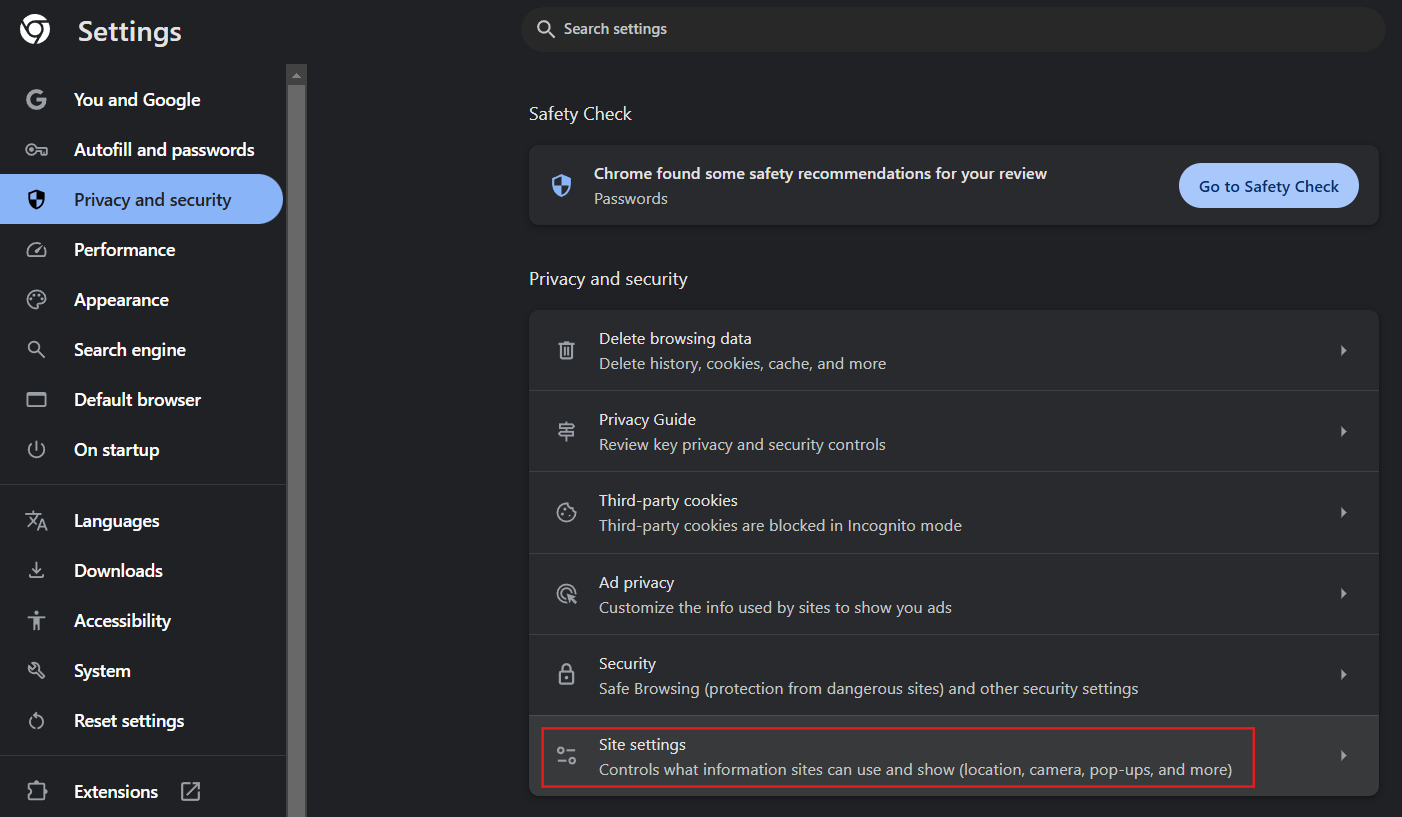
5. Look for Pop-ups and redirects.
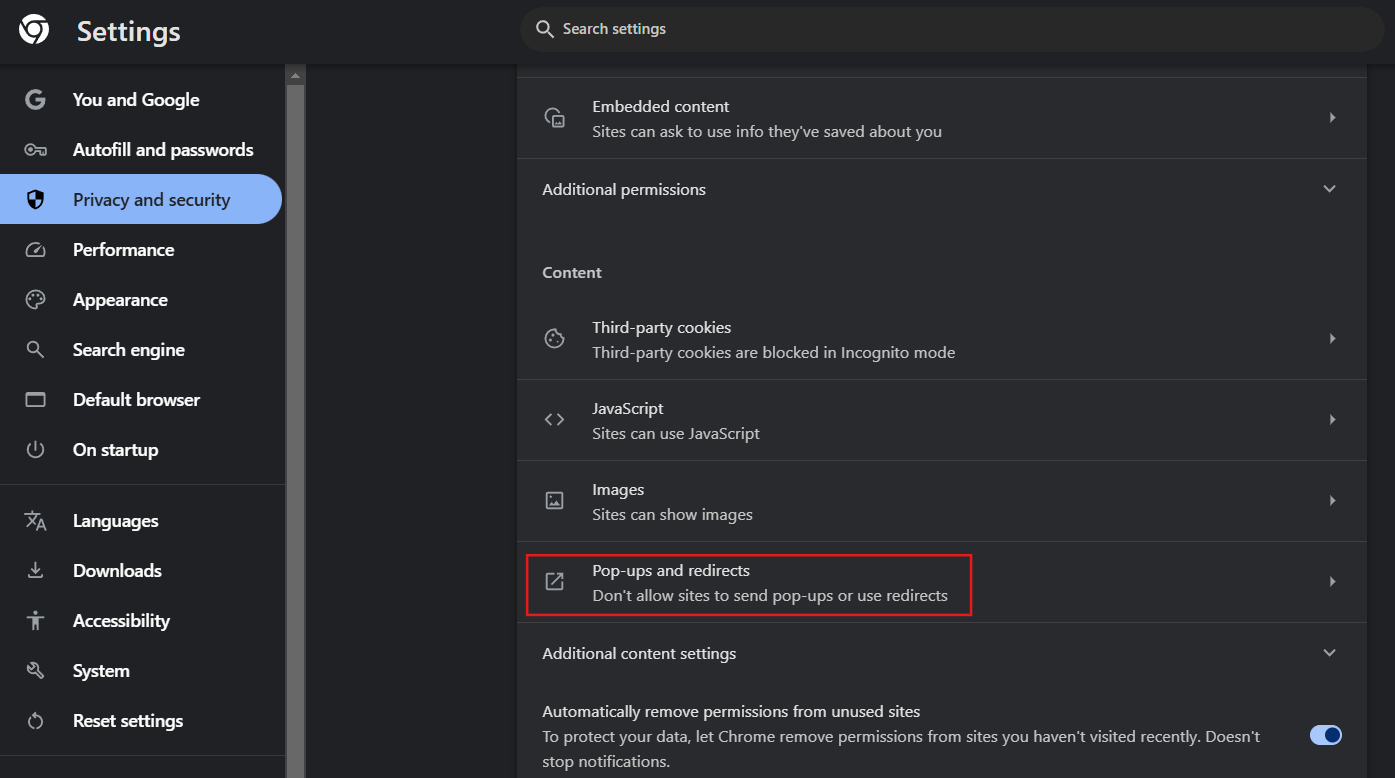
6. Activate the option to block or allow pop-ups in Google Chrome.
How to Enable Pop Ups in Chrome on Mac
To learn how to allow pop-ups on Chrome, follow the steps below:
- On your Mac, open Chrome.
- Tap More (by selecting the three horizontal dots) and then go to Settings.
- Select Content Settings.
- Then select Block pop-ups.
- Activate the Block pop-ups option.
Discover one of the best pop-up blockers on Mac.
How to unblock pop ups in Chrome on iOS devices
- Open the Chrome browser on your iOS device.
- Tap the three dots and select Settings.
- Then go to Content Settings.
- Look for the pop-up windows option.
- Activate it to allow pop-up windows.
Learn more about how to turn off pop-up blockers on iPhones.
How to Allow PopUps in Chrome From Specific Sites
Mobile version
To allow pop-up windows on a specific site on Android, follow these steps:
- Open your Chrome browser on your Android phone or device.
- Next, go to a page that has pop-ups blocked.
- At the bottom, select the Always Show option.
Desktop devices
To customize pop-up permissions for a specific website, follow the steps below:
- Open Chrome on your computer.
- Go to a page that has pop-ups blocked.
- In the address bar, select the Blocked pop-up icon.
- Click on the link in the pop-up you want to see.
- To always see pop-ups from the site, select Always allow pop-ups and redirects from that specific site.
- And finally, choose Done to accept the changes.
Learn more about how to allow pop ups in Chrome by visiting Google Help for more information.
Stands Adblocker: A Smarter Way to Manage Pop Ups
What is Stands Adblocker?
If you want to decide what content to view in Chrome and manage online pop-up ads, you'll need a reliable ad blocker with great customization options and a simple interface suitable for all types of users. Are you ready to learn about Stands AdBlocker?
Advantages of Stands Adblocker
Stands AdBlocker is a pop-up blocker for Chrome, effective after the MV3 manifest, and maintains its Featured Badge in the Google Chrome Webstore. Stands AdBlocker extension offers the functionalities below:
- No paid subscriptions required: Stands is 100% free and effective, and you won't have to pay a subscription to access its main ad-blocking features.
- Customize which elements to block: In the ad blocking settings, Stands will enable you to create whitelists to add sites where you want to continue viewing pop-ups.
- Reduces the risk associated with advertising: Stands is one of the most effective solutions for blocking ads. Its blocking features also reduce the risk of encountering advertising that may contain harmful code.
- A lightweight extension: It effectively blocks ads without slowing down websites or taking up space on your desktop.
- Ease of use: Stands offers an easy-to-use interface for those who want to stop ads conveniently and quickly.
- Increase productivity: Without online distractions or excessive advertising, you can optimize your tasks and focus on the content that matters most.
Additionally, Stands AdBlocker is compatible with Chrome and other popular browsers, including Firefox, Edge, Brave, Opera, Vivaldi, and Safari. You will also find Stands Browser, a free ad blocker designed for Android, available.
Conclusion: Importance of managing pop-ups effectively
In conclusion, pop-ups in Chrome could become essential for the functionality of certain websites. Learning how to manage the presence of pop-ups will provide you with a better online experience that fits your needs. Additionally, you can control which ads you want to allow using a personalized pop-up blocker, such as Stands.
We recommend taking additional measures to manage pop-ups online, such as adjusting your browser's built-in settings, as described in this article, and keeping all your extensions up to date for a better online experience.
FAQ: How to allow pop ups on Google Chrome?
Why are pop ups blocked by default in Google Chrome?
Google Chrome blocks pop-ups by default to prevent them from automatically displaying on your screen. The blocked pop-up icon appears in the web address bar when a pop-up is blocked.
Can enabling pop ups on Chrome cause security risks?
Although not all advertisements are harmful, enabling pop-ups could expose you to misleading advertising or advertisements containing malicious code and unwanted redirects. For this reason, we recommend that you constantly update your computer and browser and download antivirus software to enhance your online security.
Why are pop ups still blocked after I enabled them in Chrome settings?
We recommend checking additional browser settings to see if pop-ups are still blocked since some browsers have built-in pop-up blocking settings. Also, make sure no blocking extensions are active. The presence of other third-party extensions could be blocking pop-ups by default.
Can I customize Chrome's pop up settings for specific use cases?
We recommend you access your browser settings and check your ad blocker configuration to manage pop-up exceptions. If you use an ad blocker like Stands, add the specific URL as a whitelist exception in your settings.
How do I allow pop-ups for only one specific website?
Fastest way: when Chrome blocks a pop-up, an icon appears in the address bar — click it, choose "Always allow pop-ups from this site," done. Or manually: Settings → Privacy and security → Site settings → Pop-ups and redirects → Add the site under "Allowed to send pop-ups." That way the block stays on everywhere else, which is exactly what you want — a banking site gets an exception, the rest of the web doesn't.
Is it dangerous to enable all pop-ups in my browser?
Bad idea, yes. Pop-ups are the delivery method for fake virus alerts, phishing login windows, and forced redirects — the global block exists because of them. Enabling all pop-ups to fix one site is like removing the front door because one guest can't find the bell. Add a per-site exception instead; it takes the same thirty seconds.
Why are pop-ups still blocked after I changed Chrome settings?
Usually something else is blocking them on top of Chrome. Check in this order: an ad blocker extension (add the site to its allowlist — in Stands that's two clicks on the extension icon), then antivirus software with "web protection," then — if it's a work laptop — corporate policy, which overrides your settings entirely. Also do a hard refresh (Ctrl+Shift+R) after changing anything; cached scripts can keep old behavior for a while.
How to enable pop-ups on Chrome mobile (Android/iOS)?
Android: Chrome → three dots → Settings → Site settings → Pop-ups and redirects → toggle on. iOS: Chrome → Settings → Content settings → Block pop-ups → toggle off. One difference from desktop — mobile Chrome has no per-site exception list, the switch is global. So flip it on for the site that needs it, then flip it back. Takes ten seconds and keeps the rest of your browsing protected.