
 Home »
Hacked Phone: How to Know If It’s Real and What to Do Next
A hacked phone usually shows specific red flags: unknown apps appear out of nowhere, background data spikes suddenly, and pop-ups flood your home screen (not just your browser). While a hot battery or a bit of lag can happen for normal reasons, seeing a cluster of these symptoms points to a real security compromise that needs your immediate attention :)
| Symptom | Typical Root Cause | Likelihood of Hack |
| Home screen pop-ups | Malicious ad-networks / Malvertising | High |
| Unauthorized 2FA texts | Credential stuffing or intercepted tokens | High |
| Unknown apps installed | Remote Access Trojans (RATs) / Side-loading | High |
| Background data spikes | Exfiltrating personal files to remote server | Medium-High |
| Sudden battery drain / Heat | App background activity or hardware aging | Low-Medium |
Why Most "Signs" on This List Aren't Actually Proof
Stop and take a deep breath. Most of the "classic" signs people point to like a dying battery or a warm phone usually come from simple things like aging hardware, a greedy background app, or a weak cellular signal :) A truly compromised device stays quiet while it steals your data. You only need to worry when you spot impossible activity, like outgoing messages you never typed or login alerts from your own accounts popping up on unfamiliar devices. Look for a cluster of symptoms rather than one isolated issue.
If your device suddenly gets hot in your pocket, close your open apps first. Are you wondering: "has my phone been hacked?" You probably just have a rogue app acting up :) Mobile operating systems like Android and iOS force apps to run inside strict, isolated containers. When a single app crashes or gets stuck, it spins up processor cycles endlessly, generating heat and draining your battery fast. That isn't a factory reset bypass or a breach; it's just bad code.

Real security compromises leave distinct footprints because malware has a specific job: establish access, record your taps, and send your credentials to an attacker. A dying battery has no malicious intent. A hacked phone performs actions you never authorized.
The Real Warning Signs, Ranked by Reliability
To figure out if malware invaded your phone, check your device against this hierarchy of indicators. We ranked them from the most definitive proof to simple hardware quirks :)
| Reliability Level | Symptoms | Technical Significance |
| → High Reliability | Unknown apps/accounts & Unauthorized 2FA texts | Direct proof of unauthorized access, remote trojans, or compromised account credentials. |
| → Medium-High | Home screen pop-ups & Persistent browser redirects | Indicates aggressive adware with elevated display permissions or hijacked browser DOM nodes. |
| → Medium | Unexplained background data spikes | Points to background processes actively exfiltrating personal files to a remote server. |
| → Low Reliability | Battery drain, local overheating, general lag | Frequently caused by simple hardware degradation, battery wear, or background app loops. |
1. Unknown Apps, New Accounts, and Unrecognized Profiles
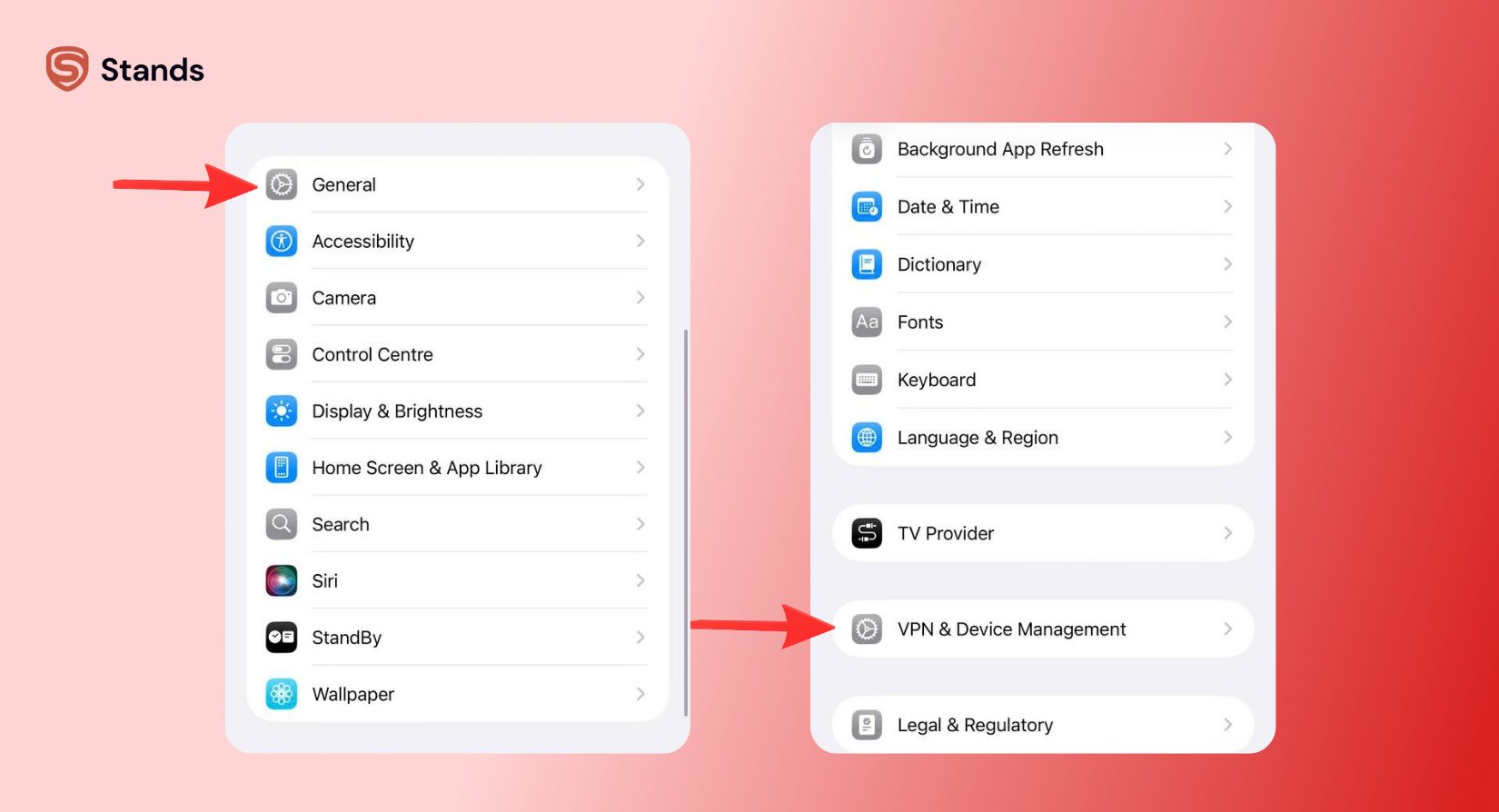
When you spot a new icon on your home screen that you never downloaded, take it seriously. Attackers use Remote Access Trojans (RATs) to install extra background tools and secure their access to your system :) If you use iOS, open Settings→ General → VPN & Device Management. If you find an unknown Mobile Device Management (MDM) profile there, a stranger can intercept your internet traffic, push unapproved apps to your device, or wipe your storage remotely.
2. Unauthorized 2FA Requests and Suspicious Outgoing Messages
If two-factor authentication prompts hit your phone for accounts you aren't actively opening, an attacker has already stolen your password and wants your secondary code :) If your friends start receiving texts or spam links from your number that you never typed, spyware is hijacking your messaging permissions behind your back.
3. Persistent Home Screen Pop-Ups and Browser Redirects
Pop-up ads inside a browser window annoy everyone, but pop-ups firing directly over your home screen mean adware has gained elevated display permissions. Malicious scripts can also rewrite your browser's DOM nodes, forcing endless redirects to phishing pages, no matter what web address you type. To stop these aggressive loops, you should clean up your browser cache to wipe away corrupted session files and rogue service workers,

4. Severe Background Data Spikes
Smartphones track data usage app by app, down to the kilobyte. If your mobile data skyrockets by gigabytes without heavy video streaming or massive downloads, malware is actively sending your personal files, contacts, or voice recordings to a remote server in chunks :) Check Settings → Cellular (iOS) or Settings → Network & internet → Data usage (Android) right now to spot which app burns through your plan.
5. Rapid Battery Drain and Thermal Throttling
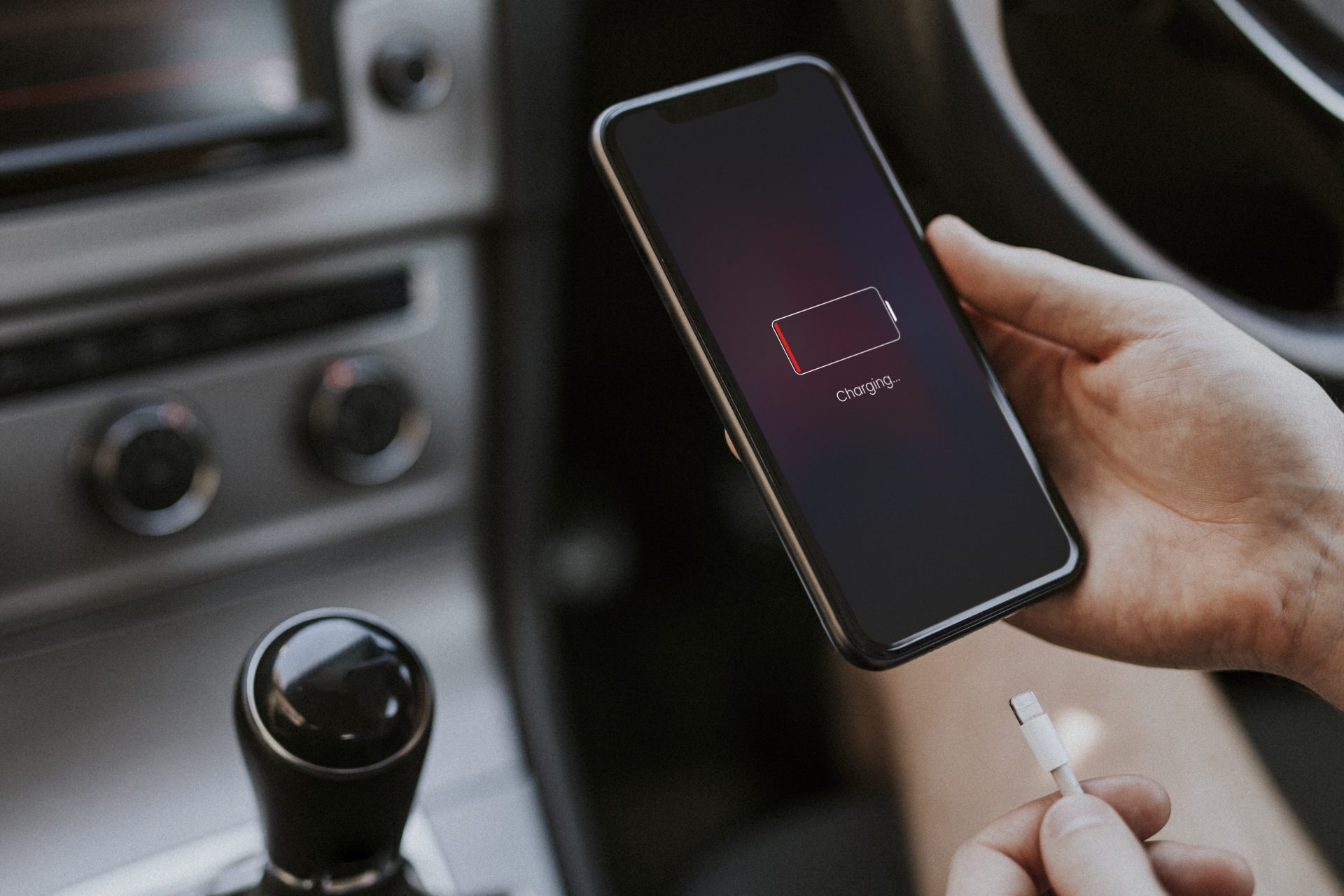
While old batteries cause most power drops, sudden battery drainage alongside other strange bugs points to active background tracking. Advanced threats like Pegasus-style spyware run non-stop routines in the background—they record your microphone, capture your screen, and track your GPS location :) This non-stop processing keeps your hardware awake, causing thermal throttling and wrecking your battery life.
Malvertising: How Your Phone Gets Compromised Without Downloads
Can someone hack your phone during a normal web-browsing session? Absolutely :) You don't need to download a sketchy file or install an unverified APK to get infected. Modern attackers inject malicious code directly into legitimate ad networks using a technique called malvertising.
[User visits normal site] → [Ad Network serves corrupt ad] → [Silent Redirect Chain] → [Zero-Day Exploit / Payload]
When you open a typical website, your browser renders the page and loads content from third-party ad exchanges at the same time. Hackers buy ad space on these networks and embed hidden JavaScript payloads into the ad graphics.
Technical Insight: The malicious script runs automatically the second the ad frame loads on your screen. You don't even have to tap or click it! Through a silent chain of redirects, the script tests your browser for unpatched memory bugs—known as zero-day exploits. When it finds an opening, it escapes the browser sandbox, runs unauthorized commands, and installs spyware on your storage drive.
This silent attack path makes basic safe-browsing habits fall short. To block these sneaky redirects before they fire, you need a tool that filters network traffic at the browser engine level. Installing the best ad blocker for Android stops script-heavy ad frames from entering your browser's DOM structure in the first place, stripping away malicious code. :) Ad blocker browsers like Stands AdBlocker browser act as your primary defense, killing malvertising threats long before they can probe your device for security holes.
Step-by-Step: How to Check Your Phone's Settings Right Now
If you keep asking yourself, "has my phone been hacked?", stop guessing and run these direct system checks on your device today :)
Android Diagnostic Checklist
- Audit Device Admin Apps:
Open Settings → Security → Device admin apps. Read every line on this list carefully. Only core system tools (like Find My Device) should ever hold admin rights :) If an app you don't recognize has administrator access, turn it off immediately. Admin rights allow rogue apps to block uninstallation and mess with your system core. - Disable Unknown App Installation:
Head to Settings → Apps → Special app access → Install unknown apps. Check every browser, file manager, and utility. Make sure no app has permission to install outside APK files, and turn this setting off across the board. - Run Play Protect:
Open the Google Play Store, tap your profile icon in the top right corner, select Play Protect, and hit Scan. This scanner checks your installed apps for behavioral fingerprinting anomalies and matches them against Google's global malware list.

iOS Diagnostic Checklist
- Inspect MDM Profiles:
Open Settings → General →VPN & Device Management. Unless your company owns your iPhone, you shouldn't see enterprise management profiles here. If you spot an unknown profile, tap it and hit Remove Management. - Examine Battery Usage by App:
Open Settings → Battery and study the charts covering the last 24 hours and 10 days. Look closely for weird or unnamed processes that consume massive battery percentages while showing zero time on screen.
Recovery Plan: What to Do If Your Phone Was Hacked
If you confirmed a real breach on your phone, act fast! Cut off the attacker's access, delete the Remote Access Trojans (RATs), and secure your private accounts.
| Step | Action | Objective |
| Step 1 | Sever Connectivity
(Airplane Mode / Wi-Fi off) |
Cut off active data exfiltration and isolate the phone from the hacker's server. |
| Step 2 | Boot into Safe Mode & Purge Apps | Block third-party code from starting up and uninstall unrecognized software safely. |
| Step 3 | Secure Primary Accounts
(Using an External Clean Device) |
Reset passwords and log out active sessions without risking keylogger interception. |
| Step 4 | Factory Reset
(Final Resort) |
Completely wipe local storage partitions to destroy persistent, low-level threats. |
Sever All Network Connections:
Boot into Safe Mode and Uninstall Malicious Software:
On Android, press and hold the power button, then press and hold the Power Off icon until the "Reboot to Safe Mode" prompt pops up. Safe Mode blocks all third-party apps from running on boot. Open your app list, select every suspicious program, and delete it. On iOS, delete unfamiliar apps from your App Library and remove unknown configuration profiles under settings.

Proactively Block Pop-Ups and Adware:
If adware or fake virus warnings triggered your issues, open your browser settings and cancel notification permissions for untrusted sites. You should also block malicious pop-ups to keep rogue web pages from hijacking your screens in the future.
Change Account Credentials from a Clean Device:
Never type new passwords into a compromised phone! Keyloggers can record every character you enter. Grab a secure computer or a clean tablet, then update your passwords for your Google Account, Apple ID, banking apps, and primary email. Read through Google's account recovery and security guidelines to review active sessions, log out suspicious devices, and generate fresh recovery keys for two-factor authentication.
Execute a Factory Reset (Last Resort):
If pop-ups keep appearing or high background data usage continues, wipe your phone completely. Backup your vital photos and documents by hand—don't restore system-level application backups, or you might pull the malicious files right back onto your clean system.
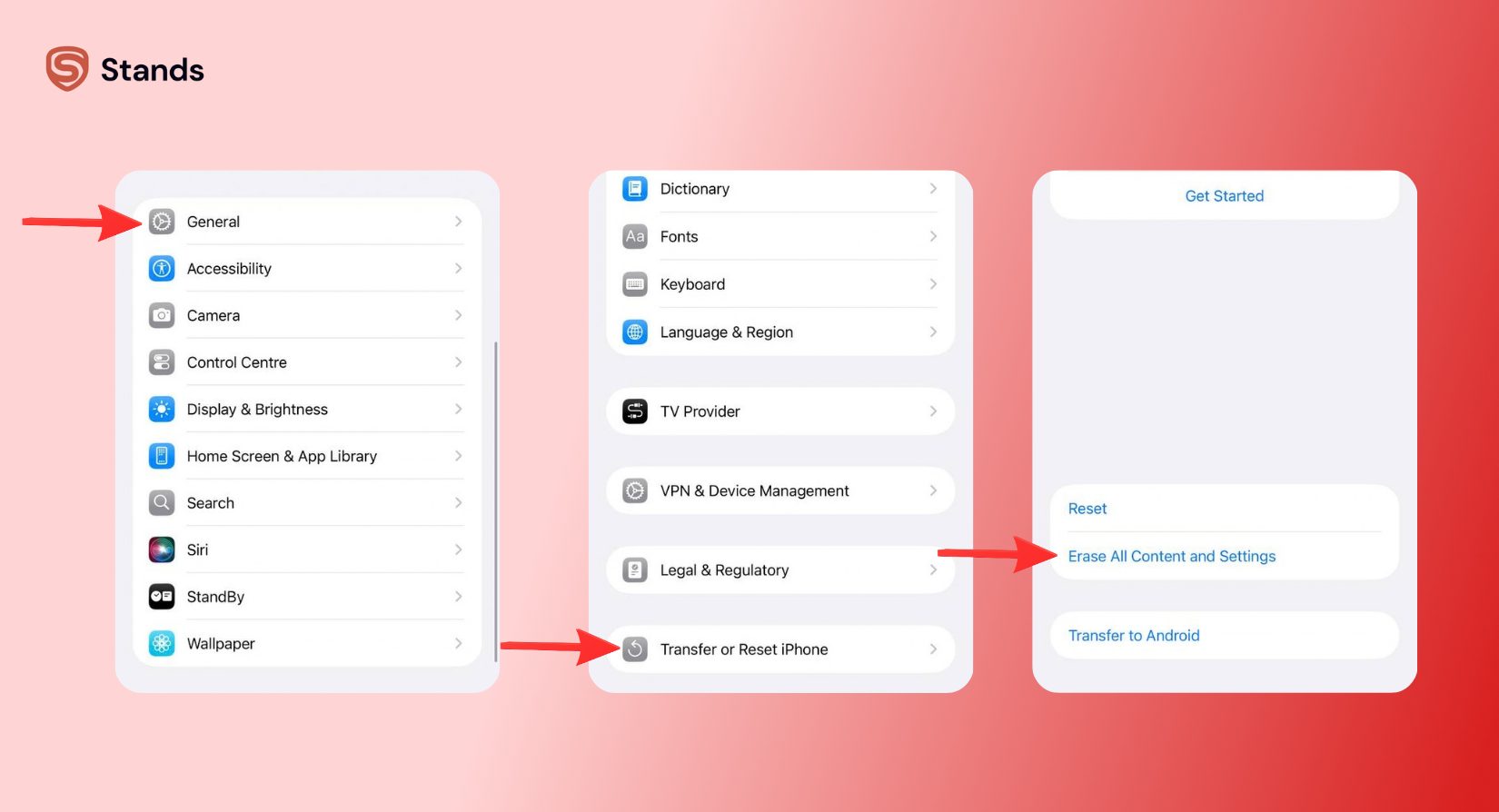
Go to Settings → System → Reset options → Erase all data (factory reset) on Android, or Settings → General → Transfer or Reset iPhone→ Erase All Content and Settings on iOS. A complete factory reset clears your entire storage drive, reinstalls a clean operating system, and destroys stubborn threats :)
FAQ
Can someone hack my phone just by calling me?
Simply picking up a normal phone call on a cellular network won't install malware on your phone :) However, scam artists use phone calls to trick you into giving away your passwords, banking details, or 2FA login codes through social engineering.
On internet messaging tools like WhatsApp or FaceTime, complex zero-day exploits have allowed high-level hackers to run malicious code through unanswered video calls in the past. Keeping your operating system and apps updated shuts down these zero-day security gaps before hackers can exploit them :)
How do I know if my phone has spyware?
Spyware creators design their tools to hide silently in your system without showing icons or triggering pop-up windows :) Instead, look for technical clues: massive data usage spikes, rapid battery drain from background tasks, a lagging processor when your phone sits idle, and strange account activity like unexpected password reset emails. Auditing your app permissions, reviewing device admin access, and scanning your storage give you a strong, proactive defense against hidden spyware.

