
 Home »
How to Enable Extensions in Incognito Mode on Chrome
Chrome disables extensions in Incognito by default. Turn one on via chrome://extensions → click the extension's Details → toggle "Allow in Incognito." This applies per extension, not globally.
You hit Ctrl+Shift+N, open a fresh incognito tab to check a site quietly, and suddenly your favorite tool or ad blocker just disappears. You look at your toolbar and find nothing.
You might think you hit a bug, but Google designed Chrome to work this way :) Chrome strips away your tools the moment you jump into private browsing. Here is why Chrome does this, how you can fix it in seconds, and why you should keep most tools turned off in private mode.
Why Chrome Turns Off Extensions in Incognito by Default
I hit this exact wall while working last week. I opened a clean incognito tab to test a client's website and figure out why a page element broke. I spent twenty minutes clicking around before I realized Chrome had turned off my main helper tools. I wanted a clean page, but I still needed my tools!
The problem here is that Google designed Chrome this way because what you expect from browsing, unfortunately for all of us, doesn't align with how extensions work.
So when you open an incognito tab, Chrome promises to hide your history, cookies, and saved info from your computer. But extensions work above the web page. A normal extension can see every site you visit, track what you type, and send your data straight to an outside server :)

If Chrome left all your tools turned on, a poorly built or malicious extension could quietly track every single private page you open. That ruins the whole point of your private window :)
To prevent this, Chrome sets a strict boundary. Chrome extensions work in Incognito only when you turn them on yourself. It is not broken, but simply protecting your private data.
How to Enable a Specific Extension in Incognito
When you need a trusted tool inside private windows, you can turn it on in less than a minute. You just need to configure your tools one by one.
Follow these simple steps on your computer:
→ Open Chrome on your desktop.
→ Click the three vertical dots in the top-right corner.
→ Move your mouse over Extensions, then click Manage Extensions. Or type chrome://extensions directly into your address bar and press Enter.

→ Find the extension you want to use and click its Details button.
→ Scroll down to the setting called Allow in Incognito.
→ Click the toggle switch to set it to On.
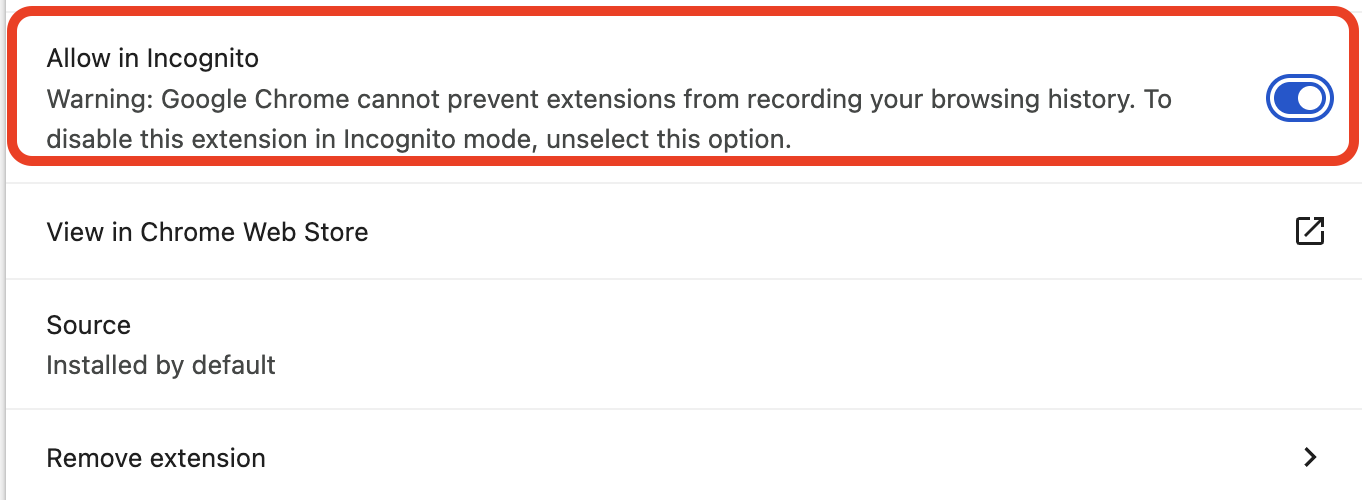
| Setting Name | Default State | What It Does When You Turn It On |
| Allow in Incognito | Off | Gives the extension permission to run, read pages, and inspect traffic inside private tabs. |
| Allow access to file URLs | Off | Lets the extension interact with local files saved on your computer. |
Open a new private tab. You will find your tool's icon right back in your top bar, ready for action :)
Why This Isn't Just a Chrome Quirk
Google did not pick this rule out of nowhere, and it protects you from real privacy risks. Chrome uses this safety rule because of how extension permissions work.
Remember adding a new tool? You automatically click "Yes" when Chrome warns you: "Read and change all your data on the websites you visit."

In a regular tab, that setting lets the tool fill out forms or modify how a page looks. But inside private browsing, that same access creates a major privacy risk. If a tool saves an internal log of your activity, you lose your privacy to that tool.
Google leaves this choice entirely in your hands:
Instead of blocking tools completely or trusting every third-party developer, Chrome isolates your private tabs. When you turn on "Allow in Incognito," you explicitly choose to let that specific tool past Chrome's guard.
Which Extensions Are Actually Worth Enabling in Incognito
Now that you know how to turn them on, you should ask yourself: Should I turn this on?
If you turn on shopping helpers, coupon tools, or games in private tabs, you ruin your privacy. But you actually get better privacy when you turn on one specific type of tool: ad blockers and privacy shields.
A lot of people think opening a private window stops websites from tracking them or showing ads. It doesn't! Private browsing only stops Chrome from saving history on your computer. Websites, ad networks, and your internet provider can still see your IP address and watch what you do online.
This reality makes using an ad blocker for Chrome inside your private tabs a smart move :)
While Chrome stops local history tracking, a tool like Stands AdBlocker stops intrusive tracking scripts, annoying pop-ups, and ad networks before they ever load on your screen. If you browse without a blocker in private tabs, companies can still build a profile on you :)
Standard Incognito Mode:
[Your Browser] ---> (No Local History Saved) ---> [Websites & Ad Networks Still Track You]
Incognito Mode + Privacy Blocker:
[Your Browser] ---> (No Local History Saved) + (Trackers & Ads Blocked) ---> [Clean, Private Request]
Good vs. Risky Tools for Private Tabs
→ Great for Incognito: Password managers (so you can log into sites securely without saving cookies), security shields, and trusted ad blockers.
→ Skip in Incognito: Social media sharing buttons, deal finders, screen recorders, and price trackers.
Does This Work the Same on Android and iPhone Chrome?
If you want to know why your extension is not working incognito on your phone, you need to know one clear fact: mobile versions of Chrome do not run desktop extensions at all.

Whether you follow incognito mode iPhone guides or use Chrome on Android, Google built its mobile app without extension support.
→ On iPhone (iOS): Apple forces all iOS browsers to run on the WebKit engine. Chrome on iPhone cannot run desktop extensions in regular mode or private mode.
→ On Android: Google built the mobile Chrome app for Android without extension support.
If you really need extensions in private mode on a mobile device, you must switch to alternative mobile browsers like Kiwi Browser, which can load desktop tools. On the main mobile Chrome app, extensions simply will not run :)
Conclusion
We often confuse private browsing with a "total online invisible mode". Incognito mode clears history on your computer, but it does NOT hide you from the web. Websites, ad companies, and your internet provider still see the pages you open, log your IP address, and track your activity.
When you know how Chrome handles extensions, you put yourself back in charge. Chrome turns off your extensions in private tabs to protect you from secret data collection, not to annoy you. Extensions hold real power. When an extension asks to read and change site data, it can see the exact private information you want to hide. By forcing you to turn on extensions manually, Chrome makes sure no tool tracks you without your permission.
FAQ
Do Chrome extensions work in Incognito by default?
No, do Chrome extensions work in incognito automatically? They do not. Chrome turns off every tool by default when you open a private window to shield your private data from third-party scripts.
Can you use extensions in Incognito on mobile?
You cannot use them on the regular Chrome app. Neither iOS nor Android phone apps support desktop extensions, so you cannot turn them on inside private tabs.
Why would an extension need Incognito access?
You need private access to a tool if you rely on its features while browsing anonymously. Great examples include password managers that fill your credentials securely, or ad blockers that block trackers from following your private activity.
How to pause Stands AdBlocker on a specific site?
Click the Stands icon in your browser toolbar while viewing the page. Open the pop-up menu and click the main power button or choose "Pause on this site." The blocker will pause its filters on that specific domain while keeping your protection active everywhere else :)
Does Incognito mode support extensions on iPhone?
No. Apple's iOS system limits prevent Chrome on iPhone from running browser extensions in any mode, including Incognito.