
 Home »
How to Clear Spotify Cache on Any Device
Over time, Spotify stores cache files on your device, so it can load songs faster and improve playback. Sounds great… until your storage fills up and your phone starts complaining.
If you’ve ever checked your storage and thought, “Why is Spotify taking up so much space?”— by the end of this article, you will know the answer.
The fix is simple, and you just need to clear Spotify's cache (and don't worry, we are here to tell you how). :)
In this guide, we’ll walk you through how to clear cache on Spotify across iPhone, Android, Mac, and Windows. You’ll also learn how to control cache size and keep your device running smoothly without constant cleanup.
Let’s get into it!
- What Is Spotify Cache and Why Clear It?
- Signs You Should Clear Spotify Cache
- Why Clearing Spotify Cache Helps
- How to Clear Spotify Cache on iPhone
- What Happens After You Clear Cache on iPhone
- Common Mistake to Avoid
- How to Clear Spotify Cache on Android
- How to Clear Spotify Cache on Mac
- How to Clear Spotify Cache on Windows
- How to Limit Spotify Cache Size
- What Happens When You Clear Spotify Cache?
- Extra Tips to Keep Storage Clean
- FAQ
- Conclusion
What Is Spotify Cache and Why Clear It?
Spotify cache is just a collection of temporary files that the app stores locally on your device.
When you stream music, Spotify saves small parts of songs, album covers, and search data. That way, the next time you play a song, it loads faster.
Here’s what Spotify stores in cache:
| Data Type | What It Does |
| Audio snippets | Speeds up song playback |
| Album artwork | Loads visuals instantly |
| Search history | Improves recommendations |
| App data | Helps navigation feel faster |
At first, this works in your favor. But the more you use Spotify, the bigger your cache grows.
Heavy users can easily hit several GB of cached data.
That’s when things start to feel off.
Signs You Should Clear Spotify Cache
Look for these signs:
- Your storage runs low
- Spotify takes up too much space
- Songs lag or take longer to start
- The app feels slow or buggy
- You stream a lot but rarely clear cache
Spotify doesn’t pop up and say, “Hey, your cache is out of control.” It just slowly builds up in the background while you keep streaming music like nothing’s happening. One day everything feels fine, and the next, your phone starts acting like it ran a marathon.
That’s because cached data keeps growing quietly. Every song you play, every album you open, every search you make — it all adds up. Spotify stores all of that locally to speed things up, but it doesn’t always clean up after itself.
So instead of waiting for a problem to hit you out of nowhere, it’s smarter to spot the warning signs early. If any of this sounds familiar, it’s time to clear your cache.:)
Why Clearing Spotify Cache Helps
When you clear Spotify cache, you remove unnecessary files. That frees up space and can fix small glitches.
Here’s what you gain:
| Benefit | Result |
| Free up space | More room for apps and photos |
| Improve performance | Faster loading and smoother playback |
| Fix glitches | Fewer crashes and bugs |
| Reduce storage usage | Spotify stops hogging disk space |
How to Clear Spotify Cache on iPhone
If you use an iPhone, you can clear Spotify cache directly inside the app. No need to mess with system settings.
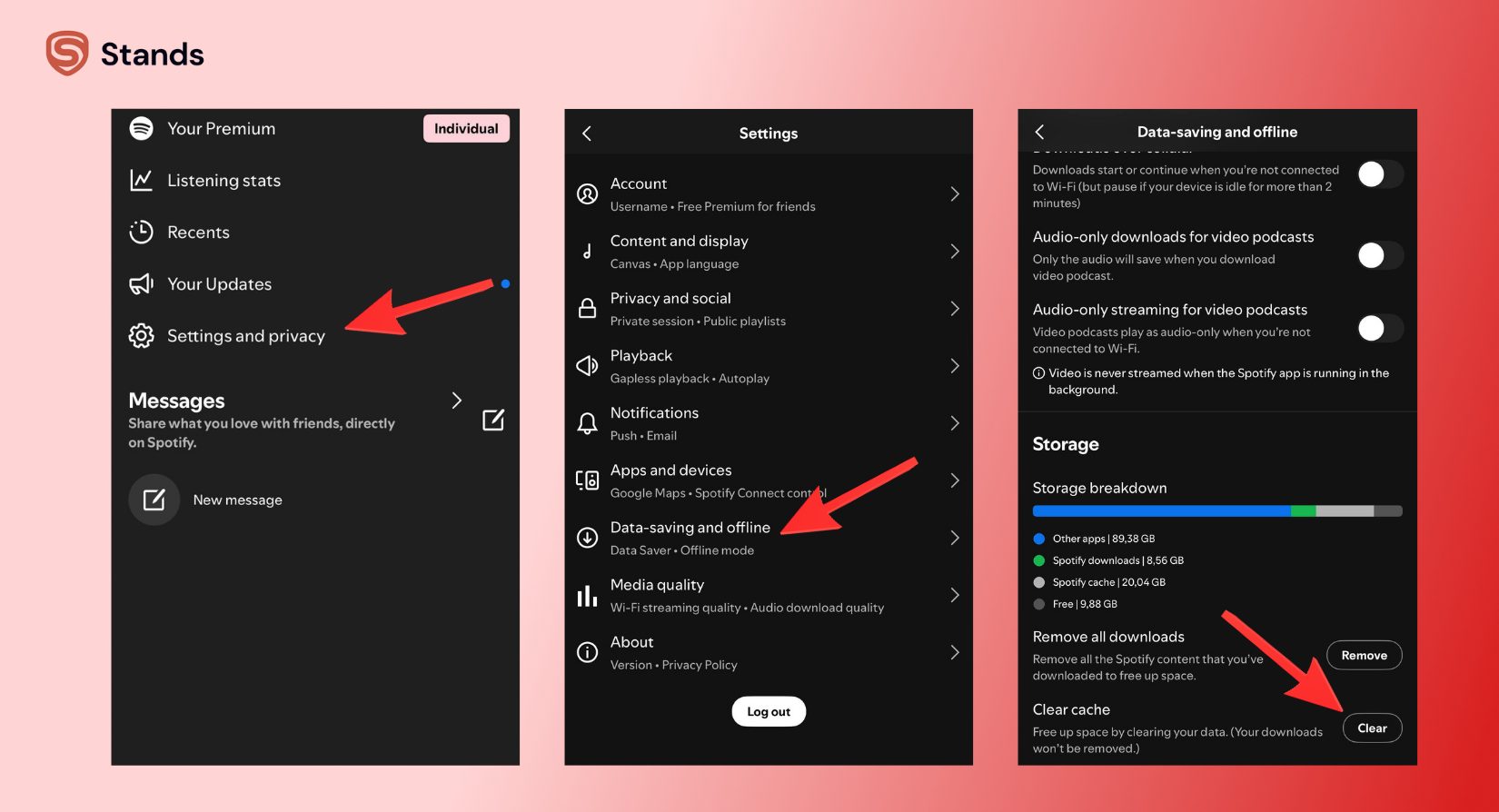
Here’s how to clear Spotify cache on iPhone:
- Open the Spotify app
- Tap your profile icon
- Go to Settings and Privacy
- Now click on Data-saving and offline
- Scroll down to Storage
- Tap Clear Cache
That’s it. You’re done.:)
What Happens After You Clear Cache on iPhone
Once you tap that button:
- Spotify removes cached data
- Your playlists stay safe
- Your downloads stay available
- The app may feel slightly slower at first
Spotify rebuilds its cache automatically as you use it again.
Common Mistake to Avoid
Don’t confuse Delete Cache with Delete All Downloads.
Here’s the difference:
| Option | What It Removes |
|---|---|
| Delete All Downloads | Offline songs |
| Delete Cache | Temporary files only |
If you only want to free up space, stick with clearing the cache.
How to Clear Spotify Cache on Android
Android gives you two ways to clear cache Spotify data. You can use the app itself or go through system settings.
Method 1: Clear Cache in Spotify App
- Open Spotify
- Tap your profile icon
- Go to Settings and Privacy
- Tap Storage
- Tap Delete Cache
Quick and simple.
Method 2: Clear Cache via Android Settings
If the app acts weird, try this method:
- Open Settings
- Tap Apps
- Select Spotify
- Tap Storage
- Tap Clear Cache
This method clears cached data at the system level.
When to Use Each Method
| Situation | Best Method |
| Free up space | In-app method |
| Fix bugs or crashes | Android settings |
| App not responding | Android settings |
Both methods work. You just choose based on your situation.
How to Clear Spotify Cache on Mac
Mac users can clear Spotify cache in two ways, too: inside the app or manually.
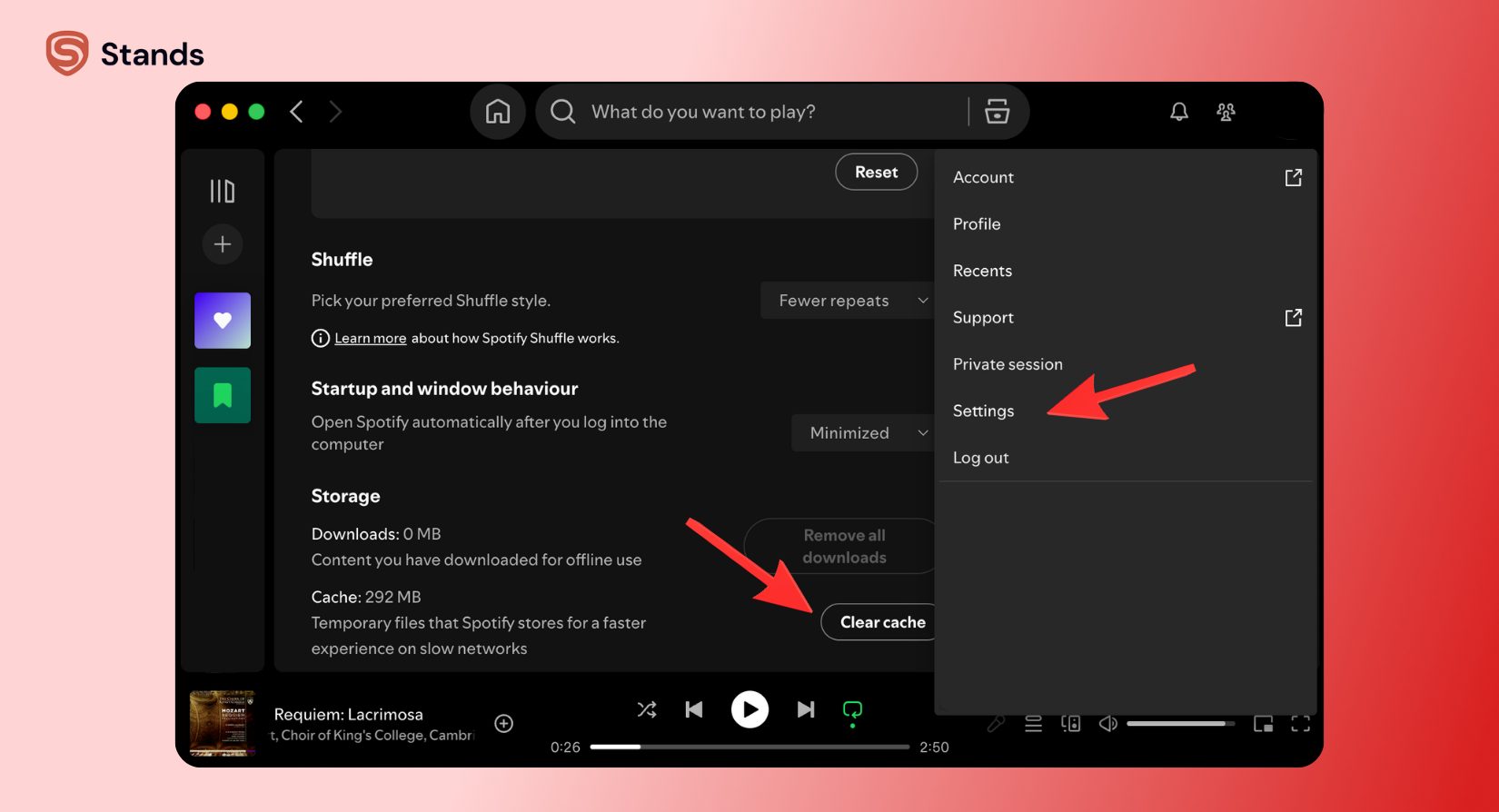
Method 1: Clear Cache in Spotify Settings
- Open Spotify
- Click your profile name
- Open Settings
- Scroll to Storage
- Click Clear Cache
This is the easiest way.
Method 2: Clear Cache Manually
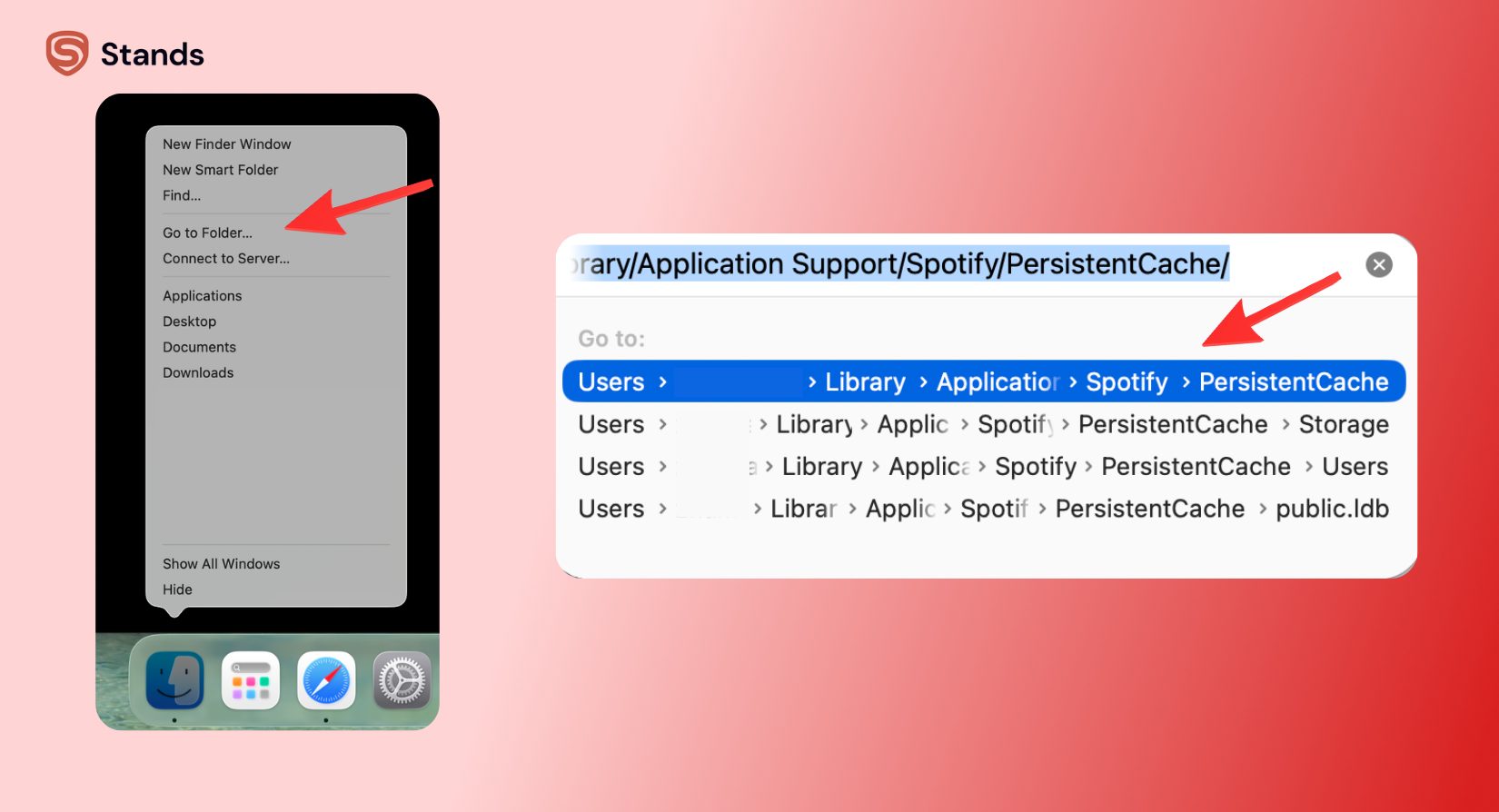
If you prefer manual control:
- Open Finder
- Click Go → Go to Folder
- Enter: ~/Library/Application Support/Spotify/PersistentCache
- Delete files inside the folder
Manual vs Automatic Cleaning
| Method | Best For |
| App settings | Quick cleanup |
| Manual | Deep cleaning or troubleshooting |
Some users also use tools like CleanMyMac to clear the cache quickly across apps. That works well if you want to optimize your whole system, not just Spotify.
How to Clear Spotify Cache on Windows
Windows users can follow similar steps.
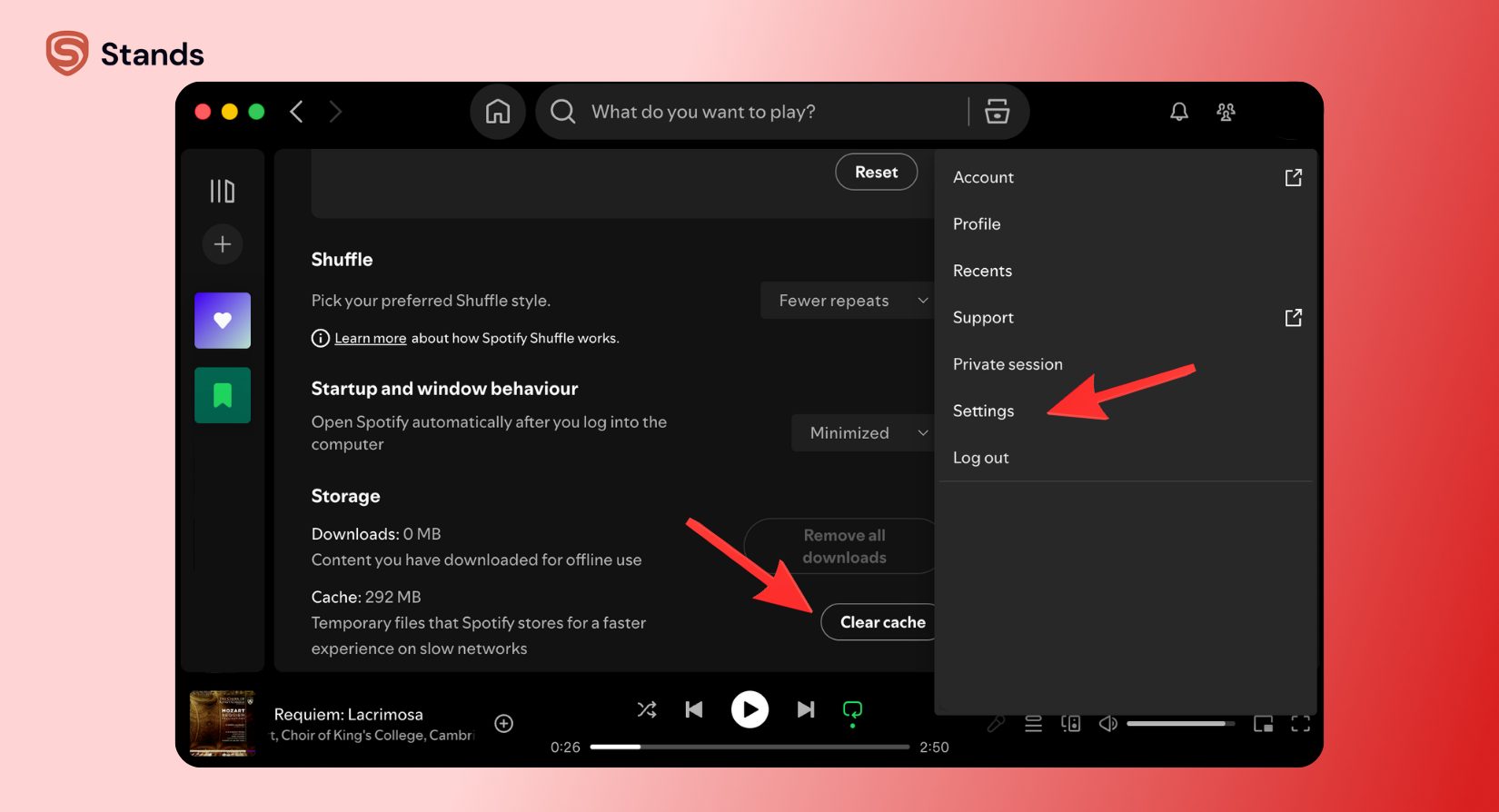
Method 1: Use the Spotify App
- Open Spotify
- Click your profile
- Go to Settings
- Scroll to Storage
- Click Clear Cache
Method 2: Manual Cleanup
- Press Win + R
- Type %appdata%
- Open the Spotify folder
- Go to Storage
- Delete files
You can also check:
\Users\Username\AppData\Local\Spotify\Storage
Which Method Should You Use?
| Method | When to Use |
| In-app | Quick cleanup |
| Manual | App issues or deep cleaning |
Manual cleanup helps when the app doesn’t behave properly.
How to Limit Spotify Cache Size
Here’s a smarter move: don’t let cache grow out of control in the first place.
Spotify lets you set a cache size limit on desktop.
Steps to Set Cache Limit
- Close Spotify
Make sure the app is fully closed. Don’t skip this step, or your changes won’t work. - Locate the “prefs” file
- Windows:
Go to: %appdata%\Spotify\Users\YOUR-USERNAME\prefs - Mac:
Go to: ~/Library/Application Support/Spotify/prefs
- Open the file
Use a simple text editor like Notepad (Windows) or TextEdit (Mac). - Add a cache limit
Find an empty line and add this:
storage.size=1024 (to limit to 1GB; you can change this to any value up to you)
!! Note: This setting works on desktop only (Mac and Windows). Once you set a limit, Spotify will stop storing cache after it reaches that size. This helps you control storage and avoid clearing cache too often.
Recommended Cache Limits
| Usage Level | Suggested Limit |
| Light user | 1 GB |
| Regular user | 5 GB |
| Heavy streamer | 10 GB |
This keeps Spotify from eating all your disk space.
Mobile apps don’t offer this feature yet, so you need to clear your cache manually there.
What Happens When You Clear Spotify Cache?
Let’s keep it simple.
When you clear your Spotify cache, you remove temporary files. You don’t touch your important data.
What You Keep
| Data Type | Status |
| Playlists | Safe |
| Saved songs | Safe |
| Account info | Safe |
| Premium status | Safe |
| Downloads | Safe |
What Gets Deleted
| Data Type | Status |
| Cached audio | Removed |
| Temporary files | Removed |
| Search data | Removed |
After clearing, Spotify starts fresh. It builds cache again as you stream music.
Will You Notice a Difference?
Yes, but only a small one:
- First song may load slower
- App feels cleaner
- Storage increases
Everything returns to normal quickly.

Extra Tips to Keep Storage Clean
Clearing Spotify cache helps, but you can go further.
Here are a few simple ways to reduce storage usage:
- Remove old downloads you don’t listen to
- Avoid downloading entire playlists you rarely use
- Restart the app occasionally
- Update Spotify regularly
- Monitor cache size every few weeks
If you stream content beyond Spotify, consider cleaning up your browsing experience too.
You can use an ad blocker for Chrome to reduce unnecessary data load. If privacy matters, tools that block tracking cookies can limit background data collection.
Streaming videos? A YouTube ad blocker helps reduce interruptions and data usage. And if you want a smoother experience overall, tools that block pop-ups while streaming make a noticeable difference.
Watching on TV? You might want to learn how to block ads on Roku TV.

FAQ
Does Clearing Spotify Cache Delete Downloaded Songs?
No.
Clearing Spotify cache removes temporary files only. Your downloaded songs stay on your device.
If you want to remove downloads, you need to do that separately.
How Often Should You Clear Spotify Cache?
It depends on how you use Spotify.
Here’s a simple guide:
| Usage Type | Frequency |
| Heavy user | Every 2–4 weeks |
| Regular user | Every 1–2 months |
| Casual user | Every 2–3 months |
If your storage fills up quickly, clear your cache more often.
Does Clearing Cache Affect Spotify Wrapped?
No, it doesn’t.
Spotify Wrapped tracks your listening activity on Spotify’s servers. Cache files don’t affect it.
You can clear cache anytime without losing your stats.
Will Clearing Cache Log Me Out of Spotify?
No.
You stay logged in after clearing cache. Your account settings remain the same.
Conclusion
Clearing Spotify cache is simple, but it helps a lot. You get more free space, the app works faster, and your device feels smoother.
Cache grows little by little. At first, you don’t notice it. You play songs, browse playlists, and search for music. Spotify saves small pieces of data each time. After some time, these files take up a lot of space, and this can slow down the app or even your whole device.
The good thing is you stay in control. You don’t need to be a tech expert to solve this problem. When you clear your Spotify cache, you only remove temporary files, while your playlists, liked songs, and downloaded music stay safe. Nothing important gets deleted.
Try to make this a small habit. For sure, you don’t need to do it every day, just check your storage from time to time, and if Spotify uses too much space, clear the cache. If you use Spotify a lot, you can do it once a month, but if you use it less, you can do it once every few months.
You can also set a cache limit on your computer. This helps stop the cache from growing too much again.
In the end, Spotify should feel easy and fast. Your songs should play without delay, and the app should not slow you down.
So don’t wait for problems. Clear your cache, free up space, and enjoy your music without stress. :)

