
 Home »
How to Stop Virus Pop-Ups
Let’s consider different effective ways to stop virus pop-ups in diverse browsers and on diverse devices.
There are several easy-to-follow ways to prevent pop-ups on your device:
- Avoid clicking pop-ups, even to close them;
- Update your OS regularly;
- Adjust your browser security settings;
- Avoid suspicious websites;
- Block websites on Android or iPhone.
- What happens when a virus-detecting pop-up appears on your screen
- Real vs fake: how to identify virus-detected pop-up scams
- How to get rid of virus pop-ups on any device
- Emergency response: what to do if you already clicked
- How to stop virus pop-ups permanently
- Why antivirus pop-ups keep coming back (and how to fix it)
- FAQ: Your virus pop-up questions answered
What happens when a virus-detecting pop-up appears on your screen
When a virus-detecting pop-up appears on your screen, several things happen:
- Initially, a website or ad triggers the message. Most virus pop-ups are generated by a malicious website, a pop-up ad, or a site that you allowed to send browser notifications to.
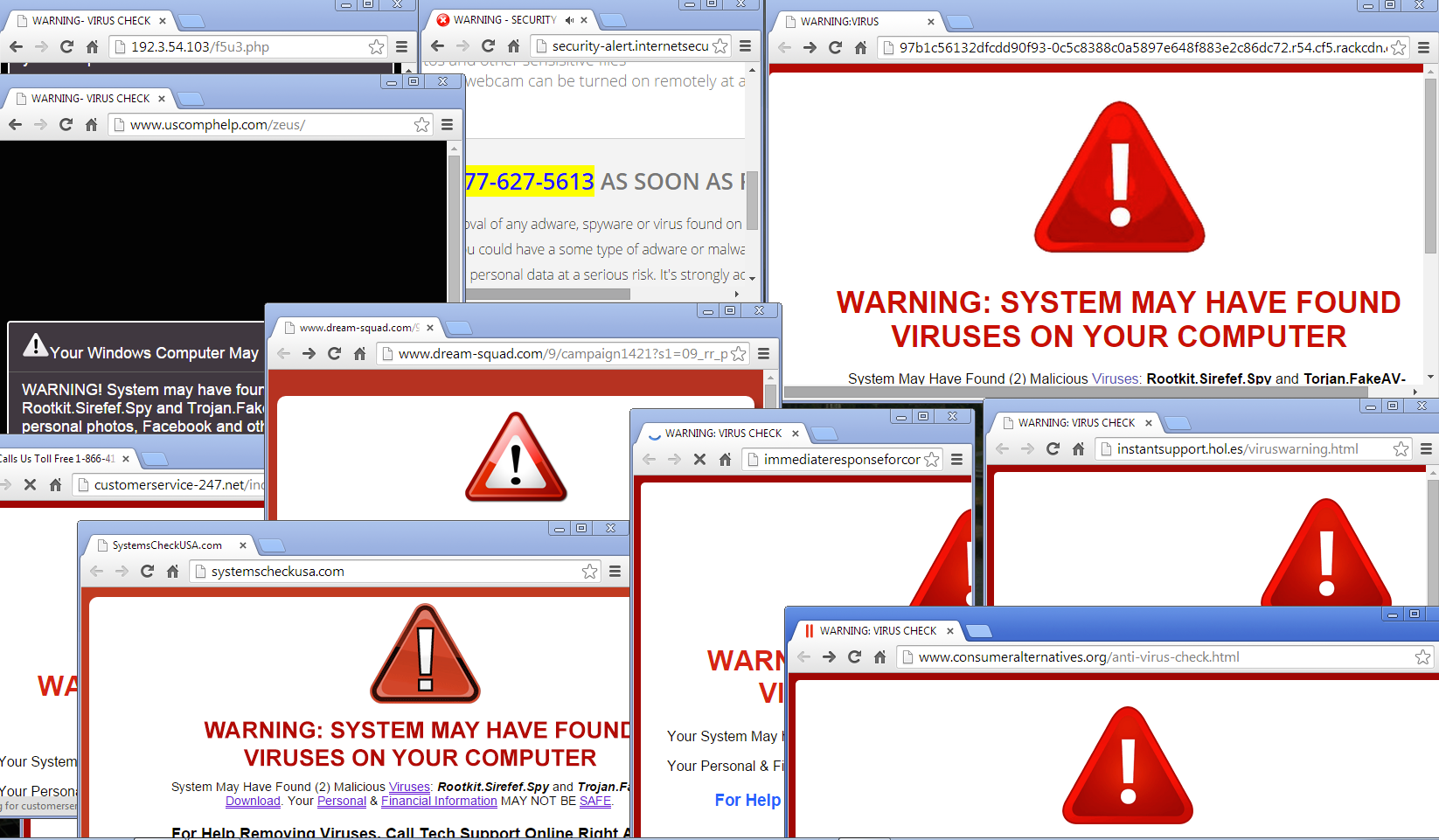
- The pop-up pretends to be a security alert. These messages often contain logos of well-known companies, flash warnings, or countdown timers.
- If you interact with it, the pop-up may redirect you to a phishing website, download fake antivirus software, ask for payment, or ask for personal information. Also, the pop-up can make you call a fake “support” number.
Real vs fake: how to identify virus-detected pop-up scams
Let’s compare real and fake virus-detected pop-up scams. Real virus-detected alerts appear outside your browser and match your installed antivirus (Windows Security, macOS alerts, and others). They use calm and factual wording. Additionally, real virus-detected alerts don’t contain flashing graphics or countdown timers. They never ask for money or phone calls.
7 red flags that expose fake antivirus pop-ups
Let’s consider 7 red flags that expose fake antivirus pop-ups:
- Appear inside a browser tab;
- Flash warnings, sirens, or fake scans;
- Contain urgent countdown timers;
- Use alarming language: “CRITICAL THREAT!”, “SYSTEM BREACH!”
- Ask you to download suspicious software;
- Show phone numbers to call immediately;
- Demand payment to solve a problem.
What legitimate security alerts actually look like
Legitimate security alerts appear only outside the browser from software already installed on your device. They never appear inside a random website tab. Real callers are calm and professional, specific and factual, and free of scare tactics. Real alerts usually show the threat name or type, file location, or app involved, date, and time, and clear options like Quarantine, Remove, or Ignore. They never ask you to call a phone number, demand immediate payment, force a download from a website, or use countdown timers or threats. To verify whether it’s real or not, you should open your system’s security app directly, see the same alert listed in its history, and review details calmly at your own pace.
How to get rid of virus pop-ups on any device
Let’s consider diverse ways to protect you from pop-ups on any device.
Remove virus pop-ups from Windows (10/11)
We have prepared for you a step-by-step guide on how to remove virus pop-ups on Windows 10 & 11:
- Close the Pop-Up Safely
- Block Browser Notification Spam
- Remove Suspicious Browser Extensions
- Run a FULL Windows Security Scan
- Reset Your Browser
Clear fake alerts from Mac
Mac fake virus alerts are super common and very fixable. We have prepared a clear, step-by-step guide to delete them and stop them from coming back:
- Close the Fake Alert Safely
- Remove Notification Spam
- Remove Suspicious Browser Extensions
- Check Login Items
- Run a Legit Malware Scan
Stop virus pop-ups on Chrome, Firefox, Edge, Safari
We have prepared a step-by-step guide to stop virus pop-ups on diverse browsers, including Chrome, Firefox, Edge, and Safari.
Follow these steps to stop Google Chrome pop-ups:
- Go to Settings;
- Open Privacy and Security;
- Go to Site Settings;
- Choose Notifications;
- Under Allowed, remove all suspicious sites
- Set to Don’t allow sites to send notifications
However, the most effective and reliable way to protect yourself from pop-ups on Chrome is to install an ad blocker for Chrome.
Follow these steps to stop pop-ups on Firefox:
- Go to Settings;
- Open Privacy and Security;
- Go to Site Settings;
- Choose Notifications;
- Remove all suspicious sites;
- Check Block new requests asking to allow notifications.
Follow these steps to stop pop-ups on Edge:
- Go to Settings;
- Go to Notifications;
- Remove suspicious websites;
- Toggle Don’t allow sites to send notifications.
Follow these steps to stop pop-ups on Safari:
- Go to Settings → Websites → Notifications;
- Remove or Deny unfamiliar sites;
- Turn off Allow websites to ask for permission.
How to block virus pop-ups on iPhone and Android
If you want to block virus pop-ups on iPhone, follow these steps:
- Close the Scam Safely;
- Turn Off Website Notifications;
- Block Pop-Ups and Fraud Sites with a mobile ad blocker;
- Clear Website Data.
If you want to block virus pop-ups on Android, follow these steps:
- Turn Off Browser Notifications;
- Check for Bad Apps;
- Enable Google Play Protect;
- Reset Browser.
Among the best Android ad blockers, we can emphasize StandsApp.
Emergency response: what to do if you already clicked
If you already clicked a fake virus pop-up, here’s a calm, emergency-response checklist to limit damage right now:
- Stop the interaction immediately;
- Disconnect briefly (optional but smart);
- Check what (if anything) was installed;
- Revoke notification permissions;
- Run a legitimate malware scan;
- Secure your accounts.
How to stop virus pop-ups permanently
To stop virus pop-ups permanently, you need:
- Block all website notifications;
- Delete suspicious extensions;
- Reset the browser;
- Remove rogue apps;
- Run one legit malware scan.
In this way, you block notifications, remove bad extensions, and reset the browser.
Browser settings that block malicious pop-ups
Here are the exact browser settings that block malicious pop-ups — they actually stop fake virus alerts, notification spam, and redirect scams:
- Go to Settings;
- Choose Privacy and security;
- Click Site Settings;
- Then block pop-ups and redirects;
- Block ads;
- Turn on Safe Browsing.
Best extensions and tools for virus pop-up protection
Here are some of the best extensions and tools you can add to your browser or device to help block malicious pop-ups, fake virus alerts, malware sites, and intrusive ads, while keeping you safer online:
- uBlock Origin;
- Malwarebytes Browser Guard;
- AdBlock / AdBlock Plus;
- Stands AdBlocker;
- AdGuard, and others.
System-level prevention strategies
Among the most effective system-level prevention strategies, we can emphasize the following:
- Keep Real-Time Protection on;
- Keep the OS Updated;
- Use DNS-Level Blocking;
- Use a Standard (Not Admin) Account Daily;
- Control What Can Install Software;
- Reduce Attack Surface;
- Network Hygiene.
Why antivirus pop-ups keep coming back (and how to fix it)
Antivirus pop-ups can keep coming back for several reasons, including allowing website notifications, a malicious browser extension installed, browser settings hijacked, a rogue app reinstalling junk, you only fixed the symptom, not the source, and others.
To fix it, you need to follow these steps:
- Remove Notification Permissions;
- Delete Suspicious Extensions;
- Reset the Browser;
- Remove Rogue Apps;
- Run One Legit Malware Scan.
FAQ: Your virus pop-up questions answered
Does Apple/Google send virus warnings?
Almost never.
Are all pop-ups dangerous?
Not all pop-ups are dangerous. There are safe pop-ups, including cookie consent banners, login or sign-up boxes, “Subscribe to our newsletter”, age verification, and legit download confirmations.
Can pop-ups install malware without clicking?
No, pop-ups cannot install malware if you don’t click anything.

