
 Home »
How to Block Ads on Roku TV
Roku’s advertising can be overwhelming. On Roku TV, you very often feel like you spend more time being sold things than watching TV. Moreover, Roku’s closed ecosystem doesn’t allow you to install an ad blocker as you do on a PC, phone, or in your browser, like an ad blocker for Chrome. Therefore, you need to look for alternative methods. Let’s consider how to remove ads from Roku TV in this article.
- Why Your Roku Shows More Ads Than Ever Before
- Method 1 — Adjust Roku's Built-In Privacy Settings
- Method 2 — Block Ads at Router Level with DNS Filtering
- Method 3 — Set Up Pi-hole for Whole-Home Ad Blocking
- Method 4 — The Roku Secret Menu Trick
- How to Block YouTube Ads on Roku TV Specifically
- Comparison Table — Which Roku Ad Blocker Method Should You Choose?
- What About VPN-Based Ad Blocking?
- Remove Ads From Specific Streaming Apps
- Troubleshooting — When Ad Blocking Stops Working
- Frequently Asked Questions
Why Your Roku Shows More Ads Than Ever Before
There are several reasons why your Roku shows more ads than ever before:
1. Roku’s Business Model Depends Heavily on Ads
As compared to premium streaming devices (e.g., Apple TV), Roku gets money from advertising and ad-supported devices. Roku devices cost less than their competitors by selling ads and sharing revenue from ad-supported channels.
2. Free, Ad-Supported Content
Many of the channels you watch on Roku are free thanks to ads. The most popular of these is the Roku Channel, which relies on commercials as its primary revenue source so it can operate without subscriptions.
3. Roku’s Platform Is a Huge Advertising Inventory
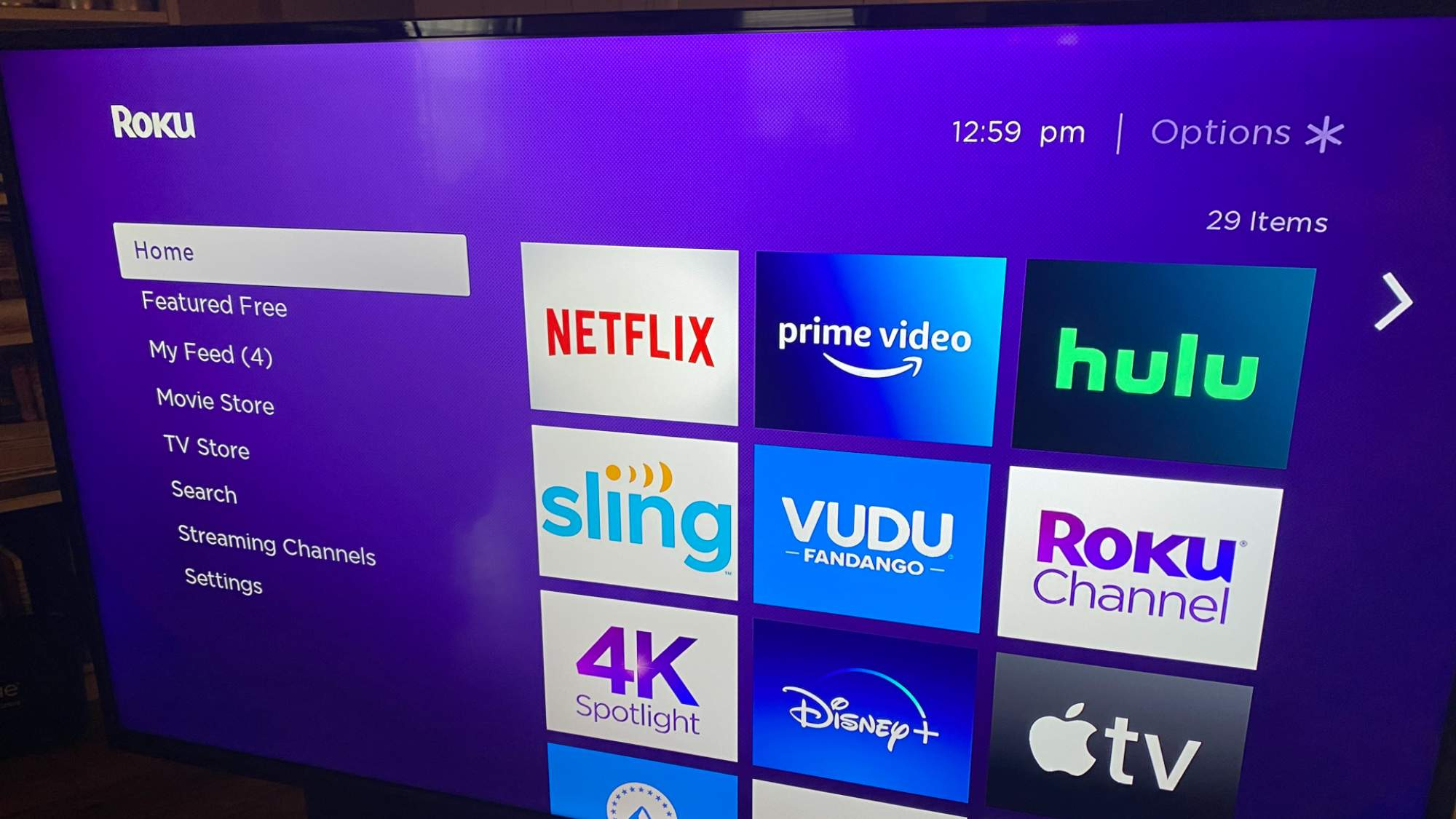
It doesn’t show ads within channels. Instead of this, it sells ad placements across the interface itself, including banners, trailers before the home screen, and screensaver ads.
Method 1 — Adjust Roku's Built-In Privacy Settings
The first method to block ads on Roku TV is adjusting Roku's built-in privacy settings. To adjust built-in privacy settings, follow this step-by-step guide:
- Limit ad personalization;
- Disable automatic content recognition;
- Turn off marketing notifications;
- Change or disable the Roku screensaver ads;
- Avoid the Roku channel and fast app.
Method 2 — Block Ads at Router Level with DNS Filtering
To block ads at the router level with DNS filtering, follow these steps:
- Choose the most suitable DNS service. Among the most popular DNS services, we can emphasize NextDNS, AdGuard DNS, Control D, and Pi-hole.
- Get your DNS. For this, go to nextdns.io and copy the IPv4 DNS addresses shown.
- Then set the DNS on your router.
- Enable ad and tracker blocking.
Method 3 — Set Up Pi-hole for Whole-Home Ad Blocking
If you want to set up Pi-hole for whole-home ad blocking, you should follow the next steps:
- Install Pi-hole;
- Make Pi-hole your network’s DNS;
- Access the Pi-hole dashboard;
- Add high-quality blocklists;
- Optimize Pi-hole for Roku and Smart TVs;
- Per-device control;
- Harden against DNS Bypass.
Method 4 — The Roku Secret Menu Trick
Before using this method, you need to understand that:
- It doesn’t block in-video commercials;
- It reduces background tracking, ad diagnostics, and some promo behavior;
To open the Roku secret menu, pass this exact order:
Home (5×)
Fast Forward (3×)
Rewind (2×)
After this, you can see a plain-text platform secrets menu. Then you need to disable ad-related diagnostics. Optionally, you can clear the ads cache.
In this way, you will cut background telemetry that feeds Roku’s ad system. When accessing this menu, you should avoid RF calibration, factory test modes, channel firmware options, and region/ platform overrides.
How to Block YouTube Ads on Roku TV Specifically
Let’s consider how to block YouTube ads on Roku TV with StandsApp on Android:
- Install Stands AdBlocker;
- Open YouTube inside Stands — use the Stands browser;
- Cast to Roku — for this, tap cast, and select your Roku TV.
Looking for the best Android ad blockers? Read more.
If you use an iPhone, follow these steps:
- Install a mobile ad blocker;
- Use Safari;
- Enable Stands content blocking;
- Play YouTube in Safari;
- AirPlay / Screen Mirror to Roku.
Comparison Table — Which Roku Ad Blocker Method Should You Choose?
| Method | What It Blocks | Effectiveness | Difficulty | Cost | Best For |
| Roku Privacy Settings | Personalized ads & tracking | Low | Easy | Free | Any user wanting fewer targeted ads without tech setup |
| Router DNS Filtering (e.g., NextDNS, AdGuard DNS) | Tracking, telemetry, and some ad calls | Medium | Medium | Free → Paid | Whole-home basic ad reduction |
| Pi-hole Network-Wide | Tracking, ad domains, telemetry | High | Advanced | Low (hardware) | Tech users who want network-wide control |
| Casting with StandsApp(Get more about Adblocker vs Total Adblock) | YouTube ads via casting | Medium | Medium | Free / Subscription | YouTube viewers who cast from phone/PC |
| YouTube Premium | All YouTube ads | High | Easy | Paid (monthly) | People who mainly watch YouTube ads |
| External Device (Android TV/Chromecast) | Better app control & 3rd-party ad blocking | High | Medium | Device cost | Users who want more than Roku |
| Roku Secret Menu Tweaks | Some ad telemetry & debug | Very low | Advanced | Free | Users are comfortable with hidden settings |
What About VPN-Based Ad Blocking?
If you use a VPN service that includes ad and tracker blocking, then:
- Ads served from known ad/tracker domains can be blocked before they ever reach your network;
- Tracking calls from Roku devices can be reduced;
- Other devices on your network also benefit.
This method works because:
- The VPN routes your traffic through a server that filters requests;
- Known ad/tracking domains can be dropped or redirected.
This method allows:
- Privacy protection;
- Blocking network tracking;
- Reducing some types of ads outside Roku apps.
Remove Ads From Specific Streaming Apps
If your goal is removing ads from specific streaming apps on Roku (not system-wide), here’s the most honest, app-by-app breakdown — what actually works. For this, you can use the Roku ad blocker.
Let’s consider apps that offer official ad-free options that work perfectly on Roku.
| App Type | How to Remove Ads |
| Subscription streaming | Upgrade to an ad-free plan |
| YouTube | YouTube Premium |
| Music apps | Paid tier removes ads |
| Some niche apps | In-app “Remove Ads” purchase |
To reduce ads, think of:
- Using Pi-hole / DNS;
- Adjusting Roku privacy settings;
- Casting from an ad-blocked device;
- Avoiding fast channels when possible;
- Using the best ad blocker for iPhone.
Troubleshooting — When Ad Blocking Stops Working
There are several reasons why ad blocking stops working:
- Roku updated (most common);
- Roku is bypassing your DNS;
- Blocklists are too aggressive;
- Ads are now server-side (nothing is broken);
- Casting has ads again;
- VPN or DNS provider changed behavior;
- Roku cached ads locally.
Frequently Asked Questions
Will blocking ads void my Roku warranty?
No. Blocking ads by AdBlock for Roku doesn’t void a warranty. Using privacy settings, DNS filtering, Pi-hole, VPNs, or casting is safe because it doesn’t modify hardware or firmware. Only physical damage or unauthorized firmware changes could affect warranty coverage with Roku.
Why does Roku sell my viewing data?
Roku sells viewing data because advertising is its primary business, not hardware. Roku devices are often sold at little or no profit. Roku makes its real money by using anonymized viewing data to target ads, measure ad performance, and sell advertising inventory to brands and streaming partners. That data is extremely valuable as advertisers shift from cable to streaming.
Do ad blockers work on the Roku stick vs Roku TV?
Yes, the Roku ad blocker works basically the same on a Roku Streaming Stick and a Roku TV, because they both run the same Roku OS. Network-level tools, including DNS filtering, Pi-hole, VPNs, and privacy settings, affect both equally. The only difference is that Roku TVs may have extra tracking (ACR) from HDMI inputs, which you can disable in settings.

