
 Home »
How to Block Ads on Smart TV
Smart TVs are great until the ads start showing up everywhere. You’re opening Netflix, and - surprise, surprise - the next minute your screen is full of banners, popups, and sponsored recommendations you never asked for. It can feel like your TV is trying harder to sell things than to stream your favorite shows.
Today, we will tell you how you can block ads on a Smart TV for free. It doesn't matter if you use Samsung, LG, Android TV, or Roku — there are easy ways to cut down annoying ads.
In this guide, you’ll learn how smart TV adblock tools work, which methods are the easiest, and how to stop interruptions across your TV apps and streaming services. Let's get into it!:)
Why Do Smart TVs Show Ads?
Most smart TVs make money from advertising. TV brands collect data about what people watch and then show ads based on those habits.
That’s why you often see:
- YouTube ads
- Sponsored apps
- Ads and pop-ups
- Suggested content
- Tracking and third-party requests
Many smart TVs also connect to advertising servers in the background. These domains load banners, trackers, and other intrusive content while you browse.

Here’s a quick look at where ads usually appear:
| Smart TV Platform | Common Types of Ads |
| Samsung | Home screen banners, sponsored apps |
| LG | Recommendations, popups |
| Android TV | Suggested content, YouTube ads |
| Roku TV | Sponsored tiles, video ads |
That’s why more people now use an ad blocker for smart TV instead of putting up with constant interruptions.
Best Methods to Block Ads on Smart TV
There isn’t one universal smart TV adblock that works perfectly everywhere. Different platforms support different tools.
Still, these methods work well for most smart TVs:
| Method | Best For | Difficulty |
| DNS-level ad blocking | Most smart TVs | Easy |
| Router-level filtering | Whole-home ad blocking | Medium |
| VPN with ad-blocking | Privacy + ads | Easy |
| Blocking domains manually | Advanced users | Hard |
Let’s go through them one by one.
Method 1: Block on DNS-Level
DNS-level ad blocking is one of the easiest ways to block ads on smart TV.
A DNS server works like an address book for the internet. When your TV tries to load ads, the DNS filter blocks requests before the ads appear.
This method works across:
- Streaming apps
- TV browsers
- Home screen ads
- Tracking domains
Popular DNS services include:
- AdGuard DNS
- NextDNS
- AdGuard Home
- Pi-hole
AdGuard DNS is popular because it effectively blocks ads, malware, phishing domains, and trackers without needing extra hardware.
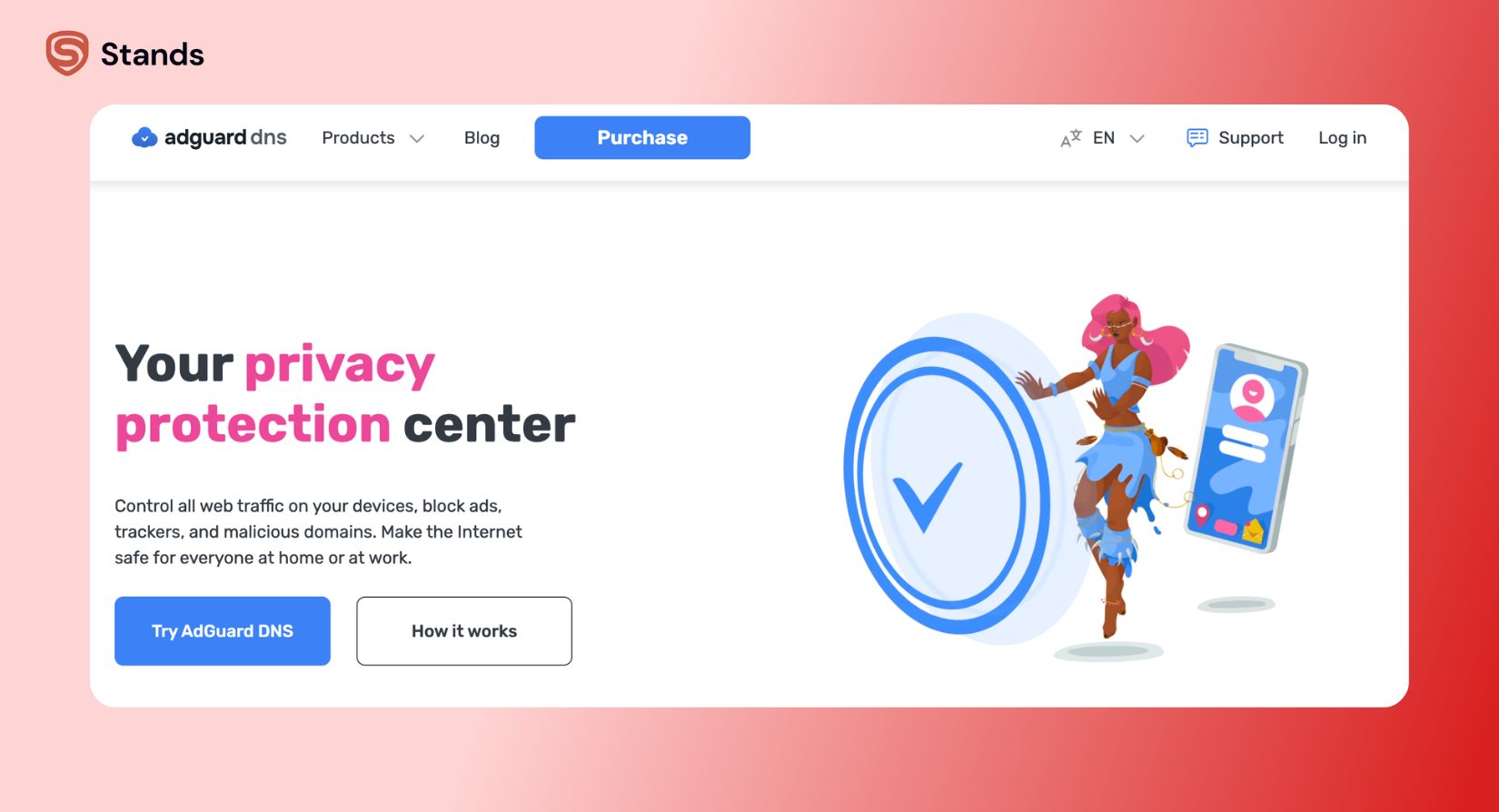
How to set up DNS ad blocking
- Open your TV’s network settings
- Find DNS settings
- Switch DNS from automatic to manual
- Enter the DNS addresses
- Save and reconnect
Here’s why many people prefer DNS-level ad blocking:
| Benefit | Why It Helps |
| System-wide filtering | Blocks ads across apps |
| Faster loading | Fewer ads to load |
| Better privacy | Stops trackers |
| Easy setup | No extra apps needed |
This is usually the best way to block annoying ads on Samsung, LG, and Roku TVs.
Method 2: Router-Level Ad Blocking
Router-level ad blocking works for your entire home network.
Instead of changing settings on every TV, you configure ad blocking directly on your router. Once it’s set up, all connected devices benefit automatically.
That includes:
- Smart TVs
- Phones
- Tablets
- Laptops
- iOS devices
- Streaming boxes
Tools like AdGuard Home and Pi-hole are commonly used for this setup.

Why people like router-level ad blocking
| Advantage | Result |
| One setup for all devices | Saves time |
| Blocks tracking domains | Better privacy |
| Stops malicious requests | Safer browsing |
| Works system-wide | Covers every device |
The setup takes a little more effort, but once it's configured, it works automatically for every connected device.
Method 3: VPN Services with Built-in Ad Blocking
Some VPN services now include built-in ad blocker features.
These VPNs can:
- Block ads
- Encrypt traffic
- Stop trackers
- Protect personal data
NordVPN is one of the better-known examples with ad-blocking tools included.
VPN-based ad blocking works especially well on Android TV because you can install the app directly from the Google Play Store.

VPN ad blocking works best for:
| Use Case | Why It Helps |
| Android TV | Easy app install |
| Public Wi-Fi | Better security |
| Streaming privacy | Hides tracking |
| Blocking ads and trackers | Cleaner browsing |
Just remember that not every VPN blocks all ads. Some only filter browser ads instead of system-wide requests.
Block Ads From Specific Domains
Some smart TV ads come from specific advertising domains. You can manually block those domains through your router or DNS filter.
Common examples include:
- doubleclick.net
- samsungads.com
- googleads.g.doubleclick.net
This method helps stop:
- Tracking requests
- Popup ads
Still, blocking the wrong domain can sometimes break features inside streaming apps, so it’s best for advanced users.
How to Block Ads on Specific Smart TV Brands
Different smart TV brands need slightly different setups.
on Android TV
Android TV is one of the easiest platforms for ad blocking.
You can:
- Install the app directly
- Use DNS filtering
- Add VPN protection
- Use ad-blocking browsers
Popular Android TV tools include:
- AdGuard
- Blokada
- DNS66
If you need an Ad blocker for Android, many of the same tools also work on Android TV devices.
Android TV ad-blocking options
| Method | Works Well For |
| DNS filtering | System-wide ads |
| VPN | Privacy + ads |
| Adblock apps | Browser ads |
| TV browser filtering | Web browsing |
on Samsung Smart TV
Samsung Smart TVs show ads in menus, banners, and recommendations.
Because Samsung TVs don’t support many adblock apps directly, DNS-level filtering is usually the best option.
How to block ads on Samsung Smart TV
- Open network settings
- Select DNS settings
- Enter custom DNS manually
- Restart the TV
Many users combine DNS filtering with router-level ad blocking for better results.
If you also browse from a laptop, a Chrome ad blocker extension helps remove ads from your browser too.
on LG Smart TV
LG Smart TVs running webOS also work best with DNS filtering.
This setup can reduce:
- Sponsored content
- Tracking requests
- Intrusive popups
Best ad-blocking methods for LG TVs
| Method | Recommended |
| AdGuard DNS | Yes |
| Router-level filtering | Yes |
| VPN apps | Limited |
| Browser ad blockers | Sometimes |
DNS-level filtering is usually the easiest way to block ads on smart TV from LG.
on Roku TV
Roku TV is harder to customize because Roku limits app installations.
Still, DNS filtering and router-level ad blocking can reduce many ads and tracking requests.
You can also read this guide on how to Block ads on Roku TV for more Roku-specific tips.
Roku ad-blocking methods
| Method | Works? |
| DNS filtering | Yes |
| Router filtering | Yes |
| Adblock apps | No |
| VPN apps | Limited |
Roku still shows some built-in sponsored content, but ad blocking can reduce many interruptions.

Block Ads with Stands Ad Blocker
Stands AdBlocker helps block annoying ads, popups, trackers, and banners while improving browsing speed and privacy.
While most smart TVs rely on DNS-level filtering, browser ad blockers still help on connected devices like laptops, tablets, and phones.
A good ad blocker setup can help you:
- Browse faster
- Reduce interruptions
- Stop trackers
- Improve loading speed
- Protect personal data
And once your screens stop flashing random ads every few minutes, streaming feels much smoother.
If you’re also cleaning up your streaming subscriptions, this guide on how to Cancel Youtube TV may help too.
FAQ
What is the best ad blocker for smart TV?
For most smart TVs, DNS-level ad blocking works best.
AdGuard DNS is one of the easiest options because it works on Samsung, LG, Android TV, and Roku without needing many changes.
Will ad blocking affect streaming quality?
Usually, no. In many cases streaming becomes smoother because fewer ads and trackers load in the background.
Is it legal to use smart TV adblock?
Yes. Using an ad blocker for TV devices is legal in most countries.
You’re simply controlling how your own internet connection handles ads and tracking requests.
Do DNS ad blockers slow down internet?
Usually they do the opposite.
DNS ad blockers often improve speed because they stop ads, trackers, and unnecessary requests before they load.

