
 Home »
How to Get No Ads on Spotify
There is a huge number of tools that enable blocking Spotify ads. However, only several of them really work. In other words, you will waste your time and money trying random methods. Let’s consider the most effective ways to get no ads on Spotify.
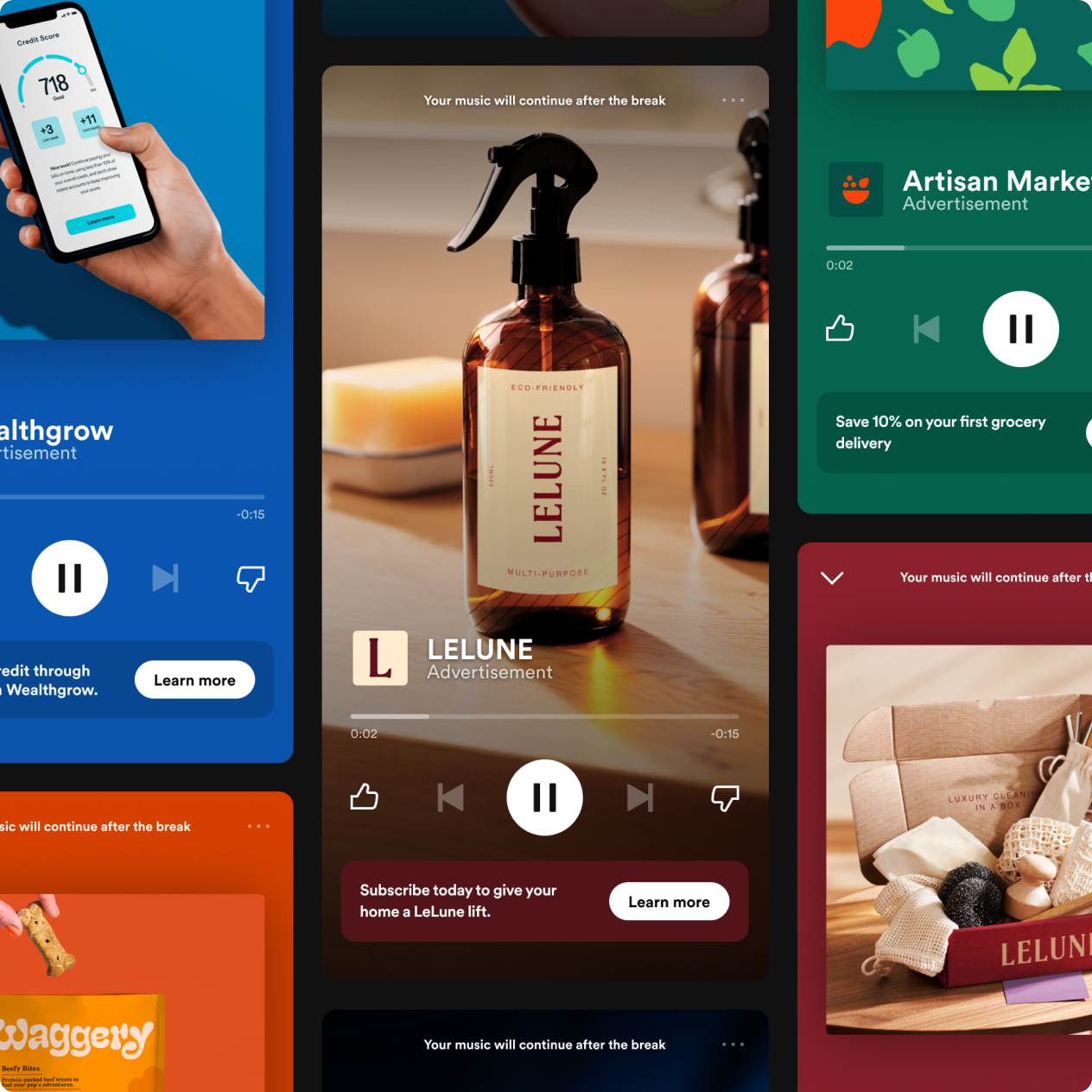
Why Spotify Plays So Many Ads (And How to Stop Them)
Spotify is one of the most popular music streaming services all over the world. However, if you use a free version, there are a lot of ads.
Let’s consider the main reasons why Spotify plays so many ads:
- Free-tier business model
Spotify’s free plan is based on advertisements. Ads help cover music licensing costs and keep the platform open for everybody.
Frequent ads are intentional. They highlight the contrast between Free and Premium subscriptions, encouraging users to pay for using a Spotify account.
- Licensing and royalty costs
Spotify pays artists and rights holders for every stream. Ads cover ongoing expenses for free subscribers.
- Listening behavior matters
The longer you listen without updating, the more ads you’ll hear. Heavy users often experience higher ad frequency.
How to Remove Ads from Spotify Without Premium
Let’s consider diverse methods for removing ads from Spotify without a Premium account.
Method 1: Use StandsApp – The Best Ad Blocker for Spotify
StandsApp is the best method to block ads on Spotify, offering essential benefits for your listening experience:
- Blocking audio and visual ads
StandsApp is a premium ad-blocking solution developed to block the ads you hear and see on Spotify using a free subscription. It works across devices and helps you listen to music without frequent ads.
- Better listening experience
By using StandsApp, you will get a better listening experience and fewer distractions, especially during long sessions or when discovering new music or podcasts.
- Easy setup
Each user can install StandsApp with ease. It easily integrates with your Spotify app or browser, demanding minimal configuration. It filters ads, allowing you listen to music without ads.
- Why it’s a top choice
As compared to other ad blockers that can miss audio and video ads, StandsApp focuses on Spotify, providing more reliable protection from ads.
Method 2: Install Browser-Based Ad Blockers
You can use one of the most effective ways reduce or block ads on Spotify — install a browser-based ad blocker. There is a huge number of diverse extensions. However, one of the most reliable browser-based extensions is StandsApp. After the installation, this tool works in the background to prevent ads from loading between music tracks or as banners on the platform.
Method 3: Use a VPN with Built-in Ad Blocking
Another way to block ads on the platform is to use a VPN with built-in ad blocking. This is an effective way, especially when browser extensions don’t work. Some VPN providers offer network-level ad filtering that can block ad requests before they reach a device. When enabled, this can help prevent audio ads, banner ads, and tracking scripts from loading while you use Spotify on supported platforms.
Method 4: Modify Host File to Block Spotify Ads
Another popular method to block ads on the platform is modifying your system’s hosts file. This file controls how your device resolves domain names. You can prevent ads from loading at the network level by blocking Spotify ad servers.
Method 5: Try Muting Apps (SpotMute, Mutify)
If you need a simpler, app-based way to block ads on the Spotify platform without modifying system files or using ad blockers, you can use muting apps, including SpotMute or Mutify. These apps don’t block the ads. Instead, they automatically mute the audio of your device whenever an ad starts playing on the platform. When music plays, the sound comes back on. This provides you with a smoother listening experience with fewer ads, especially during workout sessions or background listening.

How to Get Rid of Spotify Ads on Different Devices
Let’s consider how to mute ads on Spotify on different devices.
Block Spotify Ads on Windows & Mac
If you want to block Spotify ads in Windows & Mac, follow this step-by-step guide:
- Use Spotify in your browser. StandsApp works through browsers. Therefore, you can use any browser that you want;
- Install StandsApp — go to the official StandsApp website or your browser’s extension store and add the StandsApp extension;
- Enable ad blocking;
- Keep StandsApp updated.
Block Spotify Ads on Android & iOS
If you want to block Spotify ads on Android, then follow these easy steps:
- Install a supported browser;
- Install Ad Blocker for Android;
- Open Spotify Web Player;
- Enable StandsApp.
Pay attention that Apple doesn’t allow ad blockers to filter ads inside third-party apps, including Spotify. This means that StandsApp cannot block ads in the Spotify iOS app, and no browser extension works in it.
To block Spotify ads on iOS, you need to follow these steps:
- Install Safari (default browser);
- Install Stands AdBlocker for Safari;
- Open the Spotify Web Player in Safari;
- Enable content blocking in Safari settings.
Block Spotify Ads on Web Player
If you use Spotify in a browser, Opera Ad Blocker is really one of the easiest and most reliable ways to reduce or block ads on the Spotify Web Player. StandsApp is a browser-based ad blocker that filters ad scripts and requests before they load. When enabled on the Spotify Web Player, StandsApp can block audio, banner, and video ads for free subscribers.
For this, follow this step-by-step guide:
- Use a supported browser;
- Install StandsApp;
- Open the Spotify Web Player;
- Enable ad blocking.
Why Choose StandsApp to Get Ad-Free Spotify
You should choose StandsApp to get ad-free Spotify, because it offers a lot of essential benefits for users. StandsApp is one of the easiest and most reliable ways to reduce or block ads on Spotify.
Key Features of StandsApp
Among the key features of StandsApp, we can emphasize:
- Ad Blocking for Web Playback
StandsApp mutes ads on web players, filtering out audio, banner, and video ads when you stream music through your browser. This allows you to get a smoother listening experience, especially on the free subscription.
- Tracker & Script Filtering
Beyond ads, StandsApp filters tracking scripts and unwanted requests that may load alongside content. This helps reduce data usage and enhances privacy while you browse or stream.
- High browse compatibility
StandsApp blocks ads in diverse browsers, including Google Chrome, Mozilla Firefox, Microsoft Edge, and Brave.
- Easy installation
You can install StandsApp easily and quickly. Just add the extension or enable built-in blocking in your browser — no advanced technical skills required.
- Auto-Update Filters
StandsApp regularly updates its ad-blocking filters to adapt to changing ad delivery methods and new ad sources. It makes it really effective for blocking ads on Spotify.
- Minimal Configuration
The default settings are optimized out of the box, so you don’t have to spend time tweaking filters or options unless you want to.
Looking for the best AdBlocker for your browser? Find out how to get rid of ads on Snapchat.
How StandsApp Works with Spotify
StandsApp is installed as a browser extension. When you open the Spotify Web Player on Spotify, it monitors the page for known ad-related requests.
- It blocks ad scripts and ad servers before they load;
- Music streams continue normally while ads fail to load.
Looking for the most effective way to bypass YouTube AdBlocker crackdown? Pay attention to StandsApp.
StandsApp vs Other Ad Blockers
When it comes to blocking ads while listening to music on Spotify, several ad-blocking tools exist. However, all the tools work in different ways. As compared to other ad blockers, StandsApp can boast some benefits:
- Designed for music services: Filters ad scripts, and requests specific to streaming platforms.
- Browser extension: Works in Chrome, Firefox, Edge, and Brave.
- Regular updates: Filters adapt to changes in Spotify’s ad delivery.
- User-friendly: Minimal setup, works out of the box.
Additionally, you can get more information about Adblock vs Adblock Plus and choose the best option for you.
How to Get Spotify Without Ads: Premium Option
The most reliable and official way to enjoy Spotify without ads is to purchase a Spotify Premium subscription.
When you subscribe to Premium, Spotify removes all music ads and unlocks additional features:
- Offline playback
Download music and podcasts to listen without an internet connection. - Unlimited skips
Skip as many tracks as you want, anytime. - Higher audio quality
Stream music at higher bitrates for better sound. - Play on demand
Choose exactly what you want to play, instead of shuffle-only modes.
Spotify Premium Plans & Pricing
Spotify offers users several Premium subscription plans designed for different preferences. All Premium plans remove ads completely and unlock full features across devices on the platform. There are several subscriptions, including the Individual Plan, Duo Plan, Family Plan, and Student Plan. Individual Plan costs around $10.99 per month, Duo Plan costs around $14.99 per month, Family Plan costs around $16.99 per month, and Student Plan costs around $5.99 per month.
Is Spotify Premium Worth It?
You can install StandsApp for free and not pay for a Premium Subscription on the platform.
Frequently Asked Questions
Will Spotify Ban Me for Blocking Ads?
No, Spotify won’t ban you for blocking ads.
How to Skip Spotify Ads Without Premium?
To skip Spotify ads without Premium, you can use StandsApp. For this, follow these steps:
- Install a supported browser;
- Install StandsApp;
- Open Spotify Web Player;
- Enable StandsApp.
Why Am I Still Getting Ads on Spotify Premium?
If you’re listening to music on Spotify Premium and still hearing or seeing ads, it can be caused by several reasons:
- Podcast ads are still allowed;
- You’re logged into the wrong account;
Is It Legal to Block Ads on Spotify?
Yes, it’s absolutely legal.
How to Get No Ads on Spotify for Free?
You can install StandsApp for free and listen to music without ads. Additionally, you can use apps like SpotMute or Mutify, which don’t block ads — they mute them automatically.

