
 Home »
How to Delete Cookies on Chrome
Did you know clearing cookies in Google Chrome can improve your browser's performance? Cookies are small files stored on your browser to remember your browsing history, online preferences and login information. However, you can permanently delete them to improve online privacy, have faster page loading, or free up space. Protect your online privacy! This step-by-step guide will help you clear cookies in Google Chrome faster than expected.
- What Are Cookies
- Should You Clear Cookies on Google Chrome Browser?
- How to Clear Cookies on Chrome Browser (Windows & Mac)
- How to Clear Cookies on Google Chrome for a Specific Website
- How to Clear Cookies Google Chrome for Android
- How to Clear Cookies from Chrome on iPhone & iPad
- How to Clear Browsing History on Google Chrome
- Stands Adblocker: The Best Way to Protect Your Privacy on Chrome
- FAQs: How to Clear all Cookies on Chrome?
What Are Cookies
Cookies are tiny files stored on your browser that contain information about your online activity, such as personal data, search history, and login authentications. They may help personalize your browsing by allowing you to stay connected to a website without having to log in again each time you visit. However, they can also track your online activity without your consent, raising privacy concerns.
Should You Clear Cookies on Google Chrome Browser?
Deleting cookies in Google Chrome is a good idea for several reasons.
- If web pages take longer to load.
- If website preferences are not saved.
- If you have to free up space on your device.
- If you want to improve your online privacy.

How to Clear Cookies on Chrome Browser (Windows & Mac)
Deleting cookies in Google Chrome is similar to deleting cookies on Windows computer and Mac. Below, you will find out how to clear your cookies on Chrome desktop quickly:
Method 1: Using Chrome Settings
- Open Google Chrome.
- Click on the three vertical dots and select "Settings."
- Then go to "Privacy and security."
- Then select "See all site data and permissions."
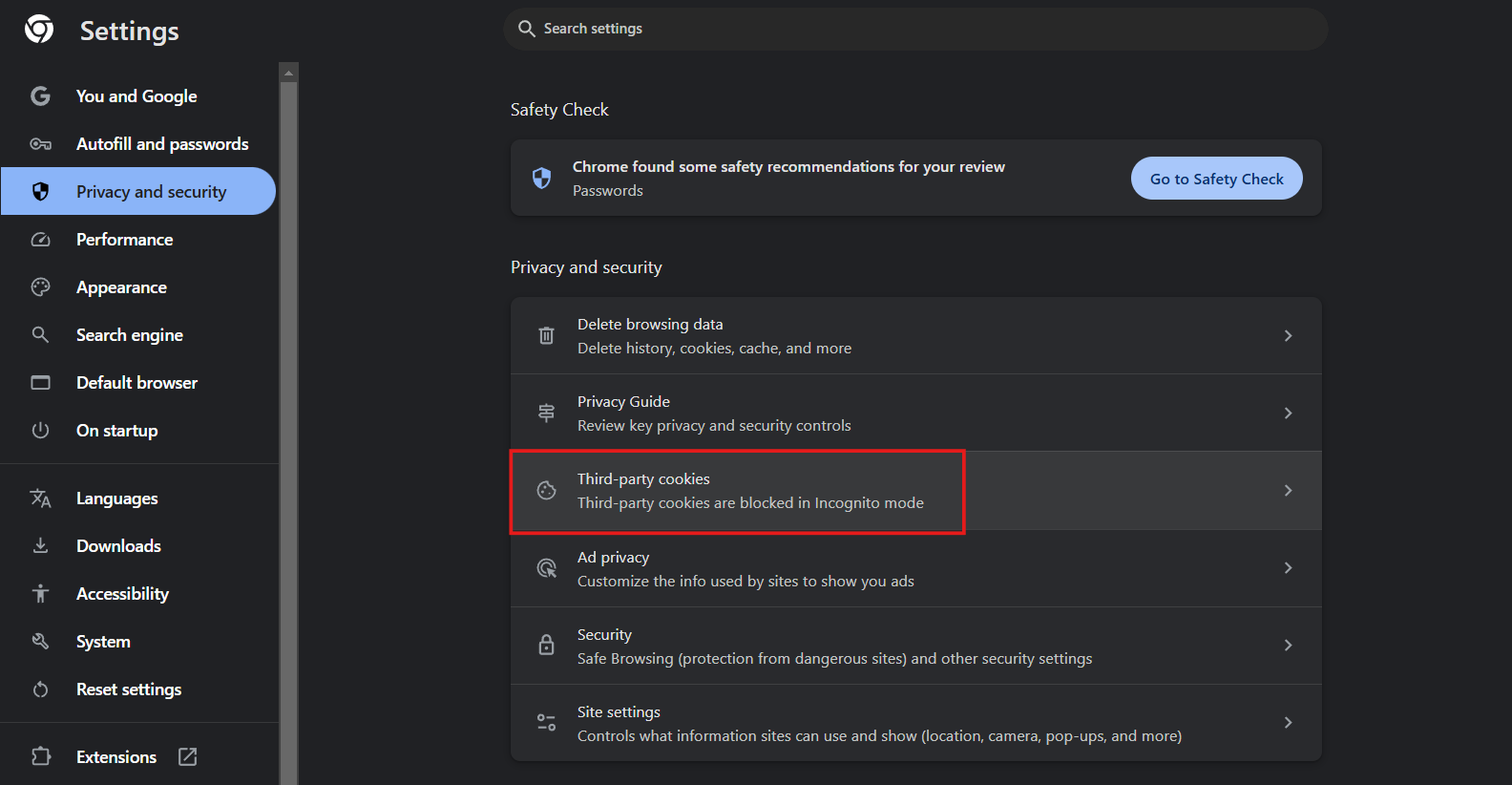
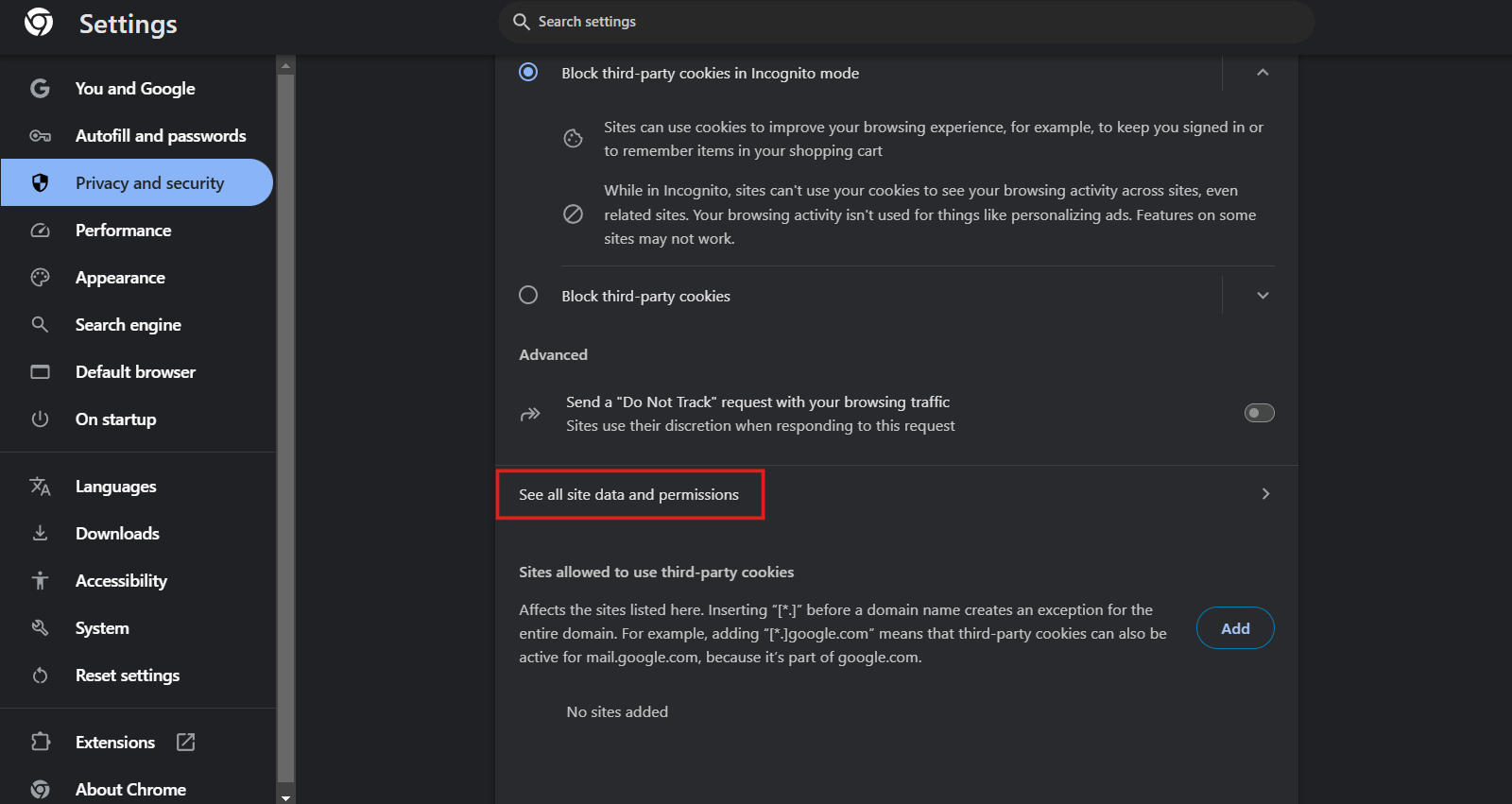
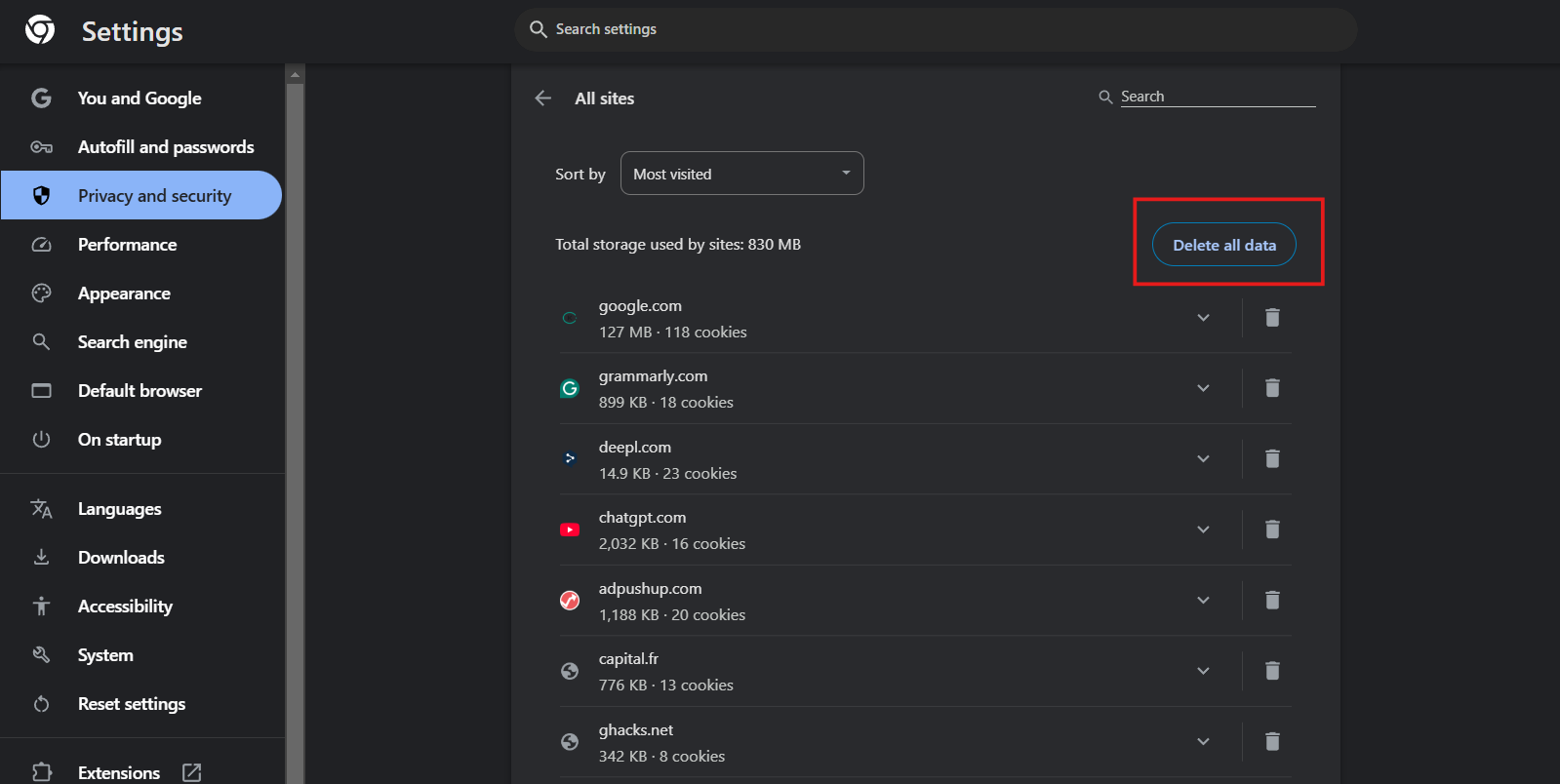
In this privacy and security section, you can also learn how to clear cache and cookies on Chrome.
Method 2: Using the Chrome Address Bar
- Open Google Chrome.
- In the address bar, go to: chrome://settings/clearBrowserData.
- Press Enter.
- You can also select "Cached images and files" to delete them here.
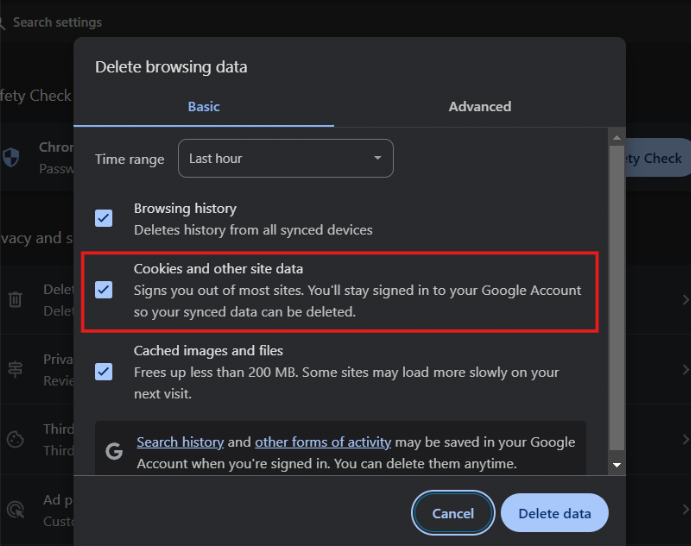
Would you like to block cookies permanently? Download one of the best Cookie Blockers!
How to Clear Cookies on Google Chrome for a Specific Website
If you were wondering how to clear my cookies on Google Chrome from a single website, Google Chrome offers options to manage browsing data selectively. Two methods for doing this efficiently are explained below.
Method 1: Using Chrome Site Settings
- Open Google Chrome.
- Click on the three vertical dots and select "Settings."
- Select the option "See all site data and permissions."
Method 2: Using Chrome Developer Tools (for Specific Cookies)
- Press the keyboard shortcut F12 on Windows.
- Press Cmd + Option + I on Mac.
- Go to "Application" in the tool panel.
How to Clear Cookies Google Chrome for Android
If you use Google Chrome on an Android device, you can also delete cookies to enhance privacy and resolve browsing issues on your phone.
How to clear cookies in Google Chrome on Android
- Open the Google Chrome application on Android.
- Tap the three vertical dots and go to "Settings."
- Scroll to the "Privacy and Security."
- Tap "Clear browsing data."
- Lastly, tap "Clear data."
Would you like to know how to block ads on Chrome Android? Find the latest tips and tricks!
How to Clear Cookies from Chrome on iPhone & iPad
Learn how to clear cookies from Google Chrome to improve browser performance or protect your privacy on iOS or macOS.
Steps to delete cookies in Chrome on iPhone and iPad
- Open the Google Chrome application on your iPhone or iPad.
- Tap the three horizontal dots icon at the bottom right of the screen.
- Tap "Privacy and security" and then "Clear browsing data".
- Choose a time range (for example, "Last hour," "Last 24 hours," or "All time").
- Tap "Clear browsing data" and confirm the action.
This process will erase cookies, log you out of most websites, and reset some saved settings.
How to Clear Browsing History on Google Chrome
You can easily delete your browsing history in Google Chrome by going to your browser settings.
Clear cache in Chrome! Learn how to clear cache and cookies on Google Chrome in easy steps.
Steps to delete your browsing history in Chrome (Windows, Mac, Android and iOS)
- Open Google Chrome on your computer.
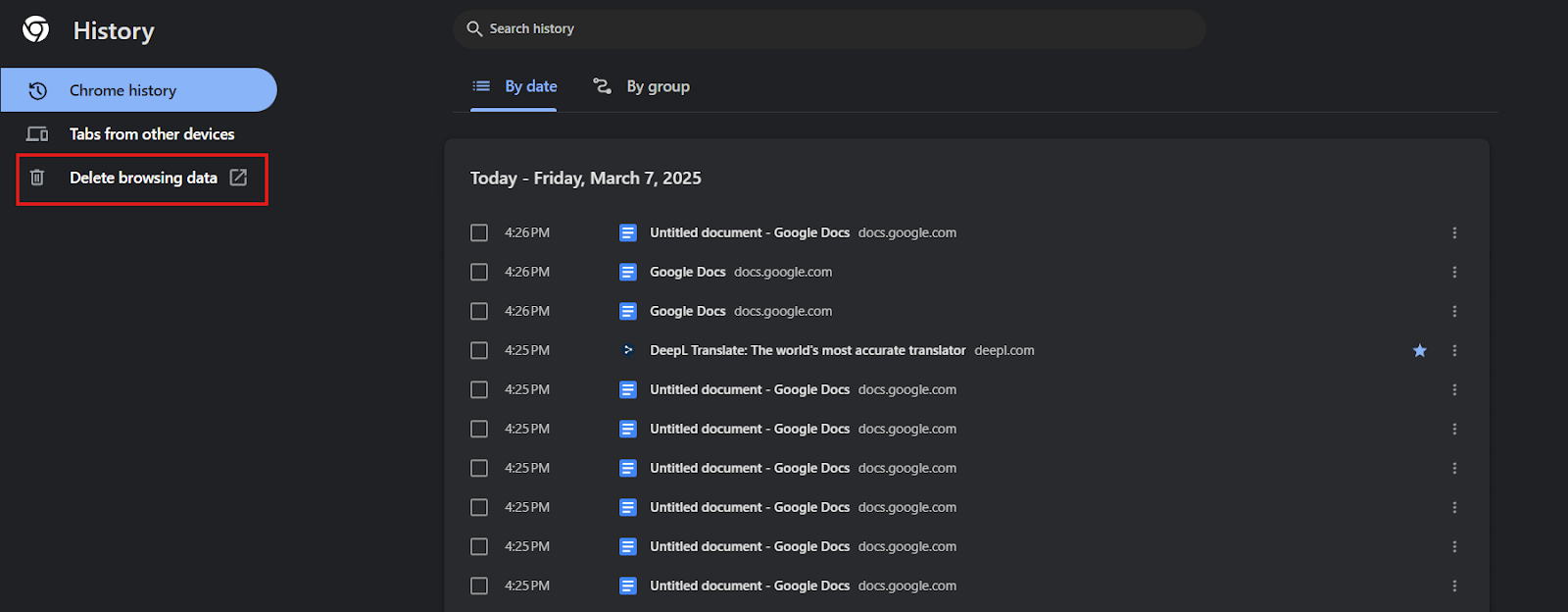
- Click on the three vertical (or horizontal) dots in the top right-hand corner.
- Select "History" and then "History" again.
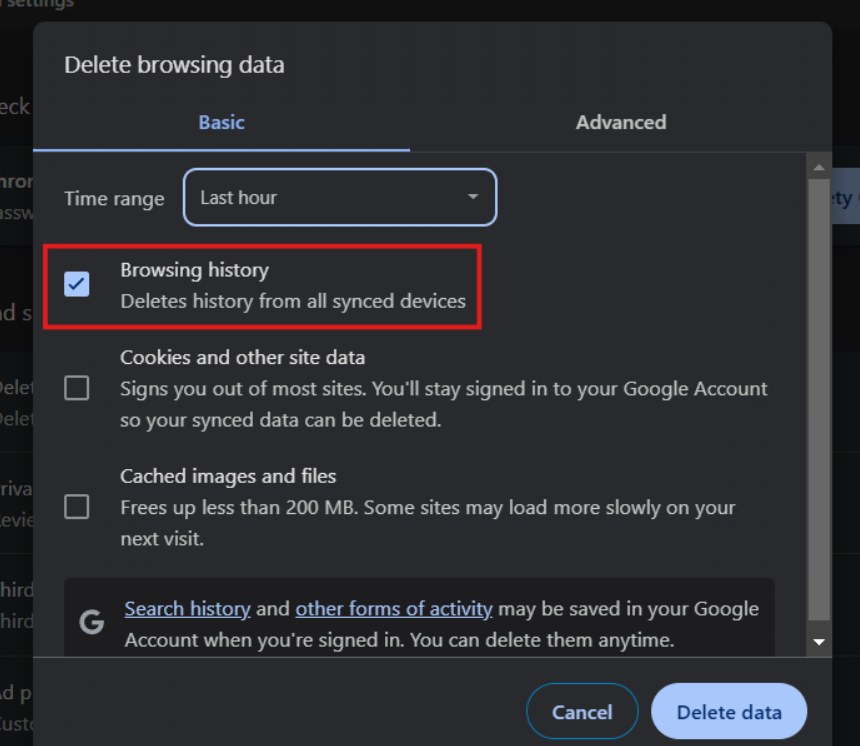
- In the "Basic" tab, check the "Browsing history" option.
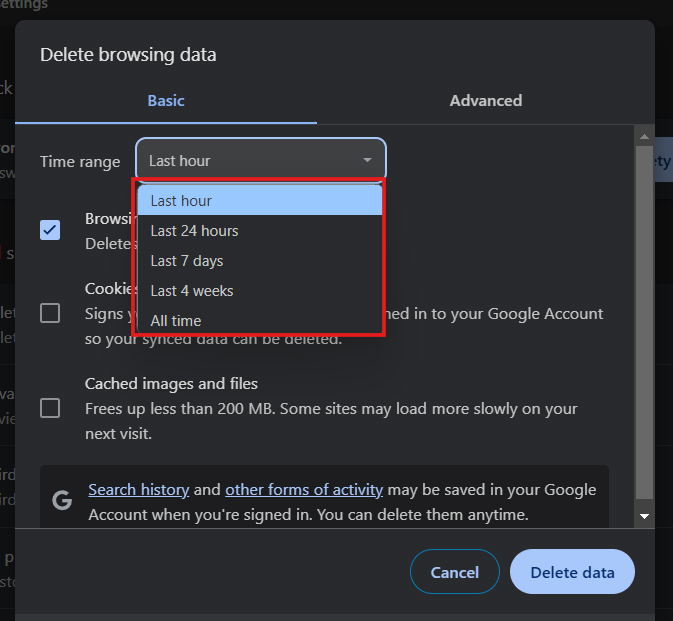
- Choose the time range you want to delete (for example, "Last hour," "Last 24 hours", "All time").
- Click "Delete data."
Discover the top Pop Up Blocker for Chrome with just a few clicks and browse ad-free.
Stands Adblocker: The Best Way to Protect Your Privacy on Chrome
Are you ready to improve your online experience? It is always a good idea to clear cookies and browser cache, but blocking all ads is also beneficial for enhancing your browsing experience. Stands Adblocker is an excellent alternative for improving your online experience in Chrome by blocking all advertisements while you browse.
Why You Should Choose Stands Adblocker
Stands Ad Blocker is a free browser extension and one of the most reliable ad blockers for Chrome. It provides effectiveness and functionality following the new Chrome Web Store Guidelines. Discover everything Stands has for you!
Key Advantages of Stands Adblocker
- 100% Free AdBlocker: Stands AdBlocker is a cost-free ad-blocking software that can be easily configured to suit your preferences without requiring a paid subscription.
- Remove ads effectively: Stands is a practical extension that blocks browsing ads, giving you an uninterrupted browsing experience on YouTube and other platforms, such as Twitch.
- Lightweight extension: Stands is a browser extension with minimal impact on the website's speed or performance. It is designed to use memory efficiently.
- Excellent compatibility: Stands integrates seamlessly with various browsers, including Google Chrome, Microsoft Edge, Mozilla Firefox, and Android, as well as the Stands Browser.
- Increase your productivity: Stands can make browsing more productive and distraction-free. Focus on what matters with an excellent Chrome Ad Blocker!
FAQs: How to Clear all Cookies on Chrome?
Where are cookies stored in Chrome?
Cookies in Chrome are stored in a local database file on your computer. On Windows, they're located at C:\Users[YourUsername]\AppData\Local\Google\Chrome\User Data\Default\Network\Cookies. On Mac, find them at /Users/[YourUsername]/Library/Application Support/Google/Chrome/Default/Cookies. On Linux, the path is ~/.config/google-chrome/Default/Cookies.
You can also view and manage cookies directly in Chrome without accessing these files. Go to Settings > Privacy and security > Cookies and other site data > See all site data and permissions to see which websites have stored cookies and delete them individually or in bulk.Retry
How often should you clear cookies on Chrome?
This will depend on your online activity and privacy needs. If you use Chrome regularly, it is recommended that you delete cookies every few weeks or once a month. You should also delete cookies when web pages load slowly or if you are concerned about privacy.
What is the shortcut for clearing cookies in Chrome?
The keyboard shortcut to clear cookies in Chrome is Ctrl+Shift+Delete (Windows/Linux) or Command+Shift+Delete (Mac). This opens the "Clear browsing data" window where you can select cookies and other site data, choose your time range, and click "Clear data" to remove them.
Should I accept cookies from websites?
It depends on the type of cookies you use and the level of privacy you want. Essential cookies are necessary for the website to function. Then, there are personalization cookies and third-party and tracking cookies. If you're concerned about privacy, you can reject or manage their use in Chrome's settings.
Where are cookies stored in Chrome?

