
 Home »
How to Clear System Data on iPhone
Ever opened your iPhone storage and seen System Data hogging 15, 20, even 30 GB — and thought, “What on earth is that?” You didn’t download it. You can’t tap into it. And yet it’s sitting there like an uninvited houseguest eating all your snacks.
If your storage is full and apps won’t update, this guide is for you.
Here, you’ll learn exactly how to clear system data on iPhone, whether you’re using iOS 18, iOS 17, iOS 16, or even iOS 15 and earlier. We’ll walk through methods to reduce system data without a reset — and when a factory reset is actually the fastest fix.
In one sentence: System Data is a bundle of caches, logs, temporary files, update leftovers, and background resources iOS stores to keep your iPhone running smoothly.
The good news? You can reclaim gigabytes today. Let’s dig in.
What is System Data on iPhone Storage?
System Data (called “Other” before iOS 15) is Apple’s umbrella term for everything that doesn’t neatly fit into Apps, Photos, Messages, or Media.
It includes:
- App caches
- System caches
- Safari history and website data
- Siri voice files
- Fonts and language packs
- Crash logs
- Streaming buffers
- OTA iOS update files
- Temporary files
- Background tracking scripts and cached ads
Before iOS 15, this mysterious category was labeled Other. Starting with iOS 15 and later, Apple renamed it to System Data inside iPhone storage settings. The name changed — the mystery didn’t.
Here’s what’s normal:
- 5–15 GB of system data → healthy range
- 20+ GB of system data → something’s bloated
When System Data takes up much of the storage, it usually means cached data and temporary data weren’t properly cleared over time.
The tricky part? You can’t directly delete system data on an iPhone with a single button. iOS manages it automatically — which means if it grows out of control, you need to manually reduce system storage using targeted cleanup methods.
Before we fix it, let’s measure it.
How to Check How Much System Data Your iPhone Has
Here’s how to check your iPhone system data:
- Open the Settings app
- Tap General
- Tap iPhone Storage
- Wait 10–15 seconds for the graph to stabilize
- Scroll to the bottom
- Tap System Data
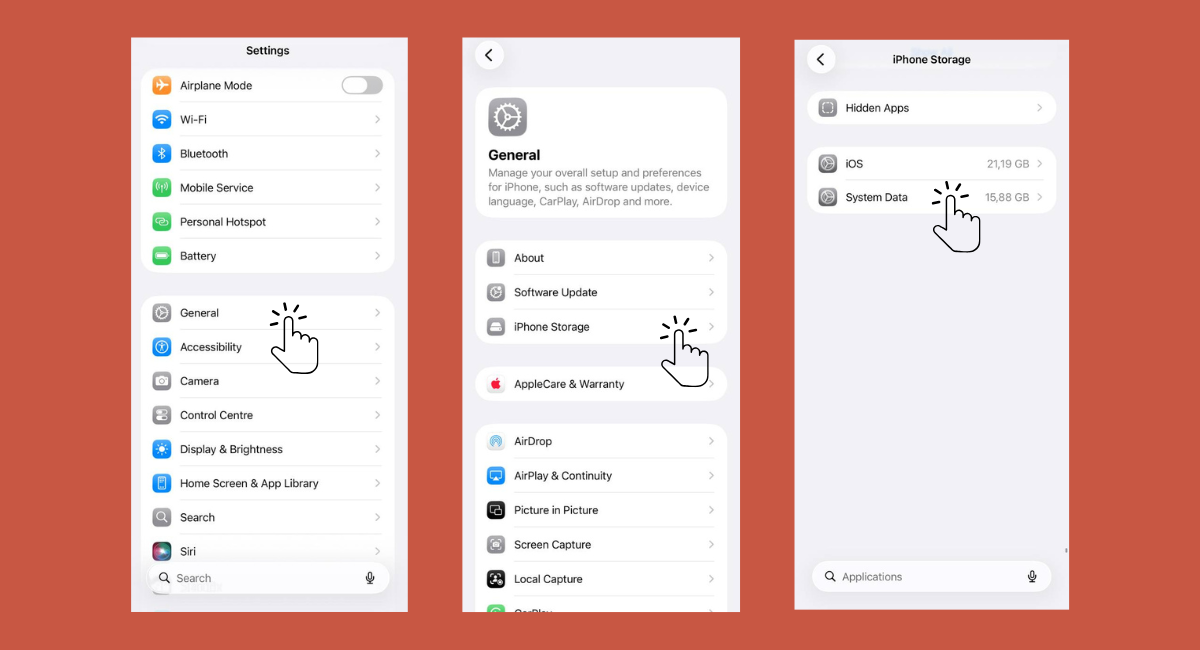
How to check how much system data your iPhone has
Important: don’t rush it. The storage graph recalculates in real time, and it may drop slightly after analysis finishes.
You can also connect your iPhone to your Mac and check storage via Finder (or iTunes on Windows), but the built-in storage settings usually show everything you need.
Now let’s get to the part you actually care about — how to clear system storage on iPhone.
How to Clear System Data on iPhone Without Resetting
There are several effective ways to reduce system data safely, and you can do it step by step.
These methods target temporary files, caches, message attachments, Safari data, and app storage that accumulate over time. You don’t need to delete your photos, contacts, or important files.
Start with the simplest fixes, like restarting your iPhone or clearing Safari's cache, and then move on to slightly more involved methods, such as deleting old message attachments or offloading apps.
Finally, tackle streaming caches or rarely used app data. By stacking these smaller wins, you can gradually reduce system storage without losing any personal content. Escalate only if necessary, and you’ll regain gigabytes safely.
Restart Your iPhone to Clear Temporary Caches
It sounds almost too simple, but restarting your device clears temporary files, partial downloads, crash logs, and short-term system caches.
Expected savings: 500 MB to 2 GB
How to do it:
- Slide to power off
- Wait 30 seconds
- Turn it back on
That’s it.
When your iPhone runs for weeks without a restart, temporary data accumulates. A reboot flushes that clutter and reduces system data immediately.
Think of it like clearing your browser tabs — instant relief.
Clear Safari Cache and Website Data
Safari is one of the biggest contributors to system storage bloat.
Every website you visit stores:
- Cached images
- Ad scripts
- Tracking pixels
- Stored login data
- Website databases
All of this gets categorized under System Data.
Here’s how to clear system data cache on iPhone through Safari:
- Go to Settings
- Tap Apps
- Tap Safari
- Tap Clear History and Website Data
Also, close excessive Safari tabs. Hundreds of open tabs quietly eat storage.
Expected savings: 500 MB to 3 GB
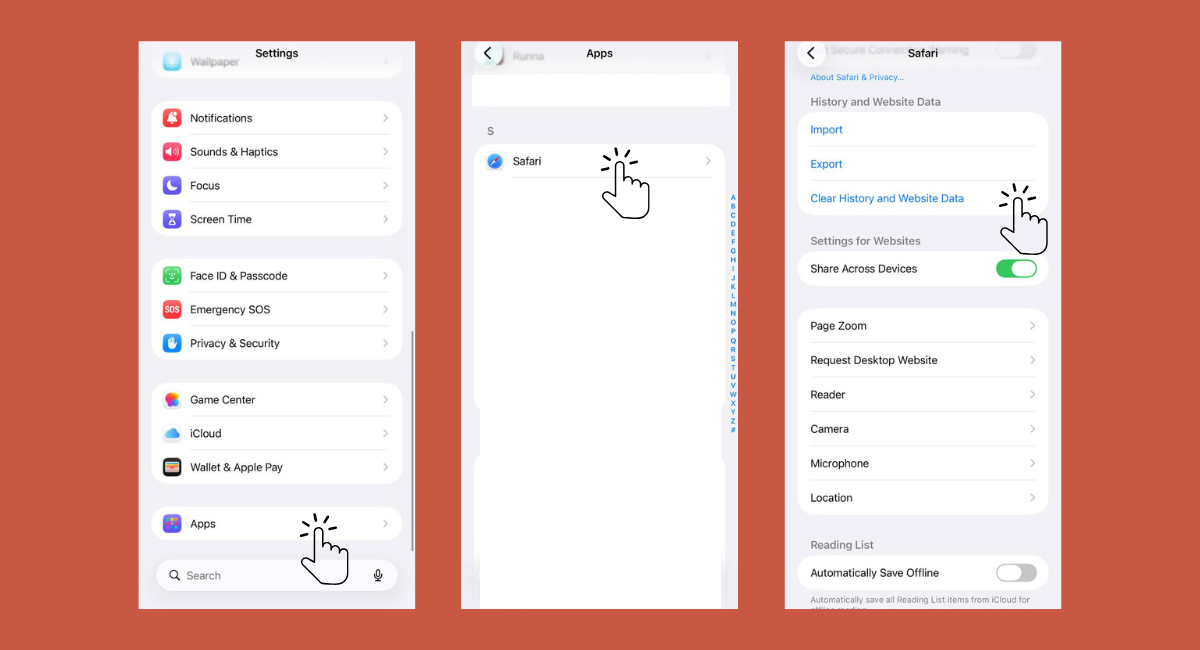
Clear Safari Cache and Website Data
Now here’s something most guides don’t mention: ads and trackers inflate cached data dramatically. Many modern websites load dozens of scripts in the background — analytics tools, tracking pixels, pop-up frameworks, video ads. That data gets cached and classified under system storage.
If you browse heavily, this adds up fast.
Reducing trackers reduces stored data.
On a desktop, using an ad blocker for Chrome and a pop-up blocker for Chrome limits background scripts that generate cache files in the first place. You can also block cookie notices, reducing persistent stored data.
The fewer tracking scripts your devices load, the less junk your system has to manage.
Delete Message Attachments and Old Conversations
If you send memes, GIFs, photos, or videos, your Messages app is quietly hoarding storage.
Every attachment is stored locally — often counted under system storage.
To reduce system data iPhone-wide:
- Go to Settings → General → iPhone Storage
- Tap Messages
- Review Top Conversations
- Delete large photos and videos
You’ll likely see message history taking several gigabytes.
To prevent future buildup:
- Go to Settings → Messages
- Tap Keep Messages
- Choose 30 Days or 1 Year
This automatically deletes old conversations.
If your iPhone storage is full and you’re active in group chats, cleaning message attachments can free 2–5 GB instantly.
Clear App Caches and Offload Unused Apps
Some apps are serial hoarders.
To check:
- Go to Settings → General → iPhone Storage
- Tap an app
- Look at “Documents & Data”
If that number is massive, that’s cached data.
To clear iPhone system data related to apps:
Option 1: Delete and reinstall the app
This completely clears app caches.
Option 2: Offload the app
Settings → General → iPhone Storage → Tap app → Offload App
This removes the app binary but keeps personal data.
Enable automatic offloading in Settings → App Store.
Social apps (Instagram, TikTok, Facebook) can accumulate gigabytes of app data due to autoplay videos and background loading.
Deleting and reinstalling them often frees 1–3 GB per app.
Remove Streaming Caches (Spotify, Netflix, YouTube)
Streaming apps cache content for smoother playback.
And guess what? iOS often categorizes those cached streams under System Data instead of Media.
Heavy streamers can see 1–5 GB trapped here.
To fix:
- Delete Spotify
- Delete Netflix
- Delete YouTube
- Reinstall them
Also, remove downloaded episodes and offline playlists.
If system data taking up 20 GB seems random, streaming buffers are often the hidden reason.
Delete Old iCloud Backups and Local Data
Backups of old devices quietly eat space.
Here’s how to clean up:
- Go to Settings
- Tap your name
- Tap iCloud
- Tap Manage Account Storage
- Tap Backups
Delete backups from devices you no longer use.
For your current device, disable backups for apps that don’t need cloud storage.
While this doesn’t always dramatically reduce system data, it improves overall storage capacity and reduces unnecessary stored data.
If you’ve tried everything and system data won’t budge, it’s time for the heavy artillery.
How to Delete System Data on iPhone by Factory Reset
When all the smaller fixes fail, and system data is still eating 20+ GB, it’s time for the heavy hitter: a factory reset. This is the most reliable way to shrink System Data down to a clean 2–5 GB range.
Yes, it sounds extreme. And yes, it feels like pressing the big red button. But when system storage is bloated with stubborn caches, corrupted logs, leftover update files, and hidden temporary data, a full reset clears the slate in a way nothing else can.
The process is really simple:
Backup → Erase → Restore
You back up your data safely, wipe the device completely, then restore everything back, minus the junk that was inflating system storage. It’s not the first step you try, but when you need serious results, this method works like magic.
Back Up Your iPhone Before Resetting
Before you factory reset your device, back it up. You have two solid options.
Option A: iCloud Backup
- Open Settings
- Tap your name
- Tap iCloud
- Tap iCloud Backup
- Tap Back Up Now
Make sure you’re connected to Wi-Fi and give it time to finish. This is the easiest method and works well for most users.
Option B (Recommended): Backup to Mac or PC
- Connect your iPhone to your Mac
- Open Finder (or iTunes on Windows)
- Select your device
- Click Back Up Now
- Enable “Encrypt local backup.”
Encrypted backups preserve passwords, Health data, Wi-Fi settings, app logins, and more. If you want to restore your iPhone safely and completely, a local encrypted backup is the gold standard.
Erase All Content and Restore
If you’ve decided to go all in, here’s how to factory reset your device properly.
To factory reset your device:
- Go to Settings
- Tap General
- Tap Transfer or Reset iPhone
- Tap Erase All Content and Settings
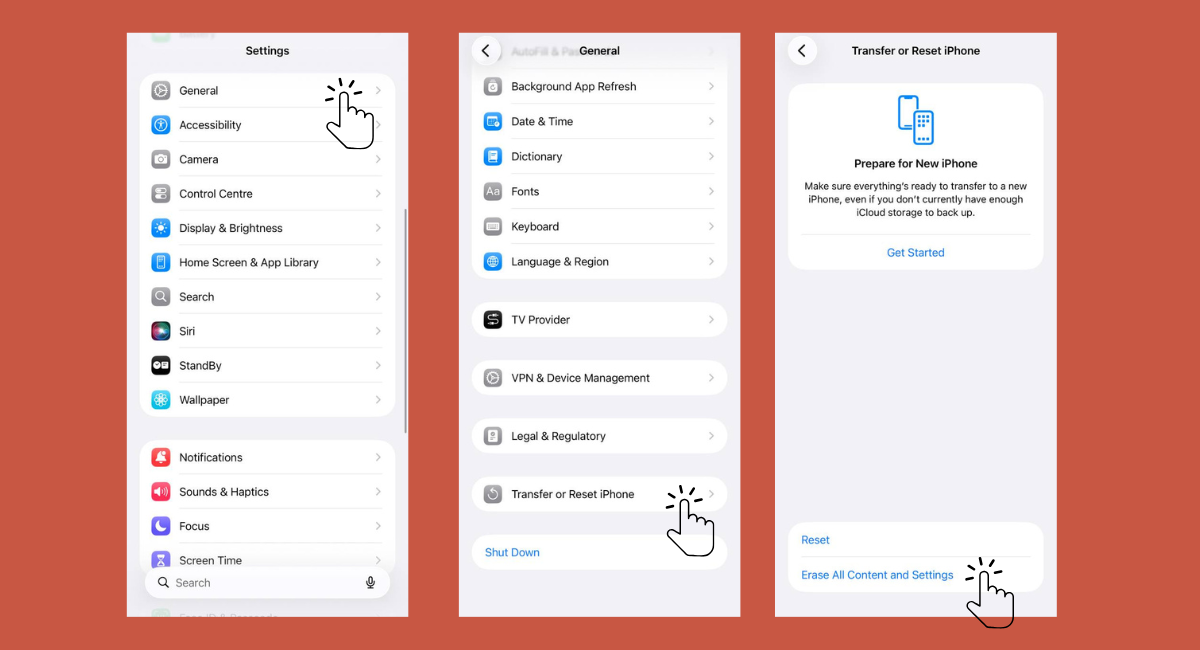
Erase All Content and Settings on iPhone
After reboot:
- Restore from iCloud backup
- Or restore from Finder/iTunes backup
Keep in mind, you’ll need to re-authenticate Face ID, banking apps, and any two-factor authentication apps.
The reward? System Data often drops from 20–25 GB to under 5 GB. If you truly want to delete system data on iPhone, this is the cleanest slate possible.
Which Method Reclaims the Most Space?
So, which fix actually moves the needle?
If your goal is to free up 15–20 GB (or more), a factory reset is hands down the most powerful solution. It wipes accumulated system caches, temporary files, broken update fragments, and leftover app data in one sweep. For severely bloated system storage, nothing beats a clean slate.
That said, most people don’t need to go crazy.
| Method | Expected Space Freed | Data Loss Risk |
| Restart iPhone | 0.5–2 GB | None |
| Clear Safari cache | 0.5–3 GB | Browsing history removed |
| Delete Messages attachments | 1–5 GB | Selected media deleted |
| Delete & reinstall apps | 1–3 GB per app | App login required |
| Remove streaming caches | 1–5 GB | Downloads removed |
| Factory reset | 10–25+ GB | Full restore required |
In many cases, combining three targeted fixes — clearing Safari history and website data, deleting large message attachments, and reinstalling cache-heavy apps — can reclaim several gigabytes without erasing your device. Add a restart and streaming app cleanup, and you might be surprised how much space comes back.
How to Prevent System Data From Growing Back
Cleaning your iPhone is one thing. Keeping it clean? That’s the real game.
If you don’t change a few habits, system data will slowly creep back up and start hogging storage space again. Here’s a simple preventive checklist to keep system storage under control:
- Restart your iPhone weekly to flush temporary caches
- Clear Safari history and website data once a month
- Limit message history to 1 year (or 30 days if you’re bold)
- Delete or offload unused apps every few months
- Avoid hoarding offline streaming downloads
- Keep iOS updated to remove outdated system files
- Check storage settings monthly before things get out of hand
Also, remember: ads and tracking scripts quietly generate cached data. Every autoplay video, pop-up framework, and tracking pixel creates temporary files. Learn the types of browser pop-ups that clutter your experience, and take steps to stop virus pop-ups on iPhone before they inject junk files.
Fewer trackers mean less cached data — and a smoother iPhone long term.

Conclusion
Alright, let’s wrap this up like a playlist you actually finished listening to. System Data on your iPhone doesn’t have to be some untouchable black box hiding gigabytes of mystery files. Sure, it’s necessary for iOS to run like a well‑oiled machine, but when it balloons to 20, 30, or even 40 GB, something’s gone sideways. And you don’t have to live with that.
The whole point of this guide was to give you a roadmap — from the quick wins to the deep clean. You’ve learned how a simple restart can flush out temporary junk, why clearing Safari history and message attachments matters, and how reinstalling apps can slice through stubborn caches. You even tackled streaming buffers and old backups that secretly hoard space like a squirrel with winter nuts.
If those everyday tricks still aren’t moving the needle, the factory reset route is your heavy hammer. It might feel dramatic, but when system storage goes rogue, a fresh start often drops System Data back into sane territory — like losing 20 GB in one smooth move. You back up, erase, restore, and suddenly your phone breathes easier.
But here’s the part most people overlook: prevention matters just as much as cleanup. You wouldn’t let your closet explode before organizing it, right? The same goes for storage. Restarting weekly, clearing browser data periodically, limiting how long messages stick around, and trimming downloads before they snowball keep system data from creeping up again. And remember — ads and trackers are like that guest who never leaves; they quietly pile up cached data in the background. Reducing trackers and pop‑ups means your iPhone doesn’t hoard needless files in the first place.
In the end, managing System Data is about smart habits and the right tools. You don’t have to reset your phone every month — just keep an eye on what’s lurking under the hood and stay one step ahead of the bloat.
If your storage on your iPhone is constantly full, now you know exactly how to clear system data on iPhone — with and without resetting.
FAQ
Can You Fully Delete System Data on iPhone?
No, you can’t completely delete system data on an iPhone because iOS needs a core amount of system files to operate properly. Things like system caches, logs, and essential temporary data are part of how your iPhone functions. However, you can significantly reduce system data — often down to 2–5 GB — by clearing caches, removing stored data, or performing a factory reset and restoring your iPhone.
Why Is My iPhone System Data So High?
High system data usually means cached data has piled up over time. Safari history and website data, streaming app buffers, social media app caches, temporary files, old message attachments, and even incomplete iOS update files can all contribute. When your iPhone doesn’t automatically clear these items, system storage grows quietly in the background until you notice it eating up valuable space.
Can I Clear System Data on iPhone Without Losing My Data?
Yes, you can reduce system data on iPhone without deleting your personal photos, contacts, or apps. Restarting your device, clearing Safari cache, deleting large message attachments, removing streaming downloads, and offloading unused apps all help lower system storage safely. These methods target temporary and cached data rather than essential files, so your core information stays intact.
Does Updating iOS Reduce System Data?
Sometimes. Major iOS updates can clean up outdated system caches, remove temporary installation files, and optimize storage structures, which may reduce system data slightly. However, smaller updates usually don’t make a noticeable difference. In some cases, update files themselves temporarily increase system storage until the installation process fully completes and residual files are cleared.
Do Ads and Trackers Increase System Data on iPhone?
Yes, they can. Ads load background scripts, tracking pixels, and web resources that get cached on your device. Over time, this cached data accumulates and becomes part of system storage. Heavy browsing on ad-filled websites can quietly inflate system data. Reducing trackers and clearing Safari history regularly helps prevent unnecessary buildup of temporary files.

